To change the MTU in Windows 10, open Command Prompt as an administrator and run netsh interface ipv4 set subinterface "Wi-Fi" mtu=1480 store=persistent, using your adapter’s name and the size you want. Most home networks work best with the default of 1500, so only change it if you have a reason to.
Applies to: Windows 10. Checked against Microsoft Learn on September 27, 2026.
What MTU is
MTU (maximum transmission unit) is the largest packet your PC sends over a network, in bytes. If it’s larger than your connection allows, packets get split up or dropped. That can make some websites or apps load slowly or not at all. A VPN or some internet connections need a smaller MTU than 1500.
Check your current MTU
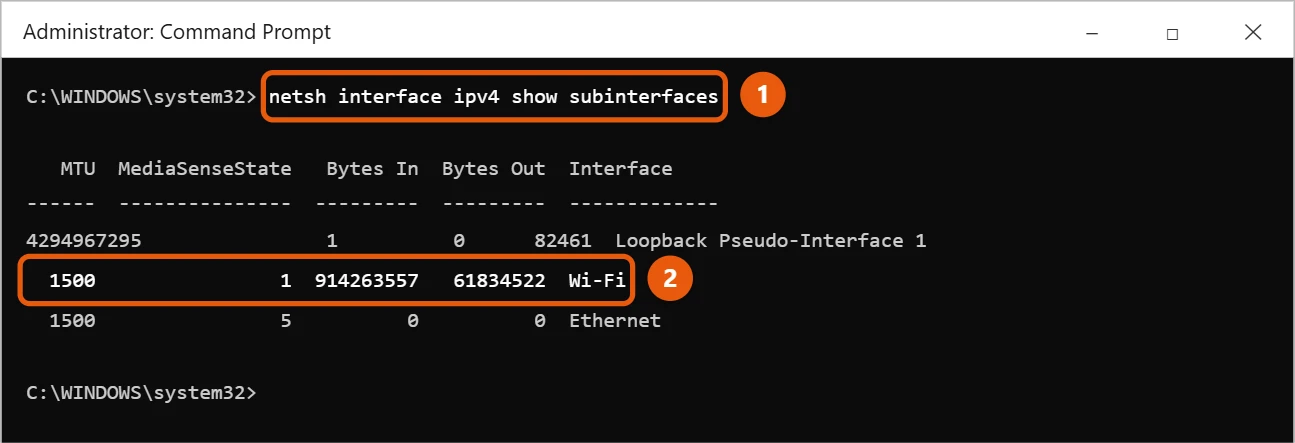
- Open Command Prompt as an administrator. See how to open Command Prompt in Windows 10.
- Run:
netsh interface ipv4 show subinterfaces
- Look at the MTU column next to your adapter, such as Wi-Fi or Ethernet.
Find the right size with ping
- In Command Prompt, run this, using a website you normally use:
ping www.example.com -f -l 1472
- If you see Packet needs to be fragmented but DF set, lower the number (try 1452, then 1432) and run it again.
- When you get normal replies, add 28 to that number. That’s your best MTU. For example, if 1452 works, your MTU is 1452 + 28 = 1480.

Change the MTU
- In the admin Command Prompt, run this, using your adapter’s name and the MTU you found:
netsh interface ipv4 set subinterface "Wi-Fi" mtu=1480 store=persistent
- You should see Ok.
- Run
netsh interface ipv4 show subinterfacesagain to check it.
The change works right away and stays after you restart. To go back to normal, run the same command with mtu=1500.
Change it with PowerShell
Open PowerShell as an administrator and run:
Set-NetIPInterface -InterfaceAlias "Wi-Fi" -NlMtuBytes 1480
To see the current values, run Get-NetIPInterface.
Frequently asked questions
Will a smaller MTU make my internet faster?
Not usually. It only helps if the current MTU is too big for your connection. For other tips, see how to increase internet speed in Windows 10.
How do I test my connection after changing it?
Check your ping to see if it improved. See how to check ping in Windows 10.
Some websites still won’t load. What else can I try?
See how to fix Wi-Fi and network problems in Windows 10.
Microsoft’s references are ping and Set-NetIPInterface. More help is on our Windows Help & Guides page.

Matt Jacobs has been working as an IT consultant for small businesses since receiving his Master’s degree in 2003. While he still does some consulting work, his primary focus now is on creating technology support content for SupportYourTech.com.
His work can be found on many websites and focuses on topics such as Microsoft Office, Apple devices, Android devices, Photoshop, and more.