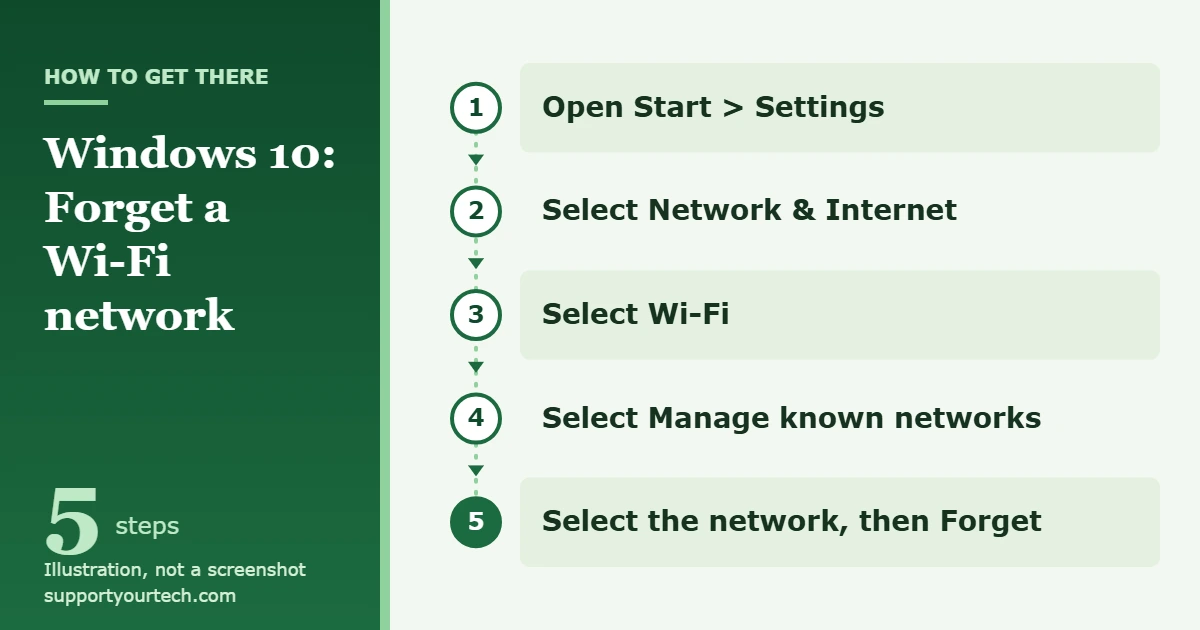
To forget a Wi-Fi network on Windows 10, open Settings, go to Network & Internet > Wi-Fi > Manage known networks, select the network, and choose Forget. Windows deletes the saved profile for that network, so it will not join it again until you reconnect and enter the password.
Applies to: Windows 10. Checked against Microsoft Support on October 7, 2026.
What forgetting a network does
Each time you join a Wi-Fi network, Windows 10 saves a profile for it. The profile holds the network name and the details Windows needs to sign in again without asking you. Forgetting a network deletes that profile from your PC.
A few things do not change when you forget a network:
- The router keeps its password and settings. Nothing is changed on the network itself.
- Other phones, tablets, and computers stay connected. Only the PC you are using is affected.
- The network can still show up in the list of nearby Wi-Fi networks whenever you are in range. Windows simply treats it as a network it has never joined.
Forgetting is most useful in three situations: the Wi-Fi password was changed and Windows keeps trying the old one, a connection that used to work now fails, or you no longer want the PC to join a hotel, cafe, or neighbor network on its own.
Before you start
Make sure you know the current Wi-Fi password if you plan to rejoin the network, because Windows will ask for it. If you are not sure what it is and the PC is still connected, find your network password on Windows 10 first and write it down. After the network is forgotten, the saved copy is gone from this PC.
You do not need to be connected to the network, or even near it, to forget it from Settings.
Forget a Wi-Fi network in Windows 10 Settings
- Select Start, then select Settings. The Settings window opens.
- Select Network & Internet. The network settings open.
- Select Wi-Fi. The Wi-Fi page shows your wireless options.
- Select Manage known networks. Windows lists every Wi-Fi network that has a saved profile on this PC.
- Select the network you want to remove. A Forget button appears for that network.
- Select Forget. The network disappears from the list right away. If you were connected to it, the PC disconnects.
Repeat steps 5 and 6 for each network you want to clear out. Microsoft gives the same path in its Wi-Fi troubleshooting guide for Windows, where forgetting and rejoining the network is one of the first repair steps.
Forget a network with Command Prompt
The netsh wlan command does the same job from a command line. It helps when the Settings app will not open, when you want to see the exact profile names, or when you have many old networks to remove.
- Select Search on the taskbar and type command prompt.
- Next to the Command Prompt result, select Run as administrator, then select Yes. A Command Prompt window opens.
- Type netsh wlan show profiles and press Enter. Windows lists the wireless profiles saved on the PC.
- Type netsh wlan delete profile name=”NetworkName”, replacing NetworkName with the profile name exactly as it appeared in the list, and press Enter. The profile is removed.
The name value accepts wildcard characters, and every profile that matches is deleted. That means netsh wlan delete profile name=* removes all saved Wi-Fi profiles in one step. Use it only if you are ready to type the password again for every network you use, including home and work.
Microsoft lists these commands in its netsh wlan reference, which covers Windows 10.
Confirm it worked and reconnect
Go back to Settings > Network & Internet > Wi-Fi > Manage known networks. If the network is no longer in the list, the profile is gone. From Command Prompt, run netsh wlan show profiles again and check that the name is missing.
There is no undo button, but nothing is lost permanently. To bring the network back, pick it from the list of available Wi-Fi networks and enter its password. Windows saves a fresh profile, which is exactly what you want when the old one held an outdated password.
Troubleshooting
The network is not in Manage known networks
The list only contains Wi-Fi networks with a saved profile on this PC. A network you have seen but never joined has nothing to forget. Wired Ethernet connections are not listed there either, because they do not use a saved Wi-Fi profile.
The network comes back after you forget it
On a work or school computer, the organization can set up Wi-Fi profiles for you, and a removed profile may be put back automatically. That is intended. Ask your IT administrator if the profile needs to be changed or removed.
On a home PC, a network returns when someone joins it again. Windows saves a new profile each time you connect and enter the password.
Windows still will not connect after you rejoin
Work through these checks in order:
- Type the password again slowly. Wi-Fi passwords are case sensitive.
- Open Settings > Network & Internet > Airplane mode and make sure Airplane mode is turned off.
- Restart your modem and router. Unplug both, wait at least 30 seconds, plug the modem back in first, and then plug in the router.
- Check another device on the same Wi-Fi. If nothing can get online, the problem is with the router or your internet service, not with Windows.
- If your router shows separate 2.4 GHz and 5 GHz networks, try the other one. Many home routers broadcast both. Our guide to connecting to 5GHz Wi-Fi on Windows 10 explains how to tell them apart.
Nothing else fixes the connection
Windows 10 has a network reset for stubborn problems. Select Start > Settings > Network & Internet > Status > Network reset, then select Reset now > Yes. Microsoft says this removes your network adapters and their settings, then reinstalls the adapters with default settings after the PC restarts. Treat it as a last step, since it affects every network connection on the PC rather than one Wi-Fi profile, and you will need to set your connections up again afterward.
Frequently asked questions
Does forgetting a network delete the saved password?
Yes, on that PC. The password is part of the saved profile, so it goes when the profile is removed. The router’s password is unchanged, and other devices keep their own saved copies.
Will the network disappear from the Wi-Fi list?
No. A forgotten network still appears whenever it is in range. Windows just stops joining it by itself and asks for the password if you choose it.
Can I forget a network I am not near?
Yes. Manage known networks and netsh wlan show profiles both list saved networks whether or not they are in range, so you can remove old hotel, airport, or office networks from home.
Does forgetting a network on my PC remove it from my phone?
No. Each device keeps its own list of saved networks. Forget the network separately on every device that should stop using it.
Are the steps the same on Windows 11?
The path is nearly the same. Windows 11 uses Settings > Network & internet > Wi-Fi > Manage known networks, followed by Forget for the network you choose.
Is it safe to forget my home network?
Yes, as long as you know the password. You can rejoin in under a minute, and doing so is a standard fix when a connection stops working after a password change.
Once the old profile is gone, reconnect with the current password and check that web pages load. If the connection still fails on every device, restart the modem and router before changing anything else on the PC.
Related: how to see the Wi-Fi password on Windows 10.

Matt Jacobs has been working as an IT consultant for small businesses since receiving his Master’s degree in 2003. While he still does some consulting work, his primary focus now is on creating technology support content for SupportYourTech.com.
His work can be found on many websites and focuses on topics such as Microsoft Office, Apple devices, Android devices, Photoshop, and more.