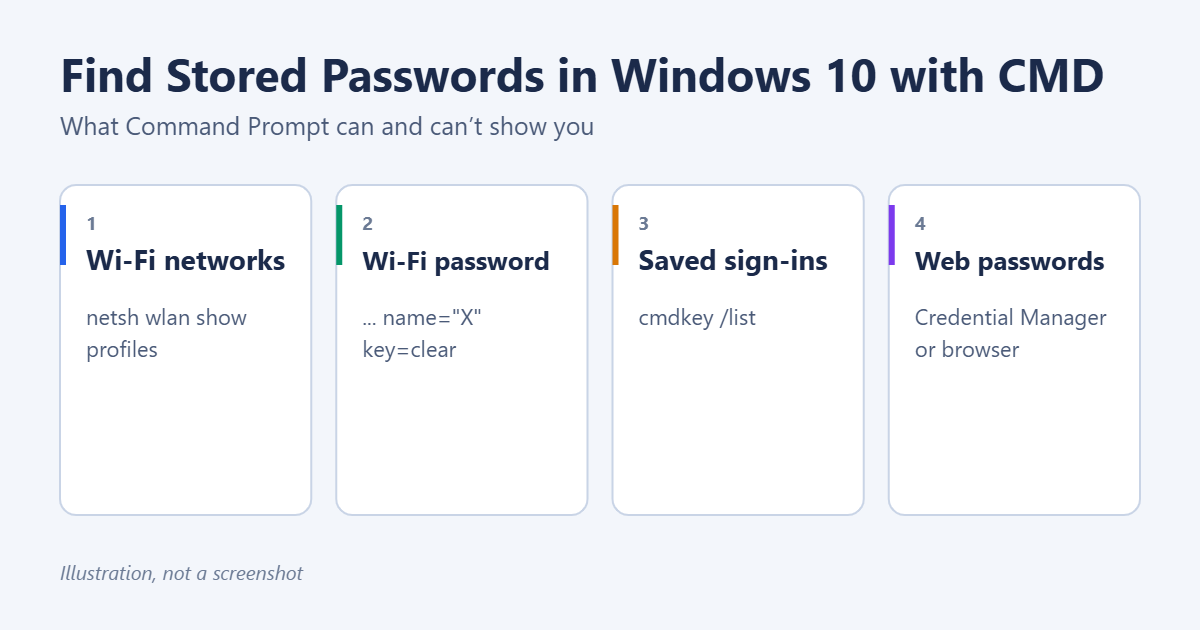
In Windows 10, Command Prompt can show the password of any Wi-Fi network your PC has connected to. Type netsh wlan show profiles to list the networks, then netsh wlan show profile name="NetworkName" key=clear. The password appears next to Key Content. CMD can also list other saved sign-ins with cmdkey /list, but it won’t reveal those passwords. For website passwords, use Credential Manager or your browser’s password manager instead. Here’s each method, and what to do when a command doesn’t show what you expect.
Use these steps only on your own computer or with the owner’s permission. Saved passwords give access to networks and accounts.
What Windows 10 stores, and where
| Type of password | Where it’s stored | Can CMD show it? |
|---|---|---|
| Wi-Fi network keys | Wireless network profiles | Yes, with netsh |
| Network shares, Remote Desktop and mapped drives | Credential Manager (Windows Credentials) | Lists them only |
| Websites saved by Edge or Internet Explorer | Credential Manager (Web Credentials) or the browser | No |
| Chrome and Firefox passwords | The browser’s own password manager | No |
| Your Windows sign-in password | Not stored in readable form | No |
Method 1: Show a Wi-Fi password with netsh
- Click Start, type cmd, right-click Command Prompt and choose Run as administrator.
- Type
netsh wlan show profilesand press Enter. Every Wi-Fi network your PC remembers is listed under User profiles. - Type
netsh wlan show profile name="NetworkName" key=clear, replacing NetworkName with the exact name from the list. Keep the quotation marks if the name contains spaces. - Press Enter and scroll to Security settings. The password is shown next to Key Content.
If there’s no Key Content line, the network uses an enterprise login (common at work or school) or doesn’t have a password. You’ll need to ask the network’s administrator.
Copy the result to a text file
To save the details for one network, add a redirect: netsh wlan show profile name="NetworkName" key=clear > wifi.txt. The file is saved in the folder shown in the prompt. Delete it once you’ve copied the password somewhere safe.
The PowerShell alternative
In Windows PowerShell or Terminal, the same commands work. Type netsh wlan show profile name="NetworkName" key=clear | Select-String "Key Content" to show just the password line.
If you’d rather use Windows’ own menus, see how to see a Wi-Fi password on Windows 10.
Method 2: List saved credentials with cmdkey
- Open Command Prompt (it doesn’t need to run as administrator).
- Type
cmdkey /listand press Enter.
You’ll see each saved credential’s Target, such as a server, shared folder or Remote Desktop host, along with its type and user name. cmdkey never displays the passwords themselves. It’s still useful for finding out which accounts Windows will sign in to automatically, and for removing stale ones with cmdkey /delete:TargetName.
Method 3: Open Credential Manager from CMD
To view saved website passwords, use Credential Manager:
- Type
control /name Microsoft.CredentialManagerin Command Prompt and press Enter. You can also search for Credential Manager in the Start menu. - Click Web Credentials.
- Expand an entry and click Show next to the password.
- Enter your Windows password or PIN to confirm.
Under Windows Credentials, you can see and edit saved entries, but Windows doesn’t let you reveal those passwords. The older dialog for stored user names and passwords can also be opened with rundll32.exe keymgr.dll,KRShowKeyMgr.
For a full walkthrough of every place Windows keeps passwords, see how to find saved passwords on Windows 10.
Method 4: Browser passwords
Chrome, Edge and Firefox keep website passwords in their own managers, which CMD can’t read:
- Edge: Settings > Profiles > Passwords
- Chrome: Settings > Autofill and passwords > Google Password Manager
- Firefox: Settings > Privacy & Security > Saved Passwords
Each asks for your Windows password or PIN before showing a saved password.
Keep your saved passwords safe
Anyone who can sign in to your Windows account and open an administrator Command Prompt can read your Wi-Fi keys, so protect the account itself:
- Use a password or PIN on your Windows account, and lock the PC with Windows + L when you step away.
- Give other people who use the PC their own standard accounts, not administrator accounts.
- Remove networks you no longer use with
netsh wlan delete profile name="NetworkName", and old sign-ins withcmdkey /delete. - Delete any text files you created that contain passwords, and empty the Recycle Bin.
- Consider a dedicated password manager for website passwords. It encrypts them behind one master password and works across your devices.
Troubleshooting
“The Wireless AutoConfig Service (wlansvc) is not running”
The PC has no working Wi-Fi adapter, or the service is stopped. Check that Wi-Fi is turned on, and that the adapter appears in Device Manager.
“Profile is not found on the system”
The name doesn’t exactly match. Copy it from the netsh wlan show profiles list, including capital letters and spaces, and put it in quotation marks.
Key Content is missing
Run Command Prompt as administrator. If it’s still missing, the network uses enterprise authentication.
Frequently asked questions
Can CMD show my Windows login password?
No. Windows doesn’t store it in a form that can be shown. If you’ve forgotten it, reset it from the sign-in screen. See how to find your computer username and password in Windows 10.
Does this work on Windows 11?
Yes. The netsh and cmdkey commands are the same. See how to find stored passwords on Windows 11.
Summary
- Wi-Fi: run
netsh wlan show profiles, thennetsh wlan show profile name="X" key=clearand read Key Content. - Saved sign-ins: run
cmdkey /listto see them (but not their passwords). - Websites: use Credential Manager’s Web Credentials or your browser’s password manager.

Matt Jacobs has been working as an IT consultant for small businesses since receiving his Master’s degree in 2003. While he still does some consulting work, his primary focus now is on creating technology support content for SupportYourTech.com.
His work can be found on many websites and focuses on topics such as Microsoft Office, Apple devices, Android devices, Photoshop, and more.