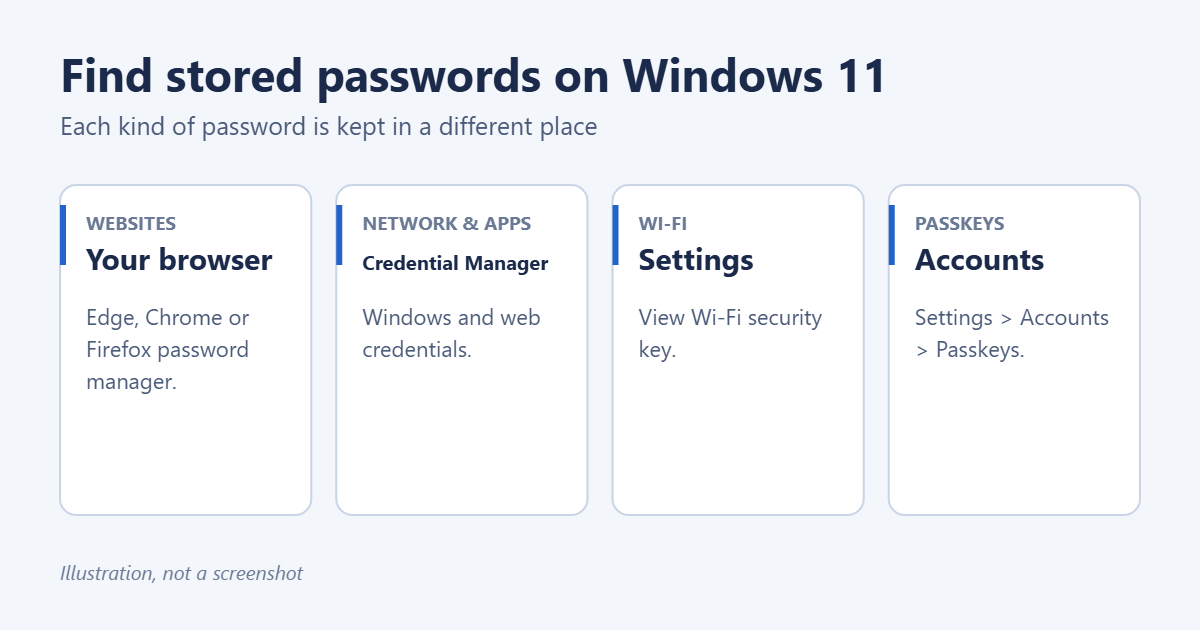
Windows 11 doesn’t keep all your passwords in one place. Website passwords are in your browser’s password manager: in Edge, open Settings > Passwords; in Chrome, go to chrome://password-manager. Passwords for network shares, remote desktops and some apps are in Credential Manager in Control Panel. Wi-Fi passwords are under Settings > Network & internet > Wi-Fi. In each case, you confirm with your Windows PIN or password before a password is shown.
Applies to: Windows 11 with Microsoft Edge, Google Chrome or Firefox. Last reviewed October 8, 2026.
Website passwords
Microsoft Edge
- Open Edge, select the three dots > Settings, and select Passwords (or Profiles > Passwords in older versions). You can also type
edge://wallet/passwordsin the address bar. - Find the site in the list.
- Select the eye icon next to the hidden password and confirm with your Windows PIN, fingerprint or password.
Edge passwords sync with your Microsoft account, so they also appear in Edge on your phone and other PCs.
Google Chrome
- Type
chrome://password-managerin the address bar, or select the three dots > Passwords and autofill > Google Password Manager. - Select the site, then the eye icon, and confirm with Windows Hello or your password.
Firefox
- Type
about:loginsin the address bar. - Select the site and the eye icon. If you set a Primary Password, enter it.
Network, app and remote desktop passwords
- Press Start, type Credential Manager and open it.
- Select Windows Credentials for network shares, mapped drives and Remote Desktop, or Web Credentials for sign-ins saved by some apps and older browsers.
- Expand an entry and select Show next to the password, if it’s available. Confirm with your Windows password.
Many entries, such as those saved by Microsoft Office or OneDrive, store sign-in tokens rather than readable passwords, so there’s nothing to show. You can still remove them to force a fresh sign-in.
Wi-Fi passwords
Open Settings > Network & internet > Wi-Fi > Manage known networks, select the network and choose View next to View Wi-Fi security key. For other devices, see how to find your Wi-Fi password.
Passkeys
Passkeys replace passwords on many sites and are stored in Windows Hello. See them in Settings > Accounts > Passkeys, where you can also delete them. Passkeys can’t be viewed like passwords because there’s no secret to read. Learn more in how to use passkeys in Windows 11.
Passwords Windows can’t show you
- Your Windows sign-in password and PIN: stored in a form that can’t be displayed. Reset them if forgotten.
- Your Microsoft account password: kept by Microsoft, not on the PC. Reset it at account.live.com/password/reset.
- The administrator password: see how to find the administrator password in Windows 11 for your options.
Export or move your passwords
Edge, Chrome and Firefox can export saved passwords to a CSV file from their password settings, for moving to another browser or password manager. The file isn’t encrypted, so delete it as soon as you’ve imported it.
Keep stored passwords safe
- Use a PIN or strong password on your Windows account, since it unlocks all of these.
- Lock the PC with Windows key + L when you step away.
- Remove saved passwords you no longer use, and use the browser’s password checkup to find weak or leaked ones.
Troubleshooting
The eye icon asks for a password I don’t know
It wants your Windows sign-in password or PIN, or a Microsoft account password if you sign in that way.
Passwords disappeared after a reset
Sign in to the browser with the same account to sync them back. Passwords saved only on the old PC without sync can’t be recovered.
On Windows 10, see how to find saved passwords on Windows 10.

Matt Jacobs has been working as an IT consultant for small businesses since receiving his Master’s degree in 2003. While he still does some consulting work, his primary focus now is on creating technology support content for SupportYourTech.com.
His work can be found on many websites and focuses on topics such as Microsoft Office, Apple devices, Android devices, Photoshop, and more.