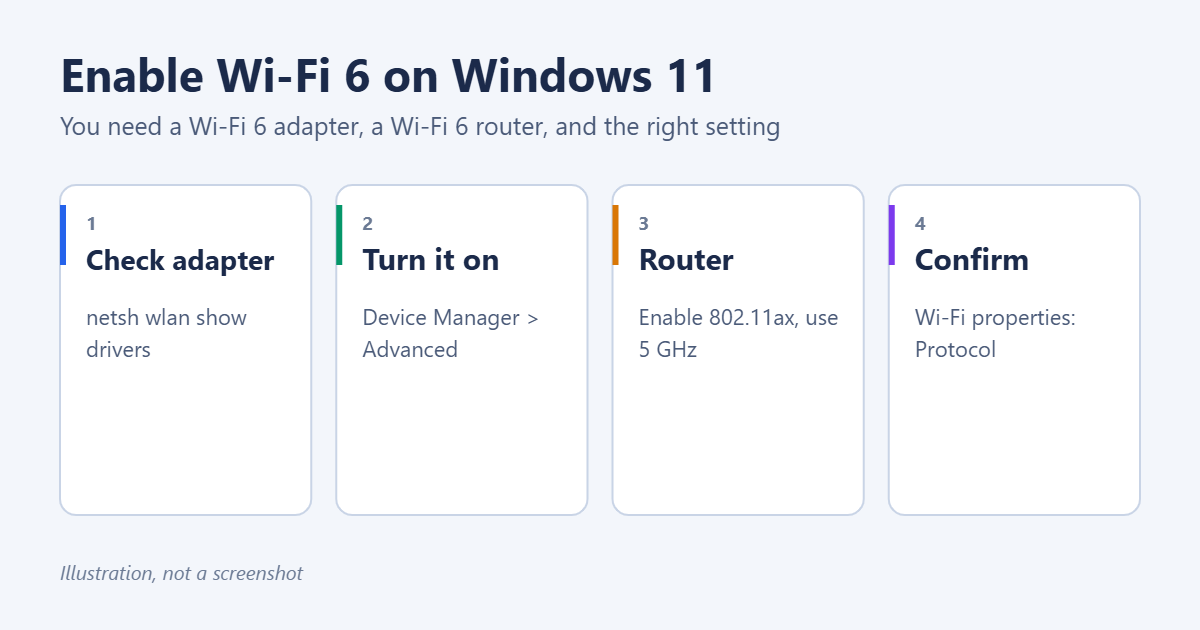
Windows 11 uses Wi-Fi 6 automatically. There’s no Windows switch for it, but three things must line up: your PC needs a Wi-Fi 6 (802.11ax) adapter, your router must support and broadcast Wi-Fi 6, and the adapter’s settings must allow 802.11ax. To check, run netsh wlan show drivers and look for 802.11ax under Radio types supported. Then open your network’s properties in Settings and look for Protocol: Wi-Fi 6 (802.11ax). If it says Wi-Fi 5 or older, the steps below show how to turn Wi-Fi 6 on.
Step 1: Check whether your PC supports Wi-Fi 6
- Right-click Start and open Terminal.
- Run
netsh wlan show drivers. - Find Radio types supported. If the list includes 802.11ax, your adapter supports Wi-Fi 6. If it ends at 802.11ac, it doesn’t.
You can also check the adapter’s name in Device Manager > Network adapters. Names such as Intel Wi-Fi 6 AX201 or AX210 indicate Wi-Fi 6 or 6E.
If your PC doesn’t support it, you can add a Wi-Fi 6 USB adapter, or on a desktop, a PCIe card. Some laptops let you swap the internal M.2 Wi-Fi card.
Step 2: Check what you’re connected with now
- Go to Settings > Network & internet > Wi-Fi.
- Click your network’s properties.
- Scroll to Protocol. It shows Wi-Fi 6 (802.11ax), Wi-Fi 5 (802.11ac) or older. Network band shows 2.4, 5 or 6 GHz.
Microsoft explains these labels in faster and more secure Wi-Fi in Windows.
Step 3: Allow 802.11ax in the adapter settings
- Right-click Start and choose Device Manager.
- Expand Network adapters, right-click your Wi-Fi adapter and choose Properties.
- Open the Advanced tab.
- Find a setting such as 802.11ax Mode, 802.11a/b/g/n/ac/ax Wireless Mode or Wireless Mode, and set it to Enabled, 802.11ax or Auto. The names vary by manufacturer.
- If there’s a Preferred Band setting, choose Prefer 5GHz band (or 6 GHz for Wi-Fi 6E).
- Click OK. The connection drops briefly while the adapter resets.
Step 4: Update the Wi-Fi driver
Older drivers can disable Wi-Fi 6 or cause dropouts. Check Settings > Windows Update > Advanced options > Optional updates for driver updates, or download the latest driver from your laptop or adapter maker’s website. See how to check drivers in Windows 10. The steps are the same in Windows 11.
Step 5: Turn on Wi-Fi 6 on the router
- Sign in to your router’s admin page (often printed on its label) or its app.
- In the wireless settings, set the mode to 802.11ax, Wi-Fi 6 or AX (or a mixed mode that includes ax).
- Make sure the 5 GHz band is on. Wi-Fi 6 is fastest there.
- Use WPA3 or WPA2/WPA3 security if your devices support it.
If the router combines bands under one network name, the PC chooses the band itself. Moving closer to the router helps it pick 5 GHz. See connecting to 5 GHz Wi-Fi.
Wi-Fi 6E and Wi-Fi 7
Wi-Fi 6E adds the 6 GHz band, which is less crowded, and needs a 6E adapter, a 6E router and Windows 11. Wi-Fi 7 is supported in recent versions of Windows 11 with a Wi-Fi 7 adapter and router. In both cases the Protocol line in Settings shows which one you’re using.
Troubleshooting
Protocol still shows Wi-Fi 5
The router may not have Wi-Fi 6 turned on, or you’re connected to an older access point or extender. Check the router’s settings and update its firmware.
Wi-Fi 6 is slower or keeps dropping
Update the adapter driver and router firmware. As a test, switch the adapter’s wireless mode back to 802.11ac to see whether the problem goes away. If you see lag spikes in games, see how to fix ping spikes.
Some older devices can’t connect after enabling Wi-Fi 6
Use the router’s mixed mode, such as ax/ac/n, so older devices can still join.
Frequently asked questions
Is Wi-Fi 6 worth it?
Mostly in homes with many devices. Wi-Fi 6 handles crowded networks better and helps laptop battery life. Single-device speed gains depend on your internet plan. A 100 Mbps connection won’t get faster.
Does Windows 10 support Wi-Fi 6?
Yes, with a Wi-Fi 6 adapter and driver. Wi-Fi 6E’s 6 GHz band needs Windows 11.
Can a software update add Wi-Fi 6 to my PC?
No. Wi-Fi 6 needs compatible hardware. A driver update only helps if the adapter already supports 802.11ax.
Summary
- Run
netsh wlan show driversand look for 802.11ax. - In Device Manager, allow 802.11ax in the adapter’s Advanced settings.
- Update the Wi-Fi driver.
- Turn on Wi-Fi 6 and 5 GHz on the router, then check Protocol in the network properties.

Matt Jacobs has been working as an IT consultant for small businesses since receiving his Master’s degree in 2003. While he still does some consulting work, his primary focus now is on creating technology support content for SupportYourTech.com.
His work can be found on many websites and focuses on topics such as Microsoft Office, Apple devices, Android devices, Photoshop, and more.