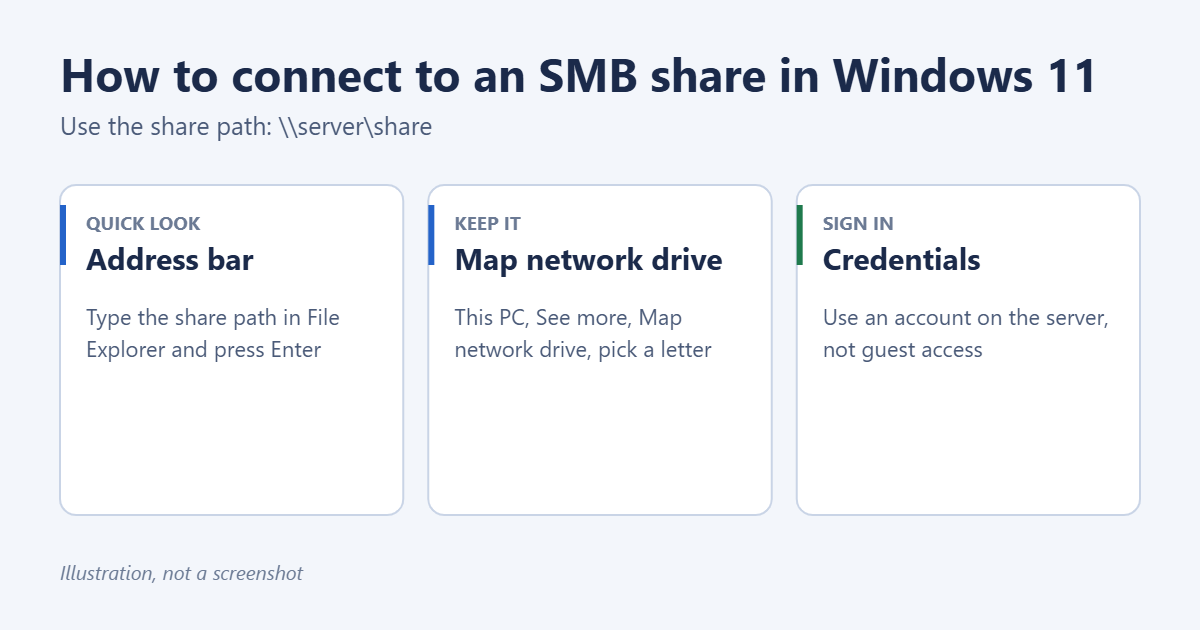
To connect to an SMB share in Windows 11, open File Explorer, click in the address bar, type the share’s path, such as \\nas\photos or \\192.168.1.50\photos, and press Enter. Sign in with a user name and password that exists on the server when Windows asks. To keep the share available as a drive letter, select This PC, then See more (three dots) > Map network drive. If the connection fails on Windows 11 Pro, version 24H2 or later, the most common cause is that the device only allows guest access, which Windows now blocks.
Applies to: Windows 11 Home and Pro, connecting to Windows PCs, NAS drives (such as Synology, QNAP or WD) and Linux Samba servers.
What you need before you start
- The server’s name or IP address. Check the NAS app, your router’s list of connected devices, or the other PC’s name under Settings > System > About.
- The share name. This is the shared folder’s name on the server, such as photos or backup.
- A user name and password on the server. For a NAS, it’s an account you created in its settings. For another Windows PC, it’s an account on that PC, often written as PCNAME\username or a Microsoft account email.
- Both devices on the same network, or connected through a VPN if the share is at work or school.
- Press Windows logo key + E to open File Explorer.
- Click in the address bar at the top and delete what’s there.
- Type two backslashes, the server name or IP address, a backslash and the share name, for example
\\192.168.1.50\photos. - Press Enter.
- When the Enter network credentials box appears, type the server account’s user name and password. Select Remember my credentials if you want Windows to sign in automatically next time.
- Select OK. The shared folder opens like any other folder.
To see every share on a server, type only the server part, such as \\192.168.1.50, and press Enter.
Mapping gives the share its own drive letter under This PC, so it’s always one click away and apps can save to it.
- Open File Explorer and select This PC in the left pane.
- Select See more (three dots) on the toolbar, then Map network drive.
- Pick a Drive letter, such as Z:.
- In Folder, type the share path, such as
\\nas\photos. - Select Reconnect at sign-in to keep the drive after you restart.
- If the server account is different from your Windows account, select Connect using different credentials.
- Select Finish and enter the user name and password if asked.
Disconnecting and renaming a mapped drive are explained in mapping a network drive in Windows 11. Synology owners can follow the NAS-specific steps for mapping a Synology drive in Windows 11.
Connect with a command
You can also map a share from Command Prompt or Windows Terminal, which is handy for scripts:
net use Z: \\192.168.1.50\photos /user:username /persistent:yes
Windows asks for the password. Replace the drive letter, path and user name with your own. To remove the drive later, type net use Z: /delete.
Turn on network discovery (to browse the Network folder)
You don’t need network discovery to connect with a share path, but you need it to see other devices in File Explorer’s Network section.
- Open Settings > Network & internet and check that your network is set to Private. Select your Wi-Fi or Ethernet connection to change it.
- Go to Network & internet > Advanced network settings > Advanced sharing settings.
- Under Private networks, turn on Network discovery.
Some NAS drives and Linux servers still don’t appear in the Network folder even with discovery on. Typing the path always works.
Windows 11 Pro, version 24H2 tightened two security settings (Windows 11 Home isn’t affected), and they cause most “can’t connect” problems with older NAS drives and routers that share a USB drive:
- Guest access is blocked. Windows won’t connect to a share that lets anyone in without a password. You’ll see a message that your organization’s security policies block unauthenticated guest access.
- SMB signing is required. Windows now insists that every connection is signed. Devices that don’t support signing fail with errors such as “The specified network name is no longer available.”
The fix is on the server side: create a user account with a password on the NAS or other PC, give it access to the share, and sign in with it. Then update the device’s firmware so it supports SMB signing. Turning these protections off in Windows is possible with PowerShell, but it lowers your security for every network you use, so treat it as a temporary workaround while you update or replace the device.
SMB1 devices
Very old devices only support SMB version 1, which Windows 11 doesn’t include by default because it’s insecure. If a device from before about 2017 won’t connect at all, check for a firmware update that adds SMB2 or SMB3, which most NAS makers released years ago. Replacing the device is safer than turning SMB1 back on.
Troubleshooting
“Windows cannot access \\server\share”
Check the path for typos, and try the IP address instead of the name. Make sure the server is on and connected to the same network. On the server, confirm that file sharing (SMB) is turned on and the share exists.
Windows keeps asking for the password
The user name or password is wrong, or Windows is sending your PC account instead of the server account. Enter the user name in the form servername\username. If you saved the wrong password earlier, open Credential Manager, remove the entry for the server under Windows Credentials, and connect again. If you can’t find it, finding saved passwords and Credential Manager shows where it lives.
“Multiple connections to a server by the same user are not allowed”
You’re already connected to that server with a different account, perhaps through a mapped drive. Disconnect the other drive or open Command Prompt and type net use * /delete to clear all connections, then reconnect.
The mapped drive shows a red X after restart
Windows tried to reconnect before the network was ready. Open the drive once and it usually reconnects. If it doesn’t, make sure Reconnect at sign-in was selected and your credentials are saved.
File transfers are very slow
Connect by Ethernet instead of Wi-Fi if you can, and make sure the NAS firmware is current. Copying many small files is always slower than copying one large file of the same size.
Frequently asked questions
What is an SMB share?
SMB (Server Message Block) is the file-sharing system Windows uses on local networks. A share is a folder on a PC, NAS or server that other devices on the network can open over SMB. On Linux, the software that provides SMB shares is called Samba.
Can I connect to an SMB share over the internet?
Not safely. Internet providers often block SMB traffic, and exposing it online is a security risk. Use a VPN to reach your home or office network first, or a cloud service such as OneDrive.
How do I share a folder from my own Windows 11 PC?
Right-click the folder, select Show more options > Give access to > Specific people, and choose who can open it. The details are in file sharing over a network in Windows.
Does this work in Windows 10?
Yes. The steps for connecting to a server on Windows 10 are almost the same.
Related: How to enable SMB1 on Windows 11.

Matt Jacobs writes and maintains the guides on Support Your Tech, which he started in 2017. He spent most of his career keeping small-business PCs running and still takes the occasional consulting job, so the steps here come from fixing the same problems on other people’s computers. Every guide is checked on his own Windows 11, Windows 10, Mac, iPhone and iPad before it goes up.