Last updated on November 17th, 2026 at 03:06 pm
A link to a Word document only works once the file is saved to OneDrive or SharePoint. Then select Share in the top-right corner of Word, open the link settings to pick Can edit or Can view and who the link works for, and choose Copy link. Paste it anywhere; people you allowed open the document in a browser, even without Word. This works in Word for Microsoft 365 on Windows and Mac and in Word for the web.
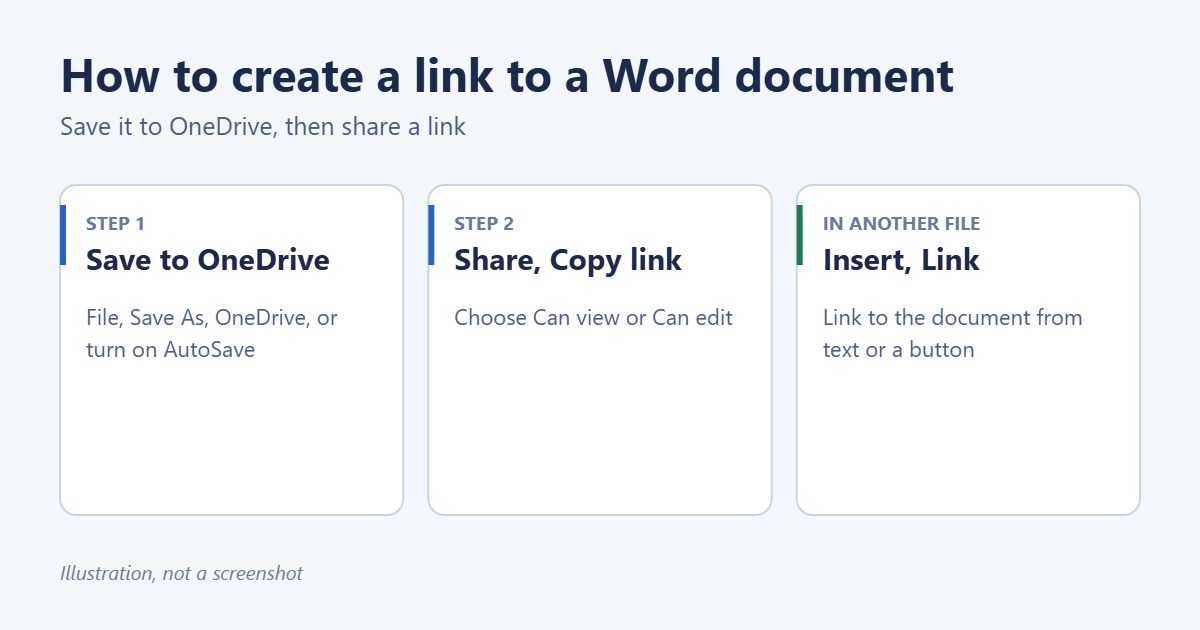
Step 1: Save the document to OneDrive
A link only works if the document is stored online. A file saved only on your PC can’t be opened by anyone else from a link.
- In Word, select File > Save As.
- Choose OneDrive (personal) or your organization’s OneDrive or SharePoint site.
- Pick a folder and select Save.
If AutoSave is on in the top-left corner, the document is already in OneDrive or SharePoint.
Can I stop people from editing through the link?
Yes. Choose Can view. To protect the file itself as well, lock the Word document from editing.
Step 2: Copy a sharing link
- Select Share in the top-right corner of Word, then Share again if a menu appears.
- Select the link settings, which show something like Anyone with the link can edit.
- Choose who the link works for:
- Anyone: anyone who has the link, no sign-in needed.
- People in your organization: coworkers signed in to your work account (work and school accounts only).
- People with existing access: only people who can already open it; useful for sending a reminder link.
- Specific people: only the email addresses you enter.
- Choose Can edit or Can view. With a Microsoft 365 subscription, you can also set an expiration date or a password for “Anyone” links.
- Select Apply, then Copy link.
- Paste the link wherever you want to share it.
Your organization may limit which link types are available.
Create a link from OneDrive or File Explorer
- OneDrive on the web: go to onedrive.com, select the document, select Share or Copy link, and adjust the settings.
- File Explorer: in your OneDrive folder, right-click the document and select Share (on some versions, OneDrive > Share). The same link options appear.
Insert a link to a Word document inside another document
To let readers jump from one file to another, add a hyperlink:
- Select the text or image you want to turn into a link.
- Select Insert > Link, or press Ctrl + K.
- Paste the document’s sharing link into the Address box. Or select Existing File or Web Page and browse to the document if everyone opens files from the same shared drive.
- Select OK.
Readers press Ctrl and click the link to open it. Links to files on your own PC (starting with C:\) only work on your PC, so use a OneDrive or SharePoint link for anything you share. Link options for the browser version are on Microsoft’s links in Word for the web page.
Does the link update when I change the document?
Yes. A sharing link always opens the current version, so everyone sees your latest changes.
Can I send the document as an attachment instead?
Yes. In Share, choose Send a copy to attach a Word file or PDF to an email. The recipient gets a separate copy that doesn’t update. For a side-by-side look at invitations, links and copies, plus how to manage who has access, see how to share a Word document.
To link text inside a document to a web page instead, turn a word into a link.
Link to a specific place in a document
- In the target document, select the heading or text you want to link to and select Insert > Bookmark. Give it a name with no spaces and select Add.
- Within the same document, select your link text, press Ctrl + K, choose Place in This Document, and select the bookmark or heading.
Linking to a heading in a different document from a sharing link isn’t supported, so link to the document and tell readers which section to look at.
Stop sharing or change a link
- In Word, select Share > Manage access.
- Find the link and select the three dots or the delete icon to remove it, or change it from edit to view.
Deleting a link stops it working for everyone who has it. People you invited individually keep access until you remove them in the same panel.
The Share button is missing or grayed out
The document isn’t saved to OneDrive or SharePoint, or you’re not signed in to Office. Select File > Account to sign in, then save the document to OneDrive.
People get “You need permission to access this item”
The link is set to Specific people or People in your organization, and they’re signed in with a different account. Change the link to Anyone if appropriate, or add their email address.
The “Anyone” option isn’t available
Your organization has turned off anonymous links. Use Specific people instead, or ask your IT department.
The link opens a download instead of the document
The recipient may have a browser setting or app that downloads Office files. Ask them to open the link in a different browser, or use Word for the web.
Do people need Word to open the link?
No. The document opens in Word for the web in their browser. Editing in the browser with a personal account requires signing in with a free Microsoft account for some link types.

Matt Jacobs writes and maintains the guides on Support Your Tech, which he started in 2017. He spent most of his career keeping small-business PCs running and still takes the occasional consulting job, so the steps here come from fixing the same problems on other people’s computers. Each guide follows Microsoft, Apple and Google’s own documentation and is updated when the steps change. Screenshots marked “Recreated” are illustrations of the real screens.