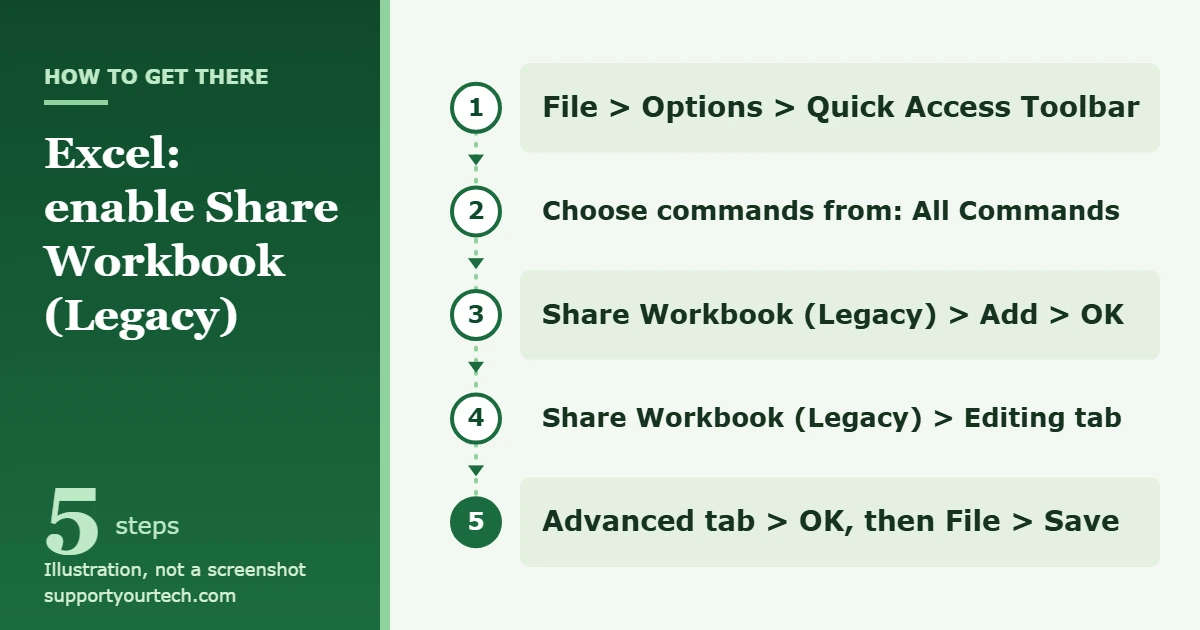
To enable Share Workbook in current Excel for Windows, first bring back the hidden button: go to File > Options > Quick Access Toolbar, pick All Commands, add Share Workbook (Legacy), and select OK. Then open that button, go to the Editing tab, turn on the check box that allows changes by more than one user, and save the file to a network location.
Applies to: Excel for Microsoft 365 on Windows (the legacy Shared Workbook feature).
Excel has two different ways for several people to work in one file, and the names are easy to mix up.
- Shared Workbook (legacy) is the older feature behind the Share Workbook button. It is an older feature with many limitations, and its buttons are hidden in newer versions of Excel. It is meant for files kept on a network location, such as a shared folder on a company server.
- Co-authoring is the replacement. It works with files stored in OneDrive, OneDrive for Business, or a SharePoint Online library, and it shows other people’s edits within seconds.
Choose the legacy feature only when the file has to stay on a network share, or when an existing process depends on it. A legacy shared workbook should not be put on OneDrive or SharePoint; for files stored there, use co-authoring instead. If cloud storage is an option for you, skip to the co-authoring section below.
Check these points before you turn the legacy feature on:
- You can save the workbook to a network location that every editor can reach, in the form \\server_name\folder_name.
- The workbook is finished structurally. Tables, charts, PivotTables, conditional formats, and data validation cannot be added or changed once it is shared, so set them up first.
- Nobody needs to edit the file in Excel for the web. A legacy shared workbook cannot be edited there.
In current Excel the button is not on the Review tab by default. Instead, you put it on the Quick Access Toolbar, the small row of icons at the top of the Excel window.
- Open Excel and select File > Options > Quick Access Toolbar. The Excel Options window opens with two lists side by side.
- Open the list under Choose commands from and select All Commands. The left list now shows every Excel command in alphabetical order.
- Scroll to Share Workbook (Legacy), select it, and select Add. It moves to the list on the right.
- Optional but useful: add Track Changes (Legacy), Protect Sharing (Legacy), and Compare and Merge Workbooks the same way. These are the companion commands for the legacy feature.
- Select OK. The new buttons appear at the top of the Excel window.
Step 2: Turn on sharing for the workbook
Adding the button does not share anything by itself. Sharing is switched on for one workbook at a time.
- Create or open the workbook and save it to the network location, for example \\server_name\folder_name. Do not use a OneDrive or SharePoint folder for this method.
- Select the Share Workbook (Legacy) button you added. In older versions of Excel that still show it, select Review > Share Workbook. A dialog box with two tabs opens.
- On the Editing tab, select the check box that begins Allow changes by more than one user.
- On the Advanced tab, choose the options you want for tracking and updating changes, then select OK.
- If the workbook is new, type a name in the File name box. If it already has a name, select OK to save it.
- If the workbook contains links to other workbooks or documents, check them and fix any that are broken.
- Select File > Save.
How to confirm it worked
Look at the top of the Excel window. Next to the file name you should see – Shared. Other people can now open the same file from the network folder and save their own changes to it.
To see who is in the file, select the Share Workbook button again and read the Who has this workbook open now list on the Editing tab.
This is the main reason Microsoft steers people away from the legacy feature. While sharing is on, these are unsupported, among others:
| Area | Not available while the workbook is shared |
|---|---|
| Tables and data tools | Creating or inserting tables, adding or changing data validation, inserting automatic subtotals, grouping or outlining data, sorting or filtering by format |
| Formatting and layout | Adding or changing conditional formats, merging cells or splitting merged cells, inserting or deleting blocks of cells, deleting worksheets |
| Charts and analysis | Creating or changing charts, PivotTable reports, PivotChart reports, slicers, sparklines, and scenarios |
| Objects and links | Inserting or changing pictures, objects, and hyperlinks; using drawing tools |
| Security and automation | Assigning or changing passwords, protecting or unprotecting worksheets or the workbook, writing, recording, or changing macros, changing or deleting array formulas |
| Comments | Adding, editing, or deleting threaded comments |
If you need one of these, stop sharing, make the change, and share the workbook again. Keep in mind that this interrupts everyone else, so plan such changes for a quiet moment.
Remove a user or stop sharing
Warning: removing a person who still has unsaved work, or turning sharing off while others are in the file, causes their unsaved changes to be lost. Ask everyone to save and close first.
Remove one user
- Select the Share Workbook button.
- On the Editing tab, find the person in the Who has this workbook open now list.
- Select the name, then select Remove User.
- Optional: select View > Custom Views and delete that person’s saved views if you no longer need them.
Turn sharing off
- Select the Share Workbook button and confirm on the Editing tab that you are the only person in the Who has this workbook open now list.
- Clear the check box that begins Allow changes by more than one user.
- Select Yes when Excel asks about the effect on other users. The – Shared label disappears from the title bar.
If the workbook can live in the cloud, co-authoring gives you live editing without the restrictions above. You need a Microsoft 365 subscription with the latest version of Excel, a file in .xlsx, .xlsm, or .xlsb format, and storage in OneDrive, OneDrive for Business, or a SharePoint Online library. The Strict Open XML Spreadsheet format is not supported.
- Save or upload the workbook to OneDrive, OneDrive for Business, or a SharePoint Online library, and open it in Excel.
- If a yellow bar appears, select Enable Editing.
- Select Share in the upper-right corner of the Excel window.
- Type the email addresses of the people you want to invite, separated by semicolons, and make sure Can edit is selected if they need to change the file.
- Send the invitation.
- Check that AutoSave is on in the upper-left corner. Other people’s cell selections then appear in different colors, and their changes show up within seconds.
More detail on invitations and permissions is in sharing an Excel spreadsheet for editing. Afterward, you can view edit history in Excel to review what collaborators changed.
Troubleshooting
Share Workbook is missing from the Review tab
That is expected in newer versions of Excel. Microsoft hid the button because co-authoring replaced it. Add it back with the Quick Access Toolbar steps above; nothing is broken in your installation.
The check box on the Editing tab is unavailable
The workbook is probably protected for sharing. On the Review tab, select Unprotect Shared Workbook and enter the password if one was set. Then open the Share Workbook dialog again and change the check box.
Table, chart, or formatting commands are greyed out
Those features are switched off while a workbook is shared with the legacy feature. See the table above, and stop sharing temporarily if you need them.
A cloud file reports that it is locked or will not co-author
This most often happens when someone opens the file in a version of Excel that does not support co-authoring. A workbook that uses a feature co-authoring does not fully support can also trigger a message; select Refresh if you have no unsaved changes, or Save a Copy first if you do. Also confirm that everyone has selected Enable Editing and has AutoSave on.
You are on a work or school computer
The network folder itself controls who can open and save the file. If a colleague cannot open the shared workbook, they most likely lack permission to that folder, which is something your IT administrator has to grant.
Frequently asked questions
Why did Microsoft hide the Share Workbook button?
Microsoft considers co-authoring a much easier and better way to share workbooks, and the Shared Workbook feature has many limitations. The button was hidden rather than removed, so you can still add it back.
Can I use Share Workbook with a file in OneDrive or SharePoint?
It is not recommended. The legacy feature is designed for a network location. For files in OneDrive or SharePoint, use the Share button and co-authoring.
Can someone edit a shared workbook in Excel for the web?
No. Not being editable in Excel for the web is one of the limitations of the legacy Shared Workbook feature. Co-authored files can be edited there.
Do I have to add all four legacy buttons?
No. Share Workbook (Legacy) is the only one needed to turn sharing on and off. The others are for tracking changes, protecting the sharing setup, and merging copies of the workbook.
How do I know whether a workbook is using the legacy feature?
Check the title bar. A workbook shared with the legacy feature shows – Shared after its name.
Where is this documented by Microsoft?
Three support pages cover it: About the shared workbook feature, What happened to shared workbooks?, and Collaborate on Excel workbooks at the same time with co-authoring.
Next step: if your team can move the file to OneDrive or SharePoint, try co-authoring on a copy first, and keep the legacy shared workbook only until everyone has switched.
Once the file is in the cloud, you can share the Excel file as a link and give edit access to the people who need it.

Matt Jacobs has been working as an IT consultant for small businesses since receiving his Master’s degree in 2003. While he still does some consulting work, his primary focus now is on creating technology support content for SupportYourTech.com.
His work can be found on many websites and focuses on topics such as Microsoft Office, Apple devices, Android devices, Photoshop, and more.