To share your calendar in Outlook, open Calendar, select Share (or Share Calendar) on the Home tab, and pick the calendar. Type the person’s name or email address, choose how much they can see, such as Can view all details, and select Share (or OK in classic Outlook). They get an email invitation, and once they select Accept, your calendar appears in their Outlook. To share with someone who doesn’t use Outlook, publish your calendar as an ICS link instead.
Applies to: new Outlook for Windows, classic Outlook for Windows (Outlook for Microsoft 365, Outlook 2024, 2021, 2019 and 2016), Outlook on the web for work or school accounts, and Outlook.com for personal accounts. Checked against Microsoft Support on October 12, 2026.
Outlook gives you three different ways to let someone see your schedule. They are not interchangeable, so pick the one that fits the person you’re sharing with.
| Method | Who it works for | Can they edit? | Stays up to date? |
|---|---|---|---|
| Share (sharing invitation) | People using Outlook with a work, school or Microsoft account | Yes, if you choose Can edit or Delegate | Yes |
| Publish an ICS link | Anyone, including Google Calendar and Apple Calendar users | No, always read-only | Yes, but updates can take hours |
| Publish an HTML link | Anyone with a web browser | No, always read-only | Yes |
| E-mail Calendar (classic Outlook) | Anyone with email | No | No, it’s a one-time copy |
A simple rule: if the other person uses Outlook, share. If they use Gmail, an iPhone calendar or another app, publish an ICS link. If you only need to show someone next week’s schedule once, email a snapshot.
Outlook calendar permission levels explained
When you share a calendar, you choose a permission level for each person. Here is what each one allows, using a sample appointment called “Budget review with Alex Rivera, Room 4B, 10:00 a.m.” as an example.
| Permission level | What the other person sees or does | Example: they see |
|---|---|---|
| Can view when I’m busy | Only the times you’re busy or free | Busy, 10:00–11:00 a.m. |
| Can view titles and locations | Busy times plus the subject and location of each item | Budget review with Alex Rivera, Room 4B |
| Can view all details | Everything you see in the item, but they can’t change it | The full appointment, including notes |
| Can edit | All details, plus they can add, change and delete items | The full appointment, and they can move it |
| Delegate | Everything an editor can do, plus they receive your meeting requests and can respond for you | The full appointment, and your meeting invitations |
A few rules decide which levels you can actually pick:
- People outside your organization can only get the three view levels. Microsoft says you can’t give editor or delegate access to people outside your organization.
- Delegate needs a work or school account (Microsoft 365 or Exchange Online), and a delegate can only be assigned to your main calendar, the one named “Calendar.”
- Personal Outlook.com accounts only offer Can view all details and Can edit when you share from Outlook.com.
- Private items stay hidden. Appointments marked Private show only as busy time to most people you share with. The exception is a delegate you’ve allowed to view private events.
- Your organization has a default. In most Microsoft 365 organizations, everyone inside the company can already see when you’re busy. That entry appears as My Organization or People in my organization in the sharing settings.
If you’re not sure, start with Can view titles and locations. It’s usually enough for scheduling, and you can raise or lower it at any time.
New Outlook is the app with a toggle labeled New Outlook in the top-right corner. If your Outlook has a File tab and no such toggle, skip to Method 2.
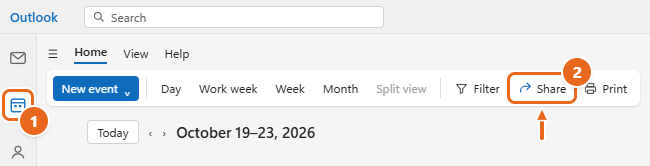
- Open Outlook and select the Calendar icon in the bar on the far left. Your calendar opens in the main window.
- On the Home tab, select Share. Depending on your version and window width, the button may be labeled Share calendar. If you have more than one calendar, a list appears; choose the one you want to share.

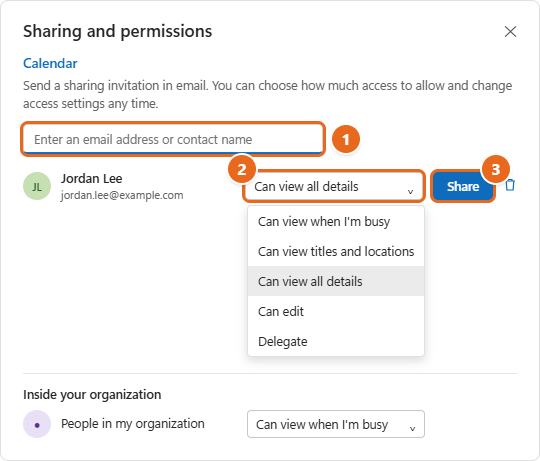
In new Outlook, select Calendar (1), then select Share on the Home tab (2). - The Sharing and permissions window opens. Click in the Enter an email address or contact name box and type the person’s name or email address, such as [email protected].
- If the person appears in the suggestion list, select them. Otherwise, press Enter. They are added to the window with a default permission level.
- Select the drop-down next to their name and choose a permission level: Can view when I’m busy, Can view titles and locations, Can view all details, Can edit or Delegate. People outside your organization only see the first three.

Type a name or email address (1), pick a permission level from the drop-down (2), then select Share (3). - Select Share. If you change your mind before sending, select Remove (the trash can icon) instead.
- Repeat steps 3 to 6 for each person. You can share with several people, but you add them one at a time.
The person receives an email invitation. Nothing changes on their side until they select Accept, so let them know it’s coming.
Classic Outlook is the familiar desktop app with a File tab. The steps work for Microsoft 365, Exchange and Outlook.com accounts. If your account is a POP or IMAP account, such as many internet provider email addresses, see Troubleshooting, because those calendars can’t be shared this way.
- Select the Calendar icon at the bottom or left side of the Outlook window.
- On the Home tab, in the Manage Calendars group, select Share Calendar.
- From the drop-down menu, choose the calendar you want to share. If you have several email accounts in Outlook, make sure you pick the calendar under the right account.
- The Calendar Properties dialog opens on the Permissions tab. The list under Currently sharing with shows who already has access, often My Organization with Can view when I’m busy.
- Select Add. Search your address book or type an email address in the Add box, then select OK. To find a person who isn’t in your company directory, switch the Address Book drop-down to Contacts.
- Back in Calendar Properties, select the person’s name in the list. Under Permissions, choose the level you want them to have.

In classic Outlook, select Add to choose people (1), select a person and pick their permission level (2), then select OK (3). - Select OK. Outlook sends each new person a sharing invitation by email.
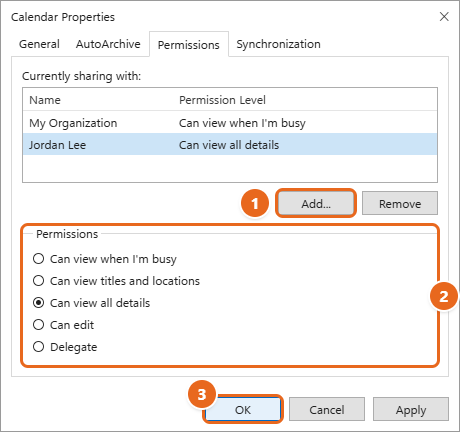
The list of permission levels depends on your account. A Microsoft 365 work account usually shows all five levels. A calendar from a personal Outlook.com account opened in classic Outlook may show only Can view and Can edit.
Outlook on the web is the browser version for work and school accounts (outlook.office.com). Outlook.com is the free version for personal Microsoft accounts, such as addresses ending in @outlook.com, @hotmail.com or @live.com. The sharing steps are almost the same.
- Sign in and select Calendar in the navigation pane on the left.
- On the Home tab or at the top of the page, select Share calendar, then choose the calendar you want to share. You can also right-click a calendar under My calendars and select Sharing and permissions.
- Type the person’s name or email address in the box, then select them from the list or press Enter.
- Select the drop-down next to their name and choose the access level. Work and school accounts show the same levels as new Outlook. Outlook.com shows Can view all details and Can edit.
- Select Share.
Sharing from Outlook.com with a Gmail user: Microsoft notes that people who don’t use Outlook.com can only accept the invitation with an Outlook.com or Microsoft 365 account. If the person just wants to see your events in Google Calendar, publish an ICS link instead.
Give someone edit or delegate access
Editors and delegates can both change your calendar, so it’s worth knowing the difference before you choose either one.
- Can edit lets the person add, change and delete items. You can give edit access to your main calendar or to any extra calendar you created, such as a “Team Projects” calendar.
- Delegate includes edit access and also sends your meeting requests and responses to that person, so they can accept or decline meetings for you. It’s meant for an assistant or someone who manages your schedule. It works only on your main calendar and only for people in your organization.
Before you continue: an editor or delegate can delete or move your appointments, and a delegate can answer meeting invitations in your name. Give these levels only to people you trust with your schedule.
Set up a delegate in new Outlook or Outlook on the web
- Open Calendar and select Share (or Share calendar) on the Home tab. Choose your main Calendar.
- Add the person, open the drop-down next to their name and select Delegate.
- To let them see appointments you marked Private, check Let delegate view private events. In new Outlook you can also check Let delegate manage categories.
- Select Share.
- After adding a delegate, a Delegates section appears in Sharing and permissions. Next to Send invitations and responses to, choose Delegate only, Delegate and send me a copy, or Both my delegate and me. With Both my delegate and me, either of you can respond to an invitation.
Set up a delegate in classic Outlook
- Select File > Account Settings > Delegate Access.
- Select Add, find the person in your organization’s address list, select Add, then OK. If Add doesn’t appear, Outlook may not be connected to the Exchange server; check the status bar at the bottom of the window.
- In the Delegate Permissions dialog, the delegate gets Editor access to your calendar by default. Leave Inbox set to None unless they need to read your email.
- Optionally check Delegate can see my private items. Be aware this applies to all your Exchange folders, not just your calendar.
- Select OK.
Microsoft’s full instructions are on its page about sharing a calendar with edit or delegate permissions.
Method 4: Publish an ICS or HTML link
Publishing creates a web address for your calendar. Anyone with the link can see it, and they don’t need an Outlook account. You get two links:
- HTML link: opens a read-only view of your calendar in a web browser.
- ICS link: lets another calendar app, such as Google Calendar or Apple Calendar, subscribe to your calendar so your events appear next to theirs and keep updating.
Warning: a published link isn’t tied to a person. If it gets forwarded, whoever has it can see your calendar at the detail level you chose. Pick the least detail that does the job, and avoid publishing a calendar that holds private information.
Publish your calendar in new Outlook, Outlook on the web or Outlook.com
- Open Calendar.
- Select the View tab, then Calendar settings. You can also select Settings (the gear icon) at the top of the window. Go to Calendar > Shared calendars.
- Under Publish a calendar, choose the calendar from the first drop-down.
- Choose how much people can see from the permissions drop-down. The option that shows only when you’re busy is the safest choice for a public link.
- Select Publish. An HTML link and an ICS link appear below.
- Select the ICS link (or the HTML link), copy it, and send it to the person by email or chat.
Published calendars are always read-only, whatever level you choose.
Using classic Outlook? Microsoft’s current classic Outlook instructions don’t include a publishing step for Microsoft 365 or Outlook.com accounts. Sign in to Outlook on the web or Outlook.com with the same account and follow the steps above; the link works the same no matter which app you use afterward.
How the other person subscribes to your ICS link
- Google Calendar: on a computer, open Google Calendar, select the plus sign next to Other calendars, choose From URL, paste the ICS link and select Add calendar. Google says this can’t be done in the Google Calendar phone app, but the calendar then shows up there too.
- Outlook on the web or Outlook.com: select Add calendar > Subscribe from web, paste the link and select Import.
- Apple Calendar and other apps: look for an option such as “subscribe” or “add calendar by URL” and paste the link.
Tell the person to subscribe, not download and import. An imported .ics file is a one-time copy that never updates. A subscription keeps refreshing, although Microsoft says updates can take more than 24 hours to show up in Outlook, and other providers set their own refresh schedule. Subscribed calendars aren’t instant, so for a schedule that changes by the hour, sharing with an Outlook user works better.
Unpublish a calendar
Go back to Settings > Calendar > Shared calendars, and under Publish a calendar, select Unpublish. The old links stop working. If you publish again later, you get new links to send out.
Send a one-time snapshot by email (classic Outlook)
Classic Outlook can paste a copy of your schedule into an email. The recipient sees a list of your appointments for the dates you choose, but the copy doesn’t update if your plans change.
- Open Calendar and select E-mail Calendar on the Home tab.
- In the Send a Calendar via Email box, choose the Calendar, pick a Date Range such as Next 7 days, and choose how much Detail to include.
- Select OK. A new message opens with your schedule in the body and an attached calendar file.
- Add the recipient and select Send.
New Outlook and Outlook on the web don’t have this button. Use a published link or a regular sharing invitation instead.
How the other person opens your calendar
Sharing is a two-step process. You send the invitation, and the other person has to accept it.
- From the invitation email: they open the message and select Accept. Your calendar is added to their calendar list.
- In new Outlook: shared calendars aren’t always visible right away. In the calendar list on the left, select Show all, then look under People’s calendars. Selecting Split view on the ribbon puts the calendars side by side.
- In classic Outlook: accepted calendars appear under Shared Calendars in the folder pane. Right-click one and select Overlay to stack it on top of their own calendar.
- Without an invitation (work accounts only): a coworker can select Add calendar > Add from directory and pick your name. They’ll see whatever your organization’s default allows, usually free/busy times.
Your coworkers can also see your shared calendar in Microsoft Teams, which uses the same Outlook calendar. See how to see someone’s calendar in Teams for the steps on their side.
Change permissions or stop sharing
You can lower someone’s access or remove it completely at any time.
New Outlook, Outlook on the web and Outlook.com
- Open Calendar and select Share (or Share calendar), then choose the calendar. In Outlook.com you can also right-click the calendar under My calendars and select Sharing and permissions.
- To change access, pick a new level from the drop-down next to the person’s name.
- To stop sharing, select Remove (the trash can icon) next to their name.
Classic Outlook
- Open Calendar, select the Folder tab, then select Calendar Properties.
- Select the Permissions tab.
- Under Currently sharing with, select the person and either choose a new level under Permissions or select Remove.
- Select OK.
When you remove someone inside your organization, your calendar disappears from their list. Someone outside your organization keeps their old copy, but it stops receiving updates. Microsoft also notes the change can take a while to sync.
Troubleshooting
The Share button is grayed out or missing
- Your IT department may have turned off calendar sharing. Microsoft says a grayed-out share option in a work account means an admin policy blocks it. Ask your IT help desk.
- The calendar belongs to someone else. You can’t share calendars owned by other people, even if you can edit them.
- The account is a POP or IMAP account. Calendars stored only on your computer, such as the one that comes with many internet provider email accounts, usually can’t be shared with a sharing invitation. Move your events to an Outlook.com or Microsoft 365 calendar, or share them as a snapshot.
“This calendar can’t be shared”
Microsoft lists three causes for this message in classic Outlook: the email address is invalid, the address belongs to a Microsoft 365 Group, or the address belongs to an external user your organization doesn’t allow. Check the spelling, share with individual people instead of a group, or publish an ICS link for outside contacts.
I can’t give someone Can edit or Delegate
Those options are only available for people inside your organization, and Delegate also needs a work or school account. For people outside your organization, the most you can share is Can view all details. Your organization’s external sharing policy may limit outside people even further, sometimes to free/busy only.
The other person can’t see my calendar
- Ask them whether they selected Accept in the invitation. If they can’t find the email, check their junk folder or remove and re-add them to send a fresh invitation.
- In new Outlook, they should select Show all in the calendar list and look under People’s calendars.
- If they only see blocks marked busy, check the permission level you gave them, and check whether those items are marked Private.
- If they use Gmail or another non-Microsoft service, send them an ICS link instead.
My subscribed calendar isn’t updating
ICS subscriptions refresh on a schedule set by the app that subscribes. In Outlook, Microsoft says this can take more than 24 hours. Make sure the person subscribed to the link rather than importing a downloaded .ics file, which never updates.
The published link shows an error or “access denied”
Your organization may restrict publishing or limit the detail level you can publish. If the link stops working after it was shared, check whether the calendar was unpublished, which makes the old links invalid. Publish again and send the new link, or contact your IT department if publishing isn’t available.
I can’t find the sharing options at all
Check which Outlook you’re using first. The steps differ between new Outlook and classic Outlook, and Microsoft’s guidance is to use the classic steps if the new Outlook steps don’t match what you see. Our guide to setting up classic and new Outlook shows how to tell them apart.
FAQ
Can I share my Outlook calendar with a Gmail user?
Yes, but the easiest way is to publish an ICS link and have them add it in Google Calendar with From URL. A regular sharing invitation from Outlook.com needs a Microsoft account to accept.
What’s the difference between sharing and publishing?
Sharing sends an invitation to specific people, and you control each person’s access. Publishing creates a link that anyone can open, and it is always read-only. Use sharing for coworkers and family who use Outlook, and publishing for everyone else.
Will people see my private appointments?
No. Items marked Private show only as busy time to most people. Only a delegate who has been allowed to view private items can see their details.
Can someone I share my calendar with read my email?
No. Sharing a calendar gives access to that calendar only. A delegate set up in classic Outlook can read your meeting requests and responses, but not the rest of your inbox unless you change the Inbox permission.
Can I share more than one calendar?
Yes. Each calendar is shared separately, so you can give a coworker full details on a “Team Projects” calendar while they only see free/busy times on your main calendar.
Which permission level is the default?
In new Outlook, a person you add usually starts at Can view all details, and inside a work organization, everyone can typically see your free/busy times without an invitation. Always check the drop-down before you select Share.
Can I export my calendar instead of sharing it?
Yes, if you need the events in a spreadsheet. See how to export a calendar from Outlook to Excel. An export is a one-time copy, so it won’t reflect later changes.
Once your calendar is shared, ask the other person to confirm they can see it. If they need to edit it or handle your meetings, come back to edit and delegate access and raise their permission level.

Matt Jacobs has been working as an IT consultant for small businesses since receiving his Master’s degree in 2003. While he still does some consulting work, his primary focus now is on creating technology support content for SupportYourTech.com.
His work can be found on many websites and focuses on topics such as Microsoft Office, Apple devices, Android devices, Photoshop, and more.