To recall an email in Outlook, open Sent Items, double-click the message so it opens in its own window, and select Recall Message (new Outlook and Outlook on the web) or Recall This Message (classic Outlook). Confirm with OK, then open the Message Recall Report that lands in your inbox to see whether it worked. Recall only works when you and the recipient both have Microsoft 365 work or school accounts in the same organization.
Applies to: New Outlook for Windows, classic Outlook for Windows (Outlook for Microsoft 365, Outlook 2024, 2021, 2019 and 2016 connected to Exchange Online), Outlook on the web, Outlook for Mac 16.94 or later, and Outlook for iPhone and Android with a Microsoft 365 work or school account. Not available for Outlook.com, Hotmail, Live or MSN accounts. Checked against Microsoft Support on October 12, 2026.
In this guide
- Can you recall this email?
- How recall works now
- Recall an email in new Outlook for Windows
- Recall or replace an email in classic Outlook
- Recall an email in Outlook on the web
- Recall an email in Outlook for Mac
- Recall an email in Outlook for iPhone or Android
- Check whether the recall worked
- When you can’t recall the message
- Give yourself an undo window next time
- Troubleshooting
- FAQ
Can you recall this email?
Recall isn’t a feature of email in general. It’s a feature of Exchange Online, the Microsoft 365 mail service many workplaces and schools use. When you recall a message, Exchange Online deletes it from mailboxes it controls. It has no power over a Gmail, Yahoo or other company’s mailbox, so the account types on both ends decide everything.
| Your situation | Can you recall it? | What to do instead |
|---|---|---|
| Microsoft 365 work or school account, recipient in your own organization | Yes | Follow the steps for your version of Outlook below |
| Work account, recipient at another company | No, unless your admin set up cross-tenant recall with that company | Send a correction |
| Recipient uses Gmail, Yahoo, iCloud or another outside service | No | Send a correction |
| Personal Outlook.com, Hotmail, Live or MSN account | No | Turn on Undo send for future messages |
| Gmail, Yahoo or another IMAP/POP account added to Outlook | No, the recall command doesn’t appear | Use that provider’s own undo option, if it has one |
| Recipient mailbox on an on-premises Exchange server (hybrid setup) | No, not from a cloud mailbox | Send a correction |
Not sure what kind of account you have? Microsoft explains how to check whether you have an Exchange account. As a rule of thumb, if you sign in to Outlook with an address your employer or school gave you, and your organization uses Microsoft 365, you probably have one.
How recall works now
Older guides describe recall as unreliable, and they were right about the old version. Classic recall depended on the recipient’s copy of Outlook processing a hidden “recall” message, and Microsoft’s Exchange team put its average success rate at about 50%.
Microsoft has since moved recall into the cloud. With Cloud-based Message Recall, your Outlook still sends the recall request, but Exchange Online intercepts it and deletes the original message from each recipient’s mailbox on the server. According to the Exchange team’s documentation (updated September 29, 2026), that changes several things:
- Read messages can be recalled. Recall can remove a message even after the recipient opened it, unless your admin turned that ability off.
- The folder doesn’t matter. Recall finds the message in any folder or subfolder, not only the Inbox, so a rule that filed it away no longer blocks recall.
- The recipient’s app doesn’t matter. The deletion happens on the server, so it works whether the recipient reads mail in Outlook, on a phone or in a browser.
- You can start a recall from any Outlook. Classic Outlook, new Outlook, Outlook for Mac, Outlook on the web and the Outlook mobile apps can all trigger it.
- You get a status report. A Message Recall Report email arrives with a link to a per-recipient status page.
Your organization’s Exchange admin controls a few settings that affect what you see:
- Whether cloud recall is turned on at all.
- Whether messages that were already read can be recalled.
- Whether recipients get a notice that a message was recalled. This is off by default.
- The maximum age of a message you can recall. The default is 365 days, and admins can set anything from 5 minutes to 10 years. If your message is older than the limit, you get a notice that it’s too old to recall.
- A list of other Microsoft 365 organizations that recall can reach (cross-tenant recall).
Two things haven’t changed. Recall can’t reach outside your organization’s Exchange Online boundary, and it can’t take back copies the recipient already forwarded by hand. Treat it as damage control, not a guarantee, and move quickly.
Note: Microsoft’s Support page still says recall works if the recipient “hasn’t opened the message yet,” and the classic Outlook dialog still talks about “unread copies.” Those describe the older behavior. Whether a read message comes back in your organization depends on the admin setting above, so check the recall report rather than assuming.
Recall an email in new Outlook for Windows
Not sure which Outlook you have? Classic Outlook has a File tab at the top left. New Outlook doesn’t, and it looks much like Outlook on the web. New Outlook’s recall command only deletes the message. To fix a mistake, recall first and then send a corrected email.
- Select Sent Items in the folder pane on the left.
- Double-click the message you want to take back. It opens in a separate window. The recall command isn’t offered when the message is only shown in the reading pane.
- On the ribbon of the message window, select Recall Message. If the ribbon is narrow, look under More options (…).
- Select OK in the confirmation box.
- Within a few minutes, a Message Recall Report email arrives in your inbox. Open it and select the link to see the result, as described in Check whether the recall worked.
- If you still need to send the right version, open the original in Sent Items, use Resend or start a new message, fix the problem, and send it.
Recall or replace an email in classic Outlook
Classic Outlook is the Windows desktop app with a File tab at the top left. It’s the only Windows version that lets you delete and replace a message in one step. You need a Microsoft 365 or Exchange account in this profile.
Before you start: make sure Outlook is connected and not in Online mode, and that this profile doesn’t contain more than one Exchange account. Microsoft says recall doesn’t work in classic Outlook under either condition. See Troubleshooting if you’re not sure.
- In the folder pane, select Sent Items.
- Double-click the message to open it in its own window. Selecting it in the reading pane isn’t enough.
- Open the recall command. Where it is depends on your ribbon:
- Classic Ribbon (the taller ribbon with group names under the buttons): on the Message tab, in the Move group, select More Move Actions, then Recall This Message.
- Simplified Ribbon (a single row of buttons): on the Message tab, select More commands (…), point to Actions, and select Recall This Message.
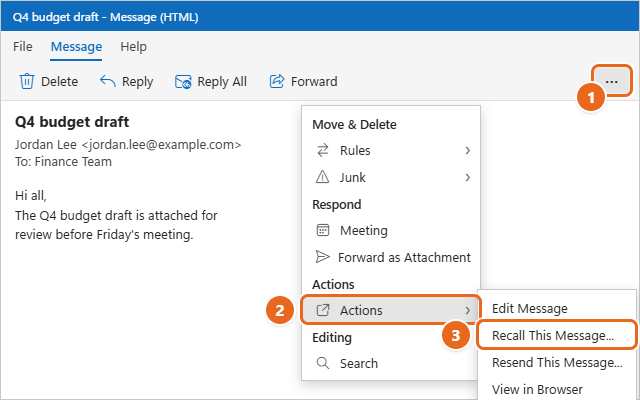
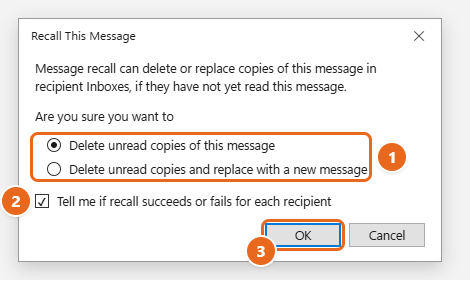
- In the Recall This Message box, choose one option:
- Delete unread copies of this message removes the message and sends nothing new.
- Delete unread copies and replace with a new message removes it and opens a copy for you to edit.
- If your box shows Tell me if recall succeeds or fails for each recipient, leave it selected, then select OK.
- If you chose to replace the message, a copy of it opens. Make your changes and select Send. Exchange deletes the original first, then delivers your new version like any other email.
- Watch your inbox for the Message Recall Report, usually within 30 seconds.
If Recall This Message is missing, Microsoft says you probably don’t have an Exchange account or your organization doesn’t offer the feature. Messages protected by Azure Information Protection can’t be recalled from classic Outlook.
Recall an email in Outlook on the web
Outlook on the web is the browser version of Outlook for work and school accounts, usually opened at outlook.office.com or through the Microsoft 365 portal. It isn’t the same as Outlook.com, which is for personal accounts and has no recall.
- Sign in and select Sent Items in the folder pane.
- Double-click the sent message so it opens in a separate window.
- Select Recall Message on the ribbon.
- Select OK to confirm.
- Open the Message Recall Report in your inbox and select its link to check the result.
Like new Outlook, the web version doesn’t offer a replace option. Send a corrected message yourself once the recall has gone through.
Recall an email in Outlook for Mac
Recall works in the current Outlook for Mac, version 16.94 (Build 25010522) or later. It isn’t supported in legacy Outlook for Mac. To check your version, select Outlook > About Outlook in the menu bar.
- Select Sent in the folder pane.
- Double-click the sent message to open it in a separate window.
- Select Recall on the ribbon, then select OK. You can also Control-click the message and choose Recall from the shortcut menu.
- Open the Message Recall Report that arrives in your inbox.
If the Recall button isn’t on your toolbar, Microsoft says you can add it by customizing the toolbar.
Recall an email in Outlook for iPhone or Android
Microsoft added recall to the Outlook mobile apps for Microsoft 365 work and school accounts in 2025. Update the app from the App Store or Google Play first if you don’t see the option.
- Open the Outlook app and go to your Sent folder.
- Tap the message you want to recall.
- Tap the … menu at the top right of the message.
- Tap Recall.
- Wait for the status email that tells you whether the recall worked. To send a fixed version, open the menu again and tap Resend, edit the message, and send it.
The same-organization rule applies on a phone. Microsoft also says recall isn’t available in the mobile apps for encrypted messages, including S/MIME messages, so the Recall option won’t appear for them.
Check whether the recall worked
Don’t judge success by whether the message still looks normal on your side. Recall never touches your own copy in Sent Items. The report is the only reliable proof.
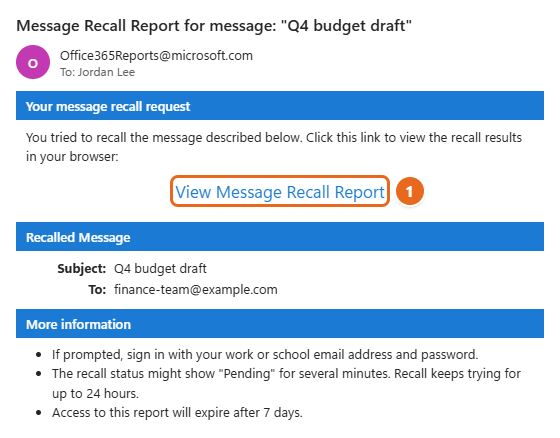
- In your inbox, find the email from [email protected] with the subject Message Recall Report for message followed by your original subject. If it isn’t there after a few minutes, check Junk Email.
- Select View Message Recall Report. The status page opens in your browser. Sign in with your work or school account if you’re asked to.
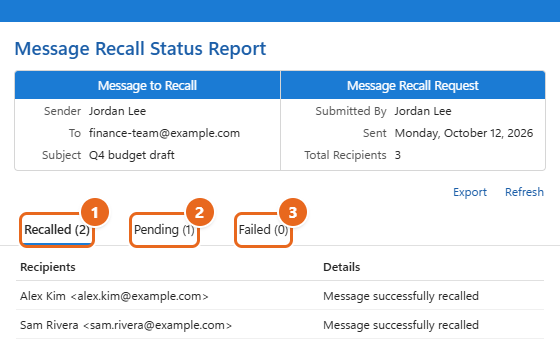
- Read the status for each recipient. The page groups them into Recalled, Pending and Failed.
- If anyone is Pending, select Refresh later. Microsoft says Exchange keeps trying for up to 24 hours, for example when a recipient’s mailbox is temporarily unavailable, before it marks the recall as failed.
- For anyone listed under Failed, send a correction, as described in the next section.
How long the status takes depends on the number of recipients. Microsoft says updates for a message with up to a few hundred recipients can take up to five minutes, and for tens of thousands of recipients the status can take up to 30 minutes, even though the recall itself is fast. Microsoft’s sample report also notes that access to the report expires after 7 days.
When you can’t recall the message
Most mistakes sent to people outside your company, and anything sent from a personal account, can’t be pulled back. A quick, clear follow-up is the next best thing.
- Open the original message in Sent Items.
- Select Reply All so the correction reaches everyone who got the original. Remove anyone who should never have received it and contact them separately.
- Start the subject with Correction: and keep the original subject after it, so people connect the two.
- State the fix in one or two sentences. For example: “Correction: the vendor meeting is Thursday, October 15, not Tuesday.” Skip the long apology.
- If you attached the wrong file, attach the right one and ask people to delete the earlier attachment.
Important: if the message contained confidential or personal information and went to the wrong person, ask them to delete it and tell your IT or security team right away. They may have options you don’t, such as admin tools to purge mail inside the organization.
Need to send the same message again with a fix? See how to edit a sent email in Outlook, which covers Resend and Undo send step by step.
Give yourself an undo window next time
Recall works after delivery and only inside your organization. A send delay works before the message leaves, so it helps with any recipient, including Gmail and Yahoo addresses. Pick the option your Outlook supports.
Undo send in new Outlook, Outlook on the web and Outlook.com
- Select Settings (the gear icon) at the top right.
- Select Mail > Compose and reply.
- Under Undo send, choose how many seconds Outlook should wait before sending. Outlook.com currently lets you delay messages by up to 10 seconds.
- Select Save.
After you send a message, an Undo prompt appears at the bottom of the window for that many seconds. Select it to bring the message back as a draft.
Delay every message in classic Outlook with a rule
Classic Outlook has no Undo send prompt, but a rule can hold everything you send in the Outbox for a few minutes.
- Select File > Manage Rules & Alerts > New Rule.
- Under Start from a Blank Rule, select Apply rule on messages I send, then Next.
- Leave the conditions blank to cover every message and select Next. Select Yes when Outlook asks whether to apply the rule to every message you send.
- Check defer delivery by a number of minutes. In the lower box, select the underlined a number of, enter the minutes (up to 120), and select OK.
- Select Next, add exceptions if you want any, and select Next again.
- Name the rule, make sure Turn on this rule is checked, and select Finish.
To stop a message during the delay, open the Outbox and edit or delete it. Classic Outlook has to stay open and connected for delayed messages to go out. To turn the delay off later, return to Manage Rules & Alerts and clear the rule’s check box.
Schedule a single message
In new Outlook and Outlook on the web, select the arrow next to Send and choose Schedule send. The message waits in Drafts until the time you pick. In classic Outlook, while composing, select the Message Options arrow in the Tags group (with the Simplified Ribbon, select the Options tab, then More commands). Under Delivery options, check Do not deliver before, pick a date and time, select Close, and send. The message waits in the Outbox until then.
Troubleshooting
The Recall option is missing
- The message is in the reading pane. Double-click it so it opens in its own window. This is the most common cause.
- You’re using a personal account. Outlook.com, Hotmail, Live and MSN accounts don’t have recall. Neither do Gmail or other IMAP and POP accounts added to Outlook.
- Your organization turned recall off. Ask your IT department.
- Your Mac version is too old. You need Outlook for Mac 16.94 or later, not legacy Outlook.
- The message is encrypted. In the mobile apps, recall isn’t offered for encrypted or S/MIME messages. Recalling messages encrypted with Microsoft’s encryption or sensitivity labels requires a Premium Encryption license and new Outlook or Outlook on the web.
Recall is greyed out or does nothing in classic Outlook
- Online mode: select File > Account Settings > Account Settings, select your Exchange account, select Change, check Use Cached Exchange Mode, then restart Outlook. Your organization may manage this setting, so ask IT if it’s locked.
- More than one Exchange account in the profile: recall the message from Outlook on the web or new Outlook instead.
- Shared mailbox: if you sent from a shared mailbox that’s added to your own profile, Microsoft says the Recall option can be greyed out in that mailbox’s Sent Items. Open the shared mailbox in its own Outlook profile, or recall from your own Sent Items if the message was saved there.
The report says Failed
- The recipient is outside your organization or on an on-premises Exchange server.
- The recipient forwarded the message manually or with an Inbox rule. Those forwarded copies aren’t recalled, though Microsoft says automatic forwarding to another mailbox inside the organization can be.
- Your admin blocks recall of read messages, and the recipient already opened it.
- The message is older than your organization’s maximum recall age.
- The message went to a mail-enabled public folder, which recall can’t reach.
In each case, send a correction to the recipients marked Failed.
No recall report arrived
Check Junk Email for a message from [email protected]. If it isn’t there, ask your admin to check whether that sender is blocked or quarantined. Admins can also confirm the result with a message trace.
FAQ
Does the recipient know I recalled an email?
Not by default. Microsoft says recipient notices for recalled messages are off unless an admin turns them on. The recipient may still have seen the message, a phone notification or a preview before it disappeared, so assume they might have noticed.
Can I recall an email after an hour, or the next day?
Yes, if your organization allows it. There’s no short countdown. The default maximum age is 365 days, but your admin can set a shorter limit. The sooner you act, the less likely someone has read, replied to or forwarded it.
Can I recall an email sent to Gmail from Outlook?
No. Once a message is delivered to Gmail, Yahoo or any outside provider, Outlook can’t delete it. Send a short correction instead.
Can I recall an email in Outlook.com or Hotmail?
No. Microsoft doesn’t offer recall for addresses ending in @outlook.com, @hotmail.com, @live.com or @msn.com. Turn on Undo send so you can cancel future messages within a few seconds.
Does recalling delete the email from my Sent Items?
No. Your copy stays in Sent Items. Delete it yourself if you don’t want to keep it.
What’s the difference between recall and Undo send?
Undo send holds a message for a few seconds before it leaves, so it works for any recipient but only right after you select Send. Recall deletes a message that was already delivered, but only inside your Microsoft 365 organization.
Is there a limit on how many recipients a recall can reach?
Not in practice. Microsoft says recall is attempted for every eligible recipient in your organization, however many there are. The status report itself is limited to about 50,000 recipients.
Next step
Open your Sent Items now and confirm which Outlook you’re using, then turn on Undo send or a short delivery delay so the next mistake never leaves your outbox. If you’re still setting Outlook up, see how to configure classic and new Outlook.

Matt Jacobs has been working as an IT consultant for small businesses since receiving his Master’s degree in 2003. While he still does some consulting work, his primary focus now is on creating technology support content for SupportYourTech.com.
His work can be found on many websites and focuses on topics such as Microsoft Office, Apple devices, Android devices, Photoshop, and more.