To encrypt a file or folder in Windows 10, right-click it and select Properties > Advanced. Check Encrypt contents to secure data, then select OK > Apply > OK. This uses the Encrypting File System (EFS), which is in Windows 10 Pro, Enterprise, and Education, but not Home.
Applies to: Windows 10 Pro, Enterprise, and Education. Checked against Microsoft Support on September 26, 2026.
EFS ties the encryption to your Windows account. You open the files as usual, but other people who sign in to the PC with their own accounts can’t.
Encrypt a file or folder
- In File Explorer, right-click the file or folder and select Properties.
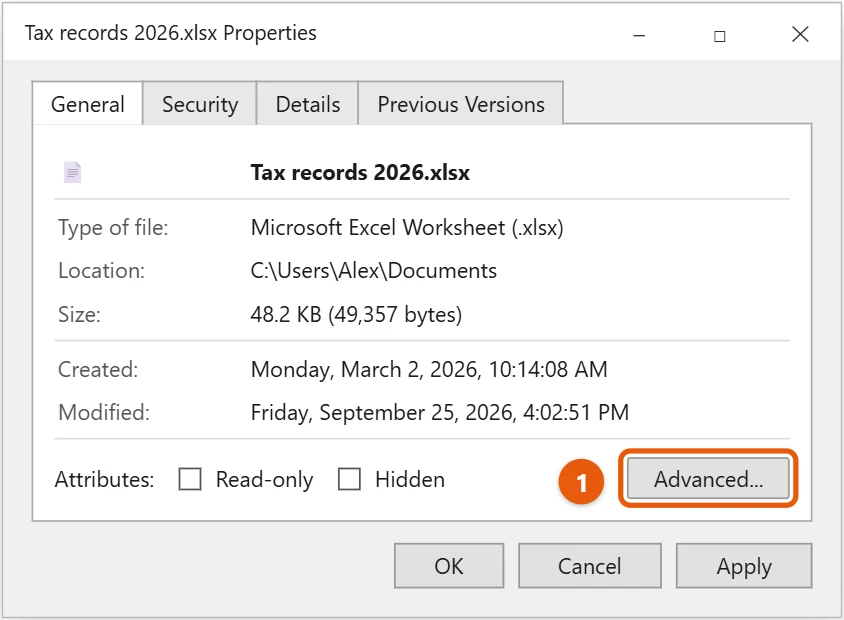
- On the General tab, select Advanced….
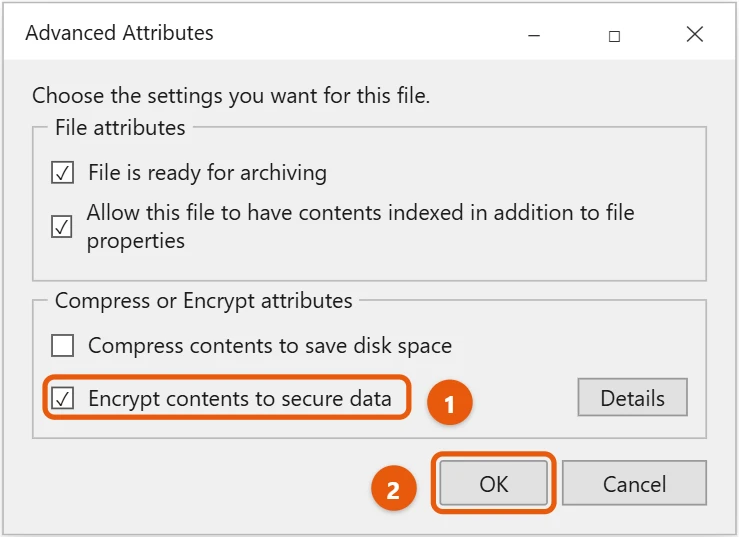
- Check Encrypt contents to secure data and select OK.
- Select Apply.
- For a folder, choose Apply changes to this folder, subfolders and files so everything inside is encrypted, and select OK.
- Select OK to close the Properties window.
Encrypted files show a small padlock on their icon in File Explorer. New files you save in an encrypted folder are encrypted too.
Back up your encryption key
The first time you encrypt something, Windows offers to back up your file encryption key. Select the notification and follow the steps to save the key (a certificate file with a password) to a USB drive.
If Windows is reinstalled or your account is removed, you need that key to open the files. Without it, the files can’t be recovered. Keep it somewhere other than the PC.
Decrypt a file
Repeat the steps and clear the Encrypt contents to secure data box.
Windows 10 Home
EFS isn’t available in Home, and the box is grayed out. Some PCs running Home support Device encryption, which encrypts the whole drive. Check Settings > Update & Security > Device encryption. If it’s not there, the PC doesn’t support it.
Things to know
- Copying can remove encryption. Copying to a USB drive formatted as FAT32 or exFAT, attaching to email, or uploading to some cloud services saves a copy that isn’t encrypted.
- Compress or encrypt, not both. A file can’t be both compressed with the NTFS setting and encrypted. To bundle files, see how to zip files in Windows 10.
- It’s not a backup. Keep a backup of your files too.
Encrypt with a command
In Command Prompt, cipher /e "C:\Users\YourName\Documents\Private" encrypts a folder, and cipher /d with the same path decrypts it. Run cipher on its own inside a folder to see which files are encrypted, marked with an E.
Troubleshooting
- Encrypt contents to secure data is greyed out. You’re on Windows 10 Home, the file is on a FAT32 or exFAT drive, or it’s a system file. Move the file to an NTFS drive on Pro or use another method.
- “Access is denied” after reinstalling Windows. The new account doesn’t have your encryption certificate. Double-click the .pfx backup you saved, follow the import wizard, and enter its password.
- File names turned green. File Explorer shows encrypted files in green. To turn that off, select View > Options > View and clear Show encrypted or compressed NTFS files in color.
- Another user on the PC needs access. Open the file’s Properties > Advanced > Details, select Add, and pick their account. They need to have signed in and used EFS at least once.
Frequently asked questions
How do I password-protect a file?
EFS doesn’t use a separate password. It uses your Windows sign-in, so set a strong password for your account.
How do I encrypt a whole drive or USB drive?
Use BitLocker, which is also in Pro and above. Open Control Panel > System and Security > BitLocker Drive Encryption, and select Turn on BitLocker next to the drive.
If you later want to remove encryption from a whole drive, see how to turn off BitLocker in Windows 10.
To find your encryption certificate later, see how to open Certificate Manager in Windows 10.
Microsoft’s guide is How to encrypt a file or folder. More help is on our Windows Help & Guides page.
Can malware or someone with my password open encrypted files?
Yes. EFS protects against other accounts and stolen drives, but anything running as you, including malware, can open your files. Keep Windows Security on and use a strong password.
Related: How to install a certificate on Windows 10.
Related: password protect a folder in Windows 10.
Related: password protect a ZIP file in Windows 10.

Matt Jacobs has been working as an IT consultant for small businesses since receiving his Master’s degree in 2003. While he still does some consulting work, his primary focus now is on creating technology support content for SupportYourTech.com.
His work can be found on many websites and focuses on topics such as Microsoft Office, Apple devices, Android devices, Photoshop, and more.