Windows 10 can’t show an iPhone’s screen by itself. An iPhone mirrors wirelessly with Apple’s AirPlay, and Windows 10 has no AirPlay receiver built in. The quickest fix is to install an AirPlay receiver app on the PC, then on the iPhone open Control Center, tap Screen Mirroring and pick the PC from the list. If you’d rather not use Wi-Fi, a USB mirroring app or an HDMI adapter with a capture card also works.
Applies to: iPhones running iOS 27 (the current version) and recent earlier versions, and Windows 10 version 22H2. The Screen Mirroring steps follow Apple’s AirPlay and screen mirroring instructions. Windows 10 reached end of support on October 14, 2025, so keep the PC enrolled in Extended Security Updates (available through October 12, 2027) if you plan to install extra apps on it.
Which method should you use?
| Method | What you need | Best for |
|---|---|---|
| AirPlay receiver app (Wi-Fi) | An app on the PC, same Wi-Fi network | Quick, cable-free sharing at home |
| USB mirroring app | An app on the PC (often also on the iPhone), a data cable | Smoother picture, busy or restricted Wi-Fi |
| HDMI adapter and capture card | An Apple video adapter, a USB capture card, an HDMI cable | No mirroring software, recording, presentations |
| Screen share in a Teams call | Microsoft Teams on both devices | Showing your screen once, without new apps on the PC |
None of these lets you control the iPhone with the PC’s mouse in the way a remote-control app would. You still tap the iPhone itself.
Before you start
- Know the two terms. An AirPlay receiver is any device that can accept an iPhone’s screen (an Apple TV, an AirPlay-compatible smart TV, a Mac, or a PC running a receiver app). Miracast is the different wireless display standard that Windows uses. iPhones don’t send Miracast.
- Same network. For wireless mirroring, the PC and iPhone must be on the same Wi-Fi network. Guest, hotel and many work networks block devices from finding each other.
- Find Control Center. On an iPhone with Face ID, swipe down from the top-right corner. On an iPhone with a Home button, swipe up from the bottom edge.
- Pick a trustworthy app. Receiver and mirroring apps come from third-party developers. Download from the Microsoft Store or the developer’s own website, check the publisher name, and expect free versions to add a watermark or a time limit.
Method 1: Mirror over Wi-Fi with an AirPlay receiver app
- Install a receiver app on the PC. Open the Microsoft Store, search for AirPlay receiver, and choose an app from a publisher you recognize, or download one from its developer’s own website. Long-running receiver apps include AirServer, Reflector and LonelyScreen. Install the app and open it. Most show a window that says they’re waiting for a connection, often with the name your PC will appear under.
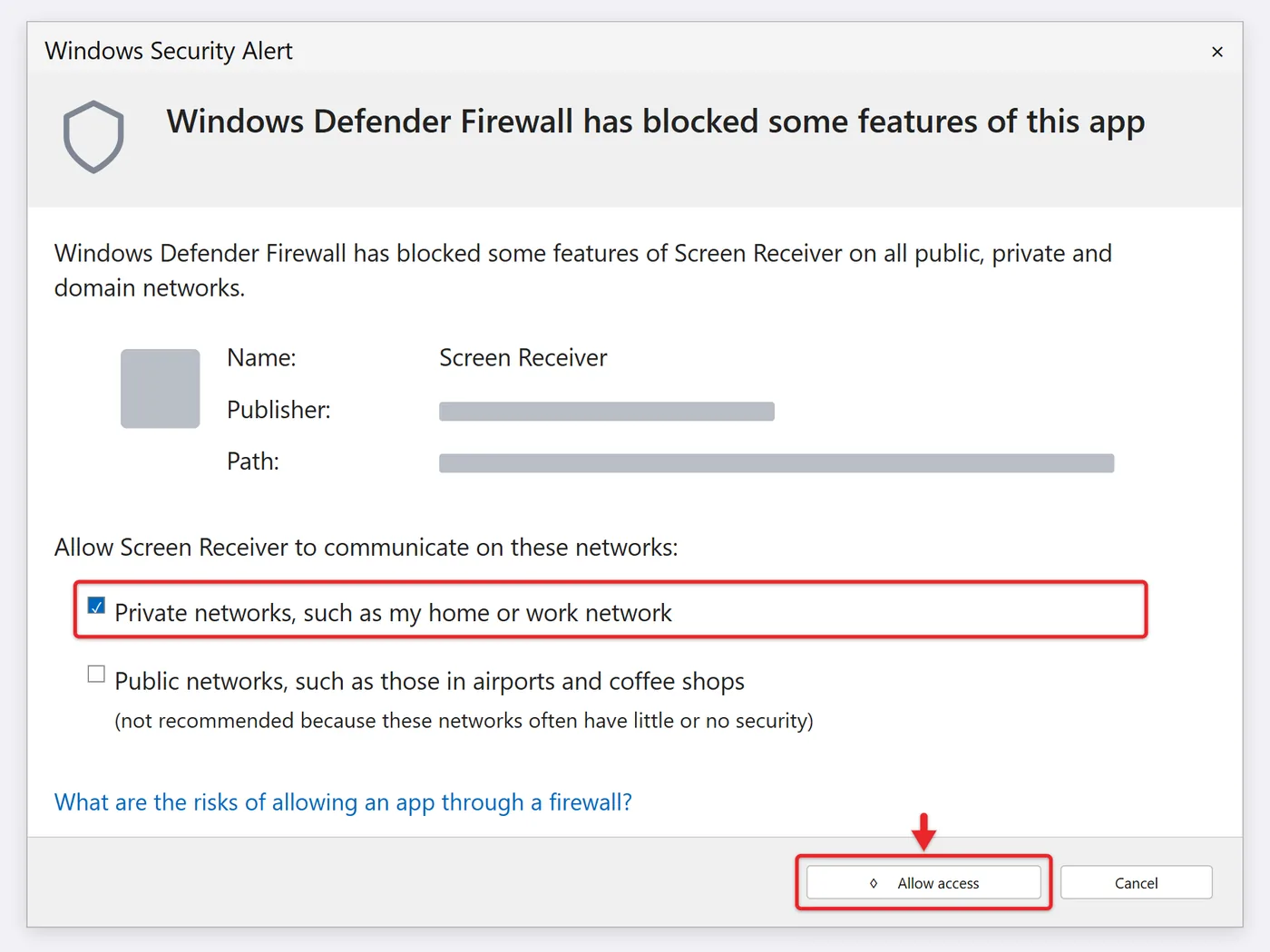
- Allow it through the firewall. If Windows Defender Firewall asks whether the app can communicate, check Private networks and select Allow access. If you skip this, the iPhone usually can’t see the PC.
- Join the same Wi-Fi network. On the iPhone, open Settings > Wi-Fi and confirm the network name matches the one the PC uses. If your router broadcasts separate 2.4 GHz and 5 GHz names, put both devices on the same one.
- Open Screen Mirroring. Open Control Center on the iPhone and tap Screen Mirroring (the icon with two overlapping rectangles). A list of AirPlay receivers on the network appears.
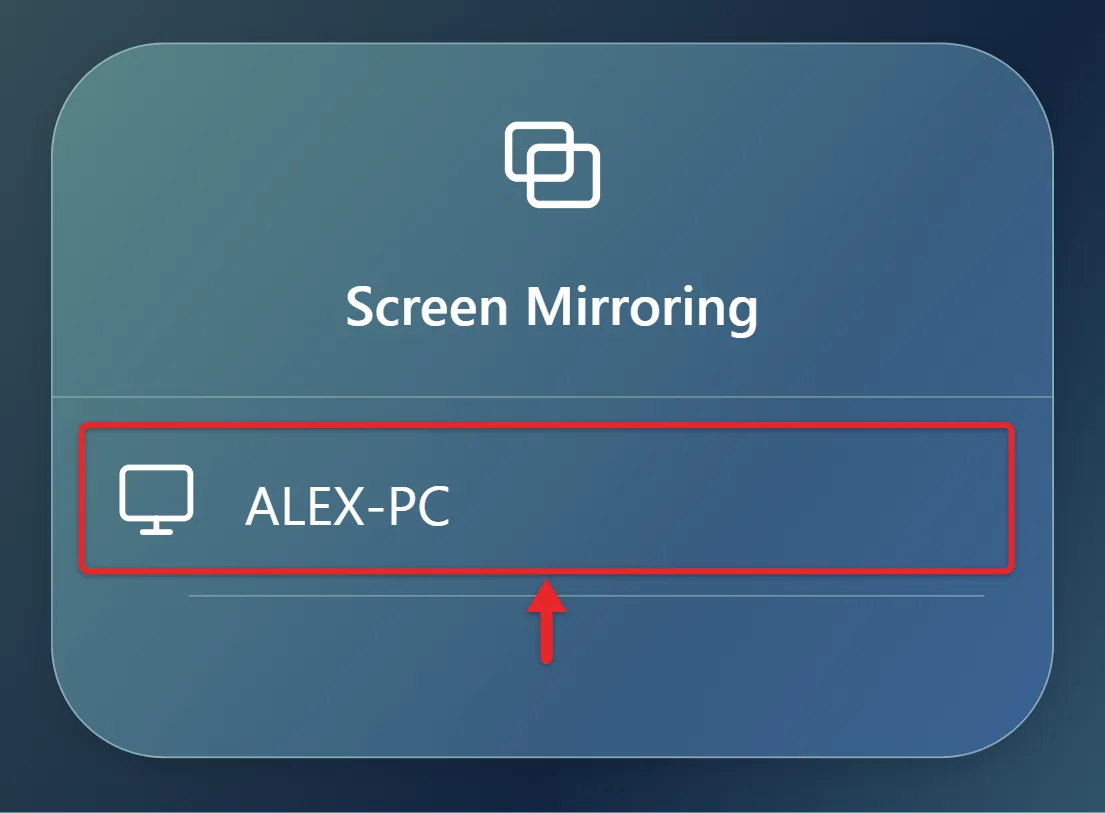
- Choose the PC. Tap the name the receiver app showed. If a code appears on the PC screen, type it on the iPhone. Within a few seconds the iPhone’s screen appears in the app’s window. Rotate the iPhone to landscape for videos and games to fill more of the window.
To stop, open Control Center, tap Screen Mirroring, then tap Stop Mirroring. Closing the receiver app on the PC also ends the session, and the PC disappears from the iPhone’s list until you open the app again.
Method 2: Mirror over a USB cable
Wired mirroring avoids Wi-Fi lag and works on networks that block device discovery. Windows 10 still has no built-in way to do it, so you need a mirroring app that offers a USB mode (several AirPlay receiver apps and dedicated mirroring apps do; check the app’s description before installing).
- Install Apple’s driver. Get the Apple Devices app from the Microsoft Store. It installs the driver Windows needs to talk to an iPhone over USB. If you already use iTunes, that works too.
- Install the mirroring app. Install it on the PC, and on the iPhone too if the app’s instructions say it needs a companion app.
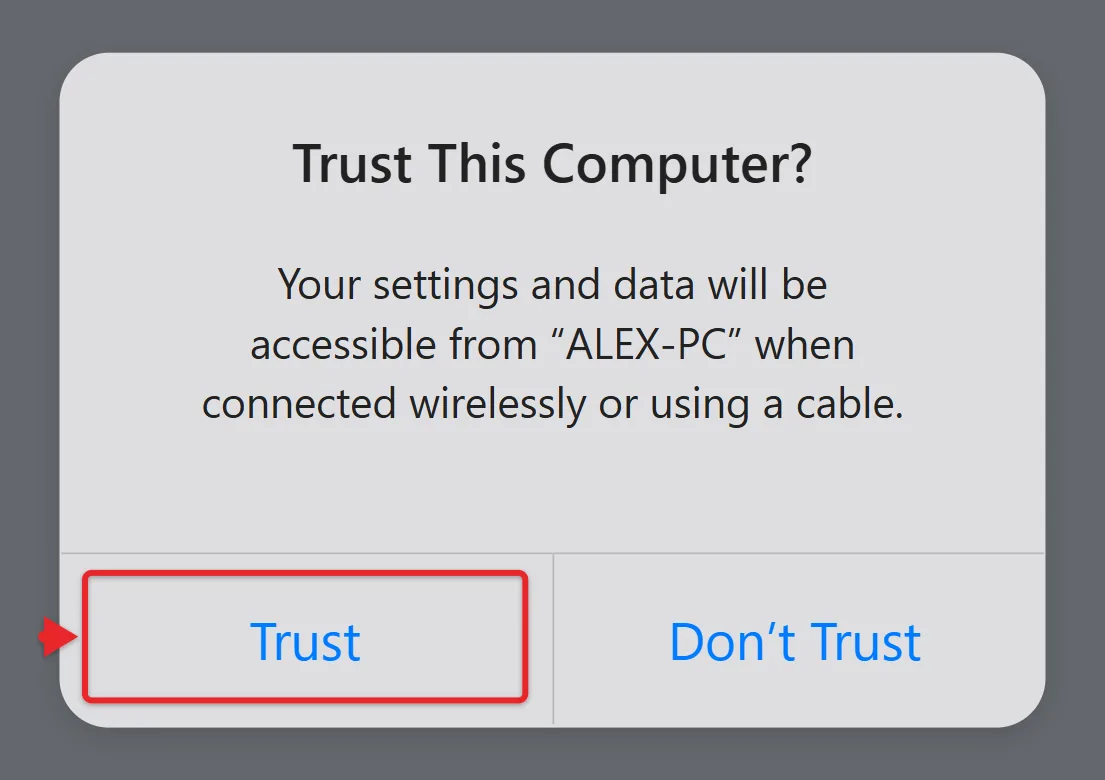
- Connect and trust. Plug the iPhone in with a cable that carries data, not just charge. Unlock the iPhone, tap Trust when it asks whether to trust this computer, and enter your passcode. Apple explains this prompt in its article about the Trust This Computer alert.
- Start mirroring. In the PC app, choose the USB or cable connection and select your iPhone. Many apps then ask you to start a screen broadcast on the iPhone: tap the app’s name and Start Broadcast, and the screen appears on the PC after a short countdown.
To stop, tap the red recording indicator at the top of the iPhone screen and choose Stop, or end the session in the PC app and unplug the cable.
Method 3: Use an HDMI adapter and a capture card
This route needs no mirroring software. The iPhone sends video over a cable, and a capture card turns that into a webcam-style feed the PC can display.
- Get a video adapter for the iPhone. Lightning iPhones need Apple’s Lightning Digital AV Adapter. iPhones with a USB-C port need a USB-C to HDMI adapter or cable.
- Connect the chain. Plug the adapter into the iPhone, run an HDMI cable from the adapter to the capture card’s HDMI input, and plug the capture card into a USB port on the PC.
- Open a viewer on the PC. Open the Camera app from the Start menu. If it opens your webcam instead, select the switch camera button until the capture card’s feed appears. The capture card’s own software or a recording app also works.
Two catches. Movies and many streaming apps require HDCP copy protection, so they won’t play through a capture card. And the Camera app shows video only, so you may hear sound from the iPhone rather than the PC. This setup is covered in more depth in the guide to mirroring an iPhone to Windows 11 without an app, and the hardware steps are the same on Windows 10.
If you only need to show something once, for example walking a relative through a setting, a video call can stand in for mirroring. Start a Teams meeting on the PC, join the same meeting from the Teams app on the iPhone, and mute one of the two devices so you don’t get echo. On the iPhone, tap More (the three dots), tap Share, choose to share your screen, and tap Start presenting. Microsoft’s page on sharing your screen in Microsoft Teams has the details. Expect more delay than with a receiver app.
What won’t work on Windows 10
- Projecting to this PC and the Connect app. These receive Miracast only, which is why they work with many Android phones and other Windows PCs but never list an iPhone. See how that works when you cast an Android phone screen to Windows 10.
- Phone Link. Microsoft lists Windows 11 and iOS 14 or later as the requirements for Phone Link with an iPhone, so it isn’t an option on Windows 10. Even on Windows 11, the iPhone version handles calls, messages, notifications and contacts, not the screen.
- iPhone Mirroring. Apple’s iPhone Mirroring feature works only with a Mac running macOS Sequoia or later, as Apple’s iPhone Mirroring page explains.
Troubleshooting
The PC doesn’t appear in Screen Mirroring
Make sure the receiver app is open, both devices are on the same network, and the app is allowed through Windows Defender Firewall for private networks. In Windows 10, check this under Settings > Update & Security > Windows Security > Firewall & network protection > Allow an app through firewall. Also confirm the PC’s network is set to Private, not Public. Turn off any VPN on either device, then restart the router, PC and iPhone. Apple’s screen mirroring troubleshooting page lists the same basics.
Videos show a black screen
Some streaming apps block mirroring and capture of protected video. That’s a copy-protection limit, not a fault in your setup. Photos, games and most other apps still mirror.
The picture lags or drops out
Move both devices closer to the router, switch to a 5 GHz network, close other apps that are streaming on the PC, or switch to the USB method.
There’s no sound on the PC
Turn up the volume on the iPhone and in the receiver app, and check the PC’s output device in the taskbar sound menu. Some free app versions don’t pass audio.
The PC doesn’t detect the iPhone over USB
Unlock the iPhone and look for the Trust prompt. Try a different cable and USB port, and update the Apple Devices app. If you tapped Don’t Trust earlier, go to Settings > General > Transfer or Reset iPhone > Reset > Reset Location & Privacy, then reconnect so the prompt appears again.
Confirm it worked, and undo it
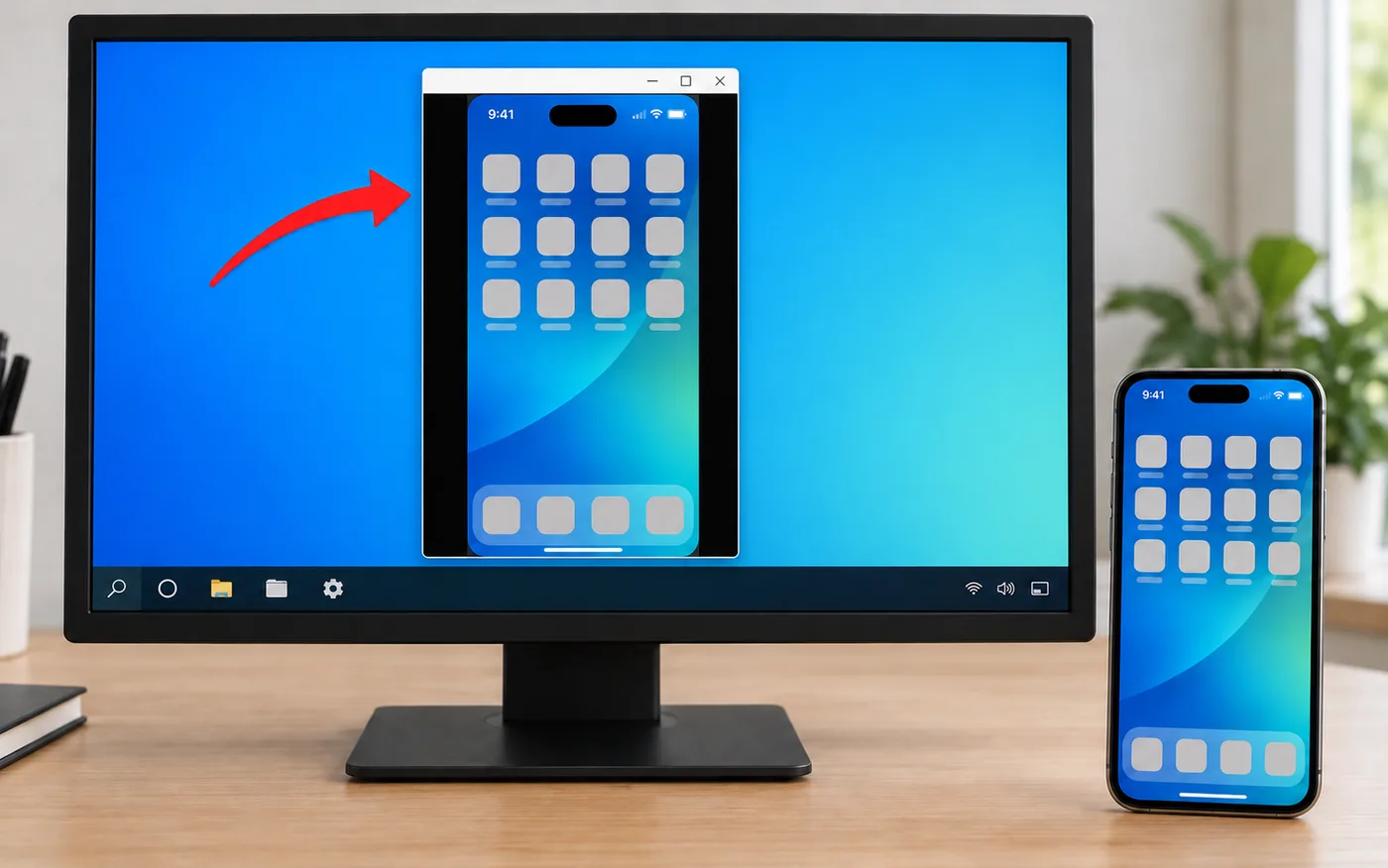
You’ll know mirroring is working when the iPhone’s Screen Mirroring tile shows the PC’s name highlighted (wireless) or a red indicator appears at the top of the iPhone screen (broadcast apps), and taps on the iPhone show up on the PC a moment later. To remove everything, uninstall the receiver app from Settings > Apps > Apps & features, delete its entry under Allow an app through firewall if one remains, and use Reset Location & Privacy on the iPhone if you want it to forget the PC.
Frequently asked questions
Is there a free way to mirror an iPhone to Windows 10?
Yes, but with limits. Several receiver apps have free versions or trials that add a watermark, cap session length, or reduce quality. The Teams screen-share method is free if you already use Teams.
Does mirroring work without Wi-Fi?
Yes. Use a USB mirroring app or the HDMI adapter and capture card. Neither depends on a wireless network, so they’re useful at work or on hotel Wi-Fi.
Can I record the iPhone screen on the PC?
Many receiver apps include a record button, and capture card software can record too. You can also use the iPhone’s own Screen Recording control in Control Center and copy the video to the PC afterward.
Will mirroring drain my iPhone’s battery?
Wireless mirroring uses more power and can make the iPhone warm. For long sessions, keep it charging; the USB method charges it while it mirrors.
Do I need to mirror just to get photos onto the PC?
No. If you want copies rather than a live view, transfer photos from iPhone to a Windows 10 PC with the Photos app or File Explorer instead.
For most people, a receiver app over home Wi-Fi is the fastest place to start. If you mostly want to watch Apple shows on the bigger screen, you may not need the iPhone at all: you can watch Apple TV on Windows 10 directly.

Matt Jacobs writes and maintains the guides on Support Your Tech, which he started in 2017. He spent most of his career keeping small-business PCs running and still takes the occasional consulting job, so the steps here come from fixing the same problems on other people’s computers. Every guide is checked on his own Windows 11, Windows 10, Mac, iPhone and iPad before it goes up.