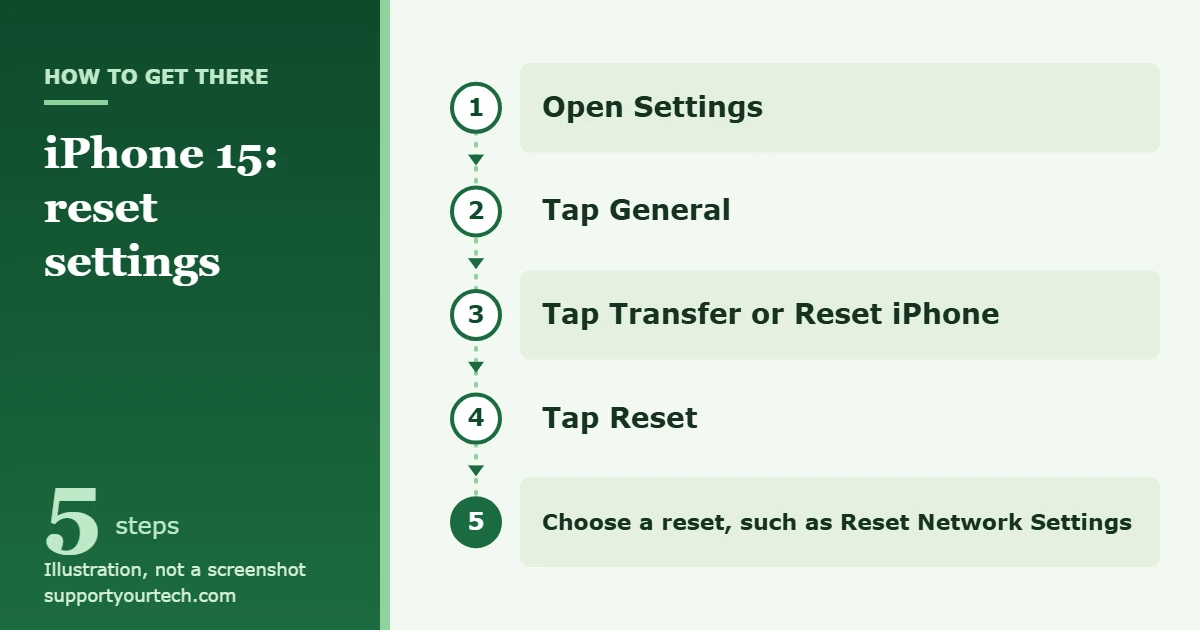
To reset an iPhone 15 without losing anything, open Settings, tap General, tap Transfer or Reset iPhone, tap Reset, and pick the reset you need, such as Reset Network Settings or Reset All Settings. If the phone is only slow or frozen, restart or force restart it instead. To wipe it completely, use Erase All Content and Settings on the same screen.
Applies to: iPhone 15, iPhone 15 Plus, iPhone 15 Pro and iPhone 15 Pro Max.
Which reset do you need?
“Reset” can mean five different things on an iPhone, and only two of them delete your data. Start with the mildest option that matches your problem.
| Type of reset | Use it when | What you lose |
|---|---|---|
| Restart | The phone is slow or an app is misbehaving | Nothing |
| Force restart | The screen is frozen or black and will not respond | Nothing |
| Reset Network Settings | Wi-Fi, cellular or VPN connections keep failing | Saved Wi-Fi networks and passwords, cellular settings, VPN and APN settings |
| Reset All Settings | A problem survives a restart and you cannot find the setting that causes it | Your settings and Apple Pay cards, but no apps, photos or other content |
| Erase All Content and Settings | You are selling, giving away or starting over with the phone | Everything stored on the iPhone |
Before you reset: back up your iPhone
A restart or force restart does not need a backup. Before any other reset, and always before erasing, make a fresh backup so you can get your content back.
Connect to Wi-Fi, open Settings, tap your name, tap iCloud, tap iCloud Backup, and then tap Back Up Now. Stay on Wi-Fi until the backup finishes; the same screen shows the date and time of the last successful backup. If iCloud storage is full, the iPhone tells you, and you can back up to a Mac or PC instead.
Make sure you also know your Apple Account password. Activation Lock asks for it when an erased iPhone is set up again.
Restart an iPhone 15
A restart turns the phone off and back on. It clears temporary glitches and does not change any setting or data. If only one app is stuck, try to force close that app from the App Switcher first, since it takes just a few seconds.
- Press and hold either volume button and the side button together until the power-off slider appears. For a Live Activity that stays stuck at the top of the screen, try these Dynamic Island troubleshooting steps before erasing anything.
- Drag the slider, then wait 30 seconds for the iPhone to turn off.
- Press and hold the side button until the Apple logo appears.
Force restart a frozen iPhone 15
If the screen is frozen or black and the power-off slider never appears, force the phone to restart. A force restart does not erase anything. The official version of these steps is Restart an unresponsive iPhone.
- Press and quickly release the volume up button.
- Press and quickly release the volume down button.
- Press and hold the side button, and keep holding until the Apple logo appears. This can take longer than 10 seconds, so do not let go early.
If nothing happens, charge the iPhone for one hour and try the three steps again.
Reset iPhone 15 settings without erasing your data
The Reset menu puts groups of settings back to their defaults and leaves your apps, photos, messages and files alone. This is the right place to go when a problem keeps coming back after a restart.
- Open Settings and tap General.
- Tap Transfer or Reset iPhone.
- Tap Reset. A menu of reset options appears. Do not tap Erase All Content and Settings on this screen unless you mean to wipe the phone.
- Tap the reset you want, for example Reset Network Settings, and follow the prompts to confirm.
Here is what each option in the Reset menu does:
- Reset All Settings: all settings, including network settings, the keyboard dictionary, location settings, privacy settings and Apple Pay cards, are removed or reset to their defaults. No data or media are deleted.
- Reset Network Settings: removes all Wi-Fi networks and passwords, cellular settings, and VPN and APN settings you have used. You will need to rejoin Wi-Fi and type the password again. If your network is managed by an employer or school, check with the IT administrator first.
- Reset Keyboard Dictionary: erases the words you have added to the keyboard dictionary by rejecting the suggestions iPhone offers as you type. To add the words you still want back afterward, see how to add a word to the iPhone dictionary.
- Reset Home Screen Layout: returns the built-in apps to their original positions on the Home Screen.
- Reset Location & Privacy: returns location services and privacy settings to their defaults. It also makes the iPhone forget computers you previously chose to trust, so you are asked again the next time you connect one.
For a connection problem, try Reset Network Settings first because it changes the least. The Wi-Fi troubleshooting article If you can’t connect to Wi-Fi on your iPhone or iPad lists this reset after simpler checks of the iPhone and the router.
Erase all content and settings (factory reset)
Warning: this deletes everything on the iPhone, including photos, apps and payment cards. Content already stored in iCloud is not deleted from iCloud. Back up first.
- Open Settings, tap General, and tap Transfer or Reset iPhone.
- Tap Erase All Content and Settings, then tap Continue.
- Choose whether to keep or delete your eSIM. If you delete it, you have to contact your carrier to reactivate your cellular plan. If the phone is going to someone else, erase the eSIM.
- Enter your device passcode, wait for the backup to finish, and enter your Apple Account password when asked.
- Wait for the iPhone to reset. When it is finished, the Hello screen appears.
Erasing the phone this way also turns off Find My and Activation Lock, which is what makes it ready for a new owner. Wiping an iPhone 15 has the full walkthrough, including what to do before selling or trading in. The official steps are in How to factory reset your iPhone, iPad, or iPod touch.
Reset an iPhone 15 with a computer (recovery mode)
Use a computer when the iPhone cannot finish starting up, for example when it shows the Apple logo for several minutes with no progress bar. You need a Mac or a Windows PC, a USB cable and an internet connection.
- Connect the iPhone to the computer with the USB cable. On a Mac, open Finder. On a Windows PC, open the Apple Devices app.
- On the iPhone, press and quickly release the volume up button, press and quickly release the volume down button, then press and hold the side button. Keep holding until the screen shows a computer and a cable.
- On the computer, find your iPhone. When you are offered Update or Restore, choose Update first if you have not tried it yet. Restore reinstalls iOS and erases all your data.
- Wait for the download and installation to finish, then set up the iPhone.
If the download takes more than 15 minutes, the iPhone may leave the recovery screen. Let the download finish, then repeat the button presses in step 2 and choose again. Other fixes are in If you can’t update or restore your iPhone.
Erase a lost iPhone 15 remotely
If the phone is lost or stolen, you can erase it from a web browser. Go to icloud.com/find, sign in to your Apple Account, select the iPhone in the list, choose Erase This Device, and follow the onscreen instructions. An online iPhone starts erasing right away; an offline one starts when it next connects. Activation Lock stays on, so nobody can reactivate the phone without your Apple Account password.
For an offline iPhone that has not yet been erased, you can change your mind: select it again and choose Stop Erase Request.
How to confirm the reset worked, and what you can undo
- Restart or force restart: the Apple logo appears and the phone starts up again. There is nothing to undo.
- Reset Network Settings: the iPhone is no longer joined to Wi-Fi, and you have to choose your network and enter its password again. There is no undo; you re-enter the details by hand.
- Reset All Settings: your apps and content are still there, but your preferences are back to their defaults and Apple Pay cards need to be added again.
- Erase or Restore: the Hello screen appears. To get your content back, follow the setup screens to Transfer Your Apps & Data and tap From iCloud Backup, or restore from a computer backup. Without a backup, an erase cannot be reversed.
Troubleshooting
The power-off slider does not appear
The phone is frozen. Use the force restart steps instead: volume up, volume down, then hold the side button until the Apple logo appears.
The iPhone will not turn on after a force restart
Charge it for one hour and try again. If it still does not start, the iPhone might need service.
The iPhone is stuck on the Apple logo
If the logo stays on screen for several minutes with no progress bar, connect the phone to a computer and use the recovery mode steps above. Choose Update before Restore so you have a chance of keeping your data.
Wi-Fi still fails after Reset Network Settings
Check whether other devices can use the same network. If they cannot, the problem is the router or the internet service, not the iPhone. On a work or school network, ask the IT administrator, because managed networks can need settings that only they can supply.
The erased iPhone says it is locked to its owner
An “iPhone Locked to Owner” screen means Activation Lock is still on. The Apple Account and password that were used on the phone are required to reactivate it. If the phone is yours, sign in with that account. If you bought it used, contact the seller; there is no legitimate way around this screen without the owner’s account.
You forgot the iPhone passcode
The Reset menu will not help, because erasing from Settings asks for the passcode. The supported route is to put the iPhone in recovery mode and restore it with a computer, which erases it; allow up to 60 minutes. Follow Use a computer to reset your iPhone and your passcode, then restore your backup.
Frequently asked questions
Will resetting my iPhone 15 delete my photos?
Only Erase All Content and Settings, a remote erase, or a Restore from a computer deletes photos. A restart, a force restart and everything inside the Reset menu leave photos, apps and messages in place.
What is the difference between Reset All Settings and Erase All Content and Settings?
Reset All Settings returns your settings to their defaults and removes Apple Pay cards, but keeps your data and media. Erase All Content and Settings removes everything and returns the iPhone to the Hello screen.
Does a force restart erase anything?
No. A force restart only makes a frozen iPhone turn off and start again. Your content and settings are not changed.
Can I reset an iPhone 15 without a computer?
Yes. Restarting, force restarting, every option in the Reset menu, and Erase All Content and Settings are all done on the phone itself. You only need a computer for recovery mode, which is for a phone that cannot start up or whose passcode you have forgotten.
Do I need to turn off Find My before I erase my iPhone 15?
Not as a separate step. When you use Erase All Content and Settings and enter your Apple Account password, Find My and Activation Lock are turned off as part of the erase. A remote erase from iCloud is different: Activation Lock stays on.
How long does it take to restore my data after a factory reset?
The progress bar for an iCloud backup restore can take from a few minutes to an hour, depending on the backup size and your Wi-Fi speed. Apps, photos and other content keep downloading in the background afterward, which can take hours or days for a large library.
Can a reset fix a slow iPhone 15?
A restart is the first thing to try. If the problem returns, install any waiting update in Settings, General, Software Update, then try Reset All Settings. Erasing the phone is a last resort.
Start with a restart, move up to the Reset menu only if the problem continues, and keep a current backup so that erasing the iPhone never costs you anything you care about.
Related: force restarting an iPhone 15, resetting network settings on iPhone, and turning off Find My on an iPhone 15.

Matt Jacobs has been working as an IT consultant for small businesses since receiving his Master’s degree in 2003. While he still does some consulting work, his primary focus now is on creating technology support content for SupportYourTech.com.
His work can be found on many websites and focuses on topics such as Microsoft Office, Apple devices, Android devices, Photoshop, and more.