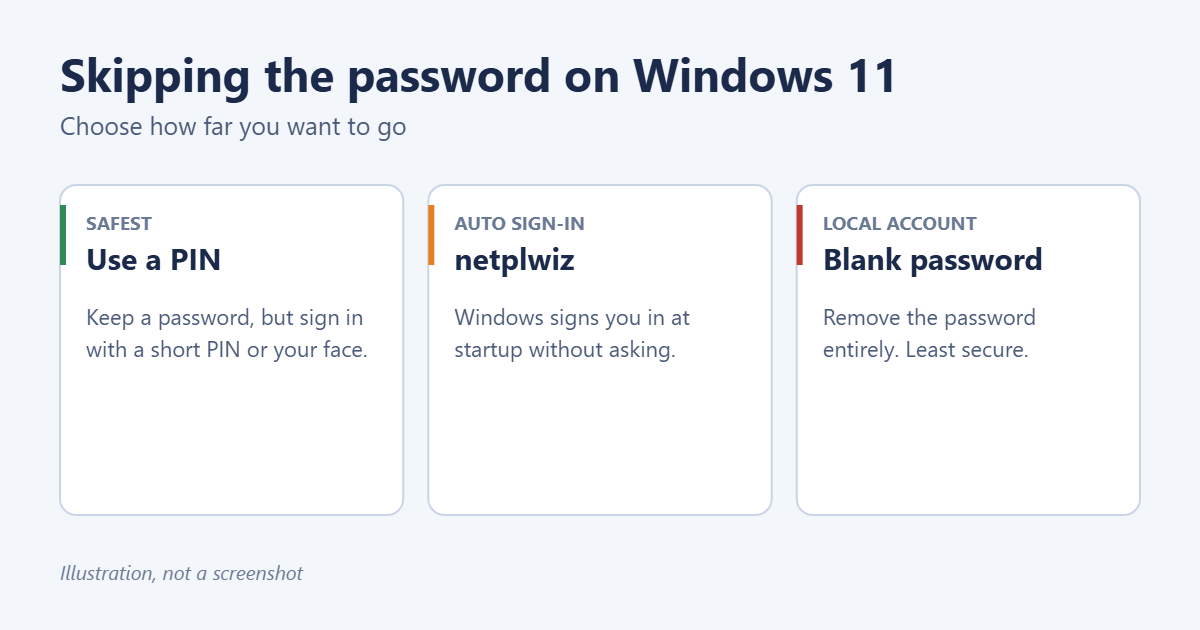
To stop Windows 11 asking for a password, you have three options. The easiest and safest is to sign in with a PIN or Windows Hello instead. To skip the sign-in screen completely at startup, turn on automatic sign-in with the netplwiz tool. If you use a local account, you can remove its password altogether. Each option is explained below, along with how to stop Windows asking again after sleep. Keep in mind that anyone who picks up your PC can get into it once the password is gone.
Before you start: think about security
Turning off the password is reasonable on a desktop PC at home that only you use. It’s a bad idea on a laptop you carry around, a shared family PC, or a work computer. Without a password, anyone with access to the PC can read your email, files, and saved browser passwords. If the drive is encrypted with BitLocker or device encryption, automatic sign-in also means the encryption no longer protects your data from someone who has the laptop.
Option 1: Use a PIN or Windows Hello instead
A PIN is only valid on that one PC, so it’s safer than your Microsoft account password and much quicker to type. Face or fingerprint sign-in is quicker still.
- Open Settings > Accounts > Sign-in options.
- Click PIN (Windows Hello) and choose Set up, or set up Facial recognition or Fingerprint recognition if your PC has the hardware.
- Follow the prompts.
To change the PIN later, see how to change your PIN on Windows 11.
Option 2: Sign in automatically with netplwiz
This keeps your password but has Windows enter it for you at startup.
Step 1: Allow password sign-in
If your PC uses a Microsoft account, Windows 11 hides the option you need. To bring it back:
- Go to Settings > Accounts > Sign-in options.
- Under Additional settings, turn off For improved security, only allow Windows Hello sign-in for Microsoft accounts on this device.
Step 2: Turn on automatic sign-in
- Press Windows + R, type netplwiz, and press Enter.
- Select your account in the list.
- Untick Users must enter a user name and password to use this computer.
- Click Apply. Enter your password twice. For a Microsoft account, use the account’s full email address as the user name and its password, not your PIN.
- Click OK and restart to test it.
If the checkbox is still missing, restart after Step 1 and try again. On work or school PCs, the option may be blocked by policy.
Option 3: Remove the password from a local account
This only works for a local account, not a Microsoft account. To check which you have, look at Settings > Accounts > Your info. A Microsoft account shows an email address.
- Go to Settings > Accounts > Sign-in options.
- Click Password, then Change.
- Enter your current password and click Next.
- Leave the New password, Confirm password, and Password hint boxes empty and click Next, then Finish.
If you’ve set up a PIN, Windows may still ask for it. See how to remove a PIN in Windows 11.
Stop Windows asking after sleep or lock
Even with automatic sign-in, Windows asks again when the PC wakes up. To change that:
- Go to Settings > Accounts > Sign-in options.
- Under Additional settings, set If you’ve been away, when should Windows require you to sign in again? to Never.
You can also stop the computer from sleeping so it isn’t locked as often.
Troubleshooting
The netplwiz checkbox isn’t there
Turn off the Windows Hello-only setting in Step 1 above and restart. If it still doesn’t appear, your PC may be managed by an organization, which can block automatic sign-in.
Automatic sign-in doesn’t work after a restart
The password typed into netplwiz was probably wrong, or you used your PIN instead of the account password. Repeat Option 2, and make sure you use the full email address for a Microsoft account.
Windows still shows the sign-in screen
If there’s more than one user account, Windows may show the sign-in screen so you can choose. Automatic sign-in only applies to the selected account.
Frequently asked questions
Can I remove the password from a Microsoft account?
Not completely. A Microsoft account needs some way to prove it’s you online, either a password or a passwordless method such as the Microsoft Authenticator app or a passkey. On your PC, you can use automatic sign-in or switch to a local account.
Is a PIN safer than a password?
For signing in to your PC, yes. A PIN is tied to that device, so even if someone learns it, they can’t use it to get into your Microsoft account from another computer.
Will this affect my files or apps?
No. It only changes how you sign in.
Summary
For the best balance, use a PIN or Windows Hello. To skip sign-in entirely, turn off the Windows Hello-only setting and untick “Users must enter a user name and password” in netplwiz. Local accounts can have their password removed in Sign-in options. Only do this on a PC that stays safely at home.
Related: How to Add a Fingerprint in Windows 11.
Related: how to remove the password on a Windows 10 laptop.

Matt Jacobs has been working as an IT consultant for small businesses since receiving his Master’s degree in 2003. While he still does some consulting work, his primary focus now is on creating technology support content for SupportYourTech.com.
His work can be found on many websites and focuses on topics such as Microsoft Office, Apple devices, Android devices, Photoshop, and more.