To remove extra spaces in Excel, type =TRIM(A2) in an empty column next to your data, press Enter, and fill the formula down. TRIM deletes spaces at the start and end of the text and shrinks any run of spaces between words to a single space. If some spaces survive, they are probably non-breaking spaces from a web page, so use =TRIM(SUBSTITUTE(A2,UNICHAR(160)," ")) instead. Then copy the results and paste them back as values.
Applies to: Excel for Microsoft 365 (Windows, Mac and the web), Excel 2024, Excel 2021, Excel 2019 and Excel 2016. The Power Query steps are written for Excel for Windows. Function details match Microsoft’s TRIM reference.
Which method should you use?
Extra spaces come in a few flavors, and no single tool handles all of them. Use this table to pick a starting point.
| Your problem | Best fix | Changes the original cells? |
|---|---|---|
| Spaces before or after text, or double spaces between words | TRIM (Method 1) | No, until you paste the results back |
| TRIM ran but some spaces are still there (data copied from a website) | SUBSTITUTE with UNICHAR(160), then TRIM (Method 2) | No, until you paste the results back |
| Line breaks, tabs or odd invisible characters | CLEAN with SUBSTITUTE and TRIM (Method 3) | No, until you paste the results back |
| Double spaces between words, fixed in place without formulas | Find and Replace (Method 4) | Yes |
| The same messy export arrives every week or month | Power Query (Method 5) | No, it loads a new table |
| Spaces inside codes, phone numbers or IDs that should have none | SUBSTITUTE or Find and Replace with nothing | Depends on the method |
The examples below use a short customer list in column A, with the header Customer (imported) in A1 and names in A2:A6. Some names, such as Jordan Lee and Avery Chen, have spaces in front, at the end or between the first and last name. One was pasted from a website and contains a non-breaking space.
Why it matters: Excel treats a space as a real character. Jordan Lee with a trailing space doesn’t match Jordan Lee without one, so lookups such as VLOOKUP and XLOOKUP return #N/A, sorting puts entries in odd places, and Remove Duplicates misses copies that look identical.
Check which cells have extra spaces
Trailing spaces are invisible, so it helps to measure them before you fix anything.
- In an empty column, for example C2, type
=LEN(A2)-LEN(TRIM(A2))and press Enter. LEN counts characters, so the result is the number of extra regular spaces in A2. - Fill the formula down. Any result above 0 means the cell has extra spaces that TRIM will remove.
- If a cell still looks wrong but shows 0, it probably holds a different kind of space. Type
=UNICODE(RIGHT(A2))to see the code of the last character, or=UNICODE(LEFT(A2))for the first one.
Use the code to decide which method you need:
| Code | Character | What removes it |
|---|---|---|
| 32 | Regular space | TRIM |
| 160 | Non-breaking space, common in web data | SUBSTITUTE, then TRIM |
| 10 | Line break (from Alt+Enter or an export) | SUBSTITUTE with a space, or CLEAN |
| 9 or 13 | Tab or carriage return | CLEAN |
| 8203 | Zero-width space | SUBSTITUTE with UNICHAR(8203) |
UNICODE and UNICHAR work in Excel 2013 and later, including Excel for Mac and Excel for the web.
Method 1: Remove extra spaces with TRIM
TRIM is the standard fix. It removes all spaces from text except single spaces between words. It never touches your original cells, so it’s safe to try.
- Insert a helper column. Right-click the column header to the right of your data, such as B, and select Insert. Give it a header such as Clean name.
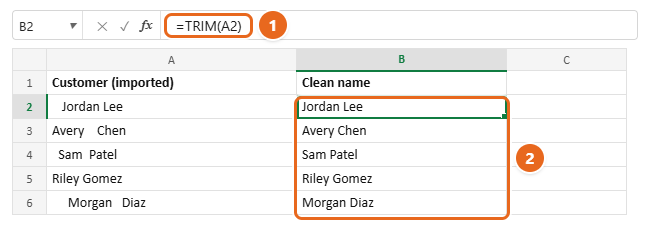
- Enter the formula. Click B2, type
=TRIM(A2)and press Enter. B2 shows the name with the extra spaces gone. - Fill it down. Select B2, then double-click the small square at the bottom-right corner of the cell (the fill handle). Excel copies the formula down to the last row of your data.

Type =TRIM(A2) in the first empty cell (1), then fill it down so each name appears with the extra spaces removed (2). - Check a few rows. Compare column B with column A. If any name in B still has a gap that looks too wide, go to Method 2.
In Excel for Microsoft 365, Excel 2024 and Excel 2021, you can clean the whole list with one formula instead: type =TRIM(A2:A6) in B2 and the results spill into the cells below.
Replace the original data with the clean values
The helper column still depends on column A. If you delete column A now, column B turns into #REF! errors. To keep only the clean text:
- Select the cleaned cells, for example B2:B6, and press Ctrl+C.
- Click A2, the first cell of the original data.
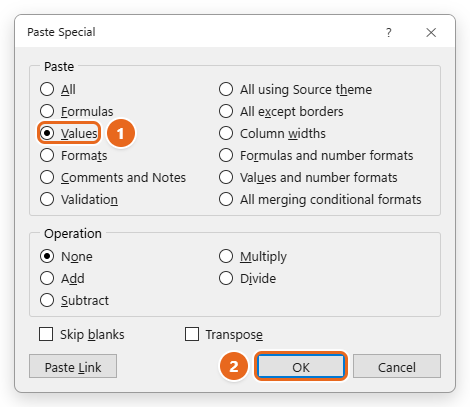
- Press Ctrl+Alt+V to open Paste Special. You can also select Home > the arrow under Paste > Paste Special.
- Select Values, then select OK. Column A now holds the clean text with no formulas behind it.

In Paste Special, select Values (1), then select OK (2) to replace the formulas with plain text. - Delete the helper column. Right-click its header and select Delete.
TRIM always returns text. If you trim a column of numbers, the results are left-aligned text that SUM ignores. Use =VALUE(TRIM(A2)) to get real numbers back.
To strip spaces only from the start of each cell, use the steps for removing a space before text in Excel.
Method 2: Remove non-breaking spaces (CHAR 160)
Text copied from a web page, an email or some PDFs often contains non-breaking spaces. They look exactly like normal spaces, but they have the character code 160 instead of 32. TRIM, by itself, doesn’t remove this character. That’s why TRIM sometimes appears to do nothing.
The fix is to turn each non-breaking space into a regular space first, then let TRIM tidy up:
- In your helper column, type
=TRIM(SUBSTITUTE(A2,UNICHAR(160)," "))and press Enter. - Fill the formula down and check the results.
- Paste the results back as values, as described in Method 1.
How it works: SUBSTITUTE finds every character 160 in A2 and replaces it with a normal space (the space between the quotation marks). TRIM then removes the spaces at the ends and collapses double spaces.
CHAR(160) or UNICHAR(160)? Many guides use CHAR(160), and on Windows it works the same way. However, CHAR uses the Macintosh character set on a Mac, where 160 is a different character. UNICHAR(160) returns the non-breaking space on every platform, so it’s the safer choice if your workbook is shared between Windows and Mac users.
If the cell is a number with non-breaking spaces as thousands separators, such as 1 250, remove them completely and convert the result: =VALUE(SUBSTITUTE(A2,UNICHAR(160),"")).
Data exported from other programs can contain line breaks, tabs and other control characters. They push text onto a second line inside the cell or cause matches to fail even when the text looks right. CLEAN removes the first 32 nonprinting characters in the 7-bit ASCII code (values 0 through 31), which includes tabs (9), line feeds (10) and carriage returns (13).
- Basic version:
=TRIM(CLEAN(A2))removes nonprinting characters, then removes extra spaces. - Keep words apart: CLEAN deletes a line break without putting anything in its place, so Avery on one line and Chen on the next becomes AveryChen. To get Avery Chen, swap line breaks for spaces first:
=TRIM(CLEAN(SUBSTITUTE(A2,CHAR(10)," "))).
For messy imports, this formula handles non-breaking spaces, line breaks, other control characters and extra spaces in one go:
=TRIM(CLEAN(SUBSTITUTE(SUBSTITUTE(A2,UNICHAR(160)," "),CHAR(10)," ")))
Read it from the inside out: the inner SUBSTITUTE turns non-breaking spaces into regular spaces, the outer SUBSTITUTE turns line breaks into spaces, CLEAN deletes any remaining control characters, and TRIM removes the extra spaces left behind. If your data separates words with tabs, add one more layer: SUBSTITUTE(...,CHAR(9)," ").
CLEAN doesn’t remove a few higher-value nonprinting characters (127, 129, 141, 143, 144 and 157). Replace those with SUBSTITUTE as well, as suggested in top ten ways to clean your data.
Method 4: Use Find and Replace
Find and Replace changes the cells directly, with no helper column. It’s quick for collapsing double spaces between words, but it can’t remove a single space at the start or end of a cell without also removing the spaces between words. For those, use TRIM.
Before you start: Find and Replace edits your data in place. Save a copy of the workbook first, and select only the cells you want to change. If just one cell is selected, Excel searches the whole sheet.
- Select the range to clean, such as A2:A6.
- Press Ctrl+H, or select Home > Find & Select > Replace. The Find and Replace dialog box opens on the Replace tab.
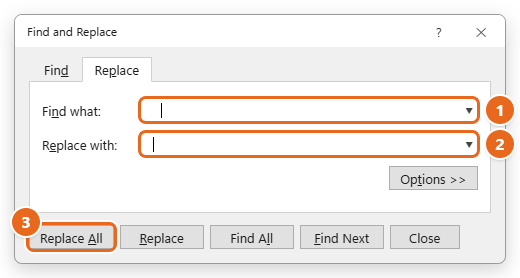
- Click in Find what and press the Spacebar twice.
- Click in Replace with and press the Spacebar once.
- Select Replace All. Excel tells you how many replacements it made. Select OK.

Type two spaces in Find what (1) and one space in Replace with (2), then select Replace All (3). Repeat until nothing is left to replace. - Select Replace All again. Each pass turns two spaces into one, so a gap of five spaces needs several passes. Stop when Excel reports that it couldn’t find anything to replace.
Other things you can replace in the same dialog box:
- Line breaks (Windows): click in Find what and press Ctrl+J. The box looks empty, but it now holds a line break. Type one space in Replace with and select Replace All.
- Non-breaking spaces: click in Find what, hold Alt and type 0160 on the numeric keypad, then release Alt. Type one space in Replace with. If your keyboard has no numeric keypad, copy the character from a cell in the formula bar and paste it into Find what.
- Every space: type one space in Find what and leave Replace with empty. Only do this for codes and IDs, never for names or sentences.
Watch out for numbers: when Find and Replace removes the spaces from something like 00 4512, Excel can treat the result as a newly typed number and drop the leading zeros. If your codes need leading zeros, stop Excel from removing leading zeros before you replace anything. The dialog box has more options, covered in finding and replacing in Excel.
Method 5: Clean spaces with Power Query
Power Query records each cleanup step, so the next time you get the same file you only need to refresh. It’s built into Excel for Microsoft 365 and Excel 2016 and later on Windows.
One difference matters: Power Query’s Trim command removes leading and trailing whitespace, but unlike the TRIM worksheet function, it doesn’t shrink double spaces between words. Text.Trim, the function behind the command, removes leading and trailing characters only. Step 6 below covers the spaces in the middle.
- Click any cell in your data and select Data > From Table/Range in the Get & Transform Data group. If the data isn’t a table yet, confirm the range in the Create Table box, check My table has headers if row 1 has headers, and select OK. The Power Query Editor opens.
- Click the header of the column to clean. Hold Ctrl and click more headers to clean several text columns at once.
- Replace non-breaking spaces first. Select Transform > Replace Values. Expand Advanced options, turn on the option to use special characters, and choose Non-breaking Space from Insert special character. In Replace With, type one regular space and select OK. Skip this step if your data didn’t come from the web.
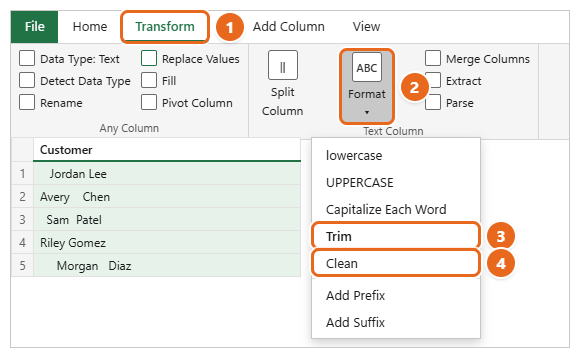
- Select Transform > Format > Trim. Spaces at the start and end of each value disappear.

On the Transform tab (1), open Format (2), then choose Trim (3). Open Format again and choose Clean (4) to strip line breaks and other control characters. - Select Transform > Format > Clean to remove line breaks, tabs and other control characters. Like the CLEAN function, it deletes them without adding a space.
- Collapse double spaces between words (optional). Select Add Column > Custom Column, name the column Clean name, and enter this formula, replacing Customer with your column’s name:
Text.Combine(List.Select(Text.Split([Customer]," "), each _ <> ""), " ")
It splits the text at every space, throws away the empty pieces, and joins the words back with single spaces. Select OK, then right-click the original column header and select Remove. - Select Home > Close & Load. The cleaned data loads into a new worksheet as a table, and your original data stays as it was.
- When new data arrives in the source table, select Data > Refresh All to run every step again.
Power Query can also do much more than spaces. A full cleanup routine is in cleaning data in Excel.
Quick option: Flash Fill
Flash Fill copies a pattern you type, so it can clean a short list without a formula. It’s available in Excel 2013 and later.
- In the empty cell next to the first entry, type the name the way it should look, for example Jordan Lee, and press Enter.
- Select Data > Flash Fill, or press Ctrl+E. Excel fills the rest of the column following your example.
- Check every result. Flash Fill guesses the pattern, and unusual entries can come out wrong. If they do, type one or two more examples and run it again.
Flash Fill results are fixed values. They don’t update if the original data changes, so use TRIM or Power Query for lists that keep changing.
Remove every space, including between words
Sometimes you want no spaces at all, for example in part numbers like AX 104 77 or phone numbers like 555 0142. TRIM won’t do this because it keeps single spaces between words. Use SUBSTITUTE instead:
- Regular spaces only:
=SUBSTITUTE(A2," ","") - Regular and non-breaking spaces:
=SUBSTITUTE(SUBSTITUTE(A2," ",""),UNICHAR(160),"") - As a number: wrap it in VALUE, for example
=VALUE(SUBSTITUTE(A2," ","")), so the result can be added up. Leave VALUE out for codes that must keep leading zeros.
How to undo
- Formulas (Methods 1 to 3): nothing changes until you paste values over the original data, so you can delete the helper column.
- Paste Values or Find and Replace: press Ctrl+Z (Command+Z on a Mac) right away. One undo reverses one Replace All pass.
- Power Query: your source data isn’t changed. To undo a step, open the query and select the X next to the step under Applied Steps.
- After saving: if the file is on OneDrive or SharePoint, select File > Info > Version History to open an earlier version. Otherwise, use the backup copy you saved.
Troubleshooting
TRIM didn’t remove the spaces
- Non-breaking spaces. This is the most common cause. Use
=TRIM(SUBSTITUTE(A2,UNICHAR(160)," "))from Method 2. - Zero-width spaces. These are invisible and take up no room, but they still stop matches. If
=UNICODE(LEFT(A2))or=UNICODE(RIGHT(A2))returns 8203, use=SUBSTITUTE(A2,UNICHAR(8203),""). - The space is formatting, not a character. An indent (Home > Increase Indent) or a number format such as Accounting can make a value look padded. If
=LEN(A2)matches the number of visible characters, there’s nothing to remove. Select Home > Decrease Indent, or change the number format. - You’re looking at the original cells. TRIM puts the result in the formula cell. Column A won’t change until you paste the results back as values.
VLOOKUP or XLOOKUP still returns #N/A
Both the lookup value and the lookup column need cleaning. Trim the column you’re searching, or clean the lookup value inside the formula, for example =XLOOKUP(TRIM(E2),A2:A100,B2:B100). Also check for numbers stored as text in one list and as real numbers in the other.
The cleaned numbers won’t add up
TRIM, CLEAN and SUBSTITUTE return text. Wrap the formula in VALUE, or after pasting values, select the cells, select the warning icon next to them, and choose Convert to Number.
Words got stuck together
CLEAN removed a line break between two words. Use =TRIM(CLEAN(SUBSTITUTE(A2,CHAR(10)," "))) so the line break becomes a space before CLEAN runs. In Power Query, replace line breaks with a space (Replace Values with the Line Feed special character) before you choose Clean.
Find and Replace can’t find anything
Check that you typed exactly two spaces, that Match entire cell contents isn’t turned on under Options, and that you selected the right cells. Non-breaking spaces won’t match a typed space, so search for Alt+0160 instead.
FAQ
What is the difference between TRIM and CLEAN in Excel?
TRIM removes extra regular spaces (character 32). CLEAN removes nonprinting control characters with codes 0 to 31, such as line breaks and tabs. Neither one removes non-breaking spaces. Combine them as =TRIM(CLEAN(A2)), and add SUBSTITUTE for non-breaking spaces.
Does TRIM remove the spaces between words?
Only the extra ones. TRIM keeps one space between words, so Avery Chen becomes Avery Chen. To remove every space, use =SUBSTITUTE(A2," ","").
How do I remove extra spaces without a formula?
Use Find and Replace to replace two spaces with one (Method 4), Flash Fill for a short list, or Power Query for data you clean regularly. Find and Replace can’t remove a single leading or trailing space, though, so TRIM is still the most reliable option.
How do I trim a whole column at once?
Enter =TRIM(A2) in a helper column and double-click the fill handle to copy it down. In Microsoft 365, Excel 2024 and Excel 2021, =TRIM(A2:A500) spills down in one step. Paste the results back as values when you’re done.
Is TRIMRANGE the same as TRIM?
No. TRIMRANGE trims empty rows and columns from the edges of a range so formulas don’t process blank cells. It doesn’t remove spaces inside text. Its uses are covered in using TRIMRANGE in Excel.
Does TRIM work in Excel for Mac and Excel for the web?
Yes. TRIM, CLEAN, SUBSTITUTE and UNICHAR work the same way in Excel for Windows, Mac and the web. On a Mac, use UNICHAR(160) rather than CHAR(160) for non-breaking spaces, because CHAR uses the Macintosh character set there.
Next step
Start with =LEN(A2)-LEN(TRIM(A2)) to see which cells have extra spaces, then run TRIM in a helper column. If anything survives, switch to the SUBSTITUTE and CLEAN combination, and paste the results back as values once the list looks right. If the same export keeps arriving, set up Power Query once and refresh it each time.

Matt Jacobs writes and maintains the guides on Support Your Tech, which he started in 2017. He spent most of his career keeping small-business PCs running and still takes the occasional consulting job, so the steps here come from fixing the same problems on other people’s computers. Every guide is checked on his own Windows 11, Windows 10, Mac, iPhone and iPad before it goes up.