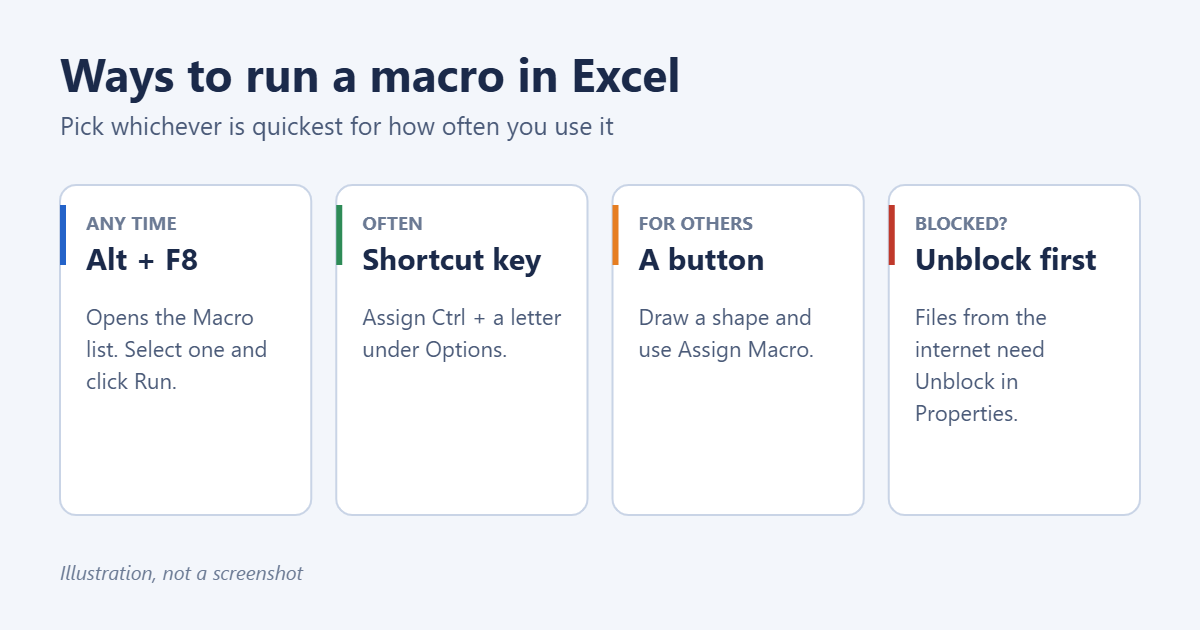
To run a macro in Excel, press Alt + F8 (or go to View > Macros > View Macros), select the macro in the list, and click Run. If you use the macro often, give it a keyboard shortcut or put it on a button. If Excel says macros are blocked or disabled, the problem is a security setting, not the macro, and this guide shows how to deal with it safely. Only run macros from sources you trust, since a macro can change files and settings on your PC.
Before you start
- The file must contain the macro. Macros are saved in .xlsm or .xlsb workbooks, or in your Personal Macro Workbook. A regular .xlsx file can’t store macros.
- Macros must be enabled. When you open a file with macros, a yellow bar may say Macros have been disabled. Click Enable Content if you trust the file. See how to enable macros in Excel.
- Use the desktop app. Excel for the web can’t run VBA macros, and neither can Excel on phones.
Method 1: Run a macro from the Macro dialog
- Open the workbook that contains the macro.
- Press Alt + F8, or click View > Macros > View Macros. If you’ve turned on the Developer tab, Developer > Macros also works.
- Select the macro in the list. Use the Macros in drop-down to see macros from other open workbooks.
- Click Run.
If the macro works on a selection, select the right cells before step 2.
Method 2: Use a keyboard shortcut
- Press Alt + F8, select the macro, and click Options.
- Type a letter in the Shortcut key box. Lowercase gives Ctrl + letter, and uppercase gives Ctrl + Shift + letter.
- Click OK and close the dialog.
Choose a combination Excel doesn’t already use, or use Ctrl + Shift. Ctrl + C, for example, would replace Copy while the workbook is open.
A button makes a macro easy for anyone using the workbook.
- Click Insert > Shapes and draw a shape, such as a rounded rectangle. Type a label on it, like “Update report.”
- Right-click the shape and choose Assign Macro.
- Select the macro and click OK.
Click the shape to run the macro. You can also use Developer > Insert > Button (Form Control), which asks you to assign a macro as soon as you draw it.
Method 4: Add it to the Quick Access Toolbar
- Go to File > Options > Quick Access Toolbar.
- Under Choose commands from, pick Macros.
- Select your macro, click Add, and optionally click Modify to choose an icon.
- Click OK.
The macro gets its own button at the top of the Excel window.
Method 5: Run it from the VBA editor
Press Alt + F11 to open the Visual Basic editor, click anywhere inside the macro’s code, and press F5. This is handy when testing a macro you’ve just written. Press F8 instead to step through it one line at a time.
Turn on the Developer tab
Go to File > Options > Customize Ribbon, tick Developer in the right-hand list, and click OK. It gives you quick access to macros, the VBA editor, and form controls. For creating macros without code, see how to record a macro in Excel.
When Excel blocks macros
“Microsoft has blocked macros from running because the source of this file is untrusted”
Excel blocks macros in files downloaded from the internet or received as email attachments. If you’re sure the file is safe:
- Close the file.
- In File Explorer, right-click it and choose Properties.
- On the General tab, tick Unblock and click OK.
- Open the file again and click Enable Content.
Never unblock a file you weren’t expecting. Macro-enabled attachments are a common way malware spreads.
Macros are disabled without a prompt
Check File > Options > Trust Center > Trust Center Settings > Macro Settings. Disable VBA macros with notification is the recommended setting. Avoid Enable all macros. For files you use all the time, add their folder under Trusted Locations instead. On a work PC, these settings may be controlled by IT.
Troubleshooting
The macro isn’t in the list
The workbook that contains it isn’t open, or it was saved as .xlsx and the macro was lost. Check the Macros in drop-down, and save macro workbooks as Excel Macro-Enabled Workbook (*.xlsm).
“Cannot run the macro… The macro may not be available in this workbook”
A button or shortcut is pointing to a macro in a file that’s closed or was renamed. Reassign the macro to the button.
The macro runs but does the wrong thing
Recorded macros repeat exact cell positions. If your data has moved, re-record the macro or edit it in the VBA editor.
Frequently asked questions
Can I run macros on a Mac?
Yes, in Excel for Mac. Use Tools > Macro > Macros or the Developer tab. See how to enable macros in Excel on Mac.
Can I make a macro run when the workbook opens?
Yes, by naming it Workbook_Open in the ThisWorkbook module of the VBA editor. Users still need to enable macros for it to run.
How do I remove a macro?
Press Alt + F8, select it, and click Delete. See how to remove macros from Excel.
Summary
Press Alt + F8, choose the macro, and click Run. Assign a shortcut under Options or a button with Assign Macro for frequent use. If Excel blocks the macro, unblock only files you trust in their Properties.
Related: create folders from an Excel list.

Matt Jacobs has been working as an IT consultant for small businesses since receiving his Master’s degree in 2003. While he still does some consulting work, his primary focus now is on creating technology support content for SupportYourTech.com.
His work can be found on many websites and focuses on topics such as Microsoft Office, Apple devices, Android devices, Photoshop, and more.