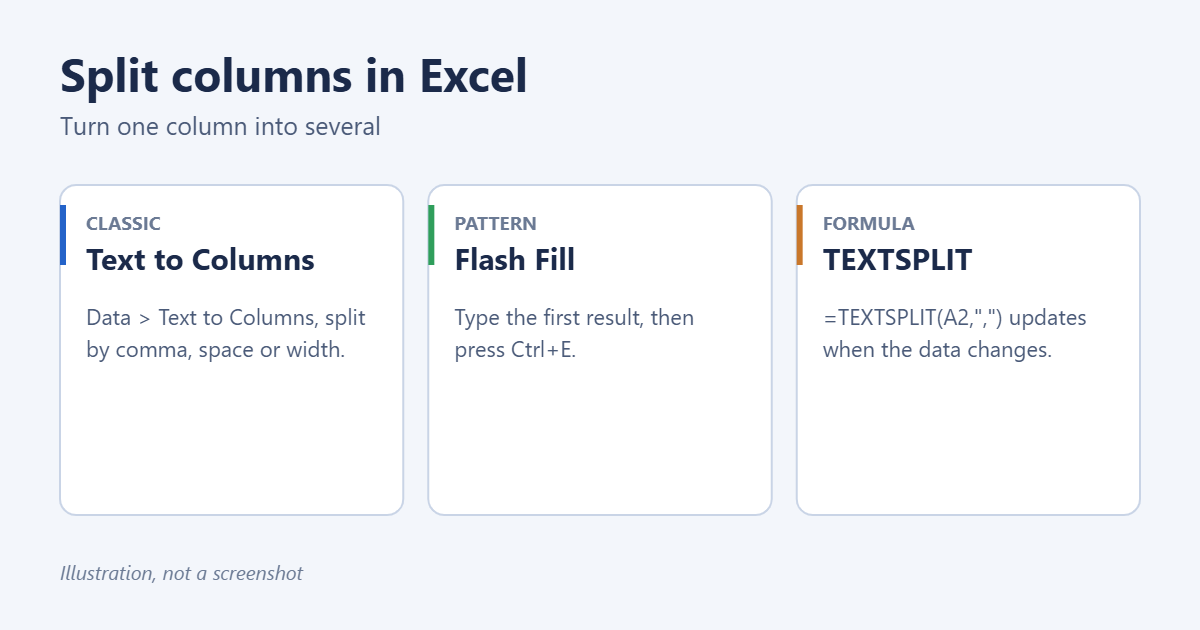
To split a column in Excel, select it, go to Data > Text to Columns, choose Delimited, tick the character that separates the parts (such as a comma or space), and select Finish. Excel puts each part in its own column. For a quicker option, type the first result next to your data and press Ctrl+E for Flash Fill. In Excel 365, the TEXTSPLIT function splits text with a formula that updates automatically.
Applies to: Excel for Microsoft 365, Excel 2024, 2021, 2019 and 2016 on Windows and Mac, and Excel for the web. TEXTSPLIT needs Excel 365 or 2024.
Before you start
Text to Columns writes the results into the columns to the right and overwrites anything there. Insert enough empty columns first: right-click the column letter to the right and choose Insert. Make a copy of the sheet if the data is important.
Method 1: Text to Columns
- Select the column, or just the cells, you want to split.
- Go to Data > Text to Columns.
- Choose Delimited if a character separates the parts, such as “Smith, John” or “Red;Blue;Green”. Choose Fixed width if each part is a set number of characters, like product codes. Select Next.
- Tick the delimiter: Tab, Semicolon, Comma, Space or Other (type the character, such as – or /). Tick Treat consecutive delimiters as one if there are double spaces. Check the preview and select Next.
- For each column in the preview, choose a format. Pick Text for codes with leading zeros, such as ZIP codes. Set the Destination if you want the results somewhere else.
- Select Finish.
Method 2: Flash Fill
- In the column next to your data, type what you want from the first row. For example, type John next to “John Smith”.
- Press Enter, then press Ctrl+E (or Data > Flash Fill).
- Excel fills the rest of the column by following your pattern. Repeat in the next column for the last names.
Flash Fill works best with consistent data. Check a few rows; if it guesses wrong, type a second example and press Ctrl+E again. Names are the most common case, and separating names into two columns covers the tricky ones.
Method 3: TEXTSPLIT (Excel 365 and 2024)
=TEXTSPLIT(A2,",")This splits A2 at every comma and spills the parts into the cells to the right. Use ” “ for spaces, or a list of delimiters like {“,”,”;”}. Add TRIM to remove extra spaces: =TRIM(TEXTSPLIT(A2,”,”)). Because it’s a formula, the results update when A2 changes.
To take just one part, use TEXTBEFORE or TEXTAFTER: =TEXTBEFORE(A2,” “) returns everything before the first space.
Method 4: Formulas for older Excel
- First word: =LEFT(A2,FIND(” “,A2)-1)
- Everything after the first space: =MID(A2,FIND(” “,A2)+1,100)
- Last 4 characters: =RIGHT(A2,4)
Method 5: Power Query for repeat jobs
If you split the same kind of file every week, select the data, go to Data > From Table/Range, right-click the column in Power Query and choose Split Column > By Delimiter. Select Close & Load. Next time, paste the new data and select Refresh.
Common examples
- Addresses: split at commas, as in separating city, state and ZIP.
- Numbers mixed with text: use the methods in separating numbers in a cell.
- Dates and times in one cell: split at the space, then format each column as Date or Time.
Troubleshooting
“There’s already data here. Do you want to replace it?”
Text to Columns would overwrite cells. Select Cancel, insert empty columns, and try again.
Leading zeros disappeared
Set the column format to Text in step 5 of Text to Columns.
Text to Columns is greyed out or shows an error
It’s greyed out while you’re editing a cell or when the sheet is protected; press Esc or unprotect the sheet. If you selected several columns, Excel warns that it can only convert one column at a time, so select a single column.
Can I split one merged cell?
Excel can’t split a single, unmerged cell into two. If cells are merged, select them and choose Home > Merge & Center to unmerge.
Frequently asked questions
How do I split a column into rows instead?
Use =TEXTSPLIT(A2,,”,”) with the delimiter in the third argument, or Power Query’s Split Column with the Rows option.
Can I undo Text to Columns?
Yes, press Ctrl+Z straight away.
Related: cleaning data in Excel and sorting by last name once the names are split.

Matt Jacobs has been working as an IT consultant for small businesses since receiving his Master’s degree in 2003. While he still does some consulting work, his primary focus now is on creating technology support content for SupportYourTech.com.
His work can be found on many websites and focuses on topics such as Microsoft Office, Apple devices, Android devices, Photoshop, and more.