To transpose data in Excel, select the cells and press Ctrl+C to copy them. Right-click the empty cell where the rotated data should start, then select the Transpose icon under Paste Options (or choose Paste Special, check Transpose, and select OK). Your rows become columns and your columns become rows. If you want the rotated copy to update when the original changes, type =TRANSPOSE(A1:E4) in an empty cell instead, using your own range.
Applies to: Excel for Microsoft 365 (Windows, Mac and the web), Excel 2024, Excel 2021, Excel 2019 and Excel 2016. The one-cell TRANSPOSE formula needs a version with dynamic arrays (Microsoft 365, Excel 2024 or Excel 2021). TOCOL, TOROW and WRAPROWS need Microsoft 365, Excel for the web or Excel 2024. The steps match Microsoft’s article on transposing data.
What transposing does to your data
Transposing rotates a block of cells so that the first row becomes the first column, the second row becomes the second column, and so on. Labels that ran across the top now run down the side, and labels that ran down the side now run across the top. The values themselves don’t change, only their positions.
The examples in this guide use a small supply-order sheet in A1:E4. It has one row per item and one column per month:
| Item | Jan | Feb | Mar | Apr |
|---|---|---|---|---|
| Notebooks | 120 | 135 | 150 | 110 |
| Pens | 340 | 310 | 365 | 400 |
| Folders | 85 | 90 | 70 | 95 |
After transposing, the months run down the side and the items run across the top:
| Item | Notebooks | Pens | Folders |
|---|---|---|---|
| Jan | 120 | 340 | 85 |
| Feb | 135 | 310 | 90 |
| Mar | 150 | 365 | 70 |
| Apr | 110 | 400 | 95 |
Notice that the shape flips too. The original block is 4 rows tall and 5 columns wide, so the transposed block is 5 rows tall and 4 columns wide. Keep that in mind when you pick a destination, because Excel needs that much empty space.
A layout like the second one is often easier to work with when one list keeps growing. In this example, a new month adds a row instead of making the sheet wider and wider.
Which method should you use?
| Method | Updates when the original changes? | Keeps formatting? | Best for |
|---|---|---|---|
| Paste with Transpose | No, it’s a static copy | Yes | A quick, one-time rotation |
| Paste Special dialog | No | Your choice (all, values only, formats only) | Rotating values without formulas, or with the keyboard |
| TRANSPOSE function | Yes | No, values only | Reports and dashboards that must stay in sync |
| Power Query | Yes, when you select Refresh | No, it loads a new table | Data you import and rotate every week or month |
| TOCOL, TOROW, WRAPROWS | Yes | No | Turning a block into one list, or a long list into a grid |
If you just need the data the other way around once, use Method 1. If the original data will keep changing and you want the rotated version to follow, use Method 3.
Method 1: Copy and paste with Transpose
This is the standard method and works in Excel for Windows, Mac and the web. It creates an independent copy, so you can delete the original afterward.
Before you start: the pasted block overwrites anything already in the destination cells, including formatting. Pick an empty area, or a new sheet, with enough rows and columns for the rotated shape. The destination also can’t overlap the cells you copied.
- Select the data. Drag across every cell you want to rotate, including the row and column labels. In the example, that’s A1:E4.
- Copy it. Press Ctrl+C (Command+C on a Mac), or right-click the selection and choose Copy. A moving dashed border appears around the cells. Don’t use Cut (Ctrl+X), because Transpose isn’t offered for cut cells.
- Pick the destination. Right-click the top-left cell of where the rotated data should go, for example A6 or a cell on another sheet. Only one cell needs to be selected. Excel fills down and to the right from there.
- Paste with Transpose. Under Paste Options in the right-click menu, select the Transpose icon. It’s usually the fourth icon, and when you point to it, its name appears as Transpose (T). You can also go to Home > Paste (select the arrow under the button) > Transpose.
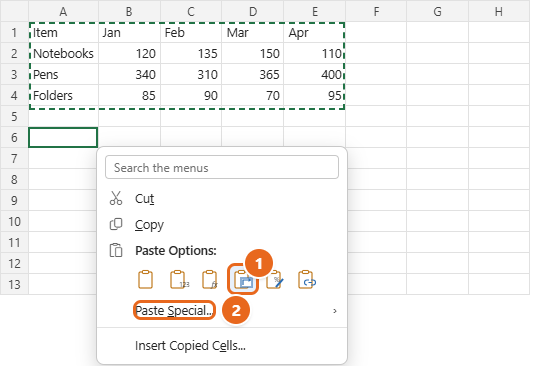
The rotated data appears with the same fonts, fills, borders and number formats as the original. Press Esc to clear the dashed border. When you’re happy with the result, you can delete the original block and the new one stays exactly as it is.
Excel for the web: copy the cells, select the empty destination cell, then on the Home tab select the arrow under Paste and choose the transpose option, labeled Transpose Rows and Columns in the web instructions.
Method 2: Use the Paste Special dialog
The Paste Special dialog does the same job as Method 1, but it lets you combine Transpose with other choices. For example, you can paste only the values, without formulas or formatting, and rotate them at the same time.
- Select your data and press Ctrl+C to copy it.
- Click the top-left cell of an empty destination area.
- Press Ctrl+Alt+V to open Paste Special. You can also right-click and choose Paste Special, or select Home > Paste > Paste Special. On a Mac, press Command+Control+V.
- Under Paste, leave All selected to bring everything across, or choose Values to paste plain values only, or Formats to copy only the formatting.
- Check Transpose near the bottom of the dialog. On Windows you can press E instead, because E is the underlined letter in Transpose.
- Select OK (or press Enter). The data is pasted in its new orientation.
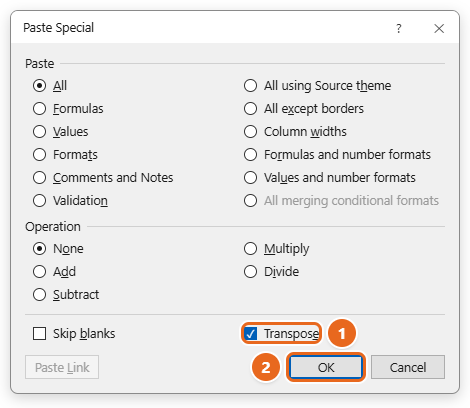
So the whole keyboard route on Windows is Ctrl+C, select the destination, then Ctrl+Alt+V, E, Enter.
You’ll notice the Paste Link button turns gray as soon as you check Transpose. Excel can’t paste a linked copy and rotate it in one step. If you need a rotated copy that stays connected to the original, use the TRANSPOSE function in the next section.
Method 3: Use the TRANSPOSE function (linked copy)
The TRANSPOSE function returns a rotated version of a range. Because it’s a formula, the result updates whenever you change the original cells. Its syntax has just one argument:
=TRANSPOSE(array)
Here, array is the range you want to rotate, such as A1:E4. These steps are for Microsoft 365, Excel 2024 and Excel 2021, which support dynamic arrays. In these versions, a formula that returns several values “spills” them into the neighboring cells automatically.
- Check the space. Find an empty area with enough room for the rotated shape. For A1:E4, the result needs 5 rows and 4 columns.
- Click the top-left cell of that area, such as G1. Select only this one cell.
- Type the formula. Enter
=TRANSPOSE(A1:E4). Instead of typing the range, you can type=TRANSPOSE(, drag across the cells with the mouse, and then type the closing parenthesis. - Press Enter. Excel fills G1:J5 with the rotated data. A thin blue border appears around the result when you select any cell inside it.
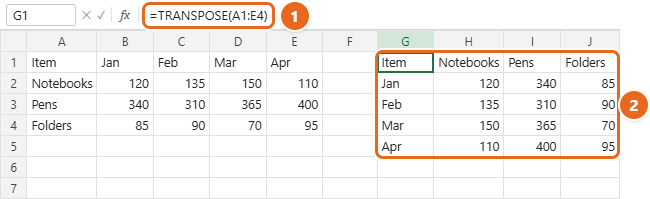
Try changing B2 from 120 to 125. The value in H2 changes to match straight away. A few things to know about the result:
- Only the top-left cell holds the formula. If you click H3, the formula appears grayed out in the formula bar and you can’t edit it there. To change the formula, edit G1.
- Formatting isn’t copied. TRANSPOSE brings values only. Bold headers, fills and number formats have to be applied to the new cells separately. Dates may appear as plain numbers such as 46327 until you apply a date format.
- Empty cells come back as 0. If your source has blanks, the matching cells in the result show 0. To keep them empty, use
=TRANSPOSE(IF(A1:E4="","",A1:E4)). - The original must stay. If you delete the source cells, the formula has nothing to rotate. Convert the result to fixed values first (see below) if you plan to remove the original.
- The result can’t sit inside an Excel table. Spilled formulas aren’t supported in tables, so put the formula in normal cells.
Make the result grow with your data
If your source is formatted as an Excel table, you can point TRANSPOSE at the table instead of at fixed cells. For a table named Orders, =TRANSPOSE(Orders[#All]) rotates the whole table including its header row. When you add a new item row to the table, the rotated version gains a new column automatically. You can find or rename a table on the Table Design tab, in the Table Name box.
Turn the formula result into fixed values
- Select the whole result range, for example G1:J5.
- Press Ctrl+C.
- Right-click the same top-left cell, G1, and under Paste Options choose Values.
The formula is replaced by plain values, so you can now delete or change the original data without affecting the copy.
Method 4: TRANSPOSE in Excel 2019 and earlier
Excel 2019, Excel 2016 and older versions don’t have dynamic arrays. In these versions, TRANSPOSE must be entered as a legacy array formula, which means you choose the exact output range yourself and finish with a special key combination.
- Work out the shape. Count the rows and columns in the source. A1:E4 is 4 rows by 5 columns, so the result needs 5 rows by 4 columns.
- Select the output range. Drag to select exactly that many empty cells, such as G1:J5. Keep them selected.
- Type the formula. Type
=TRANSPOSE(A1:E4). It goes into the top-left cell of the selection. Don’t press Enter yet. - Press Ctrl+Shift+Enter. Excel fills every selected cell and wraps the formula in curly braces, so it shows as
{=TRANSPOSE(A1:E4)}in the formula bar. Don’t type the braces yourself, because typed braces turn the formula into text.
If you selected too many cells, the extra ones show #N/A. If you selected too few, part of the data is missing. Either way, you can’t fix it by dragging or editing one cell, because Excel won’t let you change part of an array. Select the entire result range, press Delete, and enter the formula again over a correctly sized range.
Legacy array formulas still work in Microsoft 365, so a workbook made this way opens normally in newer versions. They are kept for compatibility, but dynamic array formulas are the recommended choice, so switch to Method 3 once everyone who opens the file has Excel 2021 or later.
Method 5: Transpose with Power Query
Power Query is Excel’s built-in tool for importing and cleaning data. It’s the best choice when you receive the same layout over and over, such as a monthly export, because you set up the steps once and then just refresh. These steps are for Excel for Microsoft 365, Excel 2024, 2021, 2019 and 2016 on Windows. Can’t find the commands? Finding and enabling Power Query covers where they live.
- Load the data into Power Query. Click any cell in your data, then select Data > From Table/Range. If the data isn’t a table yet, the Create Table dialog appears. Check that the range is right, leave My table has headers checked, and select OK. The Power Query Editor opens.
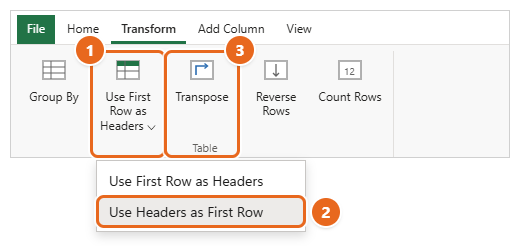
- Turn the headers into data. As the Power Query documentation on Transpose warns, Transpose rotates only the contents of the table, and the original column headers are lost. To keep the month names, select the Transform tab, select the arrow on Use First Row as Headers, and choose Use Headers as First Row. Item, Jan, Feb, Mar and Apr move down into the first row.
- Transpose. On the Transform tab, select Transpose. The rows and columns swap, and the new columns get generic names such as Column1 and Column2.
- Promote the new headers. Select Use First Row as Headers (the top part of the button). The first row, which now reads Item, Notebooks, Pens and Folders, becomes the column headers.
- Check the data types. Power Query may add a Changed Type step on its own. Make sure numbers show the 123 icon in their column headers.
- Load the result. Select Home > Close & Load. Excel adds a new sheet with the rotated data as a table.
From now on, when you add or change rows in the source table, select Data > Refresh All and the rotated table updates. To use Close & Load To instead, you can choose an existing sheet and cell for the output.
Reshape a list instead of rotating it: TOCOL, TOROW and WRAPROWS
Sometimes what you need isn’t a straight swap of rows and columns. Microsoft 365, Excel for the web and Excel 2024 include functions that reshape data in other ways. Like TRANSPOSE, each one is typed in a single cell and spills its results.
| Goal | Formula (using the sample sheet) | Result |
|---|---|---|
| Stack a block into one column, reading across each row | =TOCOL(B2:E4) |
120, 135, 150, 110, 340 and so on, down one column |
| Stack a block into one column, reading down each column | =TOCOL(B2:E4,,TRUE) |
120, 340, 85, 135, 310 and so on |
| Skip empty cells while stacking | =TOCOL(B2:E4,1) |
The same list without blanks |
| Put a column of labels into one row | =TOROW(A2:A4) |
Notebooks, Pens, Folders across one row |
| Wrap a long single column into rows of 3 | =WRAPROWS(K1:K12,3) |
A 4-row, 3-column grid |
WRAPROWS is handy when a pasted list repeats the same fields one under another, for example a name, then an email address, then a phone number, then the next name. =WRAPROWS(K1:K12,3) turns those 12 cells into four records with three columns each. If the list doesn’t divide evenly, the empty spots show #N/A. Add a third argument to fill them with something else, such as =WRAPROWS(K1:K13,3,"") to leave them blank.
Turning a single column into a row and back has more options in converting vertical data to horizontal.
Keep formulas and formatting intact
Formulas in the copied cells
When you paste with Transpose, Excel adjusts formulas to their new positions. Check that formulas use absolute references (with dollar signs, such as $B$2) before you rotate the data, so they keep pointing at the right cells. For example, if F2 contains =SUM(B2:E2) to total the Notebooks row, include column F in the copy so the total moves with its row.
If you only need the numbers, the safest choice is to paste values. In the Paste Special dialog, choose Values and check Transpose. No formulas come across, so nothing can break.
Formatting
- Method 1 and Paste Special with All carry the formatting with the data.
- TRANSPOSE, Power Query and the reshape functions return values only. To copy the look of the original afterward, paste a transposed copy with Paste Special set to Formats and Transpose on top of the formula result. This changes only the formatting, not the formulas.
- Column widths aren’t adjusted for you. Double-click the boundary between column letters to fit each column to its contents.
Charts and PivotTables
If a chart plots your series the wrong way around, you don’t need to transpose the data. Click the chart and select Chart Design > Switch Row/Column. And if you often need to look at the same data both ways, try a PivotTable, where you can drag fields between the Rows and Columns areas at any time.
How to undo a transpose
- Right after pasting: press Ctrl+Z (Command+Z on a Mac). The pasted block disappears, and anything it overwrote comes back.
- A dynamic TRANSPOSE formula: click the top-left cell (G1 in the example) and press Delete. The whole spilled result goes away.
- A legacy array formula: select the entire result range and press Delete. Deleting one cell isn’t allowed.
- A Power Query result: delete the sheet it loaded to, then remove the query from Data > Queries & Connections if you don’t need it.
- To rotate it back: transpose the result again. Transposing twice returns the original layout.
Troubleshooting
Transpose is grayed out or missing
- You used Cut. Press Esc, copy with Ctrl+C, and paste again.
- Nothing is on the clipboard. Paste options only appear after you copy something in Excel. Copy the cells again.
- The data is in an Excel table. The Transpose feature isn’t available for table data. Either use the TRANSPOSE function, which accepts a table, or convert the table to a normal range first with Table Design > Convert to Range. The details are in undoing a table in Excel.
Excel won’t paste because the areas overlap
The destination overlaps the cells you copied. Paste somewhere clearly outside the original block, such as below it, to the right of it or on a new sheet. You can move the result afterward.
#SPILL! error
A dynamic TRANSPOSE formula needs empty cells to spill into. Something, even a single space, is in the way. Click the formula cell, select the warning icon, and choose Select Obstructing Cells to find the blocker, then clear it. This error also appears if you put the formula inside an Excel table.
Zeros where the original had blank cells
TRANSPOSE returns 0 for empty source cells. Use =TRANSPOSE(IF(A1:E4="","",A1:E4)), or hide zeros with a number format.
Dates show as five-digit numbers
TRANSPOSE doesn’t carry cell formatting across, so dates can lose their date format. Select the cells and choose Short Date from the number format box on the Home tab.
“You can’t change part of an array”
You’re editing one cell of a legacy array formula. Press Esc, select the whole result range, and edit or delete it as one unit.
The formula shows #N/A in some cells, or data is missing
In Excel 2019 and earlier, the selected output range didn’t match the rotated shape. Delete the whole array and enter it again over a range with the source’s row and column counts swapped.
Formulas point to the wrong cells after pasting
Relative references shifted when the data rotated. Press Ctrl+Z, then paste with Values and Transpose, or change the formulas to absolute references before copying.
The data is too big to fit
An Excel worksheet has 1,048,576 rows but only 16,384 columns (A to XFD). A column with more than 16,384 entries can’t be turned into a single row. Split it into smaller blocks, or keep the data vertical and use a PivotTable to summarize it across columns.
FAQ
What is the keyboard shortcut to transpose in Excel?
There’s no single key. On Windows, copy with Ctrl+C, select the destination, then press Ctrl+Alt+V, E, and Enter. On a Mac, press Command+Control+V to open Paste Special, then check Transpose.
Can I transpose data in place, over the original cells?
Not directly, because the copy and paste areas can’t overlap. Paste the rotated copy somewhere empty, delete the original cells, and then move the new block into place if you need to.
How do I transpose and keep the link to the original data?
Use the TRANSPOSE function. Paste Link isn’t available when Transpose is checked in the Paste Special dialog, so a pasted copy is always static.
Does transposing work on a Mac and in Excel for the web?
Yes. Excel for Mac has the same right-click Transpose option and the same Paste Special dialog. Excel for the web has a transpose choice under the Paste menu on the Home tab. The TRANSPOSE function works in all of them.
Why does my TRANSPOSE formula only show one value?
You’re probably using Excel 2019 or earlier and pressed Enter instead of Ctrl+Shift+Enter, or you selected only one cell before entering the formula. Follow Method 4.
Can I transpose only the values, without formulas or formatting?
Yes. Open Paste Special with Ctrl+Alt+V, choose Values, check Transpose, and select OK. Or use Values and number formats to keep number formats such as currency and dates.
Is transposing the same as flipping data?
No. Transposing turns rows into columns. Flipping keeps the layout but reverses the order, so the last row becomes the first. That’s a different job, covered in flipping data in Excel.
For a one-off change, copy your data and paste it with Transpose. If you’ll keep editing the original, use =TRANSPOSE() so the rotated copy always stays up to date.

Matt Jacobs has been working as an IT consultant for small businesses since receiving his Master’s degree in 2003. While he still does some consulting work, his primary focus now is on creating technology support content for SupportYourTech.com.
His work can be found on many websites and focuses on topics such as Microsoft Office, Apple devices, Android devices, Photoshop, and more.