To sum a column in Excel, click the empty cell just below the last number in the column, then select Home > AutoSum (or press Alt+= on Windows). Excel writes a SUM formula such as =SUM(C2:C9); check the highlighted range and press Enter. If you only need to see the total, select the numbers and read Sum on the status bar at the bottom of the window.
Applies to: Excel for Microsoft 365 (Windows, Mac and the web), Excel 2024, Excel 2021, Excel 2019 and Excel 2016. The steps follow Microsoft’s AutoSum help page.
Which method should you use?
The examples in this guide use a small sales list. Column A holds the rep’s name, column B the region, and column C the amount, with headers in row 1 and eight sales in rows 2 to 9:
| Row | Rep (A) | Region (B) | Amount (C) |
|---|---|---|---|
| 2 | Jordan Lee | East | 1250 |
| 3 | Priya Shah | West | 980 |
| 4 | Sam Ortiz | East | 1430 |
| 5 | Jordan Lee | West | 760 |
| 6 | Priya Shah | East | 1100 |
| 7 | Sam Ortiz | West | 890 |
| 8 | Jordan Lee | East | 1325 |
| 9 | Priya Shah | West | 1015 |
The Amount column adds up to 8,750. Every method below gets you that number. They differ in whether the total is saved in the sheet and whether it keeps up when the list changes.
| Method | Puts a total in the sheet? | Best for |
|---|---|---|
| Status bar | No | A quick check of a total |
| AutoSum | Yes, a SUM formula | The fastest everyday total under a column |
| Typed SUM formula | Yes | Totals in another place, part of a column, a whole column, or several columns |
| Table Total Row | Yes, a SUBTOTAL formula | Lists that grow, and lists you filter |
| SUBTOTAL or AGGREGATE | Yes | Adding only the rows you can see |
| SUMIF or SUMIFS | Yes | Adding only the numbers that meet a condition |
Method 1: See the total on the status bar
This is the quickest way to check a total, and it doesn’t change your workbook.
- Select the numbers you want to add. In the example, drag from C2 to C9. To check a whole column, click the column letter at the top, such as C.
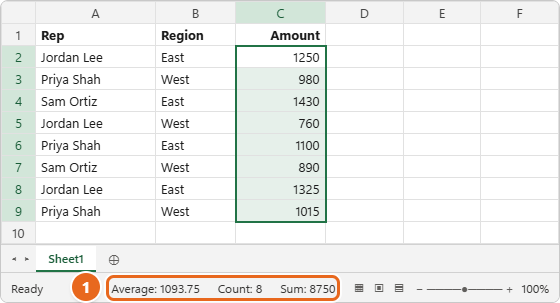
- Look at the status bar along the bottom of the Excel window. By default it shows Average, Count and Sum for the selected cells. The example shows Sum: 8750.

Select the numbers in the column, then read Sum on the status bar (1). Nothing is added to the sheet.
A few things are useful to know:
- Text is skipped. If you select the whole column, the header “Amount” is not added. Count includes it, though, because Count counts every cell that isn’t empty. The example shows Count: 9 when you select all of column C.
- Several columns or scattered cells work too. Select more than one column, or hold Ctrl (Command on a Mac) and click separate cells, and the status bar adds them all.
- Sum missing? Right-click the status bar and select Sum in the Customize Status Bar list. You can also turn on Numerical Count, Minimum and Maximum there.
- Copying the number. In Excel for the web, you can select a value on the status bar to copy it, then paste it into a cell. Some desktop versions of Excel also let you click the value to copy it. If nothing happens in your version, type the number or use one of the formula methods below.
Method 2: Use AutoSum
AutoSum writes the SUM formula for you. The button is in two places: Home > AutoSum in the Editing group, and Formulas > AutoSum in the Function Library group.
- Click the cell below your numbers. In the example, click C10, the first empty cell under the Amount column. To total a row instead, click the cell just to the right of the numbers.
- Select AutoSum. On the Home tab, select AutoSum (the button with the Greek sigma, Σ). You can also use the keyboard: press Alt+= on Windows or in Excel for the web, or Shift+Command+T in Excel for Mac.
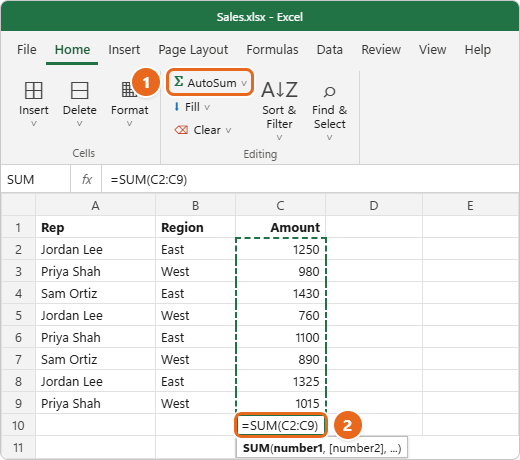
- Check the range. Excel enters a formula such as
=SUM(C2:C9)and draws a moving dashed border around the cells it plans to add. If the range is wrong, drag over the correct cells with the mouse, or edit the cell addresses in the formula.

Click the cell under your numbers, select AutoSum (1), check the range Excel suggests in the cell (2), then press Enter. - Press Enter. C10 now shows 8750. Click C10 again and you’ll see the formula in the formula bar at the top of the window. The total updates by itself whenever you change a number in C2:C9.
Total several columns at once
Select the empty cells under every column you want to total, for example C10:E10, and then select AutoSum or press Alt+=. Excel puts a separate SUM formula in each cell, and you don’t need to press Enter. You can also copy a finished total sideways: copy C10 to D10 and the formula changes to =SUM(D2:D9) on its own.
Watch out for gaps in the column
AutoSum looks upward and stops at the first empty cell or text it reaches. If C6 were empty in the example, AutoSum in C10 would suggest =SUM(C7:C9) and return 3230 instead of 8750. Always glance at the dashed border before you press Enter, and drag to fix the range if it stops early.
Other AutoSum functions
Select the small arrow next to AutoSum to pick Average, Count Numbers, Max or Min instead of Sum. The range works the same way.
Method 3: Type a SUM formula
Typing the formula yourself lets you put the total anywhere, add only part of a column, or add a whole column. The syntax is =SUM(number1, [number2], ...). Each argument can be a number, a cell, or a range of cells, and you can list up to 255 of them.
- Click the cell where you want the total, for example F2.
- Type
=SUM( - Drag over the cells to add, such as C2 to C9. Excel fills in
C2:C9. You can type the range instead. - Type
)and press Enter. The full formula is=SUM(C2:C9), and it returns 8750.
Useful variations, all based on the sample list:
| To add | Formula | Result |
|---|---|---|
| A range in one column | =SUM(C2:C9) |
8750 |
| Part of the column (rows 2 to 5) | =SUM(C2:C5) |
4420 |
| Separate cells | =SUM(C2,C4,C8) |
4005 |
| A range plus single cells | =SUM(C2:C4,C9) |
4675 |
| The entire column C | =SUM(C:C) |
8750 |
| Two whole columns | =SUM(C:C,E:E) |
Totals both columns |
| A block of side-by-side columns | =SUM(C2:E9) |
Totals every number in C2 through E9 |
Summing an entire column with C:C
=SUM(C:C) adds every number in column C, all the way down, so new rows are included automatically. Text such as the header is ignored. Two rules keep it accurate:
- Put the formula in a different column. If you type
=SUM(C:C)in a cell inside column C, the formula includes itself. Excel shows a circular reference warning and the result is wrong. - Don’t leave another total in that column. If C10 already holds
=SUM(C2:C9), then=SUM(C:C)adds the 8,750 total on top of the eight sales and returns 17500. Delete the old total, or sum a fixed range instead.
Why SUM is better than adding with plus signs
A formula like =C2+C3+C4+C5+C6+C7+C8+C9 gives the same 8750, but Microsoft’s SUM function reference lists several reasons to prefer SUM. A plus-sign formula returns #VALUE! when one of the cells contains text, while SUM skips text. It also doesn’t pick up a row you insert in the middle of the list, and it returns #REF! if you delete one of the referenced rows. SUM with a range adjusts in both cases. Other ways of adding numbers are covered in adding numbers in Excel.
Use a name instead of cell addresses
On a large sheet, a named range saves scrolling. Select C2:C9, click the Name Box to the left of the formula bar, type a name such as Sales, and press Enter. Then =SUM(Sales) returns 8750 from any sheet in the workbook. You can also create and edit names with Formulas > Define Name.
Method 4: Add a Total Row to an Excel table
If your list keeps growing, an Excel table is the most reliable choice. The total row moves down as you add rows, and it ignores rows you filter out.
- Turn the list into a table. Click any cell in the data and press Ctrl+T (Command+T on a Mac), or select Insert > Table. Check that My table has headers is selected, then select OK. Tables are explained further in creating a table in Excel.
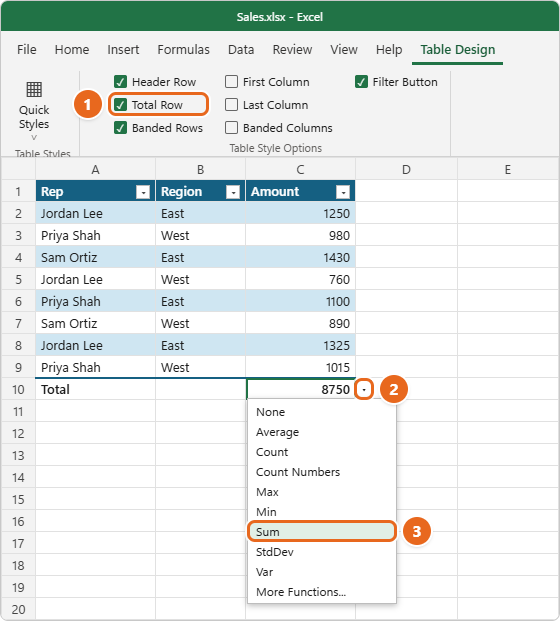
- Turn on the total row. With a cell in the table selected, open the Table Design tab (in some versions of Excel for Mac it’s named Table) and check Total Row in the Table Style Options group. A new row labeled Total appears under the last row. Excel often fills in a total for the last column on its own.
- Choose Sum for your column. Click the total row cell under the column you want, select the arrow that appears next to it, and choose Sum. The list also offers Average, Count, Count Numbers, Max, Min, StdDev, Var and More Functions.

Check Total Row on the Table Design tab (1), select the arrow next to the total cell (2), then choose Sum (3).
The cell now holds a formula like =SUBTOTAL(109,[Amount]), as shown in Microsoft’s guide to totaling the data in an Excel table. The 109 tells Excel to sum and to skip hidden rows. [Amount] is a structured reference, which means “the Amount column of this table,” so the total keeps working when you add or remove rows. To repeat the formula in the next total cell, drag it across with the fill handle rather than copying and pasting, which can leave the column references pointing at the wrong column.
You can also total a table column from outside the table with =SUM(Table1[Amount]). Replace Table1 with your table’s name, which is shown in Table Design > Table Name. To turn the total row off again, clear the Total Row box. Excel remembers the formulas if you turn it back on.
Sum only visible rows after filtering or hiding
SUM always adds every cell in its range, including rows that are filtered out or hidden. If you filter the sample list to show only the East region, =SUM(C2:C9) still returns 8750 even though the visible amounts add up to 5105. Use SUBTOTAL instead:
=SUBTOTAL(9,C2:C9)adds the visible cells after filtering. With the East filter applied, it returns 5105. It still includes rows you hid by hand.=SUBTOTAL(109,C2:C9)also skips rows you hid with right-click > Hide. If row 5 (760) is hidden, it returns 7990, while=SUBTOTAL(9,C2:C9)still returns 8750.
Filtered-out rows are always left out, whichever number you use, as Microsoft’s SUBTOTAL function reference explains. SUBTOTAL also ignores other SUBTOTAL formulas inside its range, so it won’t double count subtotals.
When your data is filtered, selecting AutoSum under the column typically inserts a SUBTOTAL formula instead of SUM. Check the formula bar to see which one you got. The Total Row in an Excel table already uses SUBTOTAL.
If some cells in the column show errors such as #N/A, SUM returns the error too. =AGGREGATE(9,6,C2:C9) adds the column while ignoring error values. Use =AGGREGATE(9,7,C2:C9) to ignore both errors and hidden rows. In AGGREGATE, 9 means SUM, and the second number sets what to ignore. To copy only the visible rows somewhere else, select only the visible cells first.
Sum only the numbers that meet a condition
To add just some of the numbers in a column, use SUMIF for one condition and SUMIFS for several. With the sample list:
=SUMIF(B2:B9,"East",C2:C9)adds the amounts where the region is East: 5105.=SUMIF(A2:A9,"Jordan Lee",C2:C9)adds Jordan Lee’s sales: 3335.=SUMIF(C2:C9,">1000")adds only amounts over 1,000: 6120. When the condition is on the same column you’re adding, you can leave out the third argument.=SUMIFS(C2:C9,B2:B9,"East",C2:C9,">1200")adds East amounts over 1,200: 4005. Note that SUMIFS puts the column to add first.
Wildcards, dates and common mistakes are covered in using the SUMIF function in Excel. If the same column is spread across several sheets, such as one sheet per month, adding totals from different sheets in Excel explains 3D formulas like =SUM(Jan:Dec!C2:C9).
Add a running total
A running total shows the total so far on each row. In D1, type a header such as Running total. In D2, enter =SUM($C$2:C2), then drag the fill handle (the small square at the bottom-right corner of the cell) down to D9. The dollar signs lock the start of the range at C2 while the end moves down one row at a time, so D2 shows 1250, D3 shows 2230, and D9 shows 8750, which matches the column total. The dollar signs are explained in using absolute cell references in Excel.
Troubleshooting
The total is too low, or 0
The most common cause is numbers stored as text. SUM skips text, so those cells are left out. Signs to look for: the numbers line up on the left side of the cell, or a small green triangle appears in the corner. If C4 held 1430 as text, the sample total would drop to 7320. To fix it, select the cells, select the warning icon that appears next to them, and choose Convert to Number. Numbers pasted from websites or other programs can also contain extra spaces; clean them with =TRIM() in a helper column first.
AutoSum picked the wrong range
AutoSum stops at a blank cell or a text entry, and it can include a row of years or IDs that are really labels. Press Esc, then try again and drag over the correct range before you press Enter. Or type the range yourself with Method 3.
Excel shows a circular reference warning
The formula includes its own cell, for example =SUM(C:C) typed in C10, or =SUM(C2:C10) in C10. Move the formula to a different column or change the range so it ends above the formula cell.
The formula shows as text instead of a result
If the cell displays =SUM(C2:C9) instead of 8750, either the cell was formatted as Text before you typed, or formulas are being shown on purpose. Check Formulas > Show Formulas and turn it off if it’s on. Otherwise, select the cell, choose General from the number format list on the Home tab, then press F2 and Enter to enter the formula again.
The total doesn’t change when you edit numbers
The workbook may be set to manual calculation. Select Formulas > Calculation Options > Automatic. Pressing F9 recalculates right away.
The total is off by a few cents
Cells can show rounded values while storing more decimal places, and SUM adds the stored values. Increase the decimal places with Home > Increase Decimal to see the real values, or round each value with ROUND in a helper column if the displayed amounts must add up exactly.
The total ignores filtered rows, or includes them when you don’t want it to
SUM includes everything; SUBTOTAL and the table Total Row skip filtered rows. Pick the one that matches what you want, as described in Sum only visible rows.
FAQ
What is the shortcut to sum a column in Excel?
Click the cell under the numbers and press Alt+= on Windows or in Excel for the web, then press Enter. In Excel for Mac, press Shift+Command+T.
How do I sum an entire column without selecting every cell?
Type =SUM(C:C) in a cell outside column C, replacing C with your column letter. It adds every number in the column, including rows you add later.
Can I sum a column on my phone or in a browser?
Yes. In Excel for the web, use Home > AutoSum the same way as on Windows. On Android, tap the first empty cell after the numbers, tap AutoSum, tap Sum, and then tap the check mark. AutoSum is available in Excel on iPhone and iPad as well.
Why does the status bar show a different total from my formula?
The status bar only adds the cells you have selected at that moment, so a different selection gives a different total. Select exactly the range your formula uses and compare again. If the list is filtered or has hidden rows, also check whether your formula is SUM, which adds hidden rows, or SUBTOTAL, which can skip them.
How do I sum a column but leave out one value?
Subtract it, for example =SUM(C2:C9)-C5, which returns 7990. For a rule-based exclusion, use SUMIF with a not-equal condition, such as =SUMIF(B2:B9,"<>West",C2:C9) to leave out the West region.
Does SUM include negative numbers?
Yes. SUM adds negative numbers as negatives, so a refund of -50 lowers the total by 50. To add only positive values, use =SUMIF(C2:C9,">0").
Next step
For a one-time total, use AutoSum and check the range before you press Enter. If the list will keep growing or you plan to filter it, convert it to a table and turn on the Total Row so the total always covers the right rows.

Matt Jacobs has been working as an IT consultant for small businesses since receiving his Master’s degree in 2003. While he still does some consulting work, his primary focus now is on creating technology support content for SupportYourTech.com.
His work can be found on many websites and focuses on topics such as Microsoft Office, Apple devices, Android devices, Photoshop, and more.