To recover recently deleted photos on an iPhone running iOS 26, open the Photos app, tap Collections, and tap Recently Deleted in the Utilities section. Tap View Album and unlock it with Face ID, Touch ID or your passcode. Tap Select, choose the photos or videos you want back, tap the More button (three dots), then tap Recover.
That works for anything you deleted in the last 30 days. After that, the only way back is a copy that exists somewhere else, such as iCloud on another device or a backup made while you still had the photo. This guide covers every option and tells you honestly when each one can and can’t help.
Applies to: iPhone with iOS 26 (the steps are the same in iOS 27), with separate steps for iOS 18 and for iOS 17 and earlier. Also covers iCloud.com and restoring from an iCloud or computer backup. The steps follow Apple’s iPhone User Guide.
Which recovery option fits your situation?
Start at the top of this table and work down. The first two options are quick, free and don’t change anything else on your iPhone.
| Your situation | What to try | Risk to other data |
|---|---|---|
| You deleted the photo less than 30 days ago | Recently Deleted on your iPhone | None |
| Your iPhone is lost, broken or won’t unlock, and you use iCloud Photos | Recently Deleted on iCloud.com, a Mac or an iPad | None |
| The photo vanished but you don’t remember deleting it | The Hidden and Recovered collections | None |
| More than 30 days have passed and iCloud Photos was off | Restore an iCloud or computer backup made before the deletion | High: the whole iPhone is replaced with the backup |
| More than 30 days have passed and iCloud Photos was on | Look for copies in Messages, email, shared albums and other apps | None |
If you’re in the last row, a device backup almost certainly won’t help, for reasons explained in the backup section.
How Recently Deleted works
A few facts explain most of what you’ll see:
- 30 days, then gone. Deleted photos and videos stay in Recently Deleted for 30 days. Each thumbnail shows how many days are left, such as 29 days or 3 days. When the count runs out, the item is permanently removed and can’t be recovered.
- Deletions sync. If iCloud Photos is turned on, deleting a photo on your iPhone deletes it from your iPad, Mac and iCloud.com too. It lands in Recently Deleted on all of them, and recovering it on any one device brings it back everywhere.
- The album is locked. Since iOS 16, Recently Deleted and Hidden are locked by default. You’ll need Face ID, Touch ID or your passcode to open them.
- Videos work the same way. Everything in this guide applies to videos, screenshots and Live Photos as well as regular photos.
- Shared Library is a special case. Anyone in an iCloud Shared Photo Library can delete a shared photo, but only the person who added it can permanently delete it before the 30 days are up.
Important: Inside Recently Deleted, the Delete option sits right next to Recover. Delete in this album is permanent. Read each menu before you tap, and don’t erase or reset your iPhone while you’re still checking the easy options.
Recover photos in iOS 26 and iOS 27
iOS 26 brought back two tabs at the bottom of the Photos app: Library and Collections. Recently Deleted lives under Collections, and iOS 27 uses the same steps. To check your version, go to Settings > General > About and look at iOS Version.
- Open the Photos app.
- Tap Collections at the bottom of the screen. You’ll see groups such as Media Types and Utilities.
- Scroll down to Utilities and tap Recently Deleted. You’ll see a lock screen with a View Album button.
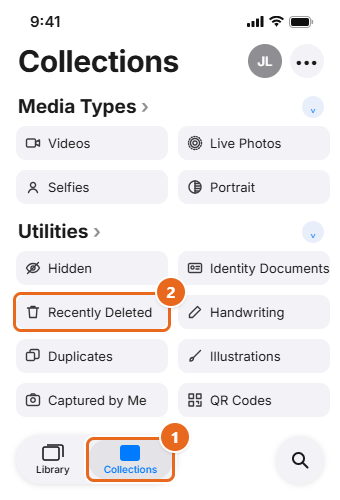
- Tap View Album and unlock it with Face ID, Touch ID or your passcode. A grid of deleted items opens, with the number of days left under each one.
- Tap Select in the top-right corner.
- Tap each photo or video you want back. A blue check mark appears on each one, and a label at the bottom shows how many are selected. To pick several in a row, drag your finger across the thumbnails.
- Tap the More button (three dots) in the top-right corner.
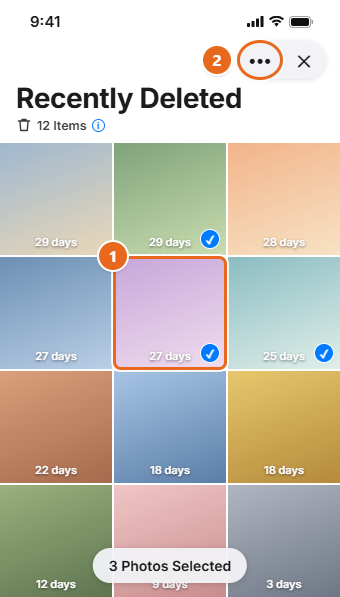
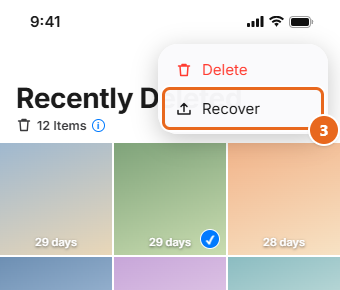
- Tap Recover. Don’t tap Delete, which removes the selected items for good.
- Confirm when your iPhone asks. The photos leave Recently Deleted and go back into your library.
To recover a single photo: open Recently Deleted, tap the photo to view it full screen, then tap Recover and confirm.
Where did it go? The Library is sorted by the date each photo was taken, not the date you recovered it. A vacation photo from last spring goes back to last spring, so it won’t be at the bottom of your newest photos. Scroll to the date it was taken, or search for it in Photos.
Recover photos in iOS 18, iOS 17 and earlier
Apple has moved Recently Deleted twice in recent years, which is why older guides give different directions. Use the steps that match your iPhone.
iOS 18
iOS 18 removed the tabs at the bottom of Photos and put everything on one long scrolling screen.
- Open Photos and swipe up past your library.
- Under Utilities, tap Recently Deleted, then tap View Album and unlock it.
- Tap Select and choose the items you want back.
- Tap the More button at the bottom of the screen, then tap Recover and confirm.
iOS 17 and earlier
- Open Photos and tap Albums at the bottom.
- Swipe up to Utilities and tap Recently Deleted. On iOS 16 and iOS 17, unlock it with Face ID, Touch ID or your passcode.
- Tap Select, choose the items, then tap the More button at the bottom and tap Recover.
Recover photos on iCloud.com or another Apple device
If iCloud Photos is turned on, your Recently Deleted album also exists in iCloud. This is useful when your iPhone is lost, broken or locked, or you’d rather work on a bigger screen. It’s the same album, so it doesn’t give you extra time beyond the 30 days.
On iCloud.com
- On a computer or tablet, go to icloud.com/photos and sign in with the Apple Account you use on your iPhone.
- Select Recently Deleted in the sidebar. If you don’t see a sidebar, select the Show Sidebar button in the upper-left corner.
- Select the photos or videos you want, then select Recover.
The recovered items sync back to your iPhone and your other devices the next time they connect to iCloud.
If you don’t see Photos or your library on iCloud.com: either iCloud Photos is off, so your photos were never stored there, or you use Advanced Data Protection. With Advanced Data Protection turned on, Apple disables web access to your iCloud data by default. You can turn web access back on and approve it from one of your trusted devices, or recover the photos on a Mac or iPad instead.
On a Mac or iPad
- Mac (macOS Ventura or later): Open Photos, select Recently Deleted in the Utilities section of the sidebar, unlock it with Touch ID or your login password, select the items, then click Recover.
- iPad: Use the same steps as an iPhone with the same software version.
An old iPhone or iPad that has been switched off or offline for a while might still have photos in its library that were deleted elsewhere. If you check one, keep it offline (turn on Airplane Mode before it connects to Wi-Fi) and save the photos you need to a computer first. As soon as it connects to iCloud, it will sync the deletions.
Before you go further, make sure the photo is really gone. Two built-in collections are easy to overlook.
The Hidden collection
Hidden photos don’t appear anywhere else in Photos, so they can look deleted.
- In Photos, tap Collections.
- Under Utilities, tap Hidden, tap View Album, then unlock your iPhone.
- Tap the photo, tap the More button, then tap Unhide.
If you don’t see Hidden at all, it may be turned off. Go to Settings > Apps > Photos and turn on Show Hidden Album.
The Recovered collection
If a photo or video wasn’t saved properly and couldn’t be added to your library, a copy may appear in Recovered.
- In Photos, tap Collections, scroll down, then tap Utilities.
- Tap Recovered, then tap the photo or video.
- Tap Restore to Library.
Warning: The other button here, Permanently Delete, really is permanent. Items deleted from Recovered don’t go to Recently Deleted.
After 30 days: restore from a backup
Once a photo has left Recently Deleted, Apple offers one more route: restoring your whole iPhone from a backup made before you deleted it. Read this whole section before you try it, because it has two big catches.
Catch 1: if iCloud Photos was on, your backups don’t contain your photos
This is the part most guides skip. An iCloud backup doesn’t include photos when iCloud Photos is turned on, because they’re already stored in iCloud Photos. A computer backup made with Finder, the Apple Devices app or iTunes also leaves out data already synced to iCloud, including iCloud Photos.
So if you had iCloud Photos turned on when the backup was made, restoring it won’t bring back a photo that has already been permanently deleted from iCloud Photos. You’d erase your iPhone for nothing. Skip to Other places a copy might still exist.
To check whether iCloud Photos is on now, go to Settings > [your name] > iCloud > Photos and look at Sync this iPhone. If you’re not sure whether it was on when the backup was made, think about whether your photos showed up on your other Apple devices or on iCloud.com at that time.
Catch 2: a restore replaces everything on your iPhone
You can’t pull one photo out of a backup with Apple’s tools. A restore puts your whole iPhone back to the day of the backup. Photos, messages and other data created after that day can be lost unless they’re stored somewhere else, such as iCloud.
Check that a suitable backup exists
- For iCloud, go to Settings > [your name] > iCloud, tap Storage or Manage Account Storage, then tap Backups. Tap your iPhone to see the date of its latest backup.
- For a computer, connect your iPhone, open Finder on a Mac (macOS Catalina or later) or the Apple Devices app on a Windows PC, select your iPhone, and look at the backup dates when you click Restore Backup. Don’t continue until you’re ready.
- Make sure the backup date is before the day you deleted the photo. A newer backup won’t contain it.
iCloud backs up your iPhone automatically every day while it’s charging, locked and on Wi-Fi. That means the latest iCloud backup may already be from after the deletion, so check the date carefully. If you haven’t connected your iPhone to your computer in a while, an older computer backup may still be from before it.
Before you restore
- Copy photos you’ve taken since the backup to a computer, for example by transferring photos from an iPhone to a Windows 11 PC.
- Make sure you know your Apple Account password and, for an encrypted computer backup, the backup password.
- Keep your iPhone on Wi-Fi and power for the whole restore.
Restore from an iCloud backup
Warning: The next steps erase your iPhone.
- Go to Settings > General > Transfer or Reset iPhone > Erase All Content and Settings. Enter your passcode or Apple Account password if asked, then tap Continue. If you have an eSIM, choose to keep it. The erase process is covered in more depth in erasing and factory resetting an iPhone.
- When the iPhone restarts and shows the Hello screen, follow the setup steps until you reach Transfer Your Apps & Data.
- Tap From iCloud Backup and sign in to your Apple Account.
- Look at the date and size of each backup and choose the one made before the deletion. Apple’s general advice is to pick the most recent backup, but for photo recovery you need the one that still had the photo.
- Sign in again if asked to restore your apps and purchases, and keep the iPhone connected until the progress bar finishes.
Restore from a computer backup
- On a Mac, open Finder. On a Windows PC, open the Apple Devices app (older setups use iTunes).
- Connect your iPhone with a USB cable and select it in the sidebar. If asked, unlock your iPhone and tap Trust.
- Click Restore Backup. If you’re asked to turn off Find My first, do that on the iPhone in Settings > [your name] > Find My.
- Choose the backup dated before the deletion, enter the backup password if it’s encrypted, then click Restore.
- Keep the iPhone connected while it restarts and syncs, then disconnect it.
When the restore is done, open Photos and look for the missing picture by its date. Content can keep downloading for a while after setup.
Other places a copy might still exist
If Recently Deleted is empty and no backup helps, look for a copy you or someone else made. These checks are free and don’t put any data at risk:
- Messages and chat apps. Open any conversation where you sent the photo. In Messages, tap the person’s name at the top to see shared photos. Open a photo and save it back to your library.
- Email. Search your sent mail for attachments around the date the photo was taken.
- Shared albums. Photos you added to a shared album stay there unless they’re removed from the album. Check Shared Albums in Photos.
- Other photo or cloud apps. If you use Google Photos, OneDrive, Dropbox or a similar app with automatic camera upload, check its library and its Trash or Bin. Google Photos, for example, keeps backed-up items in Trash for 60 days.
- Social media. A posted copy is usually smaller than the original, but it’s better than nothing.
- Other people. Friends or family who were there may have the same shot, or a copy you sent them.
- A computer. If you’ve ever imported photos to a PC or Mac, check that folder and the computer’s Recycle Bin or Trash.
What about photo recovery software?
Search for this topic and you’ll see many paid programs that promise to recover permanently deleted iPhone photos without a backup. Be cautious. Apple’s documentation is clear that items removed from Recently Deleted are permanently deleted, and iPhone storage is encrypted. Many of these tools actually work by reading an existing computer or iCloud backup, which you can restore with Apple’s free tools.
If you consider one anyway, never give a program your Apple Account password, be wary of tools that charge before showing what they found, and remember that you’re handing it a copy of your personal data. This guide doesn’t recommend any third-party recovery software.
Troubleshooting
I can’t find Recently Deleted
- Check your iOS version. In iOS 26 it’s under Collections; in iOS 18 you swipe up on the main Photos screen; in iOS 17 and earlier it’s under Albums.
- Scroll all the way to Utilities. If the Utilities section looks collapsed, tap its header to open it.
- Make sure you’re in the Photos app, not the Files app, which has its own Recently Deleted location for files.
Recently Deleted is empty
- More than 30 days may have passed.
- Someone may have selected the items and tapped Delete in Recently Deleted, on this iPhone or on another device signed in to the same Apple Account with iCloud Photos on.
- Check that you’re signed in to the right Apple Account in Settings. A family member’s iPad on a different account has its own separate album.
Face ID won’t open the album
Tap View Album again, or enter your passcode instead. If you’d rather the album didn’t lock at all, go to Settings > Apps > Photos and turn off Use Face ID (or Use Touch ID or Use Passcode).
I recovered the photo but can’t see it
- Scroll to the date it was taken, or use Search in Photos.
- If it was hidden before it was deleted, check the Hidden collection.
- On other devices, give iCloud time to sync. In iOS 26, your sync status shows in the top-right corner of the Collections tab. A yellow badge means syncing is paused; tap your account icon to see why.
There’s no Recover option
Select at least one item first. The Recover option only appears in the More menu once something is selected, or after you open a single photo full screen.
How to avoid losing photos next time
- Turn on iCloud Photos in Settings > [your name] > iCloud > Photos > Sync this iPhone. Your photos are then stored in iCloud and viewable on your other devices. Remember that it syncs deletions too, so it isn’t a separate backup.
- Keep a second copy. Every few months, copy your photos to a computer or external drive. That copy doesn’t change when you delete something on your iPhone.
- Turn on iCloud Backup in Settings > [your name] > iCloud > iCloud Backup > Back Up This iPhone. It protects your settings, messages and app data, and your photos too if iCloud Photos is off.
- Clean up carefully. When you delete pictures on your iPhone in bulk, leave them in Recently Deleted for a few days before emptying it. That gives you time to notice a mistake.
- Watch your iCloud storage. When iCloud storage is full, new photos stop uploading to iCloud Photos.
FAQ
How long do deleted photos stay on an iPhone?
30 days in Recently Deleted. The number under each thumbnail shows how many days are left. After that, they’re permanently removed from your iPhone, iCloud and your other devices.
Can I recover photos after deleting them from Recently Deleted?
Only from a copy that exists somewhere else, such as a backup made before the deletion while iCloud Photos was off, a photo you sent in Messages or email, or another photo app’s trash. Apple has no button to bring them back.
If I recover a photo on my iPhone, does it come back on my Mac and iPad?
Yes, when iCloud Photos is on for those devices and they’re signed in to the same Apple Account. Recovering on any one of them restores it everywhere.
Does recovering a photo restore it to its album?
The photo returns to your library at the date it was taken. If it doesn’t appear in an album you expect, open the album and add it again.
Can I recover deleted videos the same way?
Yes. Videos go to the same Recently Deleted album and follow the same 30-day rule.
Does restoring an iCloud backup bring back deleted photos?
Only if the backup was made before the deletion and iCloud Photos was turned off at the time. With iCloud Photos on, photos aren’t part of the backup.
Can Apple Support recover my permanently deleted photos?
No. After 30 days in Recently Deleted, a photo is permanently deleted and can’t be brought back. Apple Support can help you check your backups and settings, though.
Next step
Once your photos are back, take a minute to check that iCloud Photos is syncing and that you have a second copy of the photos that matter most, on a computer or an external drive.

Matt Jacobs has been working as an IT consultant for small businesses since receiving his Master’s degree in 2003. While he still does some consulting work, his primary focus now is on creating technology support content for SupportYourTech.com.
His work can be found on many websites and focuses on topics such as Microsoft Office, Apple devices, Android devices, Photoshop, and more.