To hide a photo on your iPhone, open Photos, touch and hold the photo, tap Hide, then tap Hide Photo to confirm. To hide several at once, tap Select, tap each photo, tap the More button (three dots), then tap Hide. Hidden photos move to the Hidden collection under Collections > Utilities, which opens only with Face ID, Touch ID or your passcode.
Applies to: iPhone with iOS 26 or iOS 27 (the Photos app with Library and Collections tabs). Separate steps are included for iOS 18 and iOS 17. The steps follow Apple’s iPhone User Guide.
What hiding a photo does (and doesn’t do)
Hiding is a privacy tool, not a vault. Knowing its limits up front helps you pick the right option for each picture.
- The photo is moved, not deleted. A hidden photo stays in your library but leaves the Library view, your other albums, Memories, search results and the Photos widget on your Home Screen. The only place you’ll see it is the Hidden collection.
- The Hidden collection is locked by default. Since iOS 16, Apple locks the Hidden and Recently Deleted collections. You open them with Face ID, Touch ID or your iPhone passcode.
- There is no separate password. The lock is the same one that unlocks your iPhone. Anyone who knows your passcode can open your Hidden collection.
- Hiding syncs. If you use iCloud Photos, a photo you hide on your iPhone is also hidden on your iPad and Mac signed in to the same Apple Account.
- Videos work the same way. Every step below applies to videos as well as photos.
| Option | What it protects | Who can still see it | Best for |
|---|---|---|---|
| Hide in Photos | Individual photos and videos | Anyone who can unlock your iPhone | Keeping a few pictures out of sight when you hand someone your phone |
| Turn off Show Hidden Album | The Hidden collection itself | Anyone who knows to turn the setting back on | Making it less obvious that hidden photos exist |
| Lock the Photos app (iOS 18 and later) | Your whole photo library | Anyone who can unlock your iPhone | Stopping casual browsing of everything in Photos |
| Locked note with a custom password | Photos you move into Notes | Only someone with the Notes password | A small number of sensitive pictures, such as document scans |
Hide one photo or video
This works in iOS 26 and iOS 27. You can hide straight from the grid without opening the picture.
- Open the Photos app and find the photo or video you want to hide. It can be in your Library or inside any collection.
- Touch and hold the thumbnail until a menu appears. If you already have the photo open full screen, tap the More button (three dots) at the top instead.
- Tap Hide.
- Read the message that appears. It explains that the photo will be moved to the Hidden album. Tap Hide Photo to confirm.
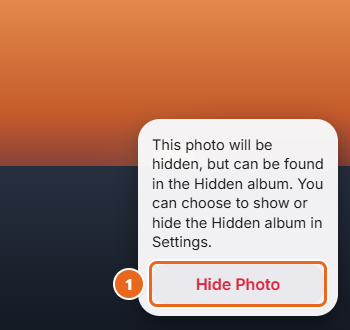
The photo disappears from your Library right away. Nothing is lost: it’s waiting in the Hidden collection.
Hide several photos at once
Use this when you want to tuck away a whole set, such as the screenshots of a gift order or photos of a surprise party.
- Open Photos. Stay in your Library or open a collection, such as a trip or an album.
- Tap Select in the top-right corner.
- Tap each photo or video you want to hide. A blue check mark appears on each one. To select a run of pictures quickly, drag your finger across them instead of tapping one at a time.
- Tap the More button (three dots). A menu opens.
- Tap Hide, then confirm when your iPhone asks.
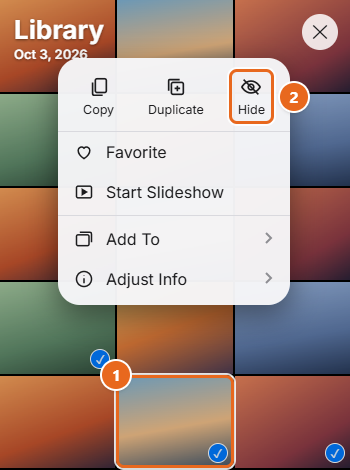
If you don’t see Hide right away, look at the row of icons at the top of the menu or scroll the menu: the order of items can vary slightly between iOS versions.
- Open Photos and tap Collections at the bottom of the screen.
- Scroll down to the Utilities section.
- Tap Hidden.
- Tap View Album, then unlock with Face ID, Touch ID or your passcode. Your hidden photos and videos appear in a grid.
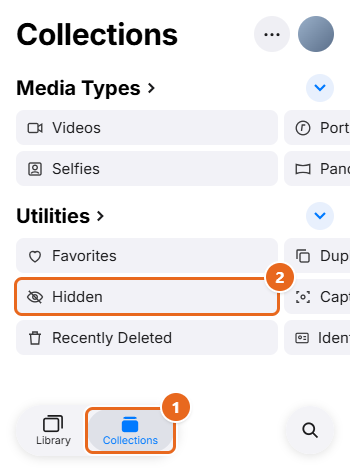
If Hidden isn’t listed under Utilities, the Hidden album has been turned off in Settings. See Remove the Hidden album from the Photos app to turn it back on.
How to unhide photos
Unhiding moves a photo out of the Hidden collection so it reappears in your photo library.
- Open Photos > Collections, then tap Hidden under Utilities.
- Tap View Album and unlock with Face ID, Touch ID or your passcode.
- Touch and hold the photo or video you want to bring back, or open it and tap the More button.
- Tap Unhide. The item leaves the Hidden collection and shows up in your Library again.
To unhide several at once, tap Select inside the Hidden collection, tap each item, tap the More button, then tap Unhide.
Remove the Hidden album from the Photos app
By default, the Hidden collection is visible under Utilities, even though it’s locked. If you’d rather nobody sees that it exists, you can remove it from view. Your hidden photos are not deleted when you do this.
Before you start: while this setting is off, you can’t open or unhide your hidden photos from the Photos app. You’ll need to come back here and turn it on first.
iOS 26
- Open the Settings app.
- Tap Apps, then tap Photos.
- Turn off Show Hidden Album. The switch turns gray.
iOS 27
Apple’s instructions give the same path, Settings > Apps > Photos. Apple’s text still calls the switch Show Hidden Album, but on some iOS 27 devices it may appear on an Albums screen inside Photos settings, labeled Hidden Album.
- Open Settings and tap Apps > Photos.
- Tap Albums if you see it.
- Turn off Hidden Album.

To turn it back on: return to the same screen and turn on Show Hidden Album (iOS 26) or Hidden Album (iOS 27). Hidden appears under Utilities again.
Keep in mind that this hides the album from casual view only. Anyone who can unlock your iPhone and knows about the setting can switch it back on.
Keep the Hidden album locked
The Hidden and Recently Deleted collections are protected by one setting. If someone has turned it off, hidden photos open without Face ID or a passcode.
- Open Settings > Apps > Photos (on iOS 27, look on the Albums screen).
- Find Use Face ID, Use Touch ID or Use Passcode. The name depends on how your iPhone unlocks.
- Make sure the switch is on (green).
Turning this switch off unlocks both collections for anyone holding your unlocked phone, so leave it on unless you have a specific reason. Because the lock uses your iPhone passcode, the strength of that passcode matters. If you’ve shared it with family or friends, consider changing your iPhone passcode.
Steps for iOS 18 and iOS 17
Hiding works the same way on older versions, but the Photos app is laid out differently, so the Hidden album is in a different place.
iOS 18
iOS 18 uses a single scrolling screen in Photos instead of tabs.
- Hide: open a photo, tap the More button, then tap Hide. For several, swipe down to see the full photo grid, tap Select, choose the photos, tap the More button, then tap Hide.
- Find Hidden: in Photos, swipe up, tap Hidden below Utilities, then tap View Album.
- Remove Hidden from view: Apple’s iOS 18 instructions say to open Photos, tap your account picture in the top-right corner, then turn off Hidden Album. The switch is also listed in Settings > Apps > Photos as Show Hidden Album.
- Lock setting: Settings > Apps > Photos > Use Face ID (or Touch ID or Passcode).
iOS 17
- Hide: tap a photo, tap the More button, then tap Hide. For several, tap Select in an album or the Days or All Photos view, pick the photos, tap the More button, then tap Hide.
- Find Hidden: tap the Albums tab, scroll down, then tap Hidden below Utilities.
- Remove Hidden from view: Settings > Photos, then turn off Show Hidden Album. In iOS 17, Photos is listed directly in Settings rather than under Apps.
- Lock setting: Settings > Photos > Use Face ID (or Touch ID or Passcode).
- Undo tip: in iOS 17, if you hide something by mistake, you can shake your iPhone within 8 minutes and tap Undo Hide.
On iOS 15 and earlier, the Hidden album isn’t locked; Apple added the lock in iOS 16. If your iPhone can update, it’s worth doing so before you rely on hiding for privacy.
Other ways to keep photos private
Lock the whole Photos app (iOS 18 and later)
If you want to stop people browsing any of your photos, lock the app itself.
- On the Home Screen, touch and hold the Photos icon until the quick actions menu opens.
- Tap Require Face ID (or Require Touch ID or Require Passcode).
- Confirm, and authenticate when asked. From now on, Photos asks for Face ID, Touch ID or your passcode every time it opens.
To remove the lock, touch and hold the icon again and tap Don’t Require Face ID. Built-in apps like Photos can be locked but can’t be hidden from the Home Screen; only apps you download from the App Store can be hidden. A locked app’s content also stays out of places such as search and Siri suggestions.
Move photos into a locked note
Notes lets you lock individual notes with a custom password that’s different from your iPhone passcode. That makes it the stronger option if other people know your passcode.
- In Photos, open the picture, tap the Share button, then tap Notes and save it to a new note.
- To use a separate password, go to Settings > Apps > Notes > Password and choose Use Custom Password.
- Open the note in Notes, tap the More button (three dots) at the top of the note, then tap Lock.
- Go back to Photos and delete the original, then remove it from Recently Deleted as well, or the picture is still on your phone for 30 days.
A few limits to know: the note’s title stays visible in your notes list, so give it a plain name. You can’t lock notes that contain video, PDF or audio attachments, notes that sync with non-iCloud accounts, or shared notes. And if you forget a custom Notes password and can’t use Face ID or Touch ID, Apple can’t help you get back in. Removing the originals is covered in deleting pictures on an iPhone.
A note about photo vault apps
The App Store has many “vault” apps that promise to hide pictures. Some store your photos on their own servers or require a subscription. If you consider one, read its privacy details on the App Store page, check where your photos are stored, and find out what happens to them if you stop paying. For most people, the built-in Hidden album plus a strong passcode is enough.
Troubleshooting
The Hidden album is missing
The album has been removed from view. Turn on Show Hidden Album in Settings > Apps > Photos (on iOS 27, the Hidden Album switch on the Albums screen). On iOS 17, go to Settings > Photos. Also check that you’re looking under Collections > Utilities, not inside a specific album.
Face ID won’t open the Hidden album
Tap View Album again. If Face ID fails, your iPhone offers your passcode instead. If neither prompt appears, check that Use Face ID is on in Photos settings and that Face ID is set up in Settings > Face ID & Passcode.
Hidden photos open without asking for Face ID
The lock has been turned off. Turn on Use Face ID, Use Touch ID or Use Passcode as shown in Keep the Hidden album locked. If your iPhone has no passcode at all, the lock can’t work, so set one in Settings > Face ID & Passcode.
I can’t find Unhide
Unhide appears only inside the Hidden collection. Open Collections > Hidden, unlock it, then touch and hold the photo. If you’re in Select mode, select at least one item before you tap the More button.
A photo I hid on my iPhone also disappeared on my iPad or Mac
That’s expected with iCloud Photos turned on: hiding applies to your whole library. On a Mac, the Hidden album is off by default; in the Photos app, choose View > Show Hidden Photo Album to see it in the sidebar.
FAQ
Does hiding a photo delete it?
No. A hidden photo stays in your library and in iCloud Photos if you use it. It’s only moved out of view. Deleted photos go to Recently Deleted instead, where they’re removed for good after 30 days.
Can I put a separate password on the Hidden album?
No. The Hidden album uses the same Face ID, Touch ID or passcode that unlocks your iPhone. For a separate password, use a locked note with a custom Notes password.
Can someone who knows my passcode see my hidden photos?
Yes. Anyone who can unlock your iPhone can enter the passcode at the Hidden album prompt. Turning off the Hidden album adds a small extra step, but it isn’t a barrier for someone who knows where to look.
Can I hide videos too?
Yes. Videos are hidden, found and unhidden the same way as photos, and they appear in the same Hidden collection.
Do hidden photos show up in search or Memories?
No. Hidden items don’t appear anywhere else in Photos, including your Library, other albums and the Photos widget.
How long do photos stay hidden?
Until you unhide or delete them. Unlike Recently Deleted, the Hidden collection has no time limit.
Can I hide photos on my iPhone from my Mac instead?
Yes. In Photos on a Mac, Control-click a photo and choose Hide Photo, or press Command-L. With iCloud Photos on, it’s hidden on your iPhone too.
Next step: open Collections > Hidden once to make sure the album asks for Face ID. If it opens straight away, turn on the lock in Photos settings before you hide anything else. Apple also has a page on hiding photos with the Hidden album.

Matt Jacobs has been working as an IT consultant for small businesses since receiving his Master’s degree in 2003. While he still does some consulting work, his primary focus now is on creating technology support content for SupportYourTech.com.
His work can be found on many websites and focuses on topics such as Microsoft Office, Apple devices, Android devices, Photoshop, and more.