To use Phone Link in Windows 11, select Start, type Phone Link, and open the app. Under Select your device, choose Android or iPhone, then scan the QR code on your PC with your phone and allow the permissions it asks for. After that, you can read and reply to texts, take calls and see your phone’s notifications on your PC.
Applies to: Windows 11 (version 24H2 and 25H2) with the current Phone Link app, Android phones with the Link to Windows app, and iPhones running iOS 16 or later. Checked against Microsoft Support on October 12, 2026.
In this guide
- What Phone Link can do on Android vs. iPhone
- What you need
- Open Phone Link (or install it if it’s missing)
- Set up Phone Link with an Android phone
- Set up Phone Link with an iPhone
- Send and read text messages
- Make and answer calls
- Manage phone notifications
- Get photos and files from your phone
- Use Android apps and your phone screen on the PC
- Copy and paste, webcam, hotspot and other extras
- Turn individual features on or off
- Use your phone from the Start menu
- How to unlink your phone
- Troubleshooting
- FAQ
What Phone Link can do on Android vs. iPhone
Phone Link is the Windows app that connects your phone to your PC. On the phone side, Android uses Microsoft’s Link to Windows app. An iPhone connects mostly through Bluetooth, and the Link to Windows app for iPhone is optional. Microsoft renamed these apps in 2022: Phone Link used to be called Your Phone, and Link to Windows used to be called Your Phone Companion.
Android phones get many more features than iPhones. Check this table before you start, so you know what to expect.
| Feature | Android (Link to Windows) | iPhone |
|---|---|---|
| Read and reply to texts | Yes, SMS and MMS, including photos and GIFs. RCS on select Samsung phones. | Yes, text only. No photos, GIFs, Memoji or group chats. |
| Message history on the PC | Messages from the last 30 days | Only messages sent or received while the iPhone is connected over Bluetooth |
| Make and answer calls | Yes (needs Bluetooth) | Yes (needs Bluetooth and Sync Contacts) |
| Phone notifications on the PC | Yes | Yes |
| Photos from the phone | Yes. On Windows 11 they are moving to File Explorer. | No |
| Use phone apps and mirror the screen | Select Samsung, HONOR, OPPO, ASUS, vivo and Xiaomi phones only | No |
| Send files between phone and PC | Yes | From the Start menu companion (rolling out) |
| Copy and paste between phone and PC | Select phones only | No |
| Use the phone as a webcam | Yes, Android 10 or later | No |
If you only need your iPhone’s photos on your PC, Phone Link won’t do that. Use one of the methods in our guide on how to transfer photos from an iPhone to a Windows 11 PC instead.
What you need
For an Android phone
- A Windows 11 PC. Microsoft recommends the latest version of Windows 11. (Windows 10 also works with the October 2022 update or later.)
- An Android phone running Android 10 or later.
- Both devices on the same Wi-Fi network during setup.
- The same Microsoft account on the PC and in the Link to Windows app. If you don’t have one, you can create it during setup.
- Bluetooth on both devices if you want to make and answer calls.
For an iPhone
- A Windows 11 PC with Bluetooth that supports Bluetooth Low Energy (BLE). Most modern laptops do. If your PC has no Bluetooth, the iPhone option won’t work.
- An iPhone running iOS 16 or later.
- Bluetooth turned on on both the PC and the iPhone, with the two devices close together.
Good to know: Phone Link doesn’t support work or school accounts, and on Android it only works in the phone’s main (default) profile. Once you allow message access, sensitive texts such as two-factor sign-in codes can show up on your PC, so think twice before linking a phone to a shared or work computer.
Open Phone Link (or install it if it’s missing)
Phone Link comes with Windows 11, so you don’t need to download it.
- Select Start (or press the Windows key).
- Type Phone Link and select the app in the results. The first time, it opens a welcome screen that asks which kind of phone you have.
- If Windows asks you to sign in, use your Microsoft account. Remember which account you used, because your phone has to use the same one.
If Phone Link doesn’t appear when you search for it, open Settings, search for Phone Link, and select Enable or disable Phone Link. Turn on the Phone Link toggle, then select Install in the pop-up window. Microsoft notes that Phone Link can’t be uninstalled, because it’s built into several Windows features.
On many Windows 11 PCs you can also start setup from Settings > Bluetooth & devices > Mobile devices by selecting Add device, or from the phone panel in the Start menu (see Use your phone from the Start menu).
Set up Phone Link with an Android phone
Keep the phone and PC next to each other, unlocked, and on the same Wi-Fi network while you do this.
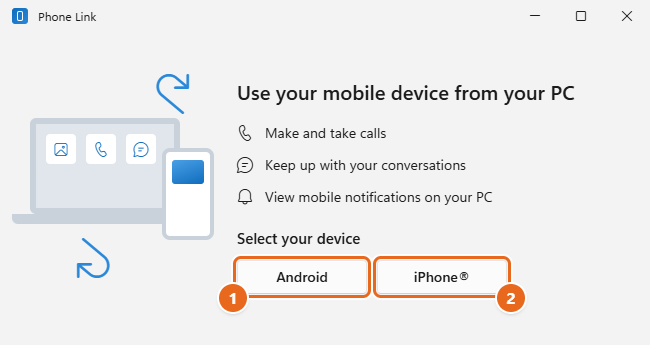
- Open Phone Link on your PC and choose Android. Under Select your device, select Android. If your Microsoft account already has an Android phone linked, Phone Link shows it in a list. Pick it and skip to step 6.

Under Select your device, choose Android (1) or iPhone (2) to start pairing. - Get Link to Windows on the phone. Many Samsung, HONOR, OPPO, ASUS and vivo phones already have it. On those phones, swipe down from the top of the screen and look for Link to Windows in Quick Settings. On other phones, open a browser on the phone and go to the short address Phone Link shows on your PC (
aka.ms/yourpc), or search for Link to Windows in the Google Play Store and install it. - Sign in on the phone. Open Link to Windows and sign in with the same Microsoft account you use on the PC.
- Show the QR code on the PC. Back in Phone Link, check I have the Link to Windows app ready, then select Pair with QR code. A QR code appears on your PC screen. If your phone’s camera can’t scan it, select Pair manually instead and type the code shown into the phone.
- Scan the code with the phone. In Link to Windows, tap Link your phone and PC, then tap Continue when it asks if the QR code is ready. Allow camera access, and point the in-app camera at the QR code on your PC.
- Allow the permissions. The phone asks for access to things like notifications, messages, contacts, calls and files. Each permission turns on the matching feature, so allow the ones you want to use. On Android 13 and later, you must allow notifications, because Phone Link uses that permission to move data between the devices.
- Finish on both devices. Tap Done on the phone, then return to the PC. Phone Link opens with your phone’s name, battery level and connection status in the top-left corner, and tabs such as Messages and Calls along the top.
Tip: If the code on the PC and the phone don’t match more than three times, Phone Link blocks linking for security. Close and reopen Phone Link on the PC and start again from there.
Set up Phone Link with an iPhone
The iPhone setup uses Bluetooth instead of Wi-Fi, and you don’t need to install anything on the iPhone.
- Turn on Bluetooth on both devices. On the PC, select the network or volume icon at the right end of the taskbar and check that Bluetooth is on. On the iPhone, open Settings > Bluetooth and turn it on.
- Open Phone Link on your PC and choose iPhone. Under Select your device, select iPhone. If the iPhone button is grayed out, your PC’s Bluetooth is off or not available.
- Scan the QR code with the iPhone’s Camera app. Open the regular Camera app on your iPhone and point it at the QR code on your PC. Tap the link that appears. This starts Bluetooth pairing.
- Confirm the pairing. Follow the prompts on both screens. When the iPhone asks to pair with your PC, tap Pair, and confirm on the PC if it shows a matching code.
- Allow notifications, messages and contacts. The iPhone asks whether your PC can show notifications and sync contacts. Allow both. If you skipped them, see the next steps.
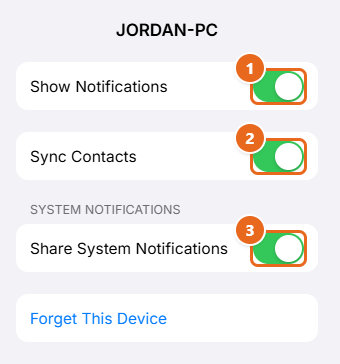
- Check the three Bluetooth settings on the iPhone. Open Settings > Bluetooth and tap the Info button (the small i) next to your PC’s name. Turn on Show Notifications, Sync Contacts and Share System Notifications. According to Microsoft, Share System Notifications gives access to notifications and messages, Show Notifications is needed for messages, and Sync Contacts is needed for messages, contacts and call history.

On the iPhone, turn on Show Notifications (1), Sync Contacts (2) and Share System Notifications (3) for your PC. - Return to Phone Link. Your iPhone’s name and connection status appear in the top-left corner, and you can start using Messages and Calls.
The Link to Windows app for iPhone in the App Store isn’t required. If you do install it, Microsoft recommends keeping it up to date for the smoothest pairing.
Send and read text messages
On Android
- In Phone Link, select Messages at the top. Your recent conversations appear in a list on the left.
- To reply, select a conversation, type in the Send a message box at the bottom, and press Enter.
- To start a new conversation, select New message (the pencil icon), type a contact’s name or number, and select the person.
- To add content, use the buttons below the message box: Emoji, GIF or Image. The Image button lets you pick a recent photo from the phone or select Browse this PC to attach a picture from your computer.
Phone Link shows Android messages from the last 30 days. You can’t delete or manage messages from the PC; do that on the phone. Sending a picture turns the text into an MMS, which your carrier may count differently from a plain text.
If messages don’t appear, open Phone Link Settings > Features > Messages and make sure Phone Link is allowed to show your text messages and send and receive MMS attachments.
On iPhone
- In Phone Link, select Messages.
- Select New message, enter a contact’s name or number, and select the person to open a thread.
- Type your message and send it. You can add emoji, but not photos, GIFs or Memoji.
On an iPhone, Phone Link only shows messages sent or received while the phone is connected to the PC over Bluetooth. If the connection ends, that history disappears from the PC. You can’t start group messages from the PC either; when a group message arrives, you’ll see it as a notification and need to reply on the iPhone.
Make and answer calls
Calls go through your phone’s cellular connection, while you talk through the PC’s microphone and speakers or a headset connected to the PC. Both Android and iPhone need a Bluetooth connection to the PC for calls.
- In Phone Link, select Calls.
- On Android, if you haven’t set up calls yet, select Get started and follow the prompts. Your phone shows a pop-up asking to allow the connection; tap Allow, and check that the PIN on the phone matches the one on the PC.
- To make a call, search for a contact or type a number on the dial pad, then select the Call button.
- When someone calls, a notification appears on your PC. Select Accept to answer on the PC or Decline to send it away.
On an iPhone, turn on Sync Contacts in the iPhone’s Bluetooth settings for your PC (step 6 in the iPhone setup above), or calls won’t work properly. Your call history appears on the Calls tab.
Manage phone notifications
Once notifications are on, alerts from your phone pop up as regular Windows notifications and are also listed in the Notifications panel on the left side of Phone Link.
- Dismiss or clear: Select the X on a notification to dismiss it, or select Clear all.
- Reply: Some notifications, such as messages, let you reply right from the notification.
- Choose which apps can notify you (Android): Open Phone Link Settings > Features > Notifications. Expand it to choose which phone apps send notifications to your PC, and whether you see banners and a taskbar badge.
On Android, if notifications don’t appear, Phone Link asks you to grant notification access. Select Open settings for me on the PC, then find Link to Windows in the list on your phone and allow it. On iPhone, notifications come from the Share System Notifications setting in the iPhone’s Bluetooth settings for your PC.
Get photos and files from your phone
Photos from an Android phone
Microsoft is moving the Photos feature from Phone Link to File Explorer on Windows 11. When the change reaches your PC, you’ll find your phone in File Explorer instead of a Photos tab in Phone Link, with access to all of the phone’s folders, videos and audio files, not just recent camera shots.
- Open Settings > Bluetooth & devices > Mobile devices, and select Manage devices.
- Under your phone, turn on Show mobile device in File Explorer.
- Open File Explorer. Your phone appears in the left pane.
- Select it, then open the Camera folder (or any other folder) to see your photos.
- Copy, drag or use Save as to keep a photo on the PC.
Warning: Files you see this way are online-only copies that still live on the phone. If you delete a photo from File Explorer, it’s permanently removed from your phone too. Copy anything you want to keep to a folder on the PC before you delete it.
If your PC still has the Photos tab in Phone Link, you can browse recent pictures there, right-click one, and choose options such as Copy or Save as. If the tab is empty, open Settings > Features > Photos in Phone Link and allow it to show photos from your phone.
Send files between an Android phone and the PC
This needs Windows 11, Android 10 or later, and up-to-date Phone Link and Link to Windows apps.
- PC to phone: In File Explorer, right-click a file and select Share. Choose Phone Link in the apps section. The phone shows a notification when the file arrives, and it’s saved in the phone’s Downloads > Sent from your PC folder. Only files stored on the PC can be sent; for files in OneDrive or another cloud service, only a link is shared.
- Phone to PC: On the phone, tap Share on a file and choose Link to Windows – Send to PC, then tap your PC. Stay on that screen until it says Sent. The file lands in your PC’s Downloads\Phone Link folder, and you can change that location in Phone Link Settings.
Photos and files from an iPhone
Phone Link doesn’t show iPhone photos. On PCs that have the new phone panel in the Start menu, Microsoft lists Send Files as available for iPhone as well as Android (see Use your phone from the Start menu). For whole photo libraries, a USB cable or iCloud is usually faster.
Use Android apps and your phone screen on the PC
On supported phones, the Apps tab lists the apps on your Android phone. Select one to open it in its own window on the PC and use it with your mouse and keyboard. The app still runs on the phone. You can also add apps to favorites and pin them to the Start menu or taskbar.
Apps and phone screen mirroring only work on select Samsung, HONOR, OPPO (including OnePlus and Realme), ASUS, vivo and Xiaomi phones that have Link to Windows pre-installed, running Android 10 or later, on the same Wi-Fi network as the PC. Your PC’s graphics must support DirectX 11. Opening several apps at once needs Android 11 or later, and Microsoft recommends at least 8 GB of RAM on the PC. Google Pixel phones and most other Android phones don’t get this feature. For other ways to see your phone’s screen, see how to cast your phone to a Windows 11 laptop.
- In Phone Link, select Apps and follow the setup prompts the first time.
- Select an app to open it, or select Open phone screen to mirror the whole phone.
- Click to tap, scroll with the mouse wheel, and click and hold to open a context menu. Right-click anywhere on the phone window to go back.
While phone screen is in use, the phone’s own display may go black to protect your privacy and save battery. Press the phone’s power button or swipe its screen to use it directly. To stop the black screen, open Phone Link Settings and turn off Hide my Android device’s screen while it’s connected to my PC in the Phone screen section.
On supported Samsung phones you can also drag files between the phone window and your PC: up to 100 files at a time, each up to 512 MB, but not folders. Keep Phone Link open until the transfer finishes, because minimizing it cancels the transfer. Since Microsoft removed the Windows Subsystem for Android in 2025, this is the main way to use Android apps on a PC; see whether you can run Android apps on Windows 11 for the background.
Copy and paste, webcam, hotspot and other extras
These features are Android only. Some depend on the phone model.
- Cross-device copy and paste: Copy text or an image on one device and paste it on the other with the usual shortcuts. It works on Surface Duo and select Samsung, HONOR, OPPO, ASUS, vivo and Xiaomi phones. Turn it on in Phone Link Settings > Features > Cross-device copy and paste. Images larger than 1 MB are resized, and each copy replaces the clipboard on both devices.
- Use your phone as a webcam: Open Settings > Bluetooth & devices > Mobile devices, select your phone, and turn on Use as connected camera. The phone then appears as a camera choice in apps like Teams or Zoom. This needs Android 10 or later.
- Instant Hotspot: On supported phones, Phone Link can turn on the phone’s hotspot and connect the PC to it without typing a password. Look for Setup Instant Hotspot in Phone Link’s Features settings.
- Audio player: Control music playing on your phone (previous, play/pause, next) from Phone Link. The sound still plays from the phone, not the PC.
- Wallpaper: Show your phone’s wallpaper as the Phone Link background. Only still images work, not live or video wallpapers.
- Sync over mobile data: Lets the phone sync when Wi-Fi isn’t available. This uses your data plan, so leave it off if you have a small allowance.
Turn individual features on or off
You can choose exactly what your phone shares with the PC.
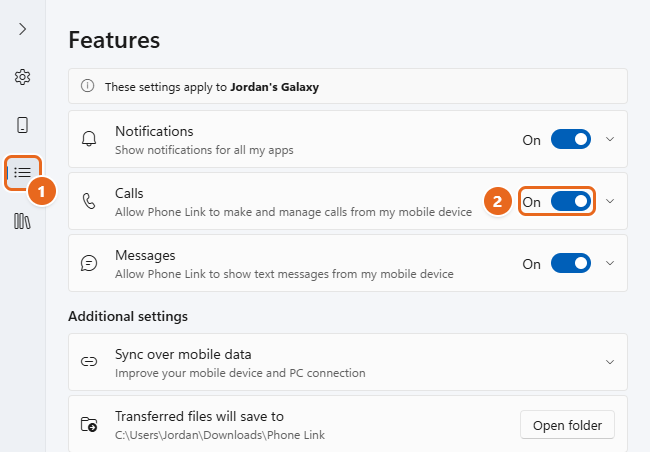
- In Phone Link, select Settings (the gear icon at the top right).
- Select Features. A note at the top shows which phone the settings apply to.
- Turn the toggle for Notifications, Calls, Messages or another feature on or off. Select the arrow next to a feature to see its extra options.

In Phone Link Settings, select Features (1), then turn a feature such as Calls on or off with its toggle (2).
Turning a feature off stops that content from syncing until you turn it back on. For example, turning off Messages hides new texts in Phone Link. Removing a permission on the phone also turns off the matching feature.
Newer versions of Windows 11 show a phone panel next to the Start menu, so you can reach your phone without opening Phone Link. Microsoft is rolling this out gradually, so you may not have it yet.
- Android: battery and connection status, Messages, Calls, Photos, recent activity and Send Files.
- iPhone: battery and connection status, Messages, Calls, recent activity and Send Files.
If no phone is linked yet, select Android or iPhone in the panel and follow the steps. To show or hide the panel, open Settings > Personalization > Start and use the Show mobile device in Start toggle.
How to unlink your phone
If you’re selling the phone, switching phones or just want to stop syncing, remove the link in all three places. Removing it in one place doesn’t always remove it everywhere.
- In Phone Link: Open Settings > Devices (called My devices in some versions). Select the More options menu (three dots) next to your phone, select Remove, and confirm.
- In Windows Settings: Open Settings > Bluetooth & devices > Mobile devices > Manage devices. If your phone is listed, select Remove. If it’s also in the Bluetooth device list, remove it there too.
- On the phone:
- Android with Link to Windows downloaded: Open Link to Windows, tap Settings > Accounts, and tap Sign out.
- Android with Link to Windows pre-installed: Go to Settings > Connected devices > Link to Windows (or open it from Quick Settings), tap your Microsoft account, and tap Sign out.
- iPhone: Open Settings > Bluetooth, tap the Info button next to your PC, and tap Forget This Device. If you installed Link to Windows on the iPhone, sign out of it too.
Microsoft says your personal phone content doesn’t stay on the PC once the pairing is removed. To link again later, repeat the setup steps above.
Troubleshooting
The phone won’t connect or keeps disconnecting (Android)
- Make sure the PC and phone use the same Microsoft account. In Link to Windows, check Settings > Accounts.
- Put both devices on the same private Wi-Fi network. Public networks in hotels, airports and cafes often block the connection. On a home router, a setting called AP isolation or wireless isolation can also block it.
- Turn off Battery saver on both devices.
- Stop Android from putting Link to Windows to sleep. Open the phone’s Settings > Apps > Link to Windows > Battery, and choose the option that doesn’t optimize or restrict it (often called Unrestricted). The exact names differ by phone brand.
- On Windows 11, make sure Phone Link is allowed to run in the background. Open Settings > Apps > Installed apps, select the three dots next to Phone Link > Advanced options, and check the background apps permission.
- Close Phone Link and Link to Windows, reopen both, and select the refresh button next to the connection status in Phone Link. If that fails, restart the PC and the phone.
The iPhone won’t pair
- On the PC, open Settings > Bluetooth & devices and remove your iPhone.
- On the iPhone, open Settings > Bluetooth, tap the Info button next to your PC, and tap Forget This Device.
- Turn Bluetooth off on both devices, wait 10 seconds, and turn it back on.
- In Phone Link, select Try pairing again and scan the new QR code.
If you only removed the iPhone from the PC’s Bluetooth settings, Phone Link stops syncing calls, messages and notifications. Forget the PC on the iPhone first, then pair again from Phone Link.
Messages or notifications are missing
- Android 13 or later: On the phone, open Settings > Apps > Link to Windows > Notifications and turn notifications on.
- Android: Check that Do Not Disturb is off on the phone, and that Messages and Notifications are on in Phone Link Settings > Features.
- iPhone: Check the Show Notifications, Sync Contacts and Share System Notifications toggles for your PC in the iPhone’s Bluetooth settings. Remember that older iPhone messages won’t appear, only those from while the iPhone has been connected.
The Apps tab or phone screen is missing
Your phone probably isn’t on Microsoft’s supported list. Apps and phone screen need a phone with Link to Windows pre-installed, such as many Samsung Galaxy models. Downloading Link to Windows from the Play Store doesn’t add this feature to an unsupported phone.
Calls don’t work
Calls need Bluetooth. Make sure Bluetooth is on for both devices, the phone is paired with the PC, and Calls is turned on in Phone Link Settings > Features. Also check that Windows is using the right microphone and speakers in Settings > System > Sound.
Update both apps
Many problems are fixed by updates. On the PC, open Phone Link Settings > About > Updates and select Update if one is available. On Android, open Link to Windows, tap Settings, and tap Check for updates. If problems continue, you can describe them in Phone Link under Settings > Feedback & Community.
FAQ
Is Phone Link free?
Yes. Phone Link comes with Windows 11, and Link to Windows is free from the Google Play Store and App Store. Texts and calls still go through your phone plan, so your carrier’s normal rates apply.
Can I use iMessage on Windows with Phone Link?
You can read and reply to text conversations from your iPhone, but with limits: no photos or GIFs, no group messages, and only the messages sent or received while your iPhone is connected. It isn’t a full copy of the Messages app.
Does my phone need to be nearby?
An iPhone needs to stay within Bluetooth range of the PC. An Android phone needs a connection to the PC, normally over the same Wi-Fi network; calls also need Bluetooth. If you turn on Sync over mobile data, an Android phone can sync when Wi-Fi isn’t available.
Can I link more than one phone or more than one PC?
Yes. To add another Android phone, sign in to Link to Windows on it with the same Microsoft account, then switch between phones in Phone Link Settings. If you’re asked to scan a new code, open aka.ms/yourphoneqrc in a browser on the PC. You can also link one phone to several PCs; the phone asks you to approve each new PC.
Is my data stored on Microsoft’s servers?
Phone Link uses your Microsoft account to link the devices. Microsoft says that when you remove the pairing, your personal content doesn’t remain on the PC. If several people share your PC, Microsoft recommends a separate Windows account for each person, so others can’t open Phone Link and read your texts.
Can I uninstall Phone Link?
No. Microsoft built Phone Link into Windows, so it can’t be uninstalled. If you don’t want to use it, simply don’t link a phone, or unlink your phone using the steps above.
Why does my PC say my iPhone photos aren’t available?
Phone Link doesn’t support iPhone photos at all. Only Android phones can share photos, and on Windows 11 that feature is moving to File Explorer.
What happened to the Your Phone app?
Microsoft renamed it. Your Phone became Phone Link on the PC, and Your Phone Companion became Link to Windows on Android.
Next step: once your phone is linked, open Phone Link Settings > Features and turn off anything you don’t need, so you only get the alerts and messages that matter on your PC.

Matt Jacobs has been working as an IT consultant for small businesses since receiving his Master’s degree in 2003. While he still does some consulting work, his primary focus now is on creating technology support content for SupportYourTech.com.
His work can be found on many websites and focuses on topics such as Microsoft Office, Apple devices, Android devices, Photoshop, and more.