There’s no iMessage app for Windows 10. But Microsoft’s Phone Link app can connect to your iPhone over Bluetooth, so you can read and reply to your phone’s text messages on your PC. It has limits compared to the Messages app on the iPhone.
Applies to: Windows 10. Checked against Microsoft Support on September 28, 2026.
What you need
- A Windows 10 PC with the May 2019 Update or later.
- Bluetooth on the PC that supports Bluetooth Low Energy (most modern PCs).
- An iPhone with iOS 16 or later.
Set up Phone Link with your iPhone
- On your PC, select Start, type Phone Link, and open it. If it’s not there, get it from Microsoft Store.
- Select iPhone when Phone Link asks which phone you have.
- Scan the QR code on your PC with your iPhone’s camera, and follow the steps on both devices to pair them over Bluetooth.
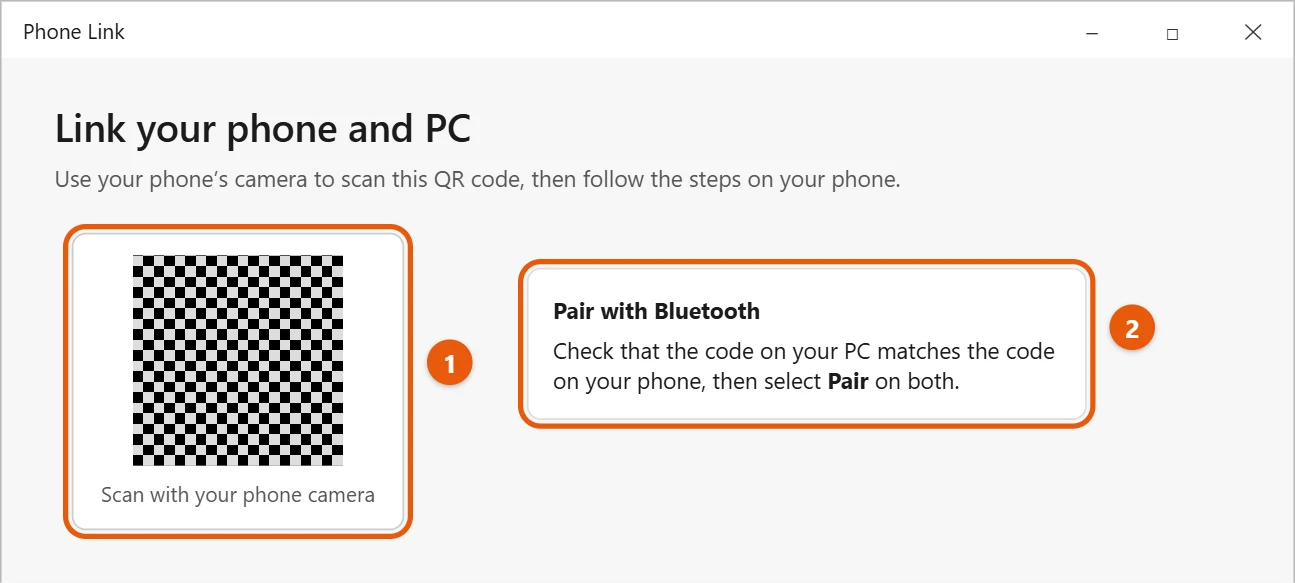
- On your iPhone, open Settings > Bluetooth, tap the (i) next to your PC’s name, and turn on Show Notifications and Sync Contacts.
Read and send messages
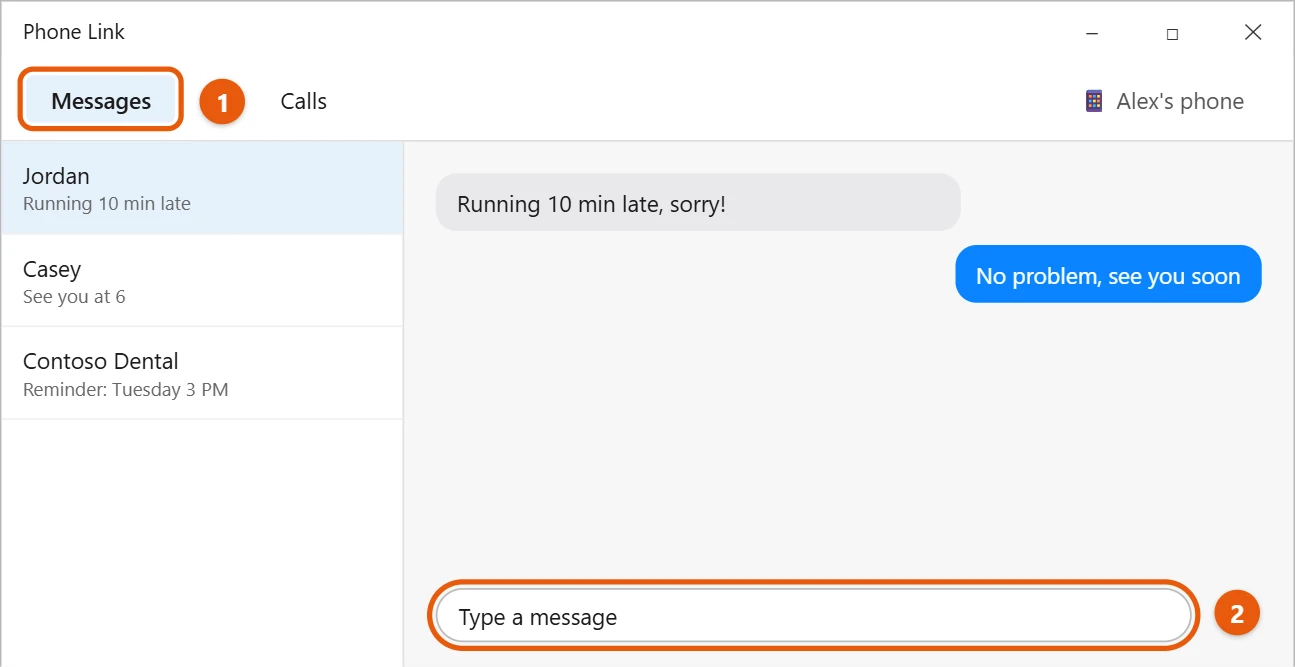
- In Phone Link, select Messages.
- Select a conversation, type in the box at the bottom, and press Enter to send.
What doesn’t work
- You’ll mostly see new messages that arrive while your iPhone is connected, not your full message history.
- Group chats and sending photos aren’t fully supported.
- Your iPhone needs to stay nearby with Bluetooth on.
For photos, see how to transfer photos from an iPhone to a PC in Windows 10. If you have an Android phone instead, Phone Link does even more. See can you open or install APK files on Windows 10?
Frequently asked questions
Is there a website for iMessage?
No. Apple doesn’t offer iMessage on the web or on Windows.
Do I need to install anything on my iPhone?
Not usually. Pairing works through Bluetooth. Microsoft’s Link to Windows app for iPhone is optional.
Microsoft’s reference is Phone Link requirements and setup. More help is on our Windows Help & Guides page.

Matt Jacobs has been working as an IT consultant for small businesses since receiving his Master’s degree in 2003. While he still does some consulting work, his primary focus now is on creating technology support content for SupportYourTech.com.
His work can be found on many websites and focuses on topics such as Microsoft Office, Apple devices, Android devices, Photoshop, and more.