Not the way you could before. Microsoft removed the Windows Subsystem for Android and the Amazon Appstore from Windows 11 on March 5, 2025, so you can no longer install Android apps on your PC. If you have an Android phone, you can still use its apps on your PC screen with the Phone Link app.
Applies to: Windows 11. Checked against Microsoft Support on September 29, 2026.
What changed
From 2022 to 2025, Windows 11 could run some Android apps through the Windows Subsystem for Android, using apps from the Amazon Appstore. Microsoft stopped offering both on March 5, 2025. Older guides that tell you to install them from Microsoft Store no longer work.
Use your phone’s apps with Phone Link
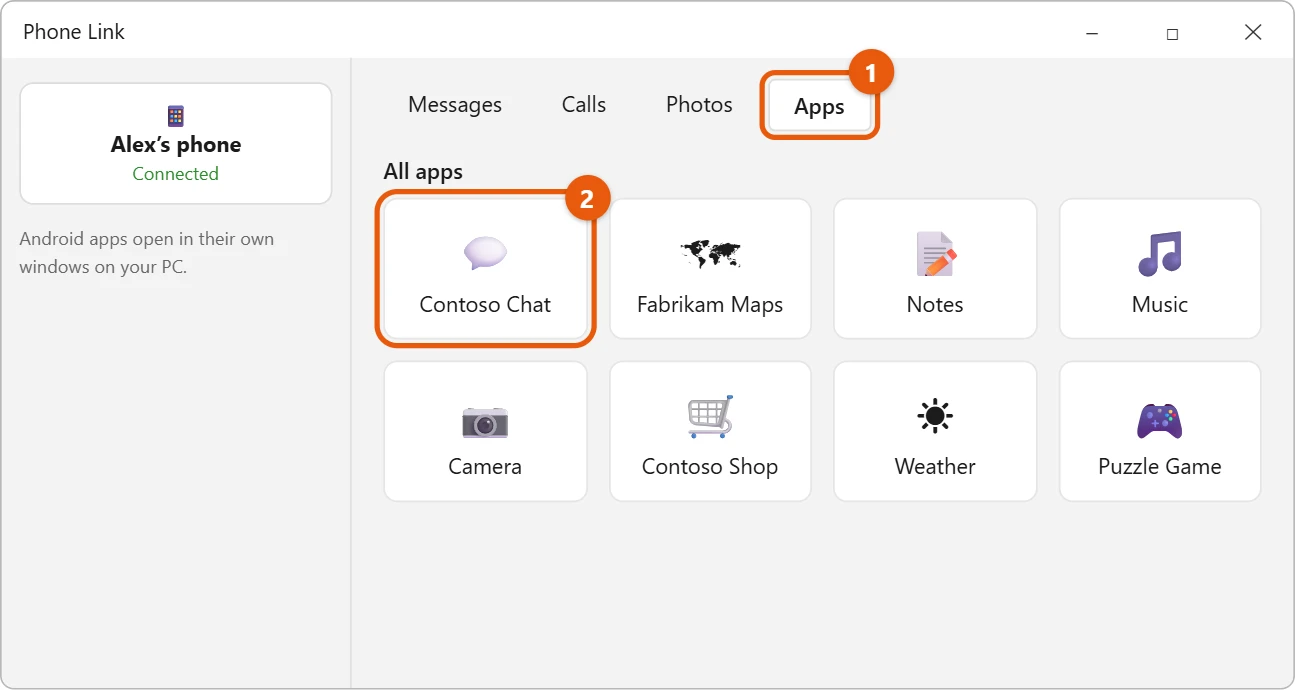
Phone Link shows the apps on your Android phone in a window on your PC. The app still runs on the phone, but you use it with your PC’s mouse and keyboard.
- Select Start, type Phone Link, and open it. It comes with Windows 11.
- Follow the steps to link your Android phone. You’ll install the Link to Windows app on the phone.
- Select Apps at the top of Phone Link.
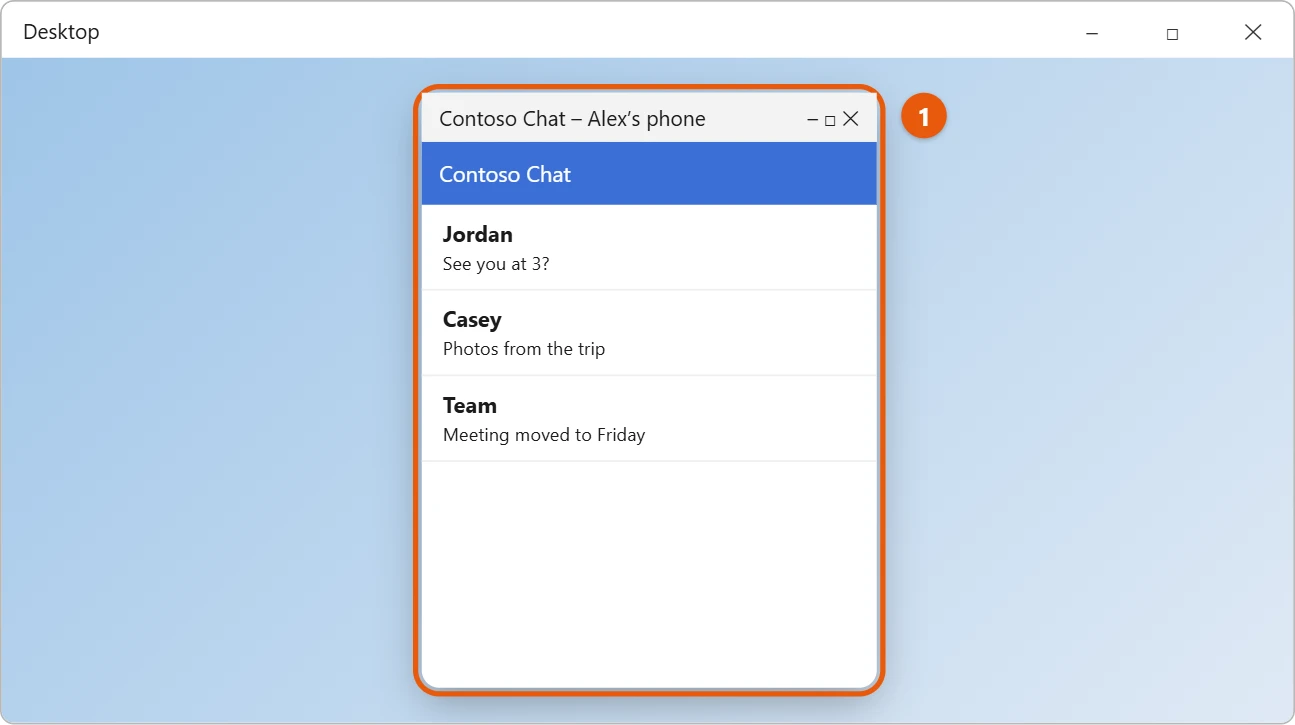
- Select an app to open it on your PC.
- The app opens in its own window. You can pin it to Start or the taskbar.
For the best results, keep your phone and PC on the same Wi-Fi network. Apps is available on many Android phones, but not all of them.
Other options
- Look for a Windows version. Many popular apps also come as Windows apps in Microsoft Store, or as a website you can use in Microsoft Edge.
- Cast your phone screen. To show your whole phone screen on the PC, see how to cast your phone to a Windows 11 laptop.
Play Android games with Google Play Games
Google Play Games for PC is a free app from Google that runs many Android games directly on Windows 11. It’s mainly for games, not regular Android apps. Google lists these minimum requirements:
- Windows 10 version 2004 or later, or Windows 11
- An SSD with at least 10 GB free
- 4 physical CPU cores and 8 GB of RAM
- Intel UHD Graphics 630 or a similar GPU
- Hardware virtualization turned on
- A Windows administrator account
To check virtualization, open Task Manager, select Performance > CPU, and look for Virtualization: Enabled. If it says Disabled, turn it on in your PC’s BIOS or UEFI settings. Download Google Play Games only from Google’s own site.
Use an Android emulator
Emulators such as BlueStacks run a full copy of Android in a window, so you can install apps from Google Play. They work with most apps and games, but they use a lot of memory and some banking or streaming apps refuse to run in them. Download an emulator only from its developer’s official site, and avoid “free APK” sites that bundle unwanted software.
If Phone Link doesn’t show your apps
- Your phone may not support it. The Apps feature needs an Android phone with the Link to Windows app, which comes built in on many Samsung, HONOR and other phones. Check Microsoft’s list of supported devices.
- The phone is asleep or offline. Apps run on the phone, so it must be on and connected to the internet. Turn off battery saver if apps keep disconnecting.
- Permissions were declined. On the phone, open Link to Windows and allow the permissions it asks for, including screen sharing.
- Sign-in doesn’t match. Use the same Microsoft account in Phone Link on the PC and Link to Windows on the phone.
Frequently asked questions
Can I still open APK files?
No. APK files are Android app installers, and Windows 11 can’t run them anymore. Be careful with websites that offer to “run APK files”. See can you open or install APK files on Windows 10? for more.
I installed Android apps before March 2025. Do they still work?
Microsoft’s support for them ended on March 5, 2025. They no longer get updates and can stop working at any time, so switch to Phone Link or a Windows version of the app.
Does the Apps feature work with an iPhone?
No. The Apps feature needs an Android phone. Phone Link can still do other things with an iPhone, such as messages and calls.
Is Windows Subsystem for Android coming back?
Microsoft hasn’t announced any plans to bring it back. Use Phone Link, Google Play Games or a Windows version of the app instead.
Microsoft’s references are Use apps from your Android device on your PC and Install mobile apps and the Amazon Appstore on Windows, which notes the March 5, 2025 change. More help is on our Windows Help & Guides page.
Related: how to get Google Play on Windows 11.
Related: run Android apps on Windows 10.
Related: How to Install APKs on Windows 11.
Related: How to Install BlueStacks on Windows 11.

Matt Jacobs has been working as an IT consultant for small businesses since receiving his Master’s degree in 2003. While he still does some consulting work, his primary focus now is on creating technology support content for SupportYourTech.com.
His work can be found on many websites and focuses on topics such as Microsoft Office, Apple devices, Android devices, Photoshop, and more.