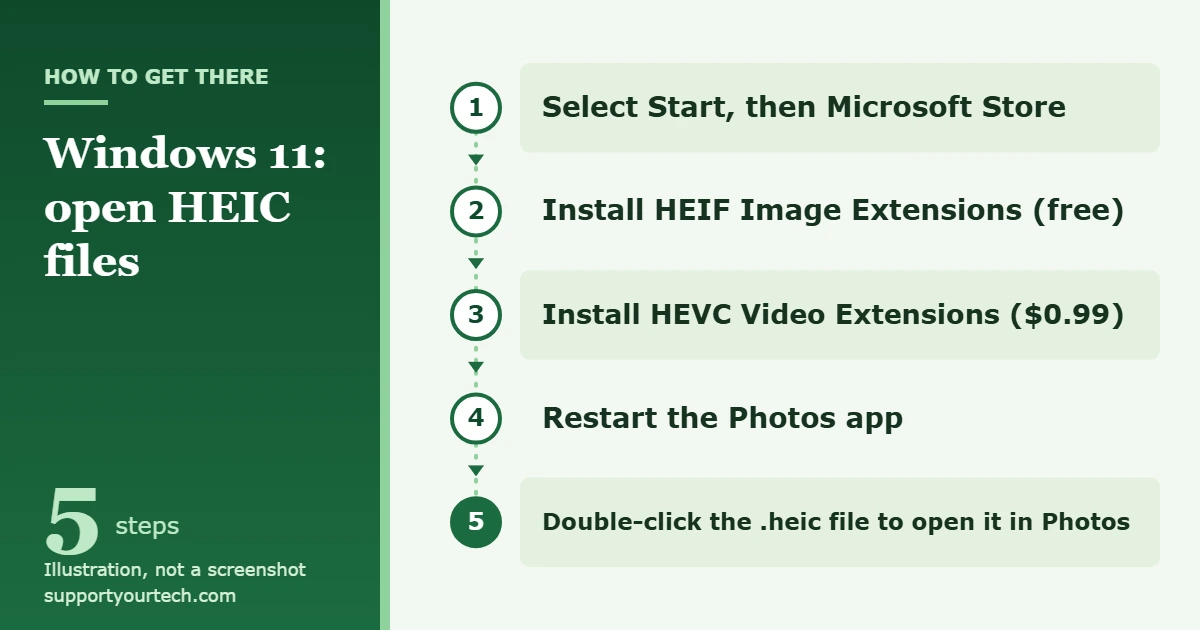
To open a HEIC file in Windows 11, install two add-ons from Microsoft Store: HEIF Image Extensions and HEVC Video Extensions. Then restart the Photos app and open the picture again. You need both extensions, even if you only want to view photos.
Applies to: Windows 11 with the Photos app and Microsoft Store.
What a HEIC file is and why it may not open
HEIC is the file extension for photos saved in HEIF, the High Efficiency Image File format. iPhones and iPads use it by default because it compresses better than JPEG while keeping the same visual quality. Some Android phones save photos this way too.
A HEIC photo has two parts: the HEIF container and the picture data inside it, which is compressed with HEVC (High Efficiency Video Coding). That is why Windows needs two separate extensions. The HEVC Video Extensions package must also be installed to view images in files ending in .heic, .hif or .heif, as the Store listing for the HEIF extension points out.
When a piece is missing, the Photos app shows the message You need an extension to use this file instead of your picture.
Before you start
- Try the file first. Double-click the HEIC photo in File Explorer. If it opens in Photos, the extensions are already on your PC and you have nothing to install.
- Check the cost. HEIF Image Extensions is free, and HEVC Video Extensions is listed at $0.99 on Microsoft Support. The price shown in Microsoft Store for your region is the one that applies.
- Sign in to Microsoft Store. A paid item needs a Microsoft account with a payment method. You enter that yourself in the Store.
- Work or school PC? Your organization may block Microsoft Store or app installs. If so, skip to the methods that do not need an install.
Install the HEIF and HEVC extensions from Microsoft Store
- Select Start, then select Microsoft Store from the apps list. The Store window opens.
- In the Store search box, type HEIF Image Extensions and open the listing published by Microsoft.
- Select the install button on the listing and wait for the download to finish. This one is free.
- Search the Store again for HEVC Video Extensions and open the listing published by Microsoft.
- Select the price button, complete the purchase, and let it install.
- Close the Photos app if it is open, then open it again so it picks up the new extensions.
- Double-click your HEIC file in File Explorer. The photo should now open in Photos like any JPEG.
The same fix appears in the support article Photos app Video Editor error: Can’t view this file type, and the requirement is on the HEIF Image Extension page in Microsoft Store.
Make Photos the default app for HEIC files
If a HEIC file opens in the wrong program, or Windows asks which app to use every time, set the default once.
- Open Settings and go to Apps > Default apps.
- In the search bar at the top, type .heic.
- Select the result for that file type.
- Choose Photos from the list of apps.
From now on, double-clicking a .heic file opens it in Photos. To undo this, repeat the steps and choose a different app. That screen is also covered in Change Default Apps in Windows.
Open HEIC photos without installing anything
If you cannot use Microsoft Store, or you do not want to pay for the HEVC extension, get the photo to your PC in a format Windows already reads. Photos supports JPEG, PNG, GIF, BMP and TIFF, so a JPEG copy opens with no extra software.
Let the phone convert the photo when you send it
Many devices automatically convert HEIC photos to a more common format when you transfer or email them. On an iPhone, a HEIF photo shared by Mail, Messages or AirDrop might be sent in a more compatible format such as JPEG.
- On the phone, open the photo and share it to your own email address.
- On the PC, open the email and save the attachment.
- Check the file name. If it ends in .jpg, it opens in Photos right away.
This is handy for one or two pictures. For a whole camera roll, it’s faster to transfer photos from an iPhone to a Windows 11 PC with a cable.
Check the iPhone import setting
When you import HEIF photos from an attached iPhone to a PC, the media might be converted to JPEG. That conversion stops if the phone is set to keep the original files. On the iPhone, open Settings, tap Apps, tap Photos, then scroll down. If Keep Originals is selected, the PC receives HEIC files. Pick the other option in that group if you want the phone to hand over compatible files instead.
Use OneDrive for photos
OneDrive is a third option, for photos only. If your phone already uploads its camera roll to OneDrive, look at the pictures there before you buy anything.
Stop getting HEIC files from your iPhone
You can tell the iPhone camera to save new photos as JPEG. This changes future photos only. Pictures you have already taken stay in HEIC.
- On the iPhone, open Settings and tap Camera.
- Tap Formats.
- Tap Most Compatible.
All new photos and videos then use JPEG or H.264. The trade-off is larger files, since HEIF compresses better. To go back, return to Formats and tap High Efficiency. Both settings are explained in Using HEIF or HEVC media on Apple devices.
If you use iCloud for Windows
iCloud for Windows has its own switch that decides which format it downloads.
- On the PC, open iCloud for Windows.
- To the right of iCloud Photos, click the arrow button.
- Look for Download High-Efficiency format photos and videos. When it is turned on, iCloud downloads the HEIC originals. Turn it off if you would rather not receive that format.
- Click Done.
The option is described in Set up Photos in iCloud for Windows.
How to confirm it worked
- Double-click a HEIC file. It opens in Photos and shows the picture, not the extension message.
- Open Microsoft Store and select Library. Check that both extensions are listed there.
- With the photo open in Photos, select Edit image (Ctrl + E). If the editing tools load, Windows is reading the file fully.
Troubleshooting
Photos still says “You need an extension to use this file”
Check that both extensions are installed. The free HEIF one alone is not enough for .heic files. Then close Photos completely and open it again. If the message stays, restart the PC.
The extension is missing from Microsoft Store or will not install
A Store item may not be found or install for several reasons: it is not available in your country or region, it is not compatible with your device, Microsoft family settings are hiding it, or the PC was recently updated but not restarted. Restart the PC first. Then select Start > Settings > Windows Update > Check for updates and install anything waiting.
The extensions are installed but HEIC files stopped opening
Update the Store apps. Open Microsoft Store, select Library, then select Get updates. This refreshes Photos and both extensions. If one of the extensions shows an Install option in the Library, select it to put it back.
Microsoft Store is blocked on a work or school PC
Ask your IT department to add the two extensions. Until then, use the email or import methods above to get JPEG copies.
One HEIC file will not open but others do
The file is probably incomplete. Copy it from the phone again, or email that one photo to yourself so the phone sends a fresh copy.
The file is HEIC but ends in .heif or .hif
These are the same format family. The Store listing names .heic, .hif and .heif together, and the same two extensions cover all three.
Frequently asked questions
Can Windows 11 open HEIC files without extra software?
Only if the HEIF and HEVC extensions are already on the PC. Test by double-clicking a HEIC photo. If Photos asks for an extension, install them from Microsoft Store.
Do I have to pay to open HEIC files in Windows 11?
The HEIF Image Extensions add-on is free, but HEVC Video Extensions is listed at $0.99 and both are needed. To avoid the charge, have the phone send JPEG copies instead.
Why do I need a video extension to view a photo?
HEIC photos are compressed with HEVC, the same technology used for high efficiency video. The HEIF extension reads the file, and the HEVC extension decodes the picture inside it.
Will renaming a .heic file to .jpg make it open?
No. Renaming changes only the name. The data inside is still HEVC-compressed, so Windows still needs the extensions.
Should I switch my iPhone to Most Compatible?
Switch if you move photos to Windows often and want every file to open anywhere. Stay on High Efficiency if phone storage matters more, and install the two extensions on your PC once.
Is it safe to use an online HEIC converter?
Be careful with personal photos. Uploading a picture to a website hands a copy to a third party. The Microsoft Store extensions and the phone’s own conversion keep your photos on your devices.
Once HEIC photos open in Photos, set Photos as the default app for .heic files so every new picture from your phone opens with a double-click.
Got a document from an Apple device too? Here’s how to open a .pages file in Windows 11.

Matt Jacobs has been working as an IT consultant for small businesses since receiving his Master’s degree in 2003. While he still does some consulting work, his primary focus now is on creating technology support content for SupportYourTech.com.
His work can be found on many websites and focuses on topics such as Microsoft Office, Apple devices, Android devices, Photoshop, and more.