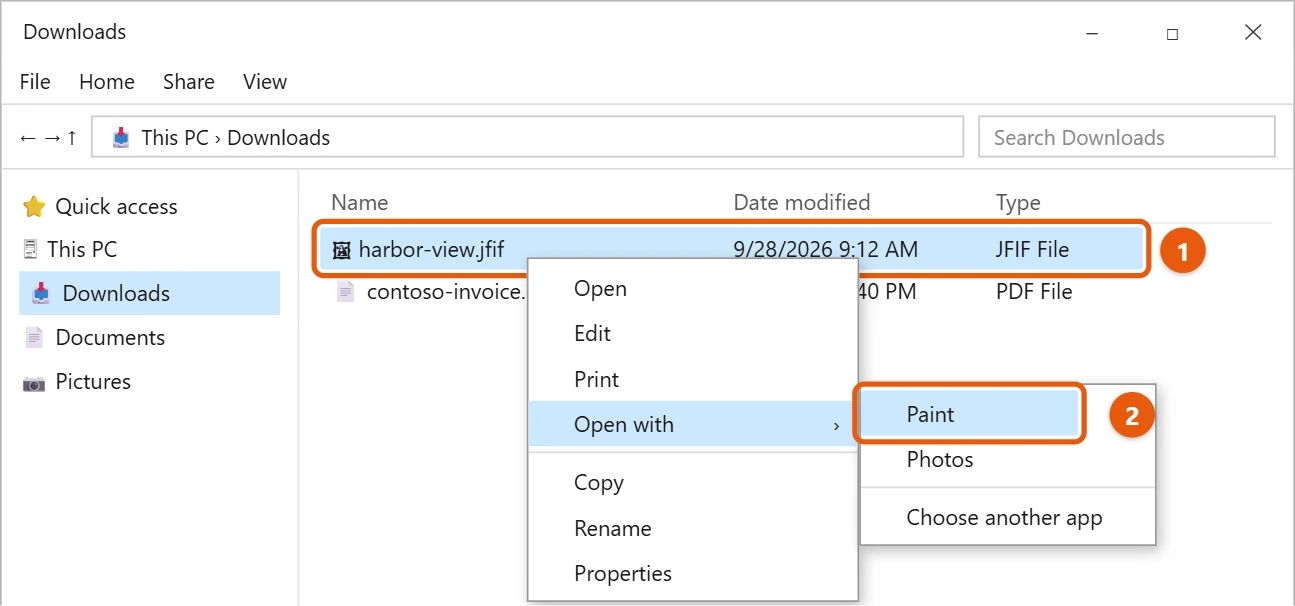
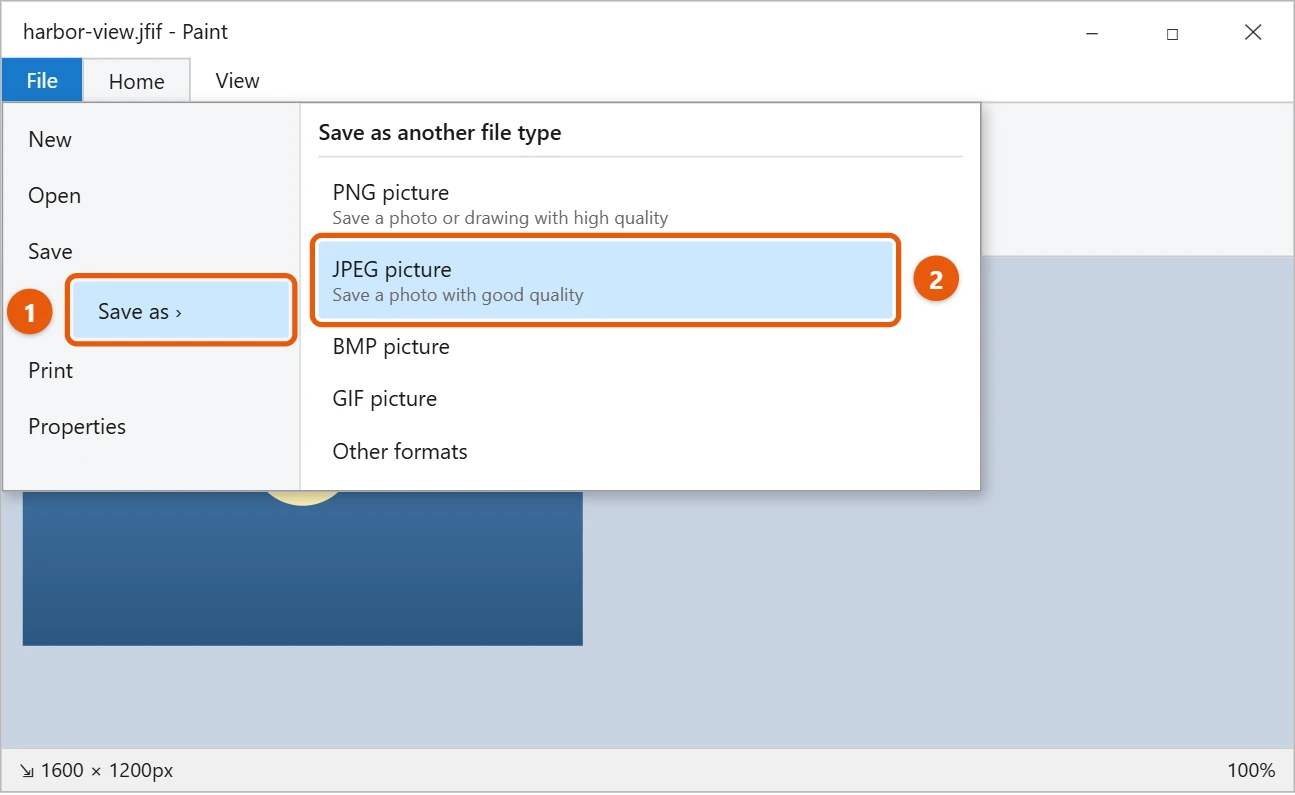
To change a JFIF file to JPG in Windows 10, right-click the file and select Open with > Paint. Then select File > Save as > JPEG picture, type a name, and select Save. Paint saves a new .jpg copy and leaves the JFIF file as it was.
Applies to: Windows 10. Checked against Microsoft Support on September 28, 2026.
What a JFIF file is
JFIF is a kind of JPEG picture. Some websites save pictures this way, so a download ends in .jfif. Most apps and websites want .jpg instead, so it helps to save a JPG copy.
Save a JPG copy with Paint
- Open File Explorer and find the JFIF file, often in Downloads.
- Right-click the file and select Open with > Paint.
- In Paint, select File > Save as > JPEG picture.
- Pick a folder, type a name, and select Save.
Your new file ends in .jpg. You can delete the JFIF file if you don’t need it. If the new picture opens in the wrong app, see how to open JPG files in Windows 10.
Another way: change the file name
Because JFIF is already a JPEG picture, you can often just rename it.
- Turn on file name extensions so you can see .jfif. See how to show file extensions in Windows 10.
- Right-click the file, select Rename, and change .jfif to .jpg.
- Select Yes when Windows asks if you’re sure.
If the renamed file won’t open in an app, use the Paint steps instead.
Change many JFIF files at once
- Open the folder with the JFIF files in File Explorer.
- Select the address bar, type cmd, and press Enter. Command Prompt opens in that folder.
- Type ren *.jfif *.jpg and press Enter.
Every .jfif file in that folder becomes a .jpg file. It only renames them, so the pictures don’t change.
Stop downloads saving as JFIF (advanced)
Windows saves some JPEG downloads as .jfif because of a setting in the registry. Changing it is safe if you follow the steps exactly, but back up the registry first.
- Press Windows logo key + R, type regedit, and press Enter.
- Go to HKEY_CLASSES_ROOT\MIME\Database\Content Type\image/jpeg.
- Double-click Extension, change .jfif to .jpg, and select OK.
- Close Registry Editor and restart your browser.
If the conversion doesn’t work
- Paint doesn’t offer JPEG. In the Save as window, open the Save as type list and choose JPEG.
- Rename doesn’t change the ending. File name extensions are hidden, so you renamed it to something like photo.jpg.jfif. Turn on extensions and rename it again.
- A website still rejects the picture. It may be too large. Resize it in Paint with Resize on the Home tab, then save again.
Frequently asked questions
Will the picture lose quality?
Saving as JPEG again can lose a tiny bit of quality. You won’t usually see it. Renaming doesn’t change the picture at all.
Can I make JPG the format for all future downloads?
Yes, with the registry change in Stop downloads saving as JFIF above. Otherwise, it’s easiest to save a JPG copy when you need one.
What else can I do with the picture?
See how to resize an image in Windows 10 or how to convert JPG to PDF on Windows 10.
Is a JFIF file safe to open?
Yes. It’s an ordinary picture file, the same kind as a JPG. The Photos app, Paint, and web browsers all open it.
Why do some sites give me JFIF files?
The site sends a normal JPEG picture, and Windows chooses the .jfif ending when your browser saves it. The picture itself is the same as a JPG.
Can I convert JFIF to PNG instead?
Yes. In Paint, select File > Save as > PNG picture. PNG files are larger but don’t lose quality when you edit and save them again.
Does this work in Windows 11?
Yes. The Paint steps and the ren command work the same way in Windows 11.
Will the registry change affect anything else?
No. It only changes the ending Windows suggests when saving JPEG pictures. To undo it, change Extension back to .jfif.
Microsoft’s reference is Common file name extensions in Windows. More help is on our Windows Help & Guides page.

Matt Jacobs has been working as an IT consultant for small businesses since receiving his Master’s degree in 2003. While he still does some consulting work, his primary focus now is on creating technology support content for SupportYourTech.com.
His work can be found on many websites and focuses on topics such as Microsoft Office, Apple devices, Android devices, Photoshop, and more.