Call Screening makes unknown callers say who they are before your iPhone rings. To turn it on, open Settings, tap Apps, tap Phone, and under Screen Unknown Callers choose Ask Reason for Calling. Your iPhone answers calls from numbers that aren’t in your contacts, asks for the caller’s name and reason, and then rings with their answer so you can decide whether to pick up.
Applies to: iPhone with iOS 26 or later (iOS 26 runs on iPhone 11 and newer). Labels were checked against Apple’s iOS 26 and iOS 27 user guides on September 23, 2026.
Before you start
- Check your iOS version. Go to Settings > General > About and look at iOS Version. If it’s earlier than 26, update your iPhone first.
- Save the numbers that matter. An “unknown” caller is any number not saved in Contacts. Add your doctor, your child’s school, and anyone else you can’t afford to miss — their calls ring normally.
Turn on Call Screening
- Open the Settings app.
- Tap Apps, then tap Phone.
- Scroll to Screen Unknown Callers.
- Tap Ask Reason for Calling. A check mark appears next to it.
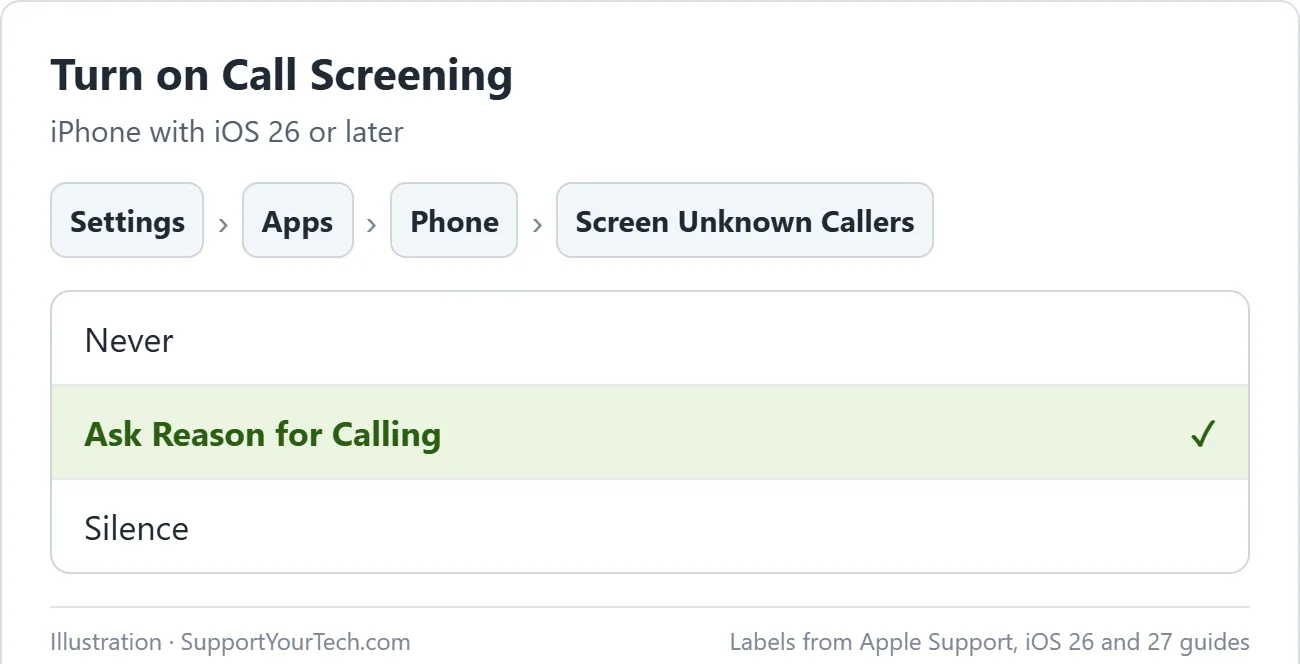
That’s it — the setting is on as soon as you leave the screen.
What happens when an unknown number calls
Your iPhone answers quietly without interrupting you. The caller is asked for their name and why they’re calling; Siri speaks in your iPhone’s default language. Once they respond, your iPhone rings and shows what they said. Answer if you want to talk, or let it go.
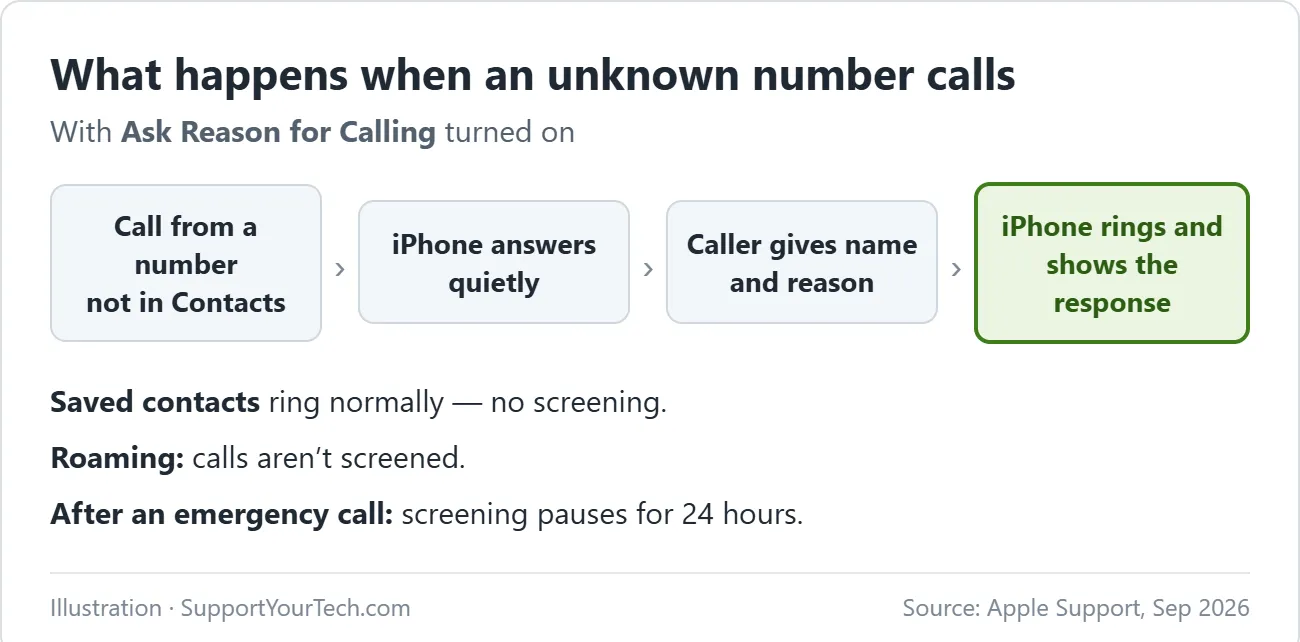
A few limits to know:
- Calls aren’t screened while you’re roaming, no matter what the setting says.
- If you call emergency services, Call Screening turns off for 24 hours so responders can reach you.
- Standard calling and data rates may apply.
Pick the right setting
| Choice | What happens to calls from unsaved numbers | Best for |
|---|---|---|
| Never | They ring like any other call | People who get few spam calls |
| Ask Reason for Calling | The caller is screened first, then your iPhone rings with their answer | Most people — you still hear about deliveries and appointments |
| Silence | They’re silenced, sent to voicemail, and listed in Recents | Heavy spam, when you rarely expect new callers |
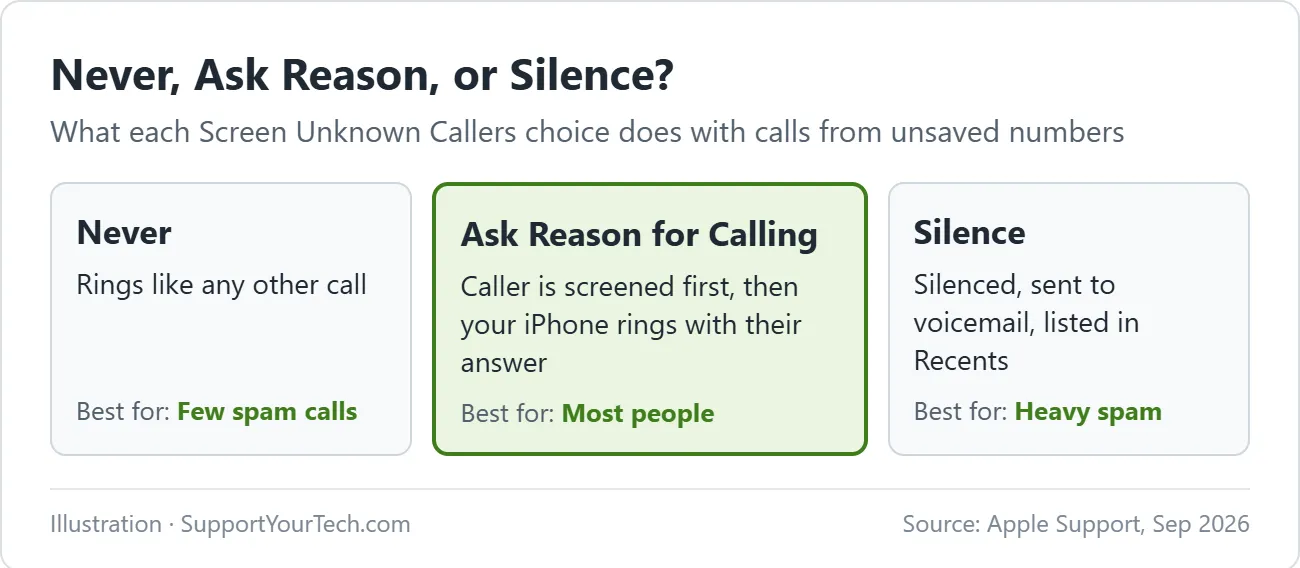
If you used the older Silence Unknown Callers switch before, see our guide to silencing unknown callers — Ask Reason for Calling is the gentler option.
Filter unknown and spam calls
You can also keep your call list clean:
- Open Settings, tap Apps, then tap Phone.
- Turn on Unknown Callers to move calls from unknown numbers out of your main list and into an Unknown Callers list.
- Turn on Spam to silence calls your carrier identifies as possible spam or fraud, send them to voicemail, and move them to a Spam list.
To see those lists, open the Phone app, tap Calls (unified layout) or Recents (classic layout), tap the filter button, and choose Unknown Callers or Spam. If a legitimate number lands there, tap Mark as Known next to it so it isn’t filtered again. For numbers you never want to hear from, block spam calls.
FaceTime calls
FaceTime doesn’t ask callers for a reason, but it can silence them. Go to Settings > Apps > FaceTime and turn on Silence Unknown Callers. Those calls go to voicemail.
If Call Screening isn’t working
- No Screen Unknown Callers option: your iPhone is on an iOS version earlier than 26. Update, then check again.
- Unknown calls ring without screening: check whether you’re roaming, or whether you called emergency services in the last 24 hours.
- Someone important keeps getting screened: add them to Contacts, or use Mark as Known in the Unknown Callers list.
- Siri speaks the wrong language to callers: change your iPhone’s language in Settings > General > Language & Region.
More iPhone help is on our iPhone & iPad Help & Guides page, and Apple’s own screen and block calls guide covers blocking specific numbers.

Matt Jacobs has been working as an IT consultant for small businesses since receiving his Master’s degree in 2003. While he still does some consulting work, his primary focus now is on creating technology support content for SupportYourTech.com.
His work can be found on many websites and focuses on topics such as Microsoft Office, Apple devices, Android devices, Photoshop, and more.