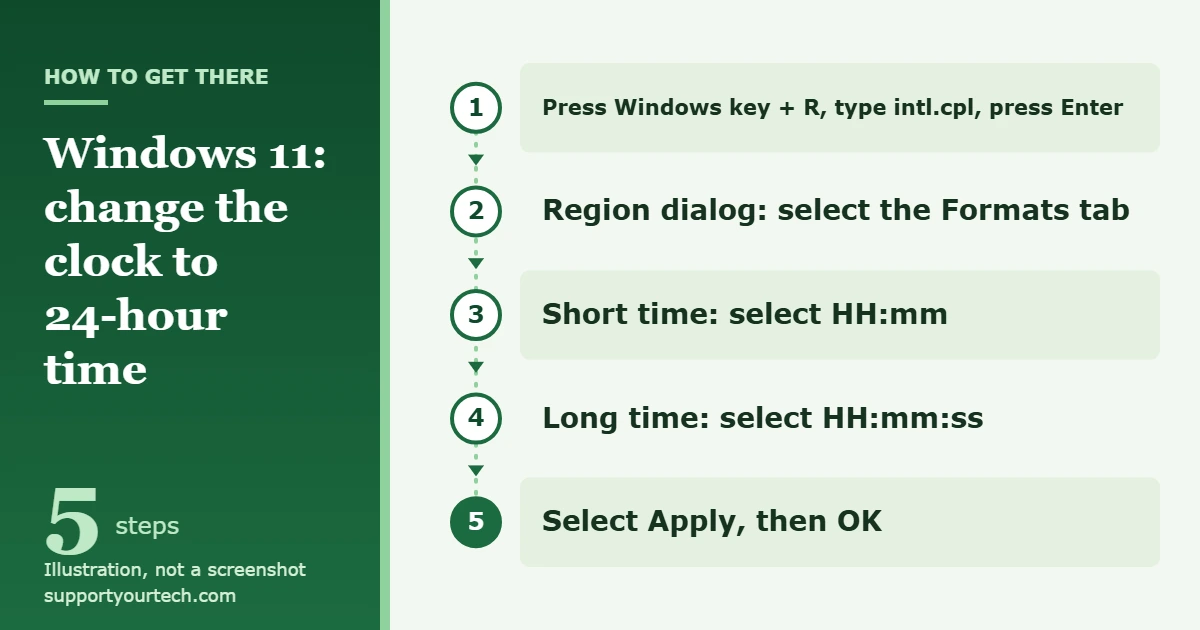
To change the time to 24-hour format in Windows 11, press Windows key + R, type intl.cpl and press Enter. On the Formats tab of the Region dialog, set Short time to HH:mm and Long time to HH:mm:ss, then select Apply and OK. The clock then shows 15:45 instead of 3:45 PM.
Applies to: Windows 11. Checked against Microsoft Support and Microsoft Learn on October 6, 2026.
Before you start
Windows 11 has no single 12-hour or 24-hour switch. The clock style is part of your regional formats, the set of rules Windows uses to write dates, times, numbers and currency. Changing it only changes how the time is written. The time itself and your time zone stay exactly as they are, and you do not have to pick a different country to get a 24-hour clock.
Windows stores two time formats, and you will change both:
- Short time is hours and minutes, such as 15:45.
- Long time adds seconds, such as 15:45:10.
Microsoft’s instructions set the two together. If you change only one, some places can keep showing AM and PM while others show 24-hour time.
Change to 24-hour time from the Region dialog
This is the shortest route. It opens the classic Region dialog box directly, and the labels below are the ones Microsoft uses in its Windows 11 instructions.
- Press Windows key + R. A small box opens where you can type a command.
- Type intl.cpl and press Enter. The Region dialog box opens.
- Select the Formats tab if it is not already showing. Under Date and time formats you see drop-down lists for dates and times.
- Open the Short time list and select HH:mm. The uppercase H is what makes it a 24-hour format.
- Open the Long time list and select HH:mm:ss.
- Select Apply, then select OK. The dialog closes and Windows uses the new formats.
These are the formats Microsoft gives in its steps for switching between a 12-hour clock and a 24-hour clock. The entries in the lists on your PC depend on your region, so the punctuation may look a little different. Go by the letters: an uppercase H at the start and no tt at the end.
What 24-hour time looks like
A 24-hour clock counts the hours from 0 to 23 and does not use AM or PM. Morning hours look almost the same as before. From 1:00 PM onward, add 12 to the hour.
| 12-hour time | 24-hour time (HH:mm) |
|---|---|
| 12:00 AM (midnight) | 00:00 |
| 6:30 AM | 06:30 |
| 12:00 PM (noon) | 12:00 |
| 1:00 PM | 13:00 |
| 3:45 PM | 15:45 |
| 9:15 PM | 21:15 |
| 11:59 PM | 23:59 |
How to read the time format codes
The entries in the Short time and Long time lists are built from letter codes. Microsoft explains them in its reference for hour, minute and second formats. Letter case matters for the hour: a lowercase h and an uppercase H mean different clocks.
| Code | What it shows |
|---|---|
| H | Hour on a 24-hour clock, no leading zero (9, 15) |
| HH | Hour on a 24-hour clock, with a leading zero (09, 15) |
| h | Hour on a 12-hour clock, no leading zero (9, 3) |
| hh | Hour on a 12-hour clock, with a leading zero (09, 03) |
| mm | Minutes, with a leading zero |
| ss | Seconds, with a leading zero |
| tt | The AM or PM marker |
So HH:mm writes five past nine in the morning as 09:05 and a quarter to four in the afternoon as 15:45. If your list also offers an entry that starts with a single uppercase H, that one drops the leading zero and shows 9:05. Avoid any entry that ends in tt. That code adds AM or PM, which a 24-hour clock does not need.
Open the same options from Control Panel
If you would rather click through menus than type a command, Control Panel leads to the same Region dialog. This is the route Microsoft writes out for Windows 11.
- Select Start, type Control Panel and open it.
- Under Clock and Region, select Change date, time or number formats. The Region dialog opens.
- On the Formats tab, under Date and time formats, set Short time to HH:mm and Long time to HH:mm:ss.
- Select Apply, then OK.
Start from the Settings app
The Settings app holds the regional format for your PC and links to the classic dialog. Use this route if you are already in Settings, or if you want to see which region Windows is using.
- Press Windows key + I, or select Start and then Settings.
- Select Time & language, then Language & region.
- Look at Regional format. The drop-down list there sets the default date, time, number and currency formats for the country or region you choose.
- Scroll down to Related settings and select Administrative language settings. The classic Region dialog box opens.
- On the Formats tab, set Short time to HH:mm and Long time to HH:mm:ss, then select Apply and OK.
Depending on your Windows 11 version, the Regional format section may also show its own short time and long time choices when you expand it. If you see them, pick the entries without AM or PM, such as 15:45 or 09:40. They change the same two formats as the Region dialog.
Microsoft describes the Settings steps in its article on changing the Windows regional settings.
Which method to use
- Use the intl.cpl command when you want the fewest steps. It skips every menu and lands on the right dialog.
- Use Control Panel when you are helping someone by phone or prefer to follow visible links instead of typing a command.
- Use Settings when the clock style changed on its own and you want to check the Regional format first. Many regions use a 24-hour clock by default, and others use a 12-hour clock, so the wrong region gives you the wrong default.
All three change the same two formats for your Windows account. You only need one of them.
Check that it worked, or switch back
Look at the clock at the right end of the taskbar after you select Apply. An afternoon time should now read like 15:45 with no AM or PM. Microsoft’s steps end with Apply and OK and do not include a restart.
In the morning the change is harder to see, because 9:05 AM and 09:05 look alike. You can read the stored formats in PowerShell instead. Open PowerShell from the Start menu and run these two lines:
- Type $C = Get-Culture and press Enter.
- Type $C.DateTimeFormat.ShortTimePattern and press Enter.
PowerShell prints the short time pattern for your account. A result that starts with an uppercase H, such as HH:mm, means 24-hour time. A result such as h:mm tt means 12-hour time. Replace ShortTimePattern with LongTimePattern to check the long time. Microsoft shows both properties in its Get-Culture documentation. Open a new PowerShell window after you change the format so it reads the current settings.
To go back to AM and PM, open the Region dialog again and choose the entries that start with a lowercase h and end in tt for both lists. Our guide on setting a 12-hour clock in Windows 11 covers that direction in full. Switching back and forth is safe to repeat.
If the clock still shows AM or PM
You changed only one of the two formats
Open the Region dialog again and check both lists. Short time and Long time are set separately. Each needs an entry that starts with an uppercase H. An entry that starts with a lowercase h is a 12-hour format, even if everything else looks right.
The lists have no HH entry
The choices in the lists come from the regional format in use. You have two options:
- On the Formats tab, select the Additional settings button. The Customize Format dialog box opens. Select the tab that holds the time settings, make your changes, then select OK to close Customize Format and OK again to close the Region dialog.
- In Settings, go to Time & language > Language & region and check that Regional format matches your country or region. Then open the Region dialog again and look at the two lists.
One app still shows the old format
Close the app and open it again. Microsoft’s Access instructions note that you may need to close and reopen a database before new regional settings appear, and its Teams instructions say to quit and reopen Teams.
Some apps have their own rules:
- Outlook uses the country or region settings for your computer to decide how times appear, so the Windows change is the fix.
- Microsoft Teams reflects the same date and time format as your device’s language, date and time settings. See Microsoft’s page on changing settings in Teams.
- Excel cells follow the Windows setting only when they use a time format that begins with an asterisk (*). Formats without an asterisk are not affected. To change a cell yourself, press Ctrl+1 to open Format Cells, select Time in the Category list, and pick a format in the Type list. In Excel, a format with AM or PM uses the 12-hour clock, and one without uses the 24-hour clock.
- Websites and other programs can ignore Windows and use their own 12-hour or 24-hour option. Look in the site’s or the app’s own settings.
The time itself is wrong
Format settings cannot fix a clock that is an hour or more off. Go to Start > Settings > Time & language > Date & time and make sure Set time automatically and Set time zone automatically are turned on, or choose the right entry next to Time zone. Microsoft covers this in its time, date and time zone instructions, and our guide on changing the time zone in Windows 11 walks through each method.
The clock went back to 12-hour time
Check the Regional format in Settings. Each region has its own default formats, so choosing a different region there can bring back that region’s time style. Set the region you want first, then set Short time and Long time again.
The setting is locked or will not stay
On a work or school computer, your organization can manage regional settings. If the lists are unavailable, or the format returns to 12-hour time after you sign in again, ask your IT department to make the change.
Frequently asked questions
Does switching to 24-hour format change the actual time?
No. The time and the time zone stay the same. Only the way Windows writes the time changes, from a style like 3:45 PM to a style like 15:45. To correct the clock itself, see how to change the time in Windows 11.
Is 24-hour format the same as military time?
For everyday use, yes. In the United States the 24-hour clock is often called military time. Windows writes it with a colon, as in 15:45.
Why does midnight show as 00:00?
A 24-hour clock starts the day at hour 0, and HH adds a leading zero to single-digit hours. So midnight is 00:00, and one minute past midnight is 00:01.
How do I remove the leading zero, so it shows 9:05 instead of 09:05?
Choose an entry that starts with a single uppercase H instead of HH. A single H leaves off the leading zero for hours 0 through 9.
Can the taskbar clock show seconds too?
Yes, but that is a separate option. Go to Start > Settings > Time & language > Date & time and select Show seconds in system tray clock (uses more power). See how to show seconds on the clock in Windows 11 for details.
Will this also change the date format?
No. Dates have their own lists on the same Formats tab. Our guide on changing the date format in Windows 11 covers those.
Do the same steps work in Windows 10?
Mostly. Microsoft gives the same Formats tab steps for Windows 10, with the same HH:mm and HH:mm:ss choices. The difference is the Control Panel category name, which is Clock, Language, and Region in Windows 10.
Once the taskbar shows 24-hour time, open the apps you use most and confirm they picked up the change. If an hour looks wrong rather than just written differently, check your time zone next.

Matt Jacobs has been working as an IT consultant for small businesses since receiving his Master’s degree in 2003. While he still does some consulting work, his primary focus now is on creating technology support content for SupportYourTech.com.
His work can be found on many websites and focuses on topics such as Microsoft Office, Apple devices, Android devices, Photoshop, and more.