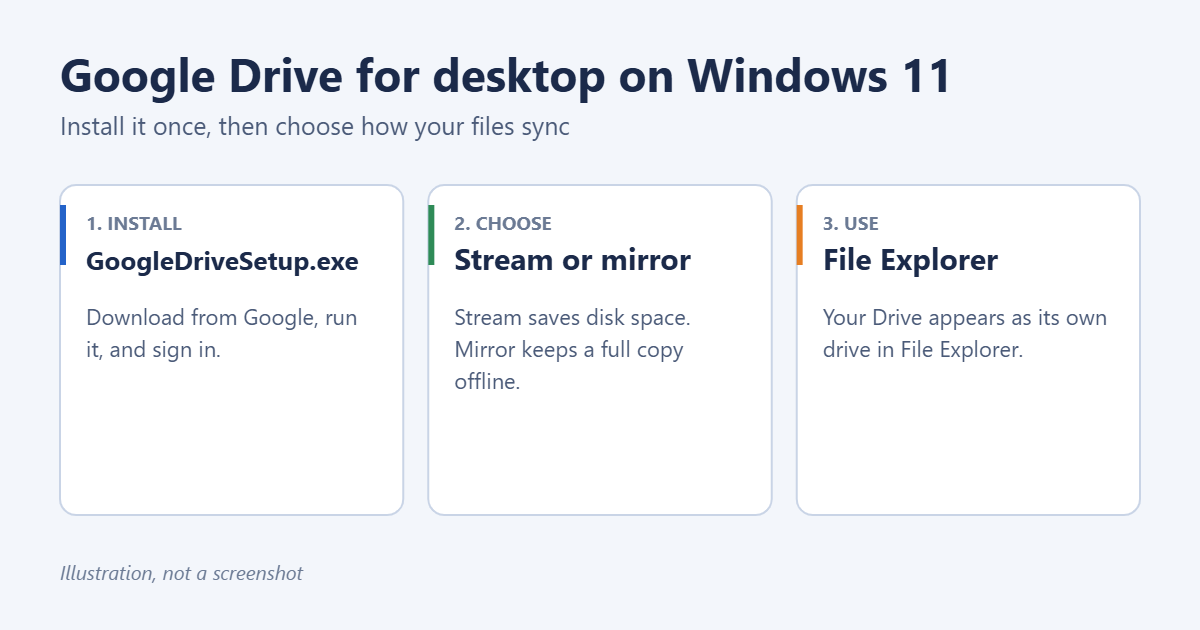
To install Google Drive on Windows 11, download Google Drive for desktop from Google, run GoogleDriveSetup.exe, and sign in with your Google account. Your Drive then appears in File Explorer like any other drive, and files you save there sync to the cloud automatically. You can also choose whether Drive streams files on demand to save disk space or keeps a full copy on your PC. Here are the steps and the settings worth changing.
How to install Google Drive for desktop
- Go to Google’s Drive download page and click Download Drive for desktop.
- Open GoogleDriveSetup.exe from your Downloads folder. Click Yes if Windows asks whether to allow changes.
- Choose whether to add shortcuts to the desktop for Google Docs, Sheets, and Slides, then click Install.
- When installation finishes, click Sign in with browser. Your browser opens. Choose your Google account and click Sign in.
- Return to the Drive window. A Google Drive icon appears in the system tray at the bottom-right of the taskbar (you may need to click the ^ arrow to see it).
Open File Explorer and you’ll see Google Drive in the left pane, often with its own drive letter such as G:. Inside it, My Drive holds your files and Shared drives holds any shared drives you belong to.
Stream or mirror: choose how files sync
Drive for desktop can handle My Drive in two ways:
- Stream files (the default) keeps your files in the cloud and downloads each one only when you open it. In Google’s words, streaming a file uses almost no computer space. It’s the best choice for laptops with small drives. Files you open are cached for a while, and you can make specific files available offline.
- Mirror files keeps a full copy of My Drive on your PC as well as in the cloud. Everything is available offline, but it uses as much disk space as your Drive holds.
To change it, click the Drive icon in the system tray, click the gear icon, choose Preferences, open Google Drive, and pick Stream files or Mirror files.
Make a streamed file available offline
In File Explorer, right-click a file or folder in Google Drive, choose Show more options if needed, then Offline access > Available offline.
Back up other folders to Google Drive
Drive for desktop can also sync folders that live elsewhere on your PC, such as Documents or Pictures.
- Click the Drive icon in the system tray, then the gear icon, then Preferences.
- Under My Computer (or My Laptop), click Add folder.
- Choose the folder, then choose Sync with Google Drive. For a Pictures folder, you can choose Back up to Google Photos instead.
- Click Done, then Save.
These folders show up under Computers on drive.google.com, not in My Drive.
Add another Google account
Google Drive for desktop can use up to four accounts at once. Click the Drive icon, the gear icon, your profile picture, and then Add another account. Each account gets its own drive in File Explorer.
Useful settings
- Start on system startup: under the gear icon, Preferences > Settings. It’s on by default so syncing starts automatically.
- Change the drive letter: in the same Settings section, under Drive letter.
- Bandwidth limits: also under Settings. Useful on a slow connection.
- Pause syncing: click the Drive icon, the gear icon, and Pause syncing.
Troubleshooting
Google Drive doesn’t appear in File Explorer
Check that Drive is running: look for its icon in the system tray. If it’s not there, open Google Drive from the Start menu. Restarting the PC also helps after the first install.
Files aren’t syncing
Click the Drive icon to see the sync status and any errors. Make sure you’re not paused or offline, and that your Google storage isn’t full. You can check storage at one.google.com/storage.
Drive is using too much disk space
Switch from Mirror files to Stream files, or turn off offline access for big folders.
Sign-in loops or fails
Make sure your default browser is signed in to the same Google account and that cookies aren’t blocked for accounts.google.com.
Using the web or the app instead
You don’t have to install anything to use Google Drive. drive.google.com works in any browser. Our guide on how to access your Google cloud covers the web, phone apps, and Google Photos. On Windows 10, the steps are almost the same; see how to install Google Drive on Windows 10.
Frequently asked questions
Is Google Drive for desktop free?
Yes. It uses your Google account storage: 15 GB free, or more with a Google One plan.
What happened to Backup and Sync?
Google replaced Backup and Sync and Drive File Stream with Google Drive for desktop. If you still have Backup and Sync, uninstall it and install Drive for desktop.
Can I use Google Drive and OneDrive together?
Yes, they run side by side. Just don’t put the same folder in both, or they may fight over changes. If you prefer Microsoft’s service, see how to back up files to OneDrive.
How do I uninstall it?
Go to Settings > Apps > Installed apps, find Google Drive, click the three dots, and choose Uninstall. Your files stay safe in the cloud. Mirrored copies on your PC may be left behind, so check before deleting them.
Summary
Download Drive for desktop from Google, run GoogleDriveSetup.exe, and sign in. Use Stream files to save space or Mirror files to keep everything offline, and add other folders under Preferences if you want them backed up too.
Related: how to download a Google Sheet as an Excel file.

Matt Jacobs has been working as an IT consultant for small businesses since receiving his Master’s degree in 2003. While he still does some consulting work, his primary focus now is on creating technology support content for SupportYourTech.com.
His work can be found on many websites and focuses on topics such as Microsoft Office, Apple devices, Android devices, Photoshop, and more.