To install Google Drive on Windows 10, go to Google’s Drive download page, select Download Drive for desktop, and run GoogleDriveSetup.exe. When it finishes, select Sign in with browser and choose your Google account. Your Drive then appears in File Explorer as a Google Drive (G:) drive, and files sync automatically.
Applies to: Windows 10 version 22H2 (64-bit) with Google Drive for desktop. The same steps work on Windows 11. Last reviewed October 8, 2026. Windows 10 reached the end of standard support on October 14, 2025; check Google’s system requirements if Drive stops updating.
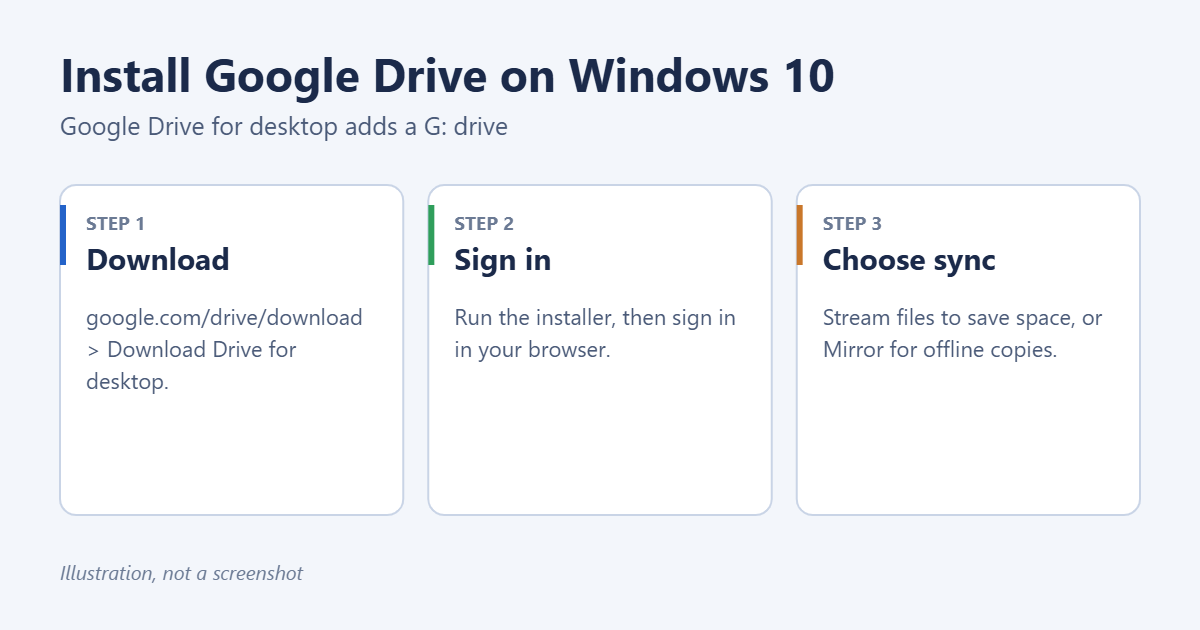
Step 1: Download and install
- Open a browser and go to google.com/drive/download.
- Select Download Drive for desktop.
- Open GoogleDriveSetup.exe from your Downloads folder and select Yes in the User Account Control box.
- Choose whether to add desktop shortcuts for Docs, Sheets and Slides, then select Install.
Step 2: Sign in
- When the installer finishes, select Sign in with browser.
- Choose your Google account in the browser and select Sign in.
- Return to the Drive window. A Drive icon appears in the system tray near the clock.
Step 3: Choose how files sync
Select the Drive icon in the system tray, then the gear icon > Preferences > Google Drive:
- Stream files (default): files stay in the cloud and download when you open them. Uses little disk space. Right-click a file or folder and choose Offline access > Available offline to keep a local copy.
- Mirror files: keeps a full copy of everything on your PC in a normal folder. Uses more space but everything works offline.
Step 4 (optional): Back up PC folders
In Preferences > My Computer, select Add folder and choose folders like Desktop, Documents or Pictures. Choose whether to Sync with Google Drive or Back up to Google Photos (photos and videos only). Backed-up folders appear in Drive under Computers.
Using Google Drive in File Explorer
- Open File Explorer and select Google Drive (G:) > My Drive.
- Drag files in to upload them. Edits save back to Drive automatically.
- Google Docs, Sheets and Slides appear as shortcuts that open in your browser.
- Right-click any file and choose Share to share it without opening a browser.
Google Drive or OneDrive?
Windows 10 includes OneDrive, which works the same way. You can run both; just keep each file in one place to avoid confusion. For OneDrive, see how to sign in to OneDrive and how to back up files to OneDrive.
Pause, sign out or uninstall
- Pause syncing: select the tray icon, then the gear > Pause syncing. Useful on a slow or metered connection.
- Sign out: gear > Preferences > gear at the top > Disconnect account. Streamed files disappear from the PC but stay in Drive online.
- Uninstall: go to Settings > Apps > Apps & features, select Google Drive and choose Uninstall. Files in Drive online aren’t deleted.
Troubleshooting
The G: drive doesn’t appear
Make sure Drive is running (check the tray icon) and you’re signed in. In Preferences, you can choose a different drive letter if G: is already used.
Files won’t sync
Select the tray icon to see errors. Pause and resume syncing, check free disk space, and make sure your Google storage isn’t full.
“Can’t sign in” or browser doesn’t open
Set a default browser in Windows, then try again, or copy the sign-in link from the Drive window into a browser.
Frequently asked questions
Is Google Drive for desktop free?
Yes. Google accounts include 15 GB of free storage shared with Gmail and Google Photos.
What about Windows 11?
The steps are the same; see how to install Google Drive on Windows 11. Moving to a new PC? See how to restore a backup to a new computer.
Related: how to access your Google cloud storage.

Matt Jacobs has been working as an IT consultant for small businesses since receiving his Master’s degree in 2003. While he still does some consulting work, his primary focus now is on creating technology support content for SupportYourTech.com.
His work can be found on many websites and focuses on topics such as Microsoft Office, Apple devices, Android devices, Photoshop, and more.