Select Start > Settings > Bluetooth & devices > Mouse, then change Primary mouse button to swap left and right. For more button options, such as double-click speed and ClickLock, select Additional mouse settings. To give extra side buttons new jobs, use the app from your mouse’s maker.
Applies to: Windows 11. Checked against Microsoft Support on September 29, 2026.
- Select Start > Settings.
- Select Bluetooth & devices > Mouse.
- Open the list next to Primary mouse button and choose Left or Right.

The change works right away. Left-handed users often pick Right.
On the same page you can change Mouse pointer speed and how far the wheel scrolls. To flip the wheel itself, see how to change the mouse scrolling direction in Windows 11.
Set double-click speed and ClickLock
- On the Mouse page, select Additional mouse settings.
- On the Buttons tab, drag the Double-click speed slider. Double-click the folder picture to test it.
- Check Turn on ClickLock to drag or highlight without holding the button down. Press the button briefly to lock it, and click again to let go.
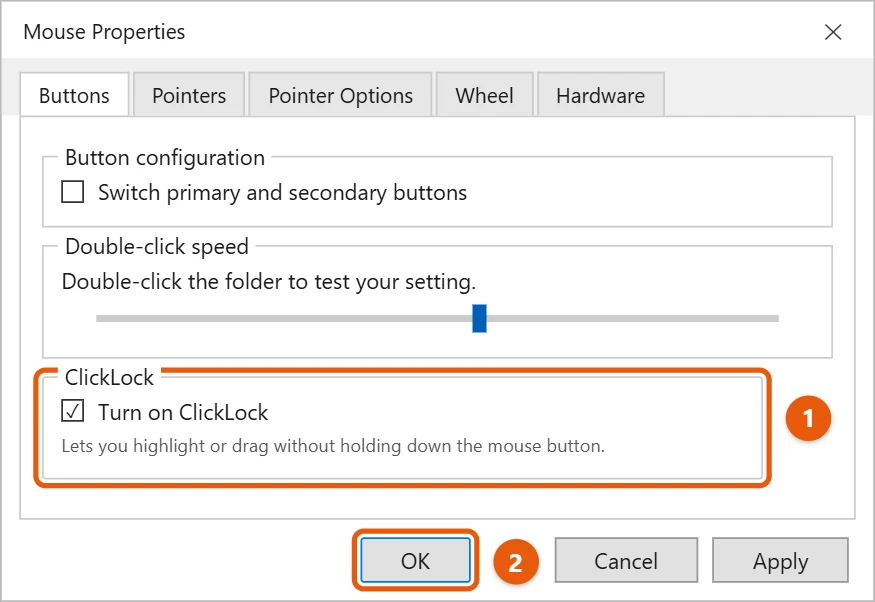
- Select OK.
Windows 11 doesn’t have a setting for side buttons or other extra buttons. By default they usually go Back and Forward in browsers and File Explorer.
To change what they do, install the free app from the company that made your mouse. For a Microsoft mouse, that’s Microsoft Mouse and Keyboard Center. In the app, pick a button and choose a new action, such as copy, paste, or opening an app.
Frequently asked questions
Why don’t my extra buttons show up anywhere?
Some mice need the maker’s app before Windows can use extra buttons. Check the maker’s website for your model.
How do I make the pointer easier to see?
See how to change the cursor in Windows 11. If the pointer moves too fast or too slow, see how to change mouse sensitivity; the steps are much the same on Windows 11.
Microsoft’s reference is Change mouse settings. More help is on our Windows Help & Guides page.

Matt Jacobs has been working as an IT consultant for small businesses since receiving his Master’s degree in 2003. While he still does some consulting work, his primary focus now is on creating technology support content for SupportYourTech.com.
His work can be found on many websites and focuses on topics such as Microsoft Office, Apple devices, Android devices, Photoshop, and more.