To turn off text message sounds on iPhone, open Settings > Sounds & Haptics > Text Tone and choose None. Set Haptics at the top of the same screen to None too if you don’t want vibrations. New texts still arrive and show on screen, they just don’t make a sound. The steps work on iOS 17 and later, including iOS 18, 26 and 27. To silence only certain people or only for a while, use the options further down.
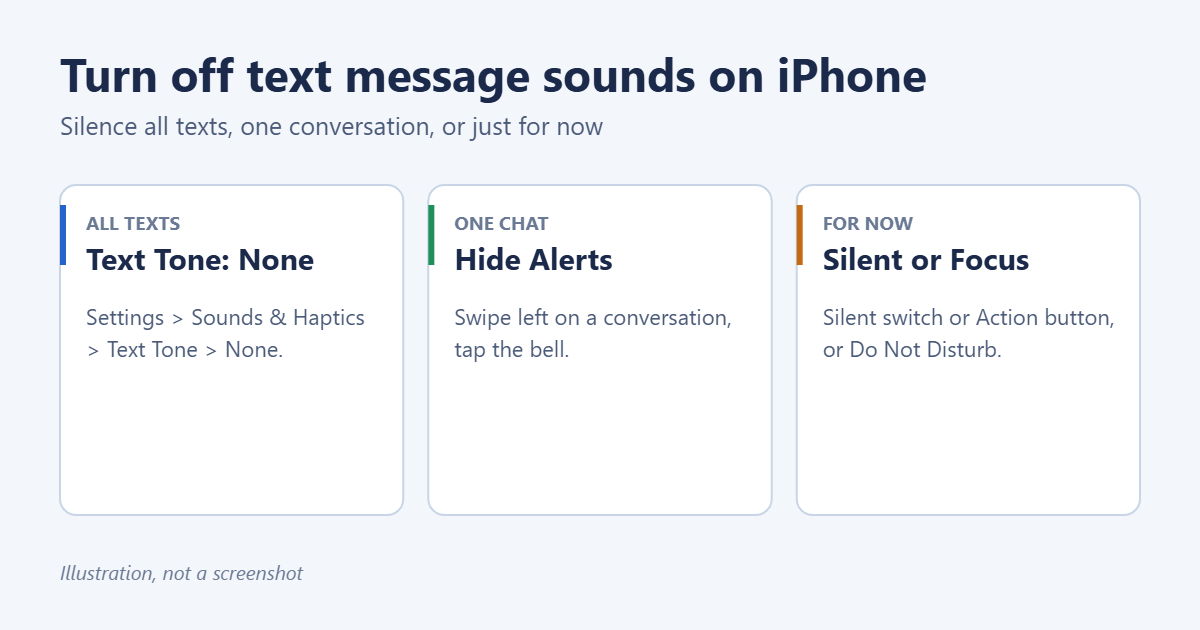
Method 1: Turn off the sound for all texts
- Open Settings.
- Tap Sounds & Haptics.
- Tap Text Tone.
- At the top, tap Haptics and choose None to stop vibrations. Go back.
- Scroll to the top of the Alert Tones list and choose None.
Text Tone covers SMS and iMessage. Messages from WhatsApp, Signal and other apps use their own sounds, set in each app’s notification settings.
Method 2: Turn off Messages notification sounds
This silences the Messages app while keeping banners and badges:
- Open Settings > Notifications.
- Tap Messages.
- Turn off Sounds.
To stop banners as well, turn off the Lock Screen, Notification Center and Banners options on the same screen, or turn off Allow Notifications entirely.
Method 3: Silence one conversation
If one group chat or person is the problem, mute just that conversation:
- Open Messages.
- Swipe left on the conversation.
- Tap the bell icon (Hide Alerts).
A crossed-out bell appears next to the conversation. You still get the messages, just without sounds or banners. Swipe left and tap the bell again to undo. Inside a conversation, you can also tap the name or group at the top and turn on Hide Alerts.
Give one contact a silent tone
Open Contacts, pick the person, tap Edit, then Text Tone, and choose None. This silences their texts while everyone else’s still make a sound.
Method 4: Silence everything for now
- Silent mode: on iPhone 14 and earlier, flip the Ring/Silent switch on the left side so orange shows. On iPhone 15 Pro and later models with an Action button, press and hold it, or turn on Silent Mode in Control Center. You can also find it under Settings > Sounds & Haptics > Silent Mode.
- Do Not Disturb: open Control Center, tap Focus, then Do Not Disturb. Texts arrive silently until you turn it off. Scheduling and exceptions are covered in turning off Do Not Disturb.
- A custom Focus: in Settings > Focus, create one that allows calls from favorites but silences Messages, and schedule it for work or sleep hours.
Comparison: which option to use
| Goal | Best option |
|---|---|
| Never hear text sounds | Text Tone: None |
| Silence one group chat | Hide Alerts |
| Silence one person | Contact Text Tone: None |
| Quiet for a meeting | Silent mode or Do Not Disturb |
| Quiet every night | A scheduled Sleep or Do Not Disturb Focus |
Still hearing a sound?
- Apple Watch: the watch may be playing it. On the iPhone, open the Watch app > Notifications > Messages and turn off Sound, or turn on Silent Mode on the watch.
- Mac or iPad: the same messages arrive there. Turn off sounds in their Messages notification settings too.
- Repeat alerts: Messages repeats an alert once by default. Go to Settings > Notifications > Messages > Customize Notifications > Repeat Alerts and choose Never. Messages settings also control the compose box, so you can hide the Subject line in iPhone texts from the same screen.
- Keyboard clicks or the sent-message sound: these aren’t text tones. Keyboard clicks are in Settings > Sounds & Haptics > Keyboard Feedback. The swoosh when you send a message stops in Silent mode.
Frequently asked questions
Will I still get texts if the tone is set to None?
Yes. Only the sound changes. Messages arrive and show banners and badges as normal.
Can I silence texts from unknown numbers only?
Yes. Go to Settings > Apps > Messages (or Settings > Messages on iOS 17) and turn on Filter Unknown Senders. Texts from numbers not in your contacts go to a separate list without notifications. Calls work differently: you’d silence unknown callers instead.
How do I turn the sound back on?
Go back to Settings > Sounds & Haptics > Text Tone and pick any tone. The newer iOS default is called Rebound.
Summary
- All texts: Settings > Sounds & Haptics > Text Tone > None.
- One chat: swipe left and tap the bell.
- One person: set their contact’s Text Tone to None.
- For a while: Silent mode or Do Not Disturb.
Games can be noisy too. Here’s how to turn off sound in Pokémon GO.

Matt Jacobs has been working as an IT consultant for small businesses since receiving his Master’s degree in 2003. While he still does some consulting work, his primary focus now is on creating technology support content for SupportYourTech.com.
His work can be found on many websites and focuses on topics such as Microsoft Office, Apple devices, Android devices, Photoshop, and more.