To find your Windows 11 product key, first check whether you need one: select Start > Settings > System > Activation and expand Activation state. If it shows Windows is activated with a digital license, there is no key to find, and Windows reactivates by itself after a reinstall. If your PC came with Windows, right-click Start, select Terminal (Admin), and run (Get-CimInstance -ClassName SoftwareLicensingService).OA3xOriginalProductKey to show the key stored in the PC’s firmware. A key you bought yourself is on the card in the box or in your purchase confirmation email.
Applies to: Windows 11 Home and Pro, versions 24H2 and 25H2. The steps follow Microsoft’s page on finding your product key.
Product key or digital license?
Windows 11 can be activated in two ways, and only one of them involves a code you can look up.
- Product key: a 25-character code made of five groups of five letters and numbers, in the format XXXXX-XXXXX-XXXXX-XXXXX-XXXXX. You type it in during setup or in Settings.
- Digital license: activation that is stored with Microsoft and tied to your PC’s hardware. Microsoft also calls it a digital entitlement. There is nothing to type and nothing to write down. Windows checks in online and activates itself.
Many PCs have both. For example, when you enter a product key, Microsoft gives that PC a digital license, so a reinstall on the same hardware later activates without the key. That is why most people who think they’ve lost their key don’t actually need it.
Where to look depends on how you got Windows 11:
| How you got Windows 11 | What you have | Where to look |
|---|---|---|
| Free upgrade from Windows 10 (or earlier) | Digital license | Nothing to find. Check Settings > System > Activation. |
| New PC with Windows 11 already installed | Product key, usually stored in the PC’s firmware | Method 1 (PowerShell), then the packaging or a label on the PC |
| Refurbished PC | Product key | A Certificate of Authenticity (COA) on the PC or a card from the refurbisher |
| Boxed copy from a store | Product key | A label or card inside the box |
| Digital copy from a retailer other than Microsoft | Product key | The confirmation email, or the retailer’s digital locker |
| Digital copy from Microsoft’s online store | Product key | The confirmation email, or your Microsoft account Order history |
| Windows 11 or a Pro upgrade bought in the Microsoft Store app | Digital license | The Microsoft account you bought it with |
| Work or school PC | Volume license | Your IT department |
First, check how Windows 11 is activated
This takes 30 seconds and tells you whether you need a key at all.
- Select Start, then Settings. You can also press Windows key + I.
- Select System in the left pane, then scroll down and select Activation. The page shows your edition at the top, such as Windows 11 Home or Windows 11 Pro.
- Select Activation state to expand it, and read the message underneath. The word Active with a green check mark means Windows is activated.

Expand Activation state (1) and read the message under it (2). Change product key (3) is where you type a key if you ever need to.
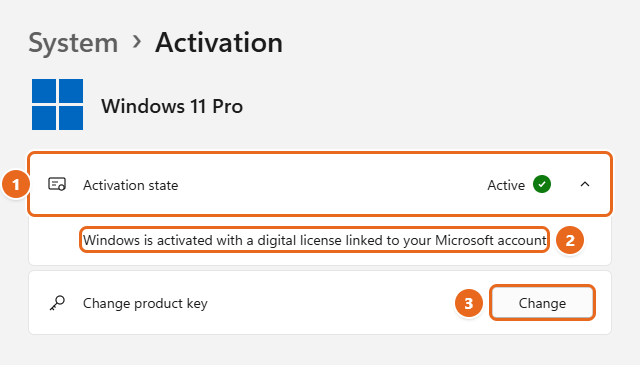
Here’s what each message means:
- Windows is activated with a digital license linked to your Microsoft account: you’re in the best position. You can reinstall the same edition without a key, and you can reactivate after a hardware change by signing in.
- Windows is activated with a digital license: you don’t need a key for a reinstall on this PC, but your license isn’t linked to a Microsoft account yet. Linking it now helps if you ever replace the motherboard. See Link your license to your Microsoft account.
- Windows is activated: Windows is activated, but the license isn’t linked to a Microsoft account. If you activated with a product key, save that key before you reinstall or move to new hardware, using the methods below, and consider linking your Microsoft account.
- Windows is not activated: you’ll see an error message. You need a valid key or digital license for this PC’s edition.
Microsoft’s support pages call this line “activation status,” but the label in Settings reads Activation state. They’re the same thing. Settings never shows the full product key, only the activation result.
Method 1: Show the key stored in your PC’s firmware
Most PCs that came with Windows already installed have the original product key saved in the firmware (the UEFI or BIOS chip on the motherboard). Windows Setup reads it automatically during a reinstall, but you can display it with one PowerShell command. This is the method to use if you bought a laptop or desktop with Windows on it.
- Right-click the Start button, or press Windows key + X, and select Terminal (Admin).
- Select Yes when User Account Control asks whether to allow the app to make changes. Windows Terminal opens with a tab named Administrator: Windows PowerShell.
- Copy this command, paste it at the prompt (right-click pastes in Terminal), and press Enter:
(Get-CimInstance -ClassName SoftwareLicensingService).OA3xOriginalProductKey - Look at the line under the command. If a 25-character key appears, that’s the key that came with your PC. Write it down or save it somewhere private.

Paste the command at the prompt (1) and press Enter. If your PC has a key stored in its firmware, it appears on the next line (2). The key is masked here.
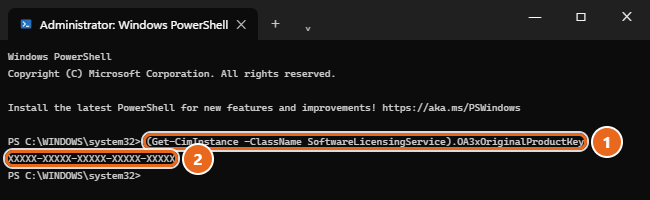
If nothing appears, the prompt returns with no key. That doesn’t mean something is wrong. It means there’s no key in the firmware, which is normal for PCs you built yourself, PCs that were upgraded from Windows 10, and many business PCs. Go back to the activation check: if you have a digital license, you’re covered. If you installed Windows with a key you bought, use Method 2 or 3.
Keep in mind what this key is: the key the manufacturer licensed for that PC, usually for the edition it shipped with. If the laptop shipped with Windows 11 Home and you later upgraded to Pro, the firmware key is still a Home key.
Prefer Command Prompt?
You can run the same check from Command Prompt by asking it to call PowerShell. Open Command Prompt, then run:
powershell -NoProfile -Command "(Get-CimInstance -ClassName SoftwareLicensingService).OA3xOriginalProductKey"
The result is the same as Method 1. If you see ‘powershell’ is not recognized, check for typing mistakes, or use Terminal as described above.
Why the old wmic command no longer works
Older guides tell you to run wmic path softwarelicensingservice get OA3xOriginalProductKey in Command Prompt. On a current Windows 11 PC, that usually ends with ‘wmic’ is not recognized as an internal or external command, operable program or batch file.
Microsoft’s WMIC removal notice explains why: the WMIC tool was turned off by default in Windows 11 versions 23H2 and 24H2, removed during upgrades to 25H2, and fully removed from supported versions of Windows 11 with the August 2026 preview update for 24H2 and 25H2. It is no longer available as an optional feature, so the “add WMIC back in Optional features” tip in older articles no longer applies. Microsoft’s recommended replacement is PowerShell, which reads the same information. The PowerShell command in Method 1 does the job the wmic command used to do.
Method 2: Check the sticker, card or box
If the firmware has no key, or the PC won’t start, look for a physical copy.
- Retail box: If you bought a boxed copy of Windows 11 from a store, the key is on a label or card inside the box.
- New PC packaging: a PC’s key may be preinstalled, included in the packaging, or printed on a Certificate of Authenticity (COA) attached to the PC. Check the box, any paperwork, and the bottom or back of the PC. On some laptops the label is inside the battery compartment.
- Refurbished PC: the refurbisher, not Microsoft, must give you a key. It’s usually on a COA label on the PC. If the key is hidden under a gray coating, scratch it off gently with a coin or your fingernail.
A sticker that shows only “Windows 11 Pro” or a Microsoft logo is probably a Genuine Microsoft Label. Microsoft uses these labels to show the edition the PC was licensed for, and they don’t include a product key. On those PCs, the key is in the firmware, so use Method 1.
If you can’t find the packaging, card or COA for a PC that came with Windows, contact the PC’s manufacturer.
Method 3: Find a key you bought online
- Bought from a retailer’s website: search the email account you used for the order for the purchase confirmation. Search for words such as “Windows 11,” “product key,” or the retailer’s name. Some retailers also keep the key in a digital locker on their website, which you can open by signing in to your account there.
- Bought from Microsoft’s online store: the key is in the confirmation email. Microsoft only keeps a record of product keys for purchases from its online store. Sign in to your Microsoft account and open Order history to check whether you bought it there and to see the order details.
- Bought in the Microsoft Store app on the PC: this includes the Windows 11 Pro upgrade. You get a digital license, not a key. The license belongs to the Microsoft account you made the purchase with, so sign in with that same account after a reinstall.
Method 4: Work or school PCs
PCs owned by a company or school are usually activated through a volume licensing agreement. The keys are kept in the organization’s licensing portal, not on the PC, and only the people who manage licensing can see them. If the PC belongs to your employer or school, ask your IT department instead of trying to pull a key from the device. A key you find on such a PC may be a generic one that only works with the organization’s own activation server.
See which key is installed right now
Windows can’t show you the full key that is currently installed, but it can show the last five characters and the type of license. That’s useful for matching a key on a sticker or in an email to the PC.
- Open Command Prompt or Terminal. Administrator rights aren’t needed for this check.
- Type
slmgr /dliand press Enter. - Wait a few seconds for a Windows Script Host box to appear, read it, and select OK.

The channel (1) tells you the license type, Partial Product Key (2) shows only the last five characters, and License Status (3) confirms activation. The characters are masked here.
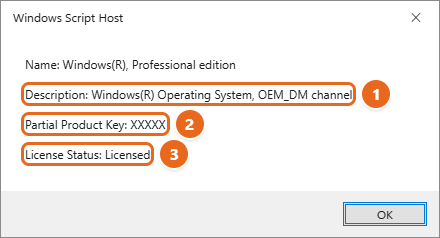
The word before “channel” on the Description line gives you a clue about where the key came from:
| Channel | What it usually means |
|---|---|
| OEM_DM | The PC maker’s key, read from the firmware. Method 1 shows it in full. |
| RETAIL | A key you bought and entered yourself, or an activation that came from an upgrade. Check your email, box or Microsoft account. |
| VOLUME_MAK or VOLUME_KMSCLIENT | An organization’s volume license. Ask your IT department. |
For more detail, slmgr /dlv shows the full license information. Both options are documented in Microsoft’s slmgr.vbs options reference. Only use the display options. Other slmgr switches, such as /upk, uninstall the product key and can leave Windows unactivated.
What about the registry and key finder apps?
You may see two other suggestions elsewhere. Neither is a reliable way to recover your own key.
- The registry: Windows stores the installed key in an encoded form (the DigitalProductId value), which you can’t read directly. Some guides point to a value called BackupProductKeyDefault. On many PCs, especially ones that were upgraded or activated with a digital license, that value holds a generic installation key that can’t activate Windows on its own. Don’t rely on it, and don’t change anything in the Registry Editor.
- Key finder apps: third-party tools can decode the installed key, but on a digital-license PC they can only show a generic key, and downloading unknown tools that read license data is a security risk. Everything you need is covered by the methods above, which use only Windows and Microsoft’s own records.
Be wary of websites that sell Windows keys cheaply or offer to “generate” one. Microsoft’s rule is that product keys and COA labels should never be bought separately from the PC or software they belong to.
Reinstall Windows 11 without a key
If your PC has a digital license or a key in its firmware, you can reinstall Windows 11 without typing anything.
- Before you start, confirm that Windows is activated in Settings > System > Activation, and note your edition (Home or Pro).
- When you create installation media, choose the same edition that’s on the PC now.
- If Setup asks for a product key, select I don’t have a product key. On PCs with a key in the firmware, Setup often skips this screen entirely.
- When Setup asks, sign in with the Microsoft account linked to your license.
- After Setup finishes and the PC is connected to the internet, Windows activates automatically. Check Settings > System > Activation to confirm.
If you installed the wrong edition, for example Pro on a PC licensed for Home, Windows won’t activate. Reinstall the matching edition, or buy an upgrade. The full process is in doing a clean install of Windows 11, and resetting Windows 11 keeps your activation without any key.
Link your license to your Microsoft account
Linking your digital license to your Microsoft account is the best protection against “losing” your key. It lets you reactivate Windows after a major hardware change, such as a new motherboard, by signing in.
- Make sure you’re signed in to Windows with an administrator account that is a Microsoft account. In Settings > Accounts > Your info, you should see an email address and the word Administrator under your name.
- Go to Settings > System > Activation.
- If you see Add an account, select it, sign in with your Microsoft account and password, and select Sign in.
- Check that the activation message now reads Windows is activated with a digital license linked to your Microsoft account.
If you see no Add an account option and the message already mentions your Microsoft account, the license is already linked.
Reactivate after replacing the motherboard
Microsoft’s hardware change instructions use the Activation troubleshooter, which only appears while Windows isn’t activated:
- Sign in as an administrator and go to Settings > System > Activation > Troubleshoot.
- Select I changed hardware on this device recently, then Next.
- Sign in with the Microsoft account linked to the license.
- Check This is the device I’m using right now next to your PC in the list, then select Activate.
If you activated with a product key rather than a digital license, enter that same key instead under Settings > System > Activation > Change product key.
Troubleshooting
PowerShell shows a blank line
There’s no key in the firmware. This is normal on PCs that were built from parts, upgraded from Windows 10, or set up by an organization. Check Settings for a digital license, then look for a box, card or email.
PowerShell shows a red error
Check that you copied the whole command, including both parentheses and the period before OA3xOriginalProductKey. Paste it rather than typing it, and make sure the tab shows Windows PowerShell, not Command Prompt. In Command Prompt, use the powershell -NoProfile -Command version instead.
The key you found won’t activate
- Edition mismatch: a Home key won’t activate Pro, and a Pro key won’t activate Home. Compare the edition shown in Settings with the edition the key was sold for.
- Typo: letters such as B and 8, or O and 0, are easy to mix up on a worn sticker.
- Key from another PC: a key that came built into one PC is generally licensed for that PC only, so it may not activate a different one. A retail key you bought separately is the type meant to move with you to a new PC.
- Generic key: keys found in the registry or by third-party tools may be generic installation keys that can’t activate anything.
Windows isn’t activated after a hardware change
Use the Activation troubleshooter steps in the section above. If your PC’s manufacturer replaced the motherboard under warranty, Windows should reactivate on its own. If it doesn’t, the manufacturer may have included a COA card with a new key.
You don’t have a key or a digital license
Go to Settings > System > Activation and select Go to Store (on some PCs this button is labeled Open Store) to buy a Windows 11 digital license from Microsoft.
Keep your key safe
Once you have the key, store it with your other important records, such as a password manager’s secure notes or a printed copy filed with the PC’s receipt. Don’t post it online or in a forum screenshot. Anyone who copies a retail key could try to activate their own PC with it, which can cause activation problems for you later.
FAQ
Can I see my full product key in Settings?
No. Settings > System > Activation shows whether Windows is activated and whether the license is linked to your Microsoft account, but not the key. Use Method 1 for a firmware key, or slmgr /dli to see the last five characters of the installed key.
Is a digital license the same as a product key?
No. A digital license activates Windows without any code. It’s linked to your PC’s hardware and, if you add it, your Microsoft account. A product key is the 25-character code. Entering a valid key on a PC gives that PC a digital license.
Does Microsoft have a copy of my product key?
Only if you bought Windows from Microsoft’s online store. For keys from PC makers, stores or other websites, Microsoft can’t look them up for you. Contact the seller or manufacturer.
Do I need my product key to reset or reinstall Windows 11?
Usually not. Reset this PC keeps your activation, and a reinstall of the same edition activates automatically through the digital license or firmware key. You only need the key if Windows was activated with a key you entered and the PC has no digital license yet, or after a major hardware change on a key-activated PC.
Where is the product key on my laptop?
On most laptops made in the last decade, it isn’t printed anywhere. It’s stored in the firmware, so use the PowerShell command in Method 1. Older and refurbished laptops may have a COA sticker on the bottom or inside the battery compartment.
I upgraded from Windows 10. Where is my Windows 11 key?
You don’t have a separate one. A free upgrade from Windows 10 gives you a Windows 11 digital license for that PC. If you still need the old Windows 10 key, checking your Windows 10 key covers that.
Can I change the product key Windows is using?
Yes. Go to Settings > System > Activation, select Change next to Change product key (on some PCs you expand Upgrade your edition of Windows first), and type the new 25-character key. This is also how you upgrade from Home to Pro with a Pro key.
Next step
Open Settings > System > Activation now and make sure the message mentions your Microsoft account. If it does, you’ll never need to dig for a key on this PC. If you have a key from a box or email, save it with your records before you reinstall or replace any hardware.

Matt Jacobs has been working as an IT consultant for small businesses since receiving his Master’s degree in 2003. While he still does some consulting work, his primary focus now is on creating technology support content for SupportYourTech.com.
His work can be found on many websites and focuses on topics such as Microsoft Office, Apple devices, Android devices, Photoshop, and more.