There are two ways to put a Word document into PowerPoint, depending on what you want. To show the document itself on a slide, select Insert > Object > Create from file, browse to the document and select OK; you can show its first page or an icon that opens it. To turn the document into slides, format its headings with Word’s heading styles, then in PowerPoint select Home > New Slide > Slides from Outline.
Applies to: PowerPoint and Word for Microsoft 365, 2024, 2021, 2019 and 2016 on Windows and Mac, plus Word for the web.
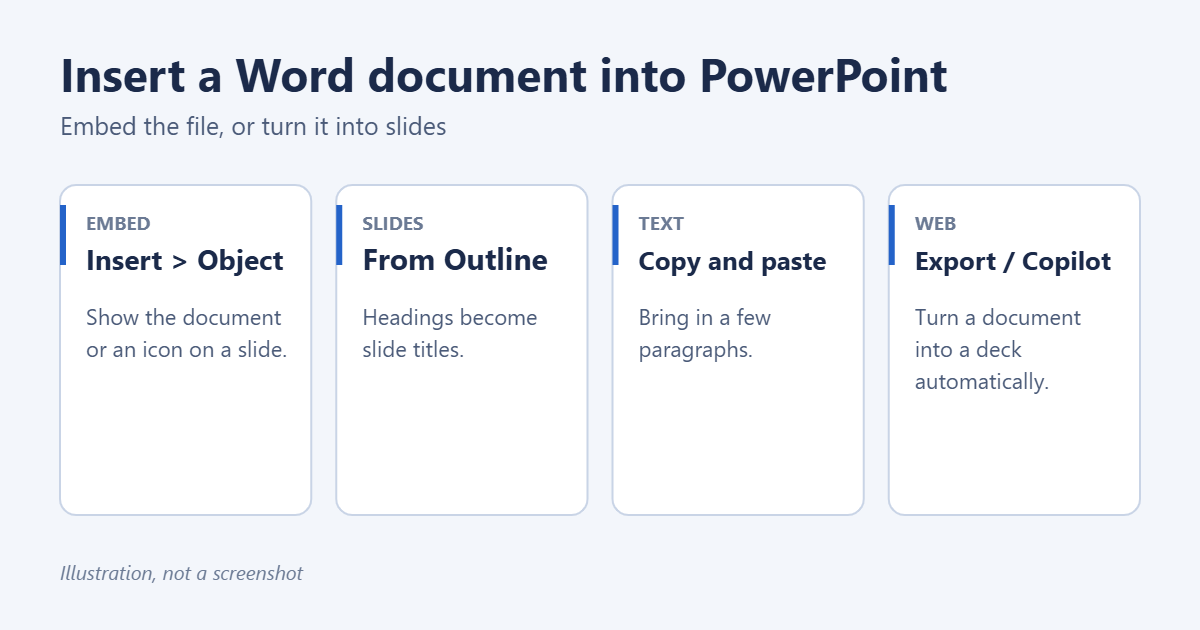
Method 1: Embed the Word document as an object
- In PowerPoint, open the slide where you want the document.
- Select Insert > Object (in the Text group).
- Choose Create from file and select Browse. Pick the Word document and select OK.
- Choose how it appears:
- Leave both boxes clear to show the document’s first page on the slide.
- Tick Display as icon to show a Word icon that opens the document. This is tidier for longer files.
- Tick Link to keep a link to the original file, so changes you make to it show up in the presentation. Leave it clear to store a copy inside the presentation.
- Select OK. Drag the corners to resize it.
During a slideshow, click the object or icon to open the document in Word. Embedded documents make the presentation file larger. If you link instead, keep the Word file in the same place, or the link breaks.
On a Mac, select Insert > Object > From File. Word for the web and PowerPoint for the web can’t insert objects.
Method 2: Turn the document into slides with Slides from Outline
PowerPoint uses heading styles to decide what goes on each slide.
Prepare the Word document
- Apply Heading 1 to each line that should become a slide title.
- Apply Heading 2 to lines that should become bullet points, and Heading 3 for sub-bullets.
- Normal paragraphs aren’t imported when headings are present, so keep the text short.
- Save and close the document. PowerPoint can’t import it while it’s open.
Import it into PowerPoint
- In PowerPoint, select Home > the arrow under New Slide > Slides from Outline.
- Select the Word document and select Insert.
- PowerPoint adds one slide per Heading 1. Select all the new slides in the thumbnail pane and choose Home > Reset so they use your presentation’s fonts and theme.
If the document has no heading styles, PowerPoint makes a slide for every paragraph. The same headings also let you add a table of contents in Word.
Method 3: Copy and paste part of the document
- In Word, select the text, table or picture and press Ctrl + C.
- In PowerPoint, click in a placeholder or on the slide and press Ctrl + V.
- Select the Paste Options button to choose Use Destination Theme, Keep Source Formatting, Picture or Keep Text Only.
Pasting as a picture keeps the exact look but can’t be edited. For tables that start in Excel, follow inserting an Excel table into PowerPoint instead.
Method 4: Let Microsoft 365 build the slides
- Copilot in PowerPoint: with a Microsoft 365 plan that includes Copilot, select Copilot > Create a presentation from a file and choose the Word document saved in OneDrive. Review the slides it creates; it summarizes rather than copying every word.
- Export from Word for the web: some versions offer File > Export > Export to PowerPoint presentation, which picks a design and creates slides from your document.
Troubleshooting
“PowerPoint can’t open this file” with Slides from Outline
Close the document in Word first, and save it as .docx. Very large documents can fail; split them up.
Only part of the document shows on the slide
An embedded object only displays the first page. Double-click it to scroll through it in place, or use Display as icon so people open the full document.
The imported slides look different from the rest
Select them and choose Home > Reset, or apply a design from the Design tab.
Frequently asked questions
Can I insert a PDF instead?
Yes. Use Insert > Object > Create from file with the PDF, or take a screenshot of a page with Insert > Screenshot.
How do I insert one Word document into another?
The steps are in inserting a Word document into another Word document.
Once the slides are in, you may want to duplicate a slide in PowerPoint. Working with spreadsheets too? You can also link Excel to Word.

Matt Jacobs has been working as an IT consultant for small businesses since receiving his Master’s degree in 2003. While he still does some consulting work, his primary focus now is on creating technology support content for SupportYourTech.com.
His work can be found on many websites and focuses on topics such as Microsoft Office, Apple devices, Android devices, Photoshop, and more.