Hey there, fellow Windows user! Ever needed to manage your servers without actually having to sit in front of them? That’s where RSAT (Remote Server Administration Tools) comes in super handy for Windows 10. Luckily, getting it set up is a breeze. You’ll simply head over to your Windows Settings, navigate to the “Apps” section, and then find “Optional features.” From there, you just click to add the specific RSAT components you need, like tools for Active Directory or DNS, and let Windows do the rest. It’s really that straightforward to get powerful server management right on your desktop.
Tutorial – How to Install RSAT on Windows 10
Alright, let’s get you set up with RSAT so you can manage your servers like a pro, right from your Windows 10 machine. These steps will walk you through enabling the exact administrative tools you need, making your life a whole lot easier when dealing with remote server roles and features.
Step 1: Open your Windows Settings.
You can easily do this by clicking the Start button, usually found in the bottom-left corner of your screen, then selecting the gear-shaped “Settings” icon. This is your command center for customizing and configuring your Windows experience.
Opening settings is always the first move for any system-wide changes. Think of it like opening the toolbox before you start a project; it’s where all the fundamental controls live. It’s important to make sure you’re logged in with an administrator account; otherwise, you might not have the necessary permissions to add new features.
Step 2: Navigate to the “Apps” section.
Once you’re in the Settings window, look for an option called “Apps” and click on it. This area is dedicated to everything related to the applications installed on your computer, from uninstalling programs to managing how they run.
The “Apps” section isn’t just for programs you’ve downloaded from the internet. It also houses many built-in Windows features and tools you might not even realize are available. This is our gateway to finding the hidden gems like RSAT.
Step 3: Select “Optional features.”
Within the “Apps” section, on the left-hand side, you’ll see a menu. Click on “Optional features,” where you can add or remove various built-in components and tools that aren’t part of the core operating system.
This is a really powerful part of Windows, letting you tailor your system to your specific needs without cluttering it with things you don’t use. It’s like picking out specific tools for a job rather than carrying the entire workshop around with you.
Step 4: Click on “Add a feature.”
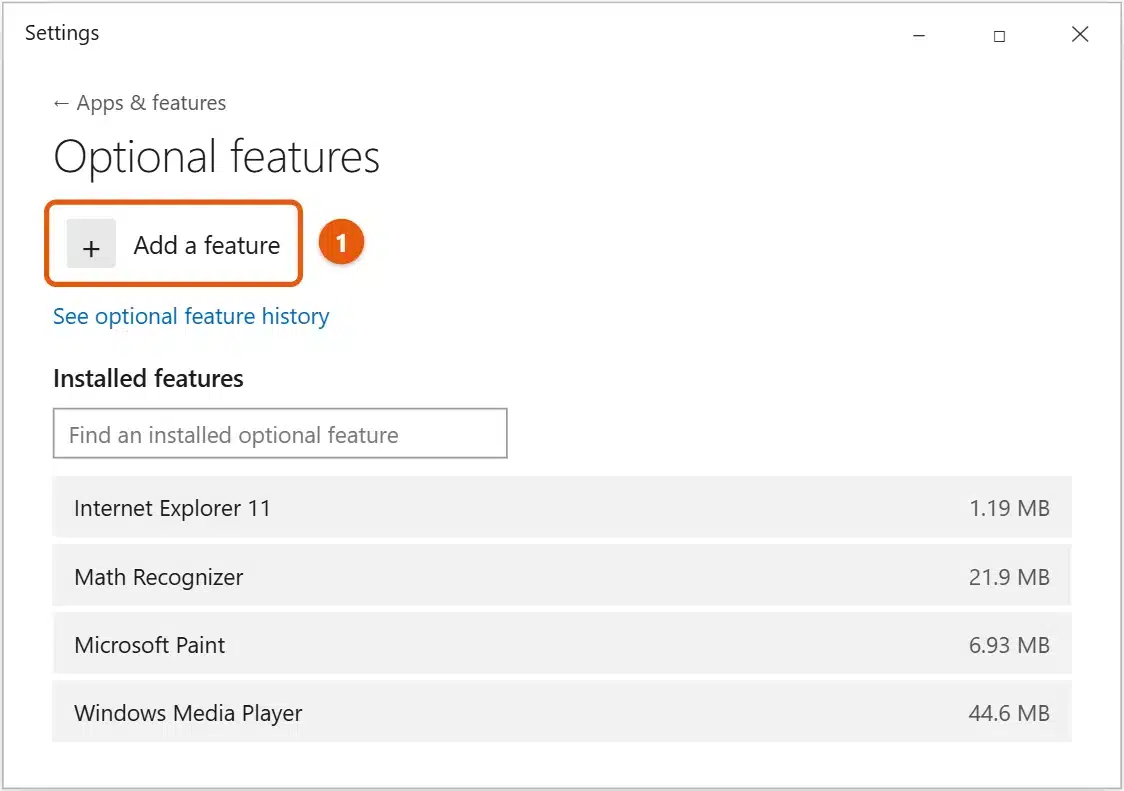
On the “Optional features” page, you’ll see a button labeled “+ Add a feature” near the top. Go ahead and click this to bring up a list of all the additional features available for your Windows 10 installation.
This button opens up a whole new world of functionalities you can integrate into your operating system. It’s where you’ll find everything from language packs to specific administrative tools, all ready for download and installation.
Step 5: Find and install the RSAT components you need.
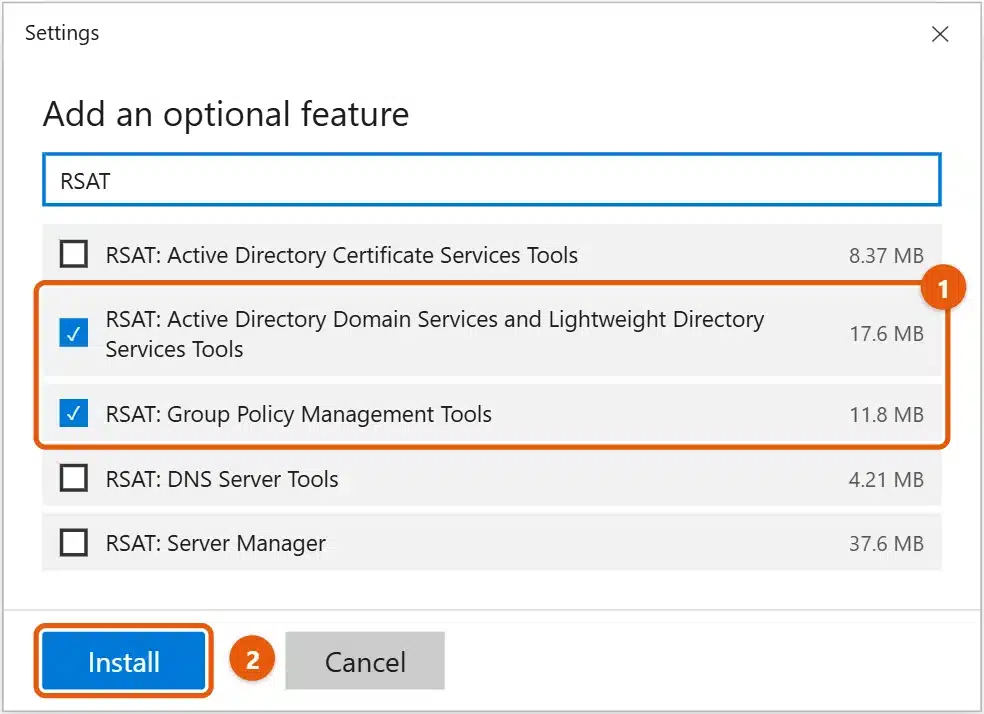
Scroll through the list until you see entries that start with “RSAT:”. You’ll notice that RSAT isn’t just one single package, but rather a collection of tools for different server roles, such as “RSAT: Active Directory Domain Services and Lightweight Directory Tools,” “RSAT: DHCP Server Tools,” or “RSAT: DNS Server Tools.” Simply check the box next to each tool you want and then click “Install.”
It’s crucial to select only the tools that are relevant to your server management tasks. Installing everything might take longer and use up unnecessary disk space, so pick wisely. The installation process might take a few minutes, depending on your internet speed and the number of components you’ve selected, as Windows will download these features directly from Microsoft.
Once these steps are complete, your chosen RSAT tools will be installed on your Windows 10 machine. You’ll then be able to find them tucked away in the “Windows Administrative Tools” folder in your Start Menu, ready for you to use to manage your remote servers.
Tips for Installing RSAT on Windows 10
- Always have a solid internet connection: Since RSAT components are downloaded as optional features, a stable, fast connection will make the installation process much smoother and quicker.
- Only install what you truly need: Windows breaks RSAT into individual tools. Don’t feel compelled to install everything. Focus on the specific server roles you manage, like Active Directory, DNS, or DHCP, to keep your system lean.
- Run Windows Update beforehand: Sometimes, having the latest Windows updates installed can prevent unforeseen issues during the RSAT installation and ensure compatibility. It’s like making sure your car has fresh oil before a long trip.
- Restart your PC if tools don’t appear: If you’ve installed RSAT but can’t find the tools in your Start Menu’s “Windows Administrative Tools” folder, a quick restart often resolves the issue and makes them visible.
- Verify your Windows 10 edition: Remember, RSAT is typically available only for Windows 10 Pro, Enterprise, or Education editions. If you’re running Windows 10 Home, you won’t find these optional features, and you’ll need to upgrade to a supported version of Windows to use RSAT.
- Consider older server compatibility: If you’re managing very old server versions, you might occasionally encounter compatibility quirks. While modern RSAT usually handles a wide range of requirements, keep an eye out for specific requirements if you’re working with legacy systems.
Frequently Asked Questions
What exactly is RSAT used for?
RSAT, which stands for Remote Server Administration Tools, is a set of tools that lets you manage server roles and features from a Windows 10 desktop, rather than logging directly into the server itself. It’s incredibly useful for IT administrators who need to perform tasks like managing user accounts in Active Directory, configuring DNS settings, or overseeing DHCP from their workstation. Think of it as a remote control for your servers, saving you time and improving efficiency.
Can I install RSAT on Windows 10 Home edition?
Unfortunately, no. RSAT is designed for professional environments and is only available on Windows 10 Pro, Enterprise, and Education editions. If you’re running Windows 10 Home, you won’t find the “Optional features” that allow you to install RSAT. To use these tools, you would need to upgrade your operating system to one of the supported versions.
Do I need an internet connection to install RSAT?
Yes, you absolutely need an active internet connection. When you select RSAT components from the “Optional features” list, Windows downloads these tools directly from Microsoft’s servers. Without an internet connection, the installation process will fail because the necessary files cannot be retrieved.
Where do I find the RSAT tools after they’re installed?
Once RSAT components are successfully installed, you can find them in the “Windows Administrative Tools” folder within your Start Menu. Just click the Start button, scroll down to the “W” section, and you’ll see the folder. Inside, you’ll find shortcuts to all the RSAT tools you’ve installed, such as “Active Directory Users and Computers” or “DNS Manager.”
Can I uninstall specific RSAT tools if I no longer need them?
Yes, absolutely! Just like you installed them, you can remove individual RSAT tools. Go back to Settings > Apps > Optional features. You’ll see the installed RSAT components listed there. Click on the one you want to remove, and then click the “Uninstall” button. This helps keep your system tidy and only loaded with the tools you actively use.
Why aren’t the RSAT tools appearing after I installed them?
If the tools aren’t showing up, first, make sure you checked the correct boxes during installation and that the installation completed without errors. Second, double-check your Windows 10 edition, as RSAT isn’t on Home. Third, sometimes a simple restart of your computer can resolve the issue, as it helps Windows refresh its components and register the newly installed tools. Lastly, ensure your Windows is fully updated, as outdated systems can sometimes cause unexpected behavior.
Summary of RSAT Installation
- Open Windows Settings.
- Go to Apps.
- Click Optional features.
- Select Add a feature.
- Choose and install RSAT components.
Conclusion
Getting RSAT set up on your Windows 10 machine is a game-changer for anyone managing servers, whether you’re a seasoned IT professional or just starting out with server administration. It transforms your everyday desktop into a powerful command center, allowing you to oversee crucial server roles and features without the constant need to physically access server consoles or jump through hoops with remote desktop connections. We’ve walked through the straightforward process, showing you how simple it is to enable these tools directly from your Windows settings. No more complicated downloads from external sites or compatibility worries, just a few clicks and you’re ready to roll.
The real beauty of RSAT lies in its efficiency and convenience. Imagine needing to quickly unlock a user account, check DNS records, or manage group policies. Instead of logging into a server, which can be cumbersome and less secure for routine tasks, you can do it all from the comfort and security of your own workstation. This not only saves precious time but also minimizes the attack surface on your servers by reducing direct logins. It’s about empowering you to work smarter, not harder, by centralizing your administrative tasks right where you are.
As you dive deeper into using these tools, you’ll discover the immense breadth of what RSAT offers. Each component, from Active Directory Users and Computers to Group Policy Management, is designed to give you granular control over specific aspects of your server infrastructure. Don’t be afraid to explore each one and get familiar with its capabilities. Remember the tips we discussed, like only installing the tools you truly need and ensuring your Windows 10 edition supports RSAT, to ensure a smooth and effective experience. This capability truly underscores the versatility of Windows 10 as a professional workstation.
So, take this knowledge, apply it, and elevate your server management game. The installation process is simple, the benefits are significant, and the control you gain is invaluable. If you haven’t already, now’s the perfect time to install RSAT and streamline your administrative workflow, making your server management tasks more efficient and enjoyable. Go forth and administer those servers with confidence!

Matt Jacobs has been working as an IT consultant for small businesses since receiving his Master’s degree in 2003. While he still does some consulting work, his primary focus now is on creating technology support content for SupportYourTech.com.
His work can be found on many websites and focuses on topics such as Microsoft Office, Apple devices, Android devices, Photoshop, and more.