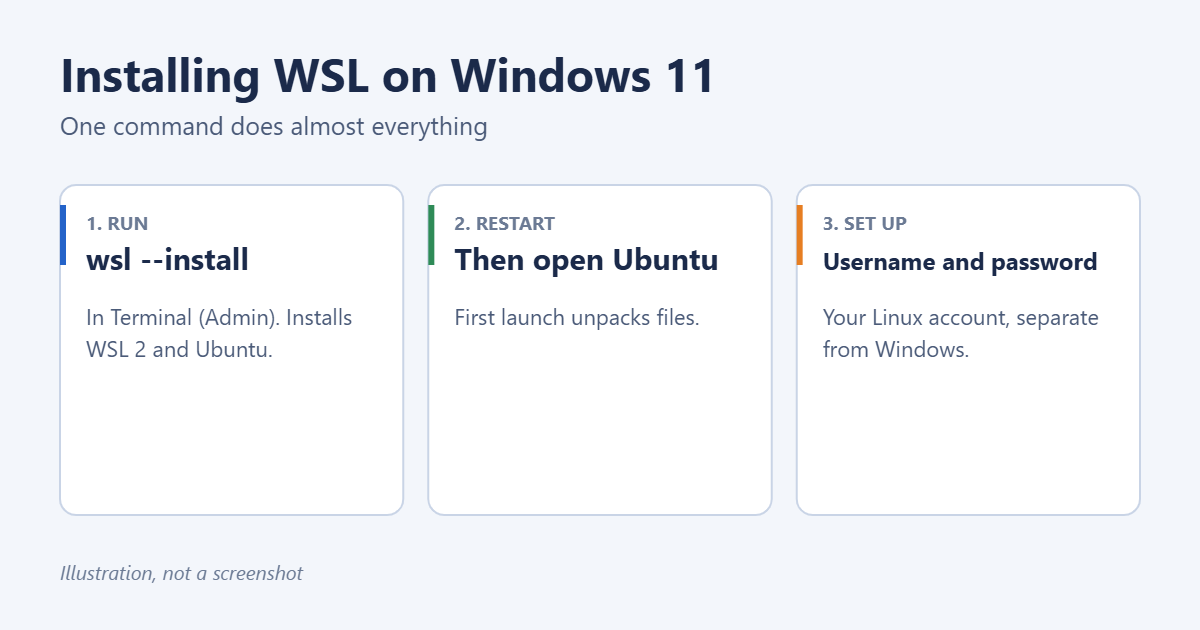
To install WSL (Windows Subsystem for Linux) on Windows 11, open Terminal as administrator, type wsl --install, and restart your PC. That single command turns on the required Windows features, installs WSL 2, and downloads Ubuntu. When Ubuntu opens for the first time, create a Linux username and password, and you’re ready to run Linux commands and tools alongside Windows. Here’s the full process, how to install a different distribution, and fixes for common errors.
What you need
- Windows 11, or Windows 10 version 2004 or later.
- Hardware virtualization turned on in your PC’s firmware. Most modern PCs have it on already; if yours doesn’t, enable virtualization in Windows 11 first.
- An administrator account and an internet connection.
Step 1: Run the install command
- Right-click Start and choose Terminal (Admin). Click Yes.
- Type
wsl --installand press Enter. - Wait while Windows enables the Virtual Machine Platform and WSL features and downloads Ubuntu.
The command only works this way if WSL isn’t installed at all. If WSL is already partly installed, use wsl --install -d Ubuntu to add a distribution.
Step 2: Restart
Restart Windows when the installer finishes. After you sign back in, Ubuntu may open on its own. If it doesn’t, open it from the Start menu.
Step 3: Create your Linux account
- The first launch takes a minute or two while files are unpacked.
- Enter a new username. It doesn’t have to match your Windows name.
- Enter and confirm a password. Nothing appears on screen as you type; that’s normal. You’ll need this password for
sudocommands.
Finish by updating the Linux packages: sudo apt update && sudo apt upgrade.
Install a different Linux distribution
- See what’s available:
wsl --list --online - Install one, such as Debian:
wsl --install -d Debian - See what’s installed and which WSL version each uses:
wsl --list --verbose - Set the default:
wsl --set-default Debian
Distributions are also available in the Microsoft Store. There’s a fuller walkthrough for installing Ubuntu on Windows 11 if you want more detail.
Everyday WSL commands
wslopens your default distribution in the current window.wsl --updateupdates WSL itself.wsl --shutdownstops all running distributions, which helps when something hangs.- Your Windows drives are under /mnt/c, /mnt/d, and so on inside Linux.
- From File Explorer, open Linux in the left pane to browse Linux files.
Windows Terminal adds a tab for each installed distribution, so you can switch between PowerShell, Command Prompt, and Ubuntu.
Troubleshooting
“Please enable the Virtual Machine Platform Windows feature and ensure virtualization is enabled in the BIOS”
Turn on virtualization in your firmware settings, then run dism.exe /online /enable-feature /featurename:VirtualMachinePlatform /all /norestart in an administrator Terminal and restart.
The download is stuck at 0.0%
Run wsl --install --web-download -d Ubuntu instead, which downloads from the web instead of the Microsoft Store.
Error 0x80370102
This usually means virtualization is off. Check Task Manager > Performance > CPU for Virtualization: Enabled.
WSL is slow when working with Windows files
Files under /mnt/c are slower than files in the Linux file system. Keep project files in your Linux home folder (~) for better speed.
Frequently asked questions
Is WSL free?
Yes. WSL and the Linux distributions in the Microsoft Store are free.
Does WSL need Hyper-V or Windows 11 Pro?
No. WSL 2 works on Windows 11 Home. It uses part of the Hyper-V platform behind the scenes, but you don’t need to turn on Hyper-V itself. You only need to enable Hyper-V if you want full virtual machines.
How do I remove WSL?
Removing it takes a few separate steps, covered in uninstalling WSL in Windows 11.
Summary
Open Terminal as administrator, run wsl –install, restart, and create your Linux username and password when Ubuntu opens. Use wsl –list –online and wsl –install -d to add other distributions.
Related: the other ways to install Linux on Windows 11 (WSL, VM, or dual boot), plus how to install Bash on Windows 11 and install GCC on Windows 11.

Matt Jacobs has been working as an IT consultant for small businesses since receiving his Master’s degree in 2003. While he still does some consulting work, his primary focus now is on creating technology support content for SupportYourTech.com.
His work can be found on many websites and focuses on topics such as Microsoft Office, Apple devices, Android devices, Photoshop, and more.