In Microsoft Edge, go to Settings and more (…) > Settings > Privacy, search, and services > Search and connected services > Address bar and search, and choose Google next to Search engine used in the address bar. Searches you type in Edge’s address bar then use Google.
Applies to: Microsoft Edge on Windows 11.
Change the search engine in Edge
- Open Microsoft Edge.
- Select … in the top-right corner, then Settings.
- Select Privacy, search, and services, then Search and connected services.
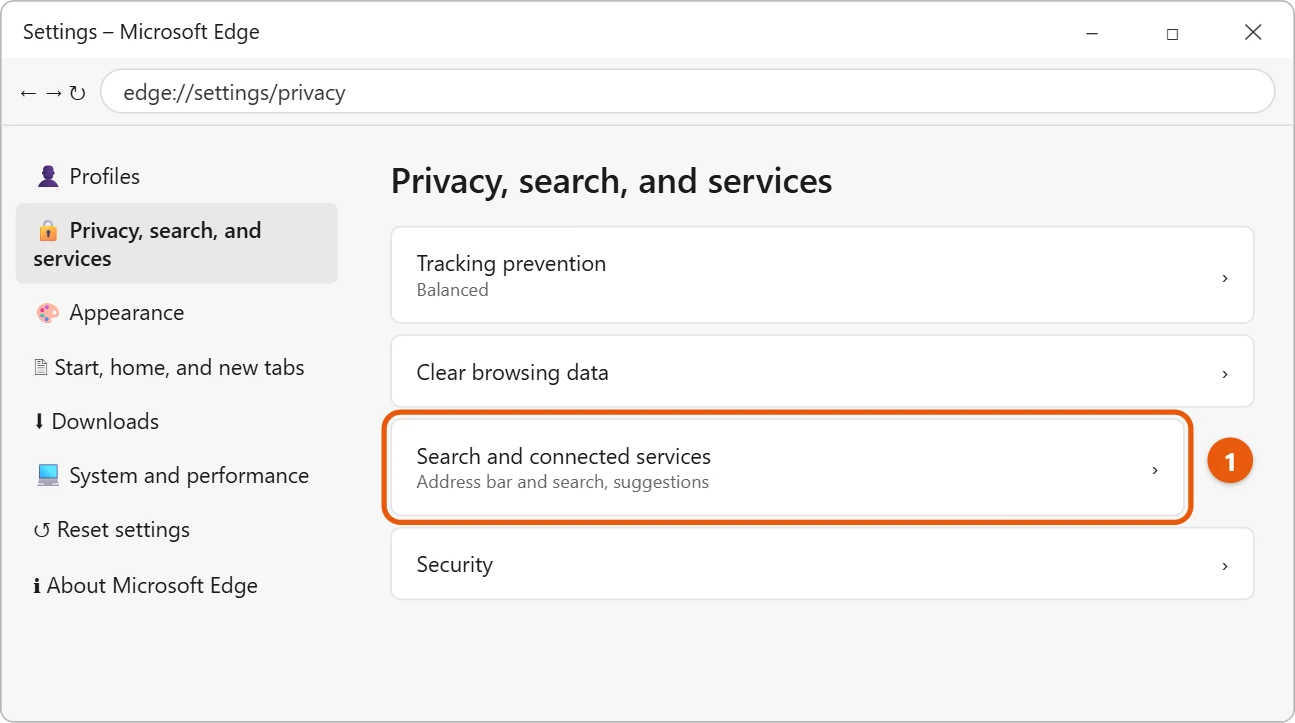
- Select Address bar and search.
- Open the list next to Search engine used in the address bar and choose Google.
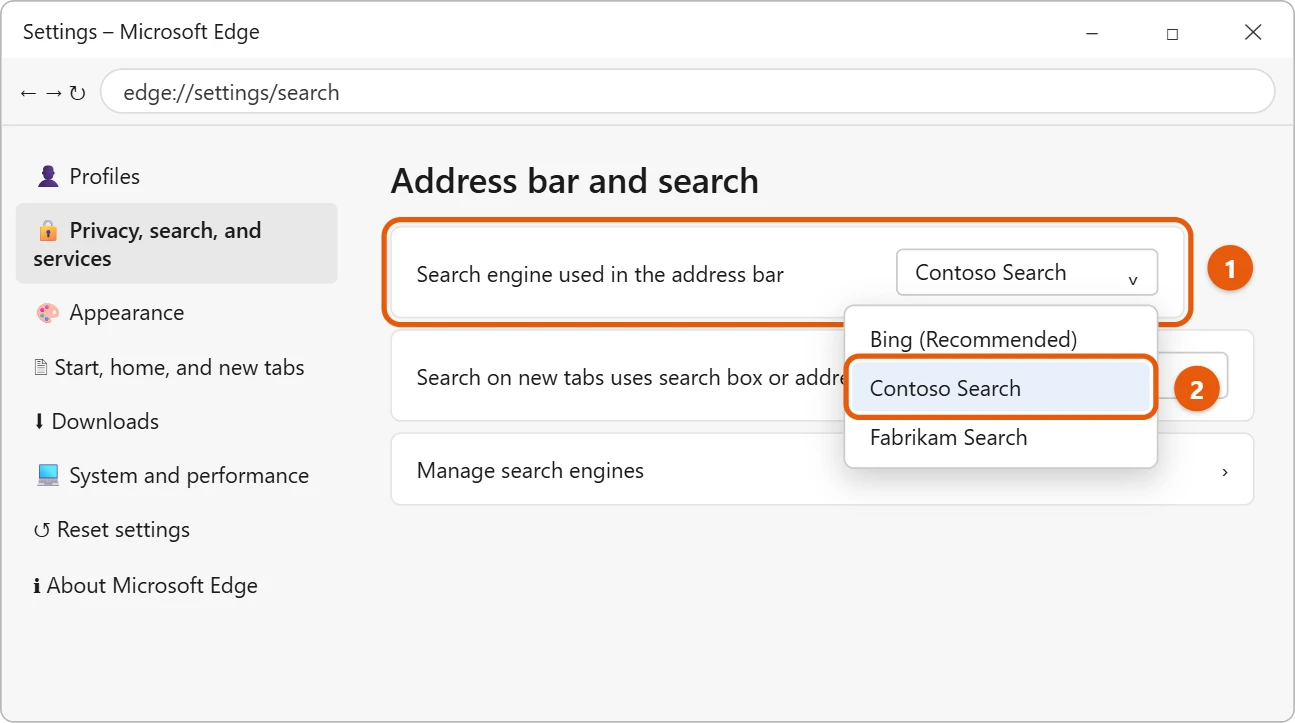
If Google isn’t in the list
Go to google.com in Edge and search for anything once. Then go back to Address bar and search. Edge adds sites you’ve searched to the list.
What about the Windows search box?
In most regions, the search box on the Windows taskbar uses Bing for web results, and Windows 11 doesn’t let you change that. To search the web with Google, use your browser’s address bar instead. You can also add a Google shortcut to your Windows 11 desktop so the search page is one double-click away.
Make new tabs search with Google too
After you switch, the search box on Edge’s new tab page still uses Bing. Go to Settings > Privacy, search, and services > Address bar and search, and set Search on new tabs uses search box or address bar to Address bar. Typing on a new tab then searches Google.
Search Google just once without changing the default
In Manage search engines, every engine has a keyword, such as google.com. Type the keyword in Edge’s address bar, press Tab, and type your search. You can edit the keyword to something short like g to make this faster.
Open Google when Edge starts
To land on Google every time you open Edge, go to Settings > Start, home, and new tabs. Under When Edge starts, choose Open these pages, select Add a new page, type https://www.google.com, and select Add.
Use Chrome or Firefox with Google instead
- Google Chrome uses Google search out of the box. To make Chrome open your links too, go to Settings > Apps > Default apps, select Google Chrome, and select Set default.
- Mozilla Firefox: open the menu > Settings > Search and choose Google under Default Search Engine.
Each browser keeps its own search setting, so changing one doesn’t affect the others.
If you can’t switch to Google
- The setting is grayed out with a building icon. A policy controls it. On a work or school PC, ask IT. On a home PC, type
edge://policyto see what’s set, and run a scan in Windows Security in case unwanted software added it. - Edge says an extension is controlling the search engine. Turn off or remove that extension in Extensions.
- Searches still open in Bing from the Windows search box. That box isn’t controlled by Edge. As covered above, it uses Bing for web results in most regions, whatever you set in your browser.
Frequently asked questions
I use a different browser. How do I change it there?
Most browsers have the setting in their settings page under Search engine. Which browser opens your links is a separate setting: you can change the default browser in Windows 11 in Settings.
My search engine keeps changing back. Why?
An extension or a program may be changing it. Remove extensions you don’t recognize, then set the search engine again. On a Windows 10 PC, follow the Windows 10 search engine steps instead.
Does this change Google searches on my phone?
No. This only changes Edge on this PC. Other browsers and phone apps keep their own settings.
Is Google better than Bing?
Both work well for most searches. It’s down to which results and layout you prefer, and you can switch back any time.
How do I go back to Bing?
Open the same Search engine used in the address bar setting and choose Bing. Nothing else changes.
Will Edge keep asking me to switch back?
Sometimes Edge shows a prompt suggesting Bing after an update. Select the option to keep your current setting and it won’t change.
Want Google one click away? Pin Google to the taskbar in Windows 11. And if you never use the Bing search box, you can get rid of the search bar in Windows 11.
Edge’s own instructions are in Change your default search engine in Microsoft Edge.

Matt Jacobs has been working as an IT consultant for small businesses since receiving his Master’s degree in 2003. While he still does some consulting work, his primary focus now is on creating technology support content for SupportYourTech.com.
His work can be found on many websites and focuses on topics such as Microsoft Office, Apple devices, Android devices, Photoshop, and more.