Windows 11 doesn’t come with an app that plays DVD movies. To watch one, you need a DVD drive (built in or USB) and a DVD player app, which you can get from the Microsoft Store. Then insert the disc, open the app, and choose the drive. Data DVDs, such as discs of photos or MP4 videos, open in File Explorer without any extra app.
Applies to: Windows 11.
What you need
- A DVD drive. Open File Explorer (Windows logo key + E) and select This PC. If you see a drive such as DVD RW Drive (D:), you have one. Many newer laptops don’t. An external USB DVD drive works the same way.
- A DVD player app, for movie DVDs. Store-bought movies and many home-recorded discs are DVD-Video discs. Windows 11 can’t play these on its own.
- Nothing extra, for data DVDs. If the disc holds normal files, like MP4 videos or photos, you can open them from File Explorer. Video files play in the Media Player app.
Not sure which kind you have? Open the disc in File Explorer. A movie disc has a folder named VIDEO_TS. A data disc shows ordinary files and folders.
Why Windows Media Player won’t play DVD movies
Windows 11 includes the Media Player app, and some editions also offer the older Windows Media Player Legacy as an optional feature. Neither one plays DVD movies. For Windows Media Player Legacy, Microsoft’s support page puts it plainly: “DVD playback isn’t included.” That’s why a movie disc may open as a list of files, or nothing may happen at all.
Connect and check the DVD drive
- If you use an external drive, plug it straight into a USB port on the PC, not a hub. Some drives need two USB plugs or a power adapter; connect them all.
- Open File Explorer and select This PC.
- Under Devices and drives, look for the DVD drive. If it’s there, move on to getting a player app.
- If it isn’t there, see the “If the DVD won’t play” section below before buying any software. A new app won’t fix a drive Windows can’t see.
Get a DVD player app
- Before you buy anything, select Start and type DVD. Some PC makers install a DVD player app. If one shows up, open it and skip to playing the DVD.
- Open Microsoft Store from the Start menu.
- Search for DVD player.
- Pick an app whose description says it plays DVD movies or DVD-Video. Check the publisher, the reviews, the price, and whether it’s a free trial with limits.
- Select Get, Install or the price, and follow the steps.
Microsoft used to sell its own Windows DVD Player app in the Store. It was free only for PCs upgraded to Windows 10 from Windows 7 Home Premium, Professional or Ultimate, or from Windows 8 or 8.1 Pro with Media Center. It didn’t turn up in a search of the Microsoft Store website, so it may not be offered to you. Other publishers’ DVD player apps are listed in the Store.
Only install players from the Microsoft Store or the maker’s own website. Skip download sites and anything that asks you to install extra “codec packs.”
Play the DVD
- Insert the DVD, label side up, and wait a few seconds for the drive to read it. Tray stuck on an HP desktop? Here’s how to open the CD drive on an HP desktop.
- If a notification appears, select it and choose to play the DVD with your player app.
- If nothing happens, open File Explorer > This PC. Right-click the DVD drive, select Show more options, then select Open AutoPlay. Choose your player app.
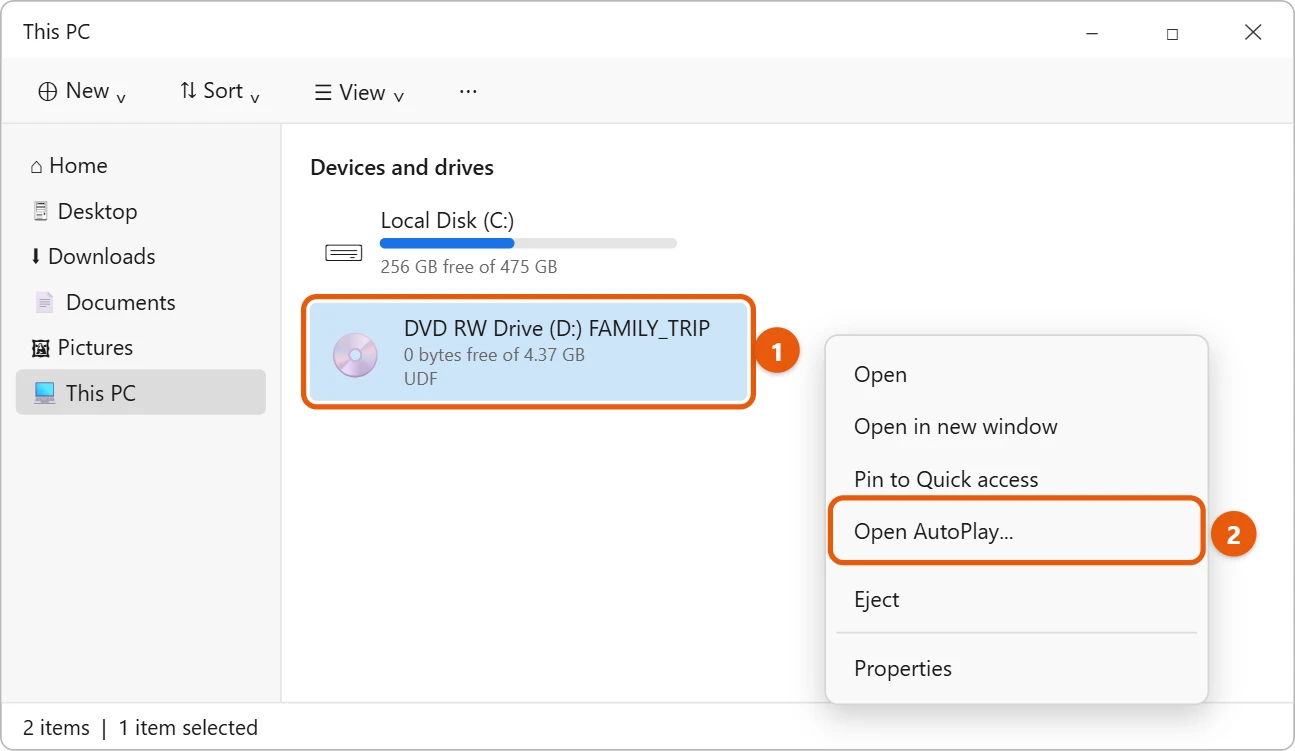
- You can also open the player app first, then use its Open disc or Play disc option and pick the DVD drive.
- Use the app’s controls to play, pause, pick chapters, and turn on subtitles. Select the full screen button to fill the screen.
When it’s working, the DVD’s menu or the movie starts in the app, and you hear sound through your speakers or headphones.
Make DVDs start automatically
If you watch DVDs often, you can set Windows to open your player every time you insert one.
- Select Start, type Control Panel, and open it.
- Select Hardware and Sound > AutoPlay.
- Make sure Use AutoPlay for all media and devices is checked.
- Next to DVD movie, choose your player app. Or choose Ask me every time if you want to pick each time.
- Select Save.
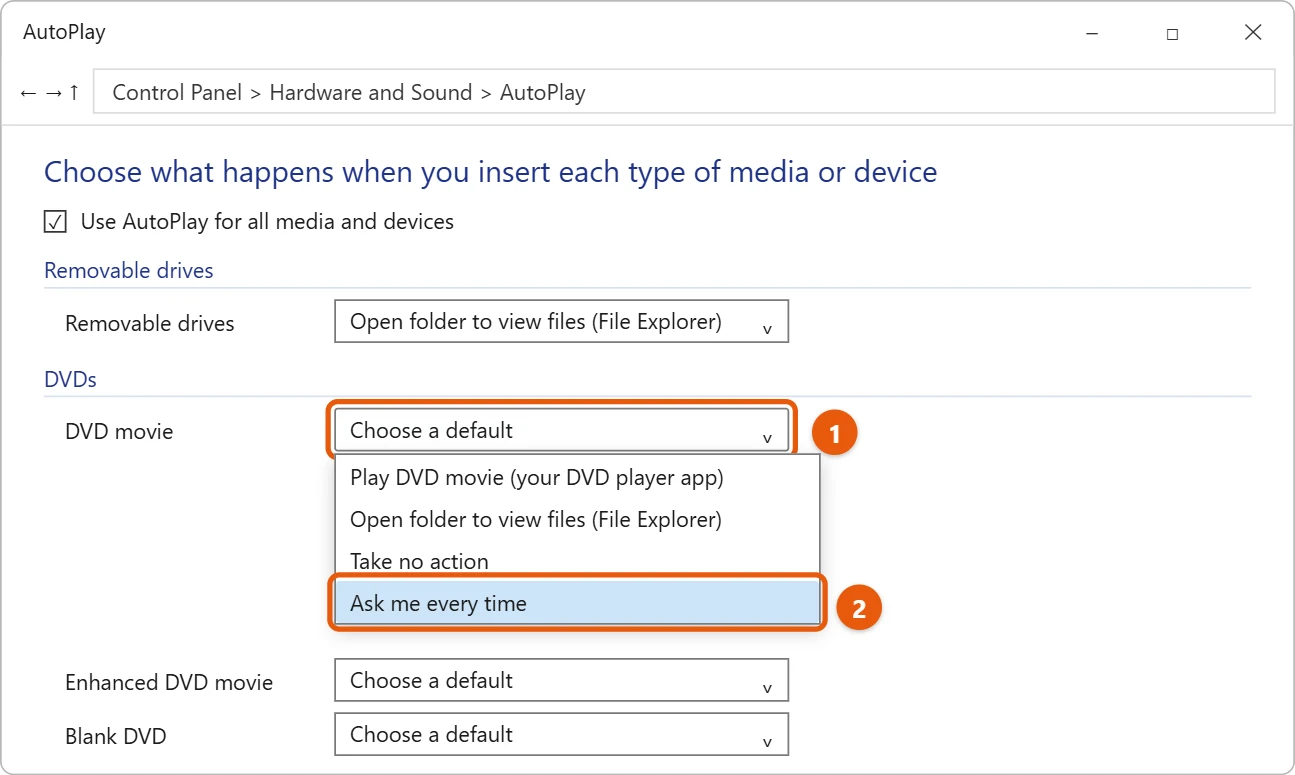
You can turn AutoPlay on or off for all devices in Settings > Bluetooth & devices > AutoPlay. The DVD choices are only in Control Panel.
To undo this, go back to the same page and set DVD movie to Ask me every time or Take no action.
If the DVD won’t play
- The drive isn’t in This PC. For an external drive, try another USB port and a different cable, and connect any second plug or power adapter. For a built-in drive, restart the PC. Then check Windows Update for driver updates.
- Windows sees the drive, but not the disc. Take the disc out and put it back in. Try another disc. If other discs work, the first disc is the problem.
- The disc spins but won’t play. Clean it with a soft, lint-free cloth, wiping straight out from the center. Scratches and fingerprints cause skipping and freezing.
- The disc opens as files instead of playing. Open it from your player app instead. If it has no VIDEO_TS folder, it’s a data disc, so open the video files from File Explorer.
- A region error appears. DVDs are sold for a region, such as region 1 for the US and Canada. Most DVD drives only let you change their region a few times, and the last change is permanent. Don’t change it unless you’re sure.
- It’s a Blu-ray disc. Blu-ray needs a Blu-ray drive and a player app that supports Blu-ray. A DVD drive can’t read it.
- There’s a picture but no sound. Check the volume on the PC and in the app, and make sure nothing is muted. Select the speaker icon on the taskbar to check which device the sound is going to. Try another audio track in the app’s menu.
- Playback is choppy. Close other apps, plug a laptop into power, and try another disc to see if the problem follows the disc.
Frequently asked questions
Does Windows 11 have a built-in DVD player?
No. Windows 11 can read DVDs, but it doesn’t include an app that plays DVD movies. You need a DVD player app from the Microsoft Store.
Can Windows Media Player play DVDs in Windows 11?
No. Neither Media Player nor Windows Media Player Legacy plays DVD movies. Media Player does play video files, such as MP4 files copied from a data disc.
Is Microsoft’s Windows DVD Player free?
It was free only for certain PCs upgraded to Windows 10 from Windows 7 or Windows 8. Otherwise it was a paid app, and it may no longer be offered in the Store.
My laptop has no DVD drive. What can I do?
Buy an external USB DVD drive. It shows up in This PC like a built-in drive. You still need a DVD player app for movie discs.
Do I need the internet to play a DVD?
Only to download the player app. After that, DVDs play from the disc.
Next steps
Working with video files instead of discs? You can play MP4 and MOV videos on Windows 11, and change the default media player in Windows 11 to choose which app opens them. Still on Windows 10? Follow the steps for playing DVDs on Windows 10. Microsoft’s note on Windows Media Player Legacy is in Troubleshoot Windows Media Player errors, and the Windows DVD Player offer is in The Windows DVD Player app is available for free for eligible Windows 10 upgrades.

Matt Jacobs has been working as an IT consultant for small businesses since receiving his Master’s degree in 2003. While he still does some consulting work, his primary focus now is on creating technology support content for SupportYourTech.com.
His work can be found on many websites and focuses on topics such as Microsoft Office, Apple devices, Android devices, Photoshop, and more.