Hey there, ever found yourself staring at your awesome DVD collection, wishing you could just pop one in and watch it on your Windows 10 computer? It’s a pretty common wish, and luckily, it’s totally doable, even though Windows 10 doesn’t come with a built-in DVD player like older versions did. Basically, you’ll need two things: a DVD drive, either built into your PC or an external one you plug in, and some free software to actually play the disc. Once you have those, you’re all set to enjoy your favorite movies or shows.
Tutorial – How to Watch DVDs on Windows 10
Watching DVDs on your Windows 10 computer might seem like a throwback, but it’s often a great way to enjoy content you already own without relying on streaming services. This step-by-step guide will walk you through everything you need to know, from checking your hardware to installing the right software, so you can start enjoying your movie nights. We’ll make sure you understand each part, so you can confidently get your DVDs playing.
Step 1: Check if your computer has a DVD drive.
Before you do anything else, take a quick peek at your computer to see if it even has a built-in DVD drive. Many newer, thinner laptops and desktop computers don’t include one these days, which can be a bit of a surprise if you’re used to older machines. Look for a slim slot on the side of a laptop or the front of a desktop tower, often with a small button to eject the tray.
If you don’t spot one, don’t worry, it’s not the end of the world. You can easily buy an external USB DVD drive that simply plugs into one of your computer’s USB ports. These drives are pretty affordable and work just like an internal one, letting you pop in your discs and get going. They’re super handy and portable, so you can use them with any computer that has a USB port.
Step 2: Connect your DVD drive to your computer.
Once you’ve confirmed you have a drive, or you’ve bought an external one, the next step is to make sure it’s properly connected. If your computer has a built-in drive, it’s already connected, so you can skip this part. You just need to press the eject button to open the tray.
For an external drive, it’s as simple as plugging its USB cable into an available USB port on your Windows 10 PC. Windows 10 is usually pretty smart and will automatically recognize the new hardware and install any necessary drivers in the background. You might see a small notification pop up saying “Device setup complete” or something similar, letting you know it’s ready to use.
Step 3: Install a DVD player software.
Here’s where things get a little different from older Windows versions, because Windows 10 doesn’t come with its own DVD player software. You’ll need to download and install a separate program to play your discs. There are a few good options out there, but one of the most popular and reliable choices is VLC Media Player, which is completely free and can play almost any type of media file you throw at it.
To get VLC, just open your web browser, search for “VLC Media Player,” and head to their official website to download it. Make sure you download it from the official site, which is videolan.org, to avoid any issues. The installation process is straightforward, just follow the on-screen prompts, and you’ll have it up and running in no time.
Step 4: Insert your DVD and open it with your chosen player.
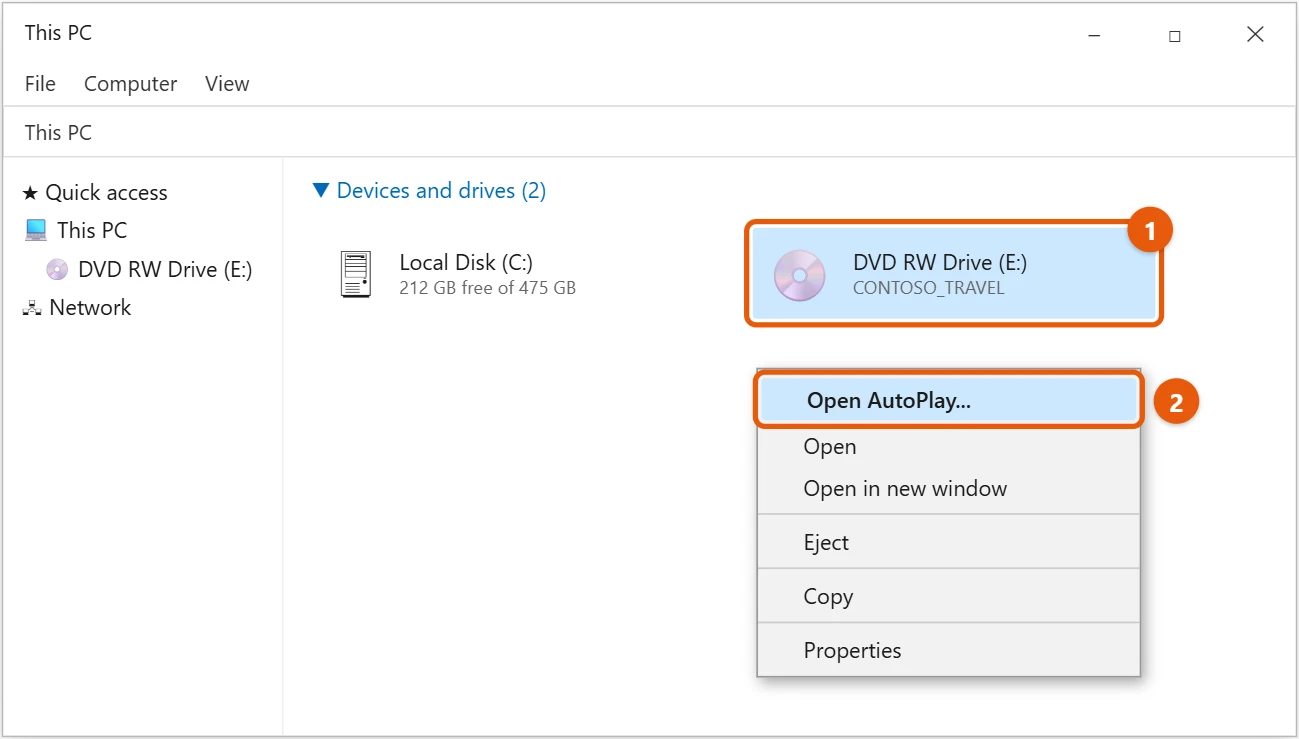
Now for the fun part, putting your DVD in the drive. Gently push the eject button on your drive to open the tray, place your DVD disc label-side up, then push the tray back in until it clicks. Your computer might automatically prompt you to do something with the disc, or it might just sit there waiting.
If Windows 10 doesn’t automatically open VLC or your preferred player, no biggie. Just open VLC Media Player manually, then go to “Media” in the top-left corner and select “Open Disc.” From there, you’ll see options for DVD, Blu-ray, etc. Make sure “DVD” is selected, and then click “Play.” Your movie should start playing right away.
After you complete these steps, your DVD will begin playing on your Windows 10 computer, allowing you to enjoy your movie or show on the big screen or wherever your PC is set up. You’ll have full control over playback, including pausing, fast-forwarding, and rewinding, just like you would with any other media player.
Tips for Watching DVDs on Windows 10
- Always download software from official websites to avoid viruses or malware. Free players like VLC are fantastic, but stick to their official site, videolan.org.
- Keep your DVD player software updated. Developers often release updates that improve performance, add new features, and fix security issues, so make sure you’re running the latest version.
- If you’re using an external DVD drive, make sure it’s connected to a stable USB port. Sometimes, front panel USB ports on desktops can be less reliable than those on the back.
- Ensure your DVD discs are clean and scratch-free. Even the best software can struggle with a dirty or damaged disc, leading to skipping or playback issues.
- Consider investing in a good pair of headphones or external speakers for a better audio experience. While your laptop speakers might be okay, a dedicated audio setup can really bring your movie to life.
- If you encounter problems, try restarting your computer. Sometimes a simple reboot can resolve minor software glitches or driver issues that might be preventing your DVD from playing correctly.
Frequently Asked Questions
Why doesn’t Windows 10 have a built-in DVD player?
Windows 10, unlike its predecessors, was designed in an era where physical media like DVDs were becoming less common, with streaming and digital downloads taking over. Microsoft decided to remove the built-in DVD playback feature to reduce the operating system’s size and complexity, figuring most users wouldn’t need it. This decision means you need to get third-party software to play DVDs.
Is VLC Media Player truly free and safe to use?
Yes, absolutely. VLC Media Player is an open-source project, meaning it’s developed and maintained by a community of volunteers and is completely free for everyone to use. It’s widely regarded as one of the safest and most versatile media players available, with millions of users worldwide trusting it. Just remember to download it from the official VideoLAN website.
What if my computer doesn’t recognize my external DVD drive?
First, try plugging the external drive into a different USB port on your computer. Sometimes a port might be faulty or not providing enough power. If it still doesn’t show up, try restarting your computer with the drive plugged in. You can also check your Device Manager in Windows to see if there are any driver issues listed under “DVD/CD-ROM drives.”
Can I play Blu-ray discs with a regular DVD drive and VLC?
Unfortunately, no. A standard DVD drive can only read DVDs and CDs. To play Blu-ray discs, you would need a special Blu-ray drive, which is different from a DVD drive, and compatible software that supports Blu-ray playback. While VLC can handle some Blu-ray content, full commercial Blu-ray disc support can be a bit more complicated due to copy protection.
Are there any paid DVD player apps for Windows 10?
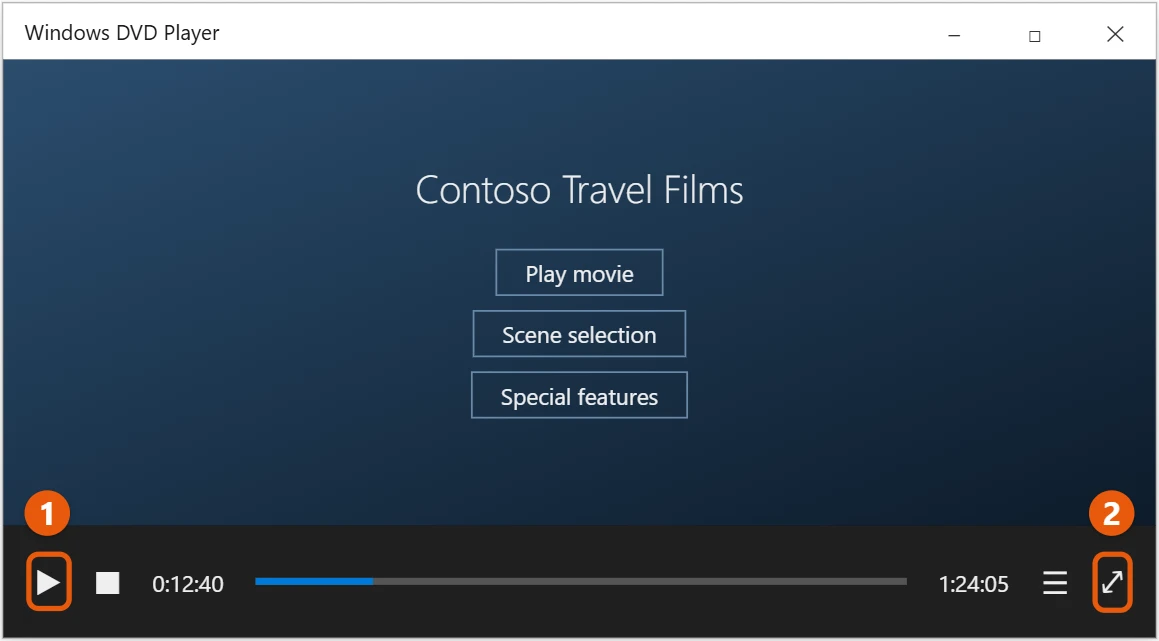
Yes, there are several paid options available in the Microsoft Store, or from other software developers, if you prefer a different experience. For example, Microsoft offers its own “Windows DVD Player” app for a small fee. Other popular choices include CyberLink PowerDVD or WinDVD. These often come with extra features and a polished interface, but VLC remains a solid free choice.
Summary
- Confirm your computer has a DVD drive.
- Connect your DVD drive.
- Install a DVD player software, like VLC.
- Insert DVD and play with the software.
Conclusion
So, there you have it, folks. Watching your beloved DVDs on Windows 10 isn’t some ancient mystery, it’s actually quite straightforward once you know the couple of steps involved. It really boils down to having the right hardware, meaning a DVD drive, and the right software, like a reliable player such as VLC Media Player. Don’t let anyone tell you that your physical media collection is obsolete, because with a little know-how, you can bring those movie nights back to life on your PC.
I know, it can feel a bit annoying that Windows 10 doesn’t just do this out of the box anymore, but think of it as a chance to customize your computer exactly how you like it. You get to choose the best, free software that suits your needs, rather than being stuck with whatever Microsoft decided to include. It’s like building your own home entertainment system, piece by piece, to perfection. Plus, external DVD drives are super affordable these days, so you won’t break the bank getting set up.
If you ever run into a snag, remember that communities like the VLC forums or a quick online search can often provide solutions. Technology is always changing, but the joy of watching a favorite film from your collection, without buffering or internet connection worries, remains timeless. So go ahead, dust off those classics, grab your snacks, and get ready to enjoy your movies just like the good old days. Knowing how to watch DVDs on Windows 10 truly empowers you to use your computer for more than just work or streaming. Happy watching, everyone!

Matt Jacobs has been working as an IT consultant for small businesses since receiving his Master’s degree in 2003. While he still does some consulting work, his primary focus now is on creating technology support content for SupportYourTech.com.
His work can be found on many websites and focuses on topics such as Microsoft Office, Apple devices, Android devices, Photoshop, and more.