Press Windows logo key + Shift + R, drag over the part of the screen you want to record, and select Start. Select Stop when you’re done, then save the video. This uses Snipping Tool, which comes with Windows 11. The same app also takes still images, as explained in how to clip your screen on a Windows 11 PC.
Applies to: Windows 11. Checked against Microsoft Support on September 29, 2026.
Record your screen with Snipping Tool
- Select Start, type
snipping tool, and open Snipping Tool. - Select Record (the video camera), then select New.
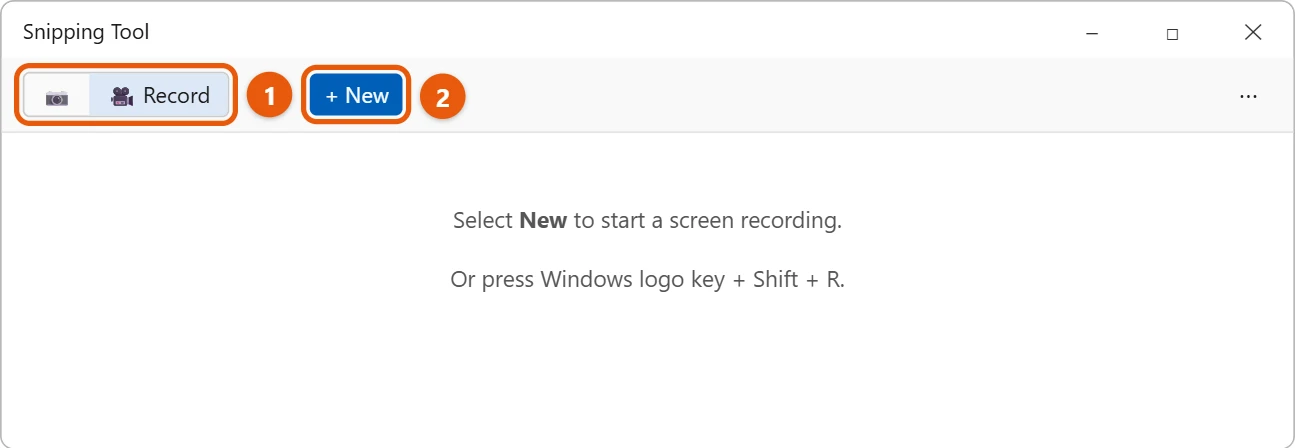
- Drag over the area you want to record. To record the whole screen, drag from one corner to the other.
- Select Start. A short countdown runs, then recording begins.
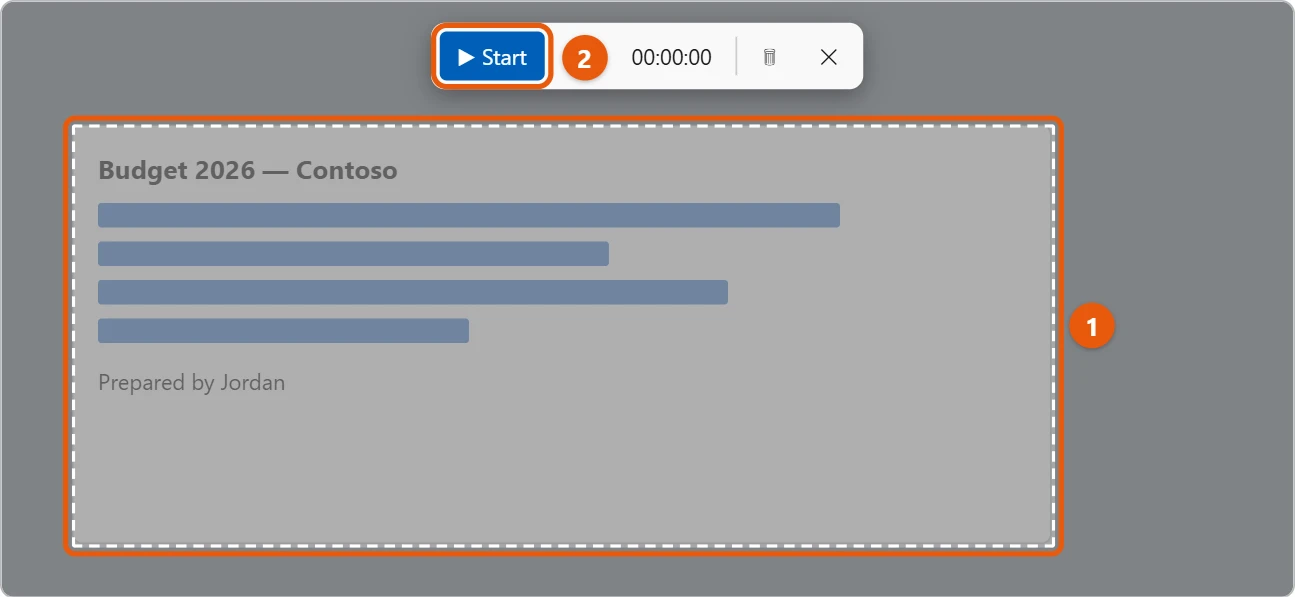
- Select Stop when you’re finished.
- The video opens in Snipping Tool. Select Save and choose a folder.
You can skip steps 1 and 2 by pressing Windows logo key + Shift + R.
Trim or add captions
After you stop recording, select Edit in Clipchamp to cut the start and end, or to add captions. Clipchamp is Microsoft’s video editor.
Record an app or game with Game Bar
Game Bar also comes with Windows 11. It records the app or game you’re using, not the whole desktop. For sound-only or webcam recordings, see how to record screen, audio, or video in Windows 11.
- Open the app you want to record.
- Press Windows logo key + Alt + R to start recording. Press it again to stop.
Game Bar saves recordings in Videos > Captures. It can’t record the desktop or File Explorer, so use Snipping Tool for those.
Other ways to record without extra software
- PowerPoint: if you have Microsoft 365, open PowerPoint and select Insert > Screen Recording. Pick an area, record, and the video drops onto a slide. Right-click it and select Save Media as to keep it as a separate file.
- Clipchamp: open Clipchamp from Start, create a new video, and select Record & create > Screen. It can record your screen and webcam together, which Snipping Tool can’t.
Tips for a clean recording
- Close apps and notifications you don’t want in the video.
- With two screens, record only the one you need. For help, see how to set up multiple monitors in Windows 11.
- For a still picture instead of a video, see how to take a screenshot in Windows 11.
Record with sound
Snipping Tool can record your voice and the sound your PC plays. After you select New and pick an area, look at the toolbar at the top before you select Start:
- Microphone records your voice, which is useful for tutorials. Select the arrow next to it to choose which mic to use.
- System audio records sounds from apps, such as a video or a call.
Turn each one on or off as needed. If the buttons are missing, update Snipping Tool from Microsoft Store.
Where recordings are saved
Snipping Tool saves recordings automatically as MP4 files in Videos > Screen Recordings. Use Save if you want a copy somewhere else. Game Bar uses a different folder, Videos > Captures.
Troubleshooting screen recording
- The recording has no sound. Make sure the microphone or system audio button was on before you selected Start. Check that the right microphone is picked and that Windows can use it under Settings > Privacy & security > Microphone.
- Windows + Shift + R does nothing. Update Snipping Tool in Microsoft Store and restart the PC. Some keyboard apps can take over the shortcut, so close them and try again.
- Game Bar won’t open. Go to Settings > Gaming > Xbox Game Bar and make sure the shortcut is turned on.
- The video is black. Some streaming apps block recording to protect their content. This is expected and can’t be turned off.
- The recording is choppy. Record a smaller area, close other apps, and plug in a laptop so it doesn’t slow down to save battery.
Frequently asked questions
Can I record just one window?
Yes. After you select New, drag over only that window.
Why can’t I see the Record button?
Update Snipping Tool from Microsoft Store. Open Microsoft Store, select Library, then Get updates.
Is there a time limit on recordings?
Microsoft doesn’t list one for Snipping Tool, but long recordings make large files. Game Bar has a maximum recording length you can set under Settings > Gaming > Captures.
Can I record my webcam at the same time?
Not in Snipping Tool. Use Clipchamp, which can record your screen and webcam together, or a free app such as OBS Studio.
Microsoft’s reference is Use Snipping Tool to capture screenshots. More help is on our Windows Help & Guides page.

Matt Jacobs has been working as an IT consultant for small businesses since receiving his Master’s degree in 2003. While he still does some consulting work, his primary focus now is on creating technology support content for SupportYourTech.com.
His work can be found on many websites and focuses on topics such as Microsoft Office, Apple devices, Android devices, Photoshop, and more.