To rename multiple files at once in Windows 11, open the folder in File Explorer, select the files, and press F2 (or right-click and select the Rename icon). Type a new name and press Enter. Windows gives every selected file that name followed by a number, such as Lisbon trip (1).jpg, Lisbon trip (2).jpg and so on. To replace text, add a prefix or number files your own way, use Microsoft’s free PowerToys PowerRename tool or a one-line PowerShell command that you preview with -WhatIf first.
Applies to: Windows 11, versions 24H2 and 25H2 (the steps are the same in earlier Windows 11 versions), Microsoft PowerToys, and Windows PowerShell 5.1 or PowerShell 7. PowerRename details follow Microsoft’s PowerRename documentation.
Which method should you use?
All four methods are free and made by Microsoft. They differ in how much control you get and whether you can see the result before anything changes.
| What you want to do | Best method | Preview? | Undo? |
|---|---|---|---|
| Give a group of files the same name plus a number, like Lisbon trip (1) | File Explorer | No | Yes, Ctrl+Z |
| Replace or remove a word in many names, add a prefix, number files as 001, 002, change letter case | PowerToys PowerRename | Yes, live preview | Yes, Ctrl+Z in File Explorer |
| Rename hundreds of files by a rule, sort by date first, include subfolders, or rename from a list | PowerShell | Yes, with -WhatIf |
No |
| Change one extension to another for a whole folder, such as .jpeg to .jpg | Command Prompt (ren) |
No | No |
If you only do this once in a while, start with File Explorer. If you need anything more than “same name plus a number,” PowerRename is the easiest tool that still shows you every new name before it’s applied.
Before you start
A batch rename changes many files in one go, so a minute of preparation saves a lot of cleanup.
- Try it on copies first. Copy five or six files into a new test folder and practice there. This matters most for PowerShell and Command Prompt, which have no undo.
- Turn on file name extensions. In File Explorer, select View > Show > File name extensions. Seeing .jpg or .pdf at the end of each name makes it obvious if a rename is about to change the extension. There’s a walkthrough with a picture in showing file extensions in Windows 11.
- Close the files. Windows can’t rename a file that’s open in another app, such as a document open in Word or a video that’s playing.
- Sort the folder the way you want it numbered. File Explorer numbers files in the order they’re shown, so sort by Name, Date modified or another column before you start.
- Know that renaming doesn’t change what’s inside. A rename only changes the label on the file. Changing .png to .jpg does not convert the picture. Converting the format is a different job; changing a file extension in Windows 11 explains when to use Save as instead.
- Avoid characters Windows doesn’t allow. File names can’t contain
\ / : * ? " < > |.
Method 1: Rename files with File Explorer
This is built into Windows 11 and needs nothing extra. It’s the fastest way to turn names like IMG_4102.jpg into something readable.
- Press Windows logo key + E to open File Explorer, then open the folder that holds your files.
- Select Sort on the command bar and choose the order you want the numbers to follow, for example Name or Date modified. Choosing View > Details makes the order easy to check.
- Select the files. Press Ctrl+A to select everything in the folder, hold Ctrl and click to pick individual files, or click the first file, hold Shift and click the last one to select a range.
- Press F2. You can also select the Rename button on the command bar, or right-click the first selected file and select the Rename icon at the top of the menu (hover over the icons to see their names). One file name turns into an edit box, and the rest of your selection stays highlighted.
- Type the new name, such as Lisbon trip. If extensions are showing, Windows highlights only the part before the dot, so you don’t need to retype .jpg.

Select the files, then press F2 or select Rename (1). Type the new name in the box (2) and press Enter. - Press Enter. Every selected file gets the new name plus a number in parentheses: Lisbon trip (1).jpg, Lisbon trip (2).jpg, Lisbon trip (3).jpg, and so on. Each file keeps its own extension, so a mix of .jpg and .mp4 files stays a mix.


If the result isn’t what you wanted, press Ctrl+Z right away to put the old names back. The undo section below covers the other methods.
Give each file a different name quickly
When every file needs its own name, use the Tab key instead of the mouse:
- Select the first file and press F2.
- Type its new name, then press Tab instead of Enter. Windows saves the name and opens the next file in the list for editing.
- Keep typing and pressing Tab. Press Shift+Tab to go back one file, and press Enter on the last one to finish.
What File Explorer can’t do
File Explorer always uses the same pattern: one base name, a space, and a number in parentheses. It can’t replace part of a name, keep the original numbers, use leading zeros (001), put the number somewhere else, or show a preview. For any of those, use PowerRename or PowerShell.
Method 2: Use PowerToys PowerRename
PowerRename is part of Microsoft PowerToys, a free set of utilities made by Microsoft. It adds a Rename with PowerRename command to File Explorer and shows a preview of every new name before you apply anything.
Install PowerToys
PowerToys runs on Windows 11 and on Windows 10 version 2004 or later, on x64 or Arm64 PCs. Pick one way to install it:
- Microsoft Store: open the Microsoft Store app, search for PowerToys, and select Get or Install. Make sure the publisher is Microsoft Corporation.
- Command line: open Terminal and run
winget install --id Microsoft.PowerToys --source winget. - GitHub: download the installer from the official PowerToys releases page. Microsoft’s PowerToys installation guide links to it and explains the per-user and machine-wide versions.
After installing, open PowerToys from the Start menu, select PowerRename in the left pane, and make sure the switch at the top of the page is turned on. If it’s off, the Rename with PowerRename command doesn’t appear in File Explorer.
Rename files with PowerRename
- In File Explorer, select the files you want to rename. You can include folders too.
- Right-click the selection and select Rename with PowerRename. If you don’t see it, select Show more options first, or check the troubleshooting tips below. The PowerRename window opens with your files listed on the right.
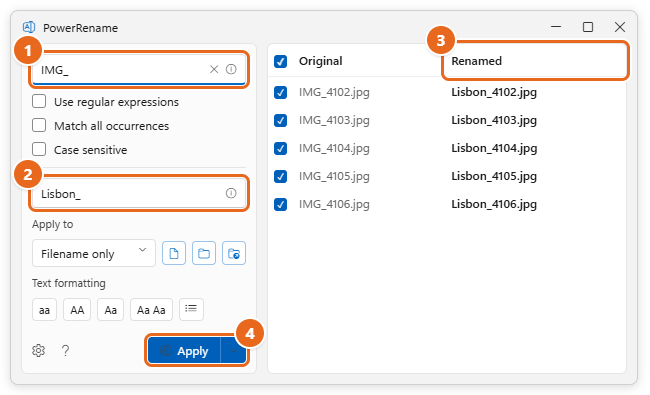
- In the Search for box, type the text you want to find, such as
IMG_. - In the Replace with box, type what should take its place, such as
Lisbon_. Leave it empty to delete the search text. - Check the preview. The Original column shows the current names, and the Renamed column shows the new ones. Clear the check box next to any file you want to leave alone.

Type the text to find (1) and its replacement (2), check the new names in the Renamed column (3), then select Apply (4). - Select Apply. PowerRename renames the files that show a new name in the preview and leaves the rest alone.
PowerRename options explained
| Option | What it does |
|---|---|
| Use regular expressions | Treats the search text as a pattern instead of plain text. Needed for the prefix, numbering and reorder examples below. |
| Match all occurrences | Replaces every match in a name. Without it, only the first match in each name changes. For draft-report-draft.docx, searching for draft replaces one or both words depending on this setting. |
| Case sensitive | Matches only text with the same capital letters. Matching ignores case by default. |
| Apply to | Choose Filename only to protect extensions, Extension only to change only the part after the dot, or both. |
| Include files, folders, subfolders | Three buttons next to Apply to. Turn one off to skip files, skip folders, or skip the contents of selected folders. |
| Text formatting | Buttons that change names to all lowercase, ALL UPPERCASE, title case (only the first letter capitalized), or Capitalize Every Word. |
| Enumerate items | Lets you use a counter such as ${} in the Replace with box (see below). |
Useful PowerRename recipes
These examples use a sample folder of vacation photos named IMG_4102.jpg, IMG_4103.jpg and so on. Set Apply to to Filename only for all of them so the extensions stay as they are.
- Remove a word: Search for
Copy of(with the trailing space) and leave Replace with empty. Copy of budget.xlsx becomes budget.xlsx. - Add a prefix to every file: check Use regular expressions, search for
^(which means “the start of the name”), and replace withLisbon_. IMG_4102.jpg becomes Lisbon_IMG_4102.jpg. - Add a suffix: with regular expressions on, search for
$(“the end of the name”) and replace with_edited. Because Apply to is set to Filename only, the suffix goes before the extension: IMG_4102_edited.jpg. - Number files with leading zeros: check Use regular expressions, search for
.+(the whole name), turn on Enumerate items, and replace withLisbon-${padding=3;start=1}. The files become Lisbon-001.jpg, Lisbon-002.jpg and so on. Withoutstart=1, the counter starts at 0. Check the preview to confirm the order before you apply. - Swap parts of a name: with regular expressions and Match all occurrences on, search for
(\d{2})-(\d{2})-(\d{4})and replace with$3-$2-$1. A name containing 14-05-2026 changes to 2026-05-14, which sorts correctly by date. - Use the file’s date: search for
IMGand replace with$YYYY-$MM-$DD. IMG_4102.jpg becomes something like 2026-05-14_4102.jpg. This uses the date the file was created on your PC, which can be the date you copied it rather than the date a photo was taken. Recent PowerRename versions can also read photo metadata (EXIF), such as$DATE_TAKEN_YYYY. The PowerRename documentation lists every supported pattern.
Regular expressions are a mini-language for matching text. You don’t need to learn it to use the recipes above, but if you write your own, test the pattern on a small selection and read the preview carefully.
Method 3: Rename files with PowerShell
PowerShell is built into Windows 11 and can rename thousands of files by any rule you can describe. The trade-off is that there’s no undo, so every command below includes -WhatIf. With -WhatIf, PowerShell prints what it would do and changes nothing. You remove it only after the preview looks right.
Open PowerShell in the right folder
- Open the folder in File Explorer.
- Right-click an empty area of the folder (not a file) and select Open in Terminal. Terminal opens with the folder already selected. You can also click the address bar, type
powershell, and press Enter. - Check the prompt. It should start with PS and end with your folder, for example
PS C:\Users\Jordan\Pictures\Lisbon>. If it doesn’t start with PS, you’re in Command Prompt. Open a new tab with the down arrow in the Terminal title bar and choose Windows PowerShell. - Type
Get-ChildItem -Fileand press Enter to list the files. Make sure these are the files you expect.
You don’t need to run PowerShell as an administrator to rename your own files, and typed commands like these aren’t affected by the script execution policy.
Preview the rename with -WhatIf
This command replaces IMG_ with Lisbon_ in every file name that starts with IMG_:
(Get-ChildItem -File -Filter 'IMG_*') | Rename-Item -NewName { $_.Name -replace 'IMG_', 'Lisbon_' } -WhatIf
Here’s what each part does:
Get-ChildItem -File -Filter 'IMG_*'lists only files whose names start with IMG_. The parentheses around it make PowerShell finish the whole list before renaming starts, so a file that was just renamed can’t be picked up and renamed a second time.- The
|(pipe) passes each file to the next command. Rename-Item -NewName { ... }works out a new name for each file.$_.Nameis the file’s current name.-replace 'IMG_', 'Lisbon_'swaps the old text for the new text. It ignores capital letters by default.-WhatIfshows the result without renaming anything.
PowerShell answers with one line per file that starts with What if: Performing the operation “Rename File” and lists the current name and the new name (the Destination).

Run it for real
If every Destination looks right, press the Up arrow key to bring the command back, delete -WhatIf from the end, and press Enter. PowerShell renames the files without showing any message. Run Get-ChildItem -File again to see the new names.
More PowerShell recipes
Each recipe is shown with -WhatIf. Run it as shown, check the output, then run it again without -WhatIf.
Add a prefix to every JPG file:
(Get-ChildItem -File -Filter '*.jpg') | Rename-Item -NewName { 'Lisbon_' + $_.Name } -WhatIf
Replace spaces with hyphens (the filter '* *' picks only names that contain a space):
(Get-ChildItem -File -Filter '* *') | Rename-Item -NewName { $_.Name -replace ' ', '-' } -WhatIf
Change the extension of every .jpeg file to .jpg:
(Get-ChildItem -File -Filter '*.jpeg') | Rename-Item -NewName { $_.BaseName + '.jpg' } -WhatIf
$_.BaseName is the name without the extension, so beach.jpeg becomes beach.jpg.
Number files in date order with leading zeros:
$i = 1; Get-ChildItem -File -Filter '*.jpg' | Sort-Object LastWriteTime | ForEach-Object { Rename-Item -LiteralPath $_.FullName -NewName ('Lisbon-{0:D3}{1}' -f $i, $_.Extension) -WhatIf; $i++ }
This sorts the photos from oldest to newest by the date they were last modified, then names them Lisbon-001.jpg, Lisbon-002.jpg and so on. {0:D3} pads the number to three digits; use D4 for 0001. The command starts with $i = 1, so when you run it again without -WhatIf, the count starts over at 1. If any file in the folder is already called something like Lisbon-001.jpg, that rename fails, so use a base name that isn’t already in use.
Include files in subfolders: add -Recurse after Get-ChildItem, for example (Get-ChildItem -File -Recurse -Filter 'IMG_*'). Preview carefully, because this reaches every folder inside the current one.
Rename from a list: if you already know the new names, put them in a CSV file (you can make one in Excel or Notepad) with two columns:
OldName,NewNamescan001.pdf,Lease agreement.pdfscan002.pdf,Car insurance 2026.pdf
Save it as rename-list.csv in the same folder, then run:
Import-Csv '.\rename-list.csv' | ForEach-Object { Rename-Item -LiteralPath $_.OldName -NewName $_.NewName -WhatIf }
Each row renames exactly one file, so the order of the files in the folder doesn’t matter. Rows with a misspelled old name show an error and are skipped.
PowerShell tips that prevent mistakes
- Some characters have special meaning in -replace. The search text is a regular expression, so a dot means “any character,” and characters like
( ) [ ] + ?also have special meanings. Put a backslash in front of them to match them literally, for example-replace ' \(1\)', ''to remove (1) and the space before it. - Keep the parentheses around Get-ChildItem. Without them, a command that adds a prefix can occasionally rename the same file twice (for example Lisbon_Lisbon_IMG_4102.jpg), because the renamed file still matches the list being read. The
-WhatIfpreview won’t show this, so the parentheses are your protection. - Use -Filter to pick only the files that need changing. If a new name ends up identical to the old one, Windows PowerShell can show a “Source and destination path must be different” error for that file. The error is harmless, but filtering keeps the output clean.
- Don’t type
renin PowerShell expecting Command Prompt behavior. In PowerShell,renis a short name forRename-Item, which doesn’t accept wildcards in the new name, soren *.jpeg *.jpgfails there. Use the PowerShell recipe above or switch to Command Prompt.
Method 4: Change extensions with Command Prompt
The ren command (short for rename) is the oldest way to rename files in bulk. It’s reliable for one job: changing every file with one extension to another extension.
- Open the folder in File Explorer, click the address bar, type
cmd, and press Enter. Command Prompt opens in that folder. The prompt shows the folder path, such asC:\Users\Jordan\Pictures\Lisbon>. - Type
dir *.jpegand press Enter to list the files that the next command will rename. - Type
ren *.jpeg *.jpgand press Enter. Every .jpeg file in the folder now ends in .jpg. The same pattern works for other types, such asren *.txt *.doc.
If a file with the new name already exists, Command Prompt shows A duplicate file name exists, or the file cannot be found for that file and leaves it unchanged.
Why not use ren for prefixes or other changes? The wildcards in ren work by character position, not by pattern. A command such as ren *.jpg trip_*.jpg doesn’t add “trip_” in front of each name. It overwrites the first five characters of each name instead, and the results vary with the length of the original names. Use PowerRename or PowerShell for anything beyond an extension swap. Command Prompt also has no preview and no undo.
How to undo a batch rename
- File Explorer and PowerRename: go back to the folder in File Explorer and press Ctrl+Z right away, before you rename, move or delete anything else. File Explorer’s Undo Rename also reverses a PowerRename batch. If only some names change back, press Ctrl+Z again.
- PowerShell and Command Prompt: there’s no undo. You’d have to run another rename that reverses the change, for example swapping Lisbon_ back to IMG_. That’s why the
-WhatIfpreview and a test folder matter.
Troubleshooting
“The action can’t be completed because the file is open”
Close the file in whatever app is using it, such as Word, Photos or a media player, then try again. If you’re not sure which app has it open, restarting the PC releases it. PowerToys also includes File Locksmith, which shows which program is using a file.
Rename with PowerRename isn’t in the right-click menu
- Open PowerToys, select PowerRename, and make sure it’s turned on.
- On the same page, check where PowerRename is set to appear. It can be set to show only in the extended menu, which you reach with Show more options (or by holding Shift while you right-click).
- Restart File Explorer or sign out and back in after installing or updating PowerToys.
The numbers are in the wrong order
File Explorer follows the sort order of the folder at the moment you rename. Press Ctrl+Z, sort the folder by the column you want (Name, Date modified or Type), and rename again. In PowerShell, add Sort-Object as shown in the numbering recipe.
The extension disappeared or changed
If extensions were hidden, or you typed over the whole name, a file can lose its extension and stop opening in the right app. Press Ctrl+Z if you can. Otherwise, turn on file name extensions and add the correct one back, such as .jpg. In PowerRename, set Apply to to Filename only to avoid this.
“Cannot create a file when that file already exists”
PowerShell shows this when the new name is already taken in that folder. Two files can’t share a name. Choose a different base name, or include a counter so each new name is unique.
Rename fails for files in deep folders
Windows normally limits a full path (folders plus file name) to 260 characters. Long new names inside many nested folders can hit that limit. Use shorter names or move the files to a folder closer to the top of the drive first.
Renaming in a synced folder is slow
Renaming hundreds of files in OneDrive or another synced folder makes each one sync again. That’s normal. Let syncing finish before you open the files on another device.
FAQ
What’s the keyboard shortcut to rename files in Windows 11?
Select one or more files and press F2. Type the name and press Enter, or press Tab to move to the next file.
Can I rename multiple folders at once?
Yes. File Explorer’s F2 method works on a selection of folders the same way it works on files, and PowerRename has an option to include or skip folders. In PowerShell, use Get-ChildItem -Directory instead of -File.
Can File Explorer number files without the parentheses?
No. File Explorer always adds a space and a number in parentheses. To get names like Lisbon-001, use the PowerRename numbering recipe or the PowerShell numbering command.
Is PowerToys safe and free?
Yes. PowerToys is made by Microsoft, is free, and is open source. Get it from the Microsoft Store, WinGet, or Microsoft’s official GitHub page rather than from download sites.
Does renaming a file change its contents or break links to it?
Renaming never changes what’s inside a file. However, shortcuts, playlists, or documents that point to the old name, such as a linked Excel workbook, may not find the file until you update them.
Does this work in Windows 10?
Yes. The F2 method, PowerRename, PowerShell and Command Prompt all work in Windows 10. The main difference is the menu: in Windows 10, Rename is on the Home tab of the ribbon, and PowerRename appears in the standard right-click menu.
Next step
Try the method you picked on a small test folder first. Once the names come out the way you want, run the same steps on the real folder, and keep PowerRename installed for the next time a camera or scanner hands you a pile of meaningless file names.

Matt Jacobs has been working as an IT consultant for small businesses since receiving his Master’s degree in 2003. While he still does some consulting work, his primary focus now is on creating technology support content for SupportYourTech.com.
His work can be found on many websites and focuses on topics such as Microsoft Office, Apple devices, Android devices, Photoshop, and more.