To zoom out in Windows 10, press Ctrl + minus (-) in a browser or most apps, or hold Ctrl and scroll the mouse wheel down. Press Ctrl + 0 to go back to 100%. If the whole screen is zoomed in, Magnifier is probably on: press Windows logo key + minus (-) to zoom out, or Windows logo key + Esc to turn Magnifier off.
Applies to: Windows 10. Windows 10 reached end of support on October 14, 2025, and only PCs enrolled in Extended Security Updates still get security fixes, through October 12, 2027.
Zoom in and out in apps and browsers
- Zoom in: Ctrl + plus (+), or hold Ctrl and scroll up.
- Zoom out: Ctrl + minus (-), or hold Ctrl and scroll down.
- Reset to 100%: Ctrl + 0.
These work in Microsoft Edge and other browsers, File Explorer, and most Office apps. Each app remembers its own zoom level.
Zoom in other places
- Word, Excel and PowerPoint: drag the zoom slider in the bottom-right corner, or select View > Zoom. For Excel’s other options, such as Zoom to Selection and per-sheet zoom, see how to change the zoom level in Excel.
- File Explorer and the desktop: hold Ctrl and scroll to make icons bigger or smaller.
- Touchpad or touch screen: pinch with two fingers to zoom in browsers, photos and maps.
- Every web page in Edge: go to Settings > Appearance and change Page zoom to set the default for all sites.
Zoom the whole screen with Magnifier
Magnifier enlarges everything on the screen, not just one app. Apple Watch has a similar whole-screen magnifier called Zoom, and you can zoom out or turn off Zoom on Apple Watch with a two-finger double-tap or a quick settings change.
- Press Windows logo key + plus (+) to turn Magnifier on and zoom in.
- Press Windows logo key + minus (-) to zoom out.
- Press Windows logo key + Esc to turn Magnifier off.
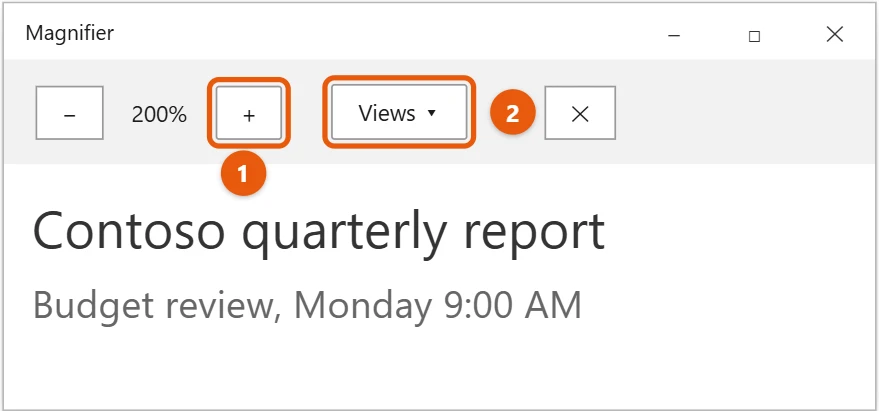
When Magnifier is on, its toolbar lets you zoom with the plus and minus buttons and pick a view: Full screen, Lens, or Docked.
Change Magnifier settings
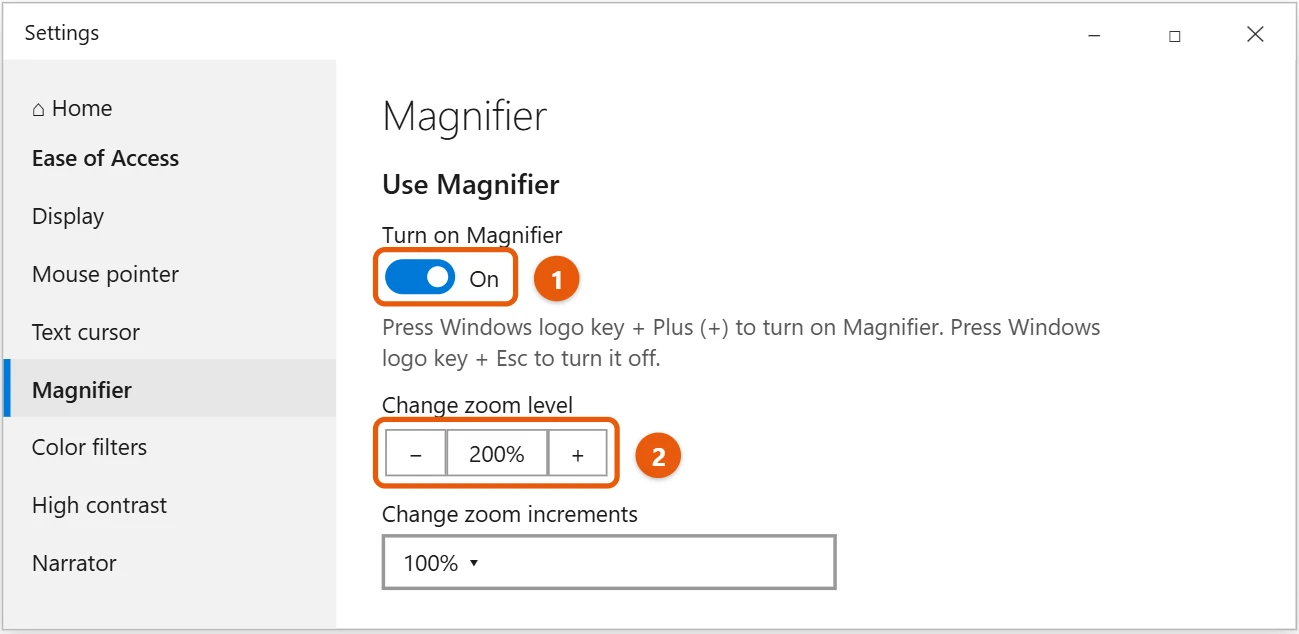
- Select Start > Settings > Ease of Access > Magnifier.
- Use Turn on Magnifier to switch it on or off.
- Use Change zoom level to set how far it zooms, and Change zoom increments to set how much each step changes.
To stop Magnifier from starting on its own, clear Start Magnifier after sign-in and Start Magnifier before sign-in for everyone on the same page.
Magnifier shortcuts
- Ctrl + Alt + F: full-screen view
- Ctrl + Alt + L: lens view, which follows the pointer
- Ctrl + Alt + D: docked view at the top of the screen
- Ctrl + Alt + mouse wheel: zoom in and out
Make everything smaller or bigger for good
If text and apps always look too large or too small, change the display scale instead of zooming. Select Start > Settings > System > Display and choose a size under Scale and layout.
If zooming doesn’t behave
- Ctrl + minus does nothing: the app may not support zoom. Look for a zoom option in its View menu.
- A website keeps its own zoom: browsers remember zoom for each site. Press Ctrl + 0 on that site to reset it.
- Pages zoom by accident: touchpad pinching can trigger it. Turn off Pinch to zoom in Settings > Devices > Touchpad.
Frequently asked questions
My screen suddenly zoomed in. How do I fix it?
Press Windows logo key + Esc to close Magnifier. If only a browser page is zoomed, press Ctrl + 0.
How do I make only the text bigger?
Zoom enlarges everything, so for text alone, increase the font size in Windows 10 instead.
The screen is still too big after zooming out. What else can I try?
Try reducing the screen size in Windows 10, or check that the display is set to the right resolution in Windows 10.
Can I zoom with just the keyboard?
Yes. Ctrl + plus and Ctrl + minus work in most apps, and Windows logo key + plus starts Magnifier for the whole screen. On some keyboards, use the plus and minus keys on the number pad.
Does zooming change my screen resolution?
No. Zoom only makes things look bigger for now. The resolution and scale in Display settings stay the same. Change those only if everything always looks too big or too small.
More Magnifier options are explained in Use Magnifier to make things on the screen easier to see.

Matt Jacobs writes and maintains the guides on Support Your Tech, which he started in 2017. He spent most of his career keeping small-business PCs running and still takes the occasional consulting job, so the steps here come from fixing the same problems on other people’s computers. Every guide is checked on his own Windows 11, Windows 10, Mac, iPhone and iPad before it goes up.