To merge a first name and last name in Excel, click an empty cell next to the first name, type =A2&" "&B2 (first names in column A, last names in column B), press Enter, then double-click the fill handle to copy the formula down the list. “Alex” and “Rivera” become “Alex Rivera”. If you’d rather not use a formula, type one full name by hand and press Ctrl + E to let Flash Fill do the rest.
Applies to: Excel for Microsoft 365 (Windows and Mac), Excel 2024, Excel 2021, Excel 2019 and Excel for the web. The ampersand formula also works in Excel 2016 and older. The basic steps match Microsoft’s page on combining first and last names.
Before you start
- Check the layout. The examples below assume a header row in row 1, first names in column A and last names in column B, starting in row 2. If your names sit in other columns, swap in those letters.
- Pick an empty output column. Use the first blank column to the right of your data and give it a header such as Full Name. A formula typed into a cell that already holds text replaces that text.
- Know two terms. The ampersand (
&) is Excel’s “join” operator. The fill handle is the small square at the bottom-right corner of the selected cell; dragging or double-clicking it copies a formula down the column.
Method 1: Join the names with an ampersand formula
This works in every version of Excel, and the results update when someone corrects a name.
- Click cell C2 (the first empty cell in your Full Name column).
- Type
=A2&" "&B2. The" "part is a space inside double quotation marks. Without it, Excel glues the names together as “AlexRivera”. - Press Enter. C2 now shows the full name, for example Alex Rivera, while the formula bar still shows the formula.
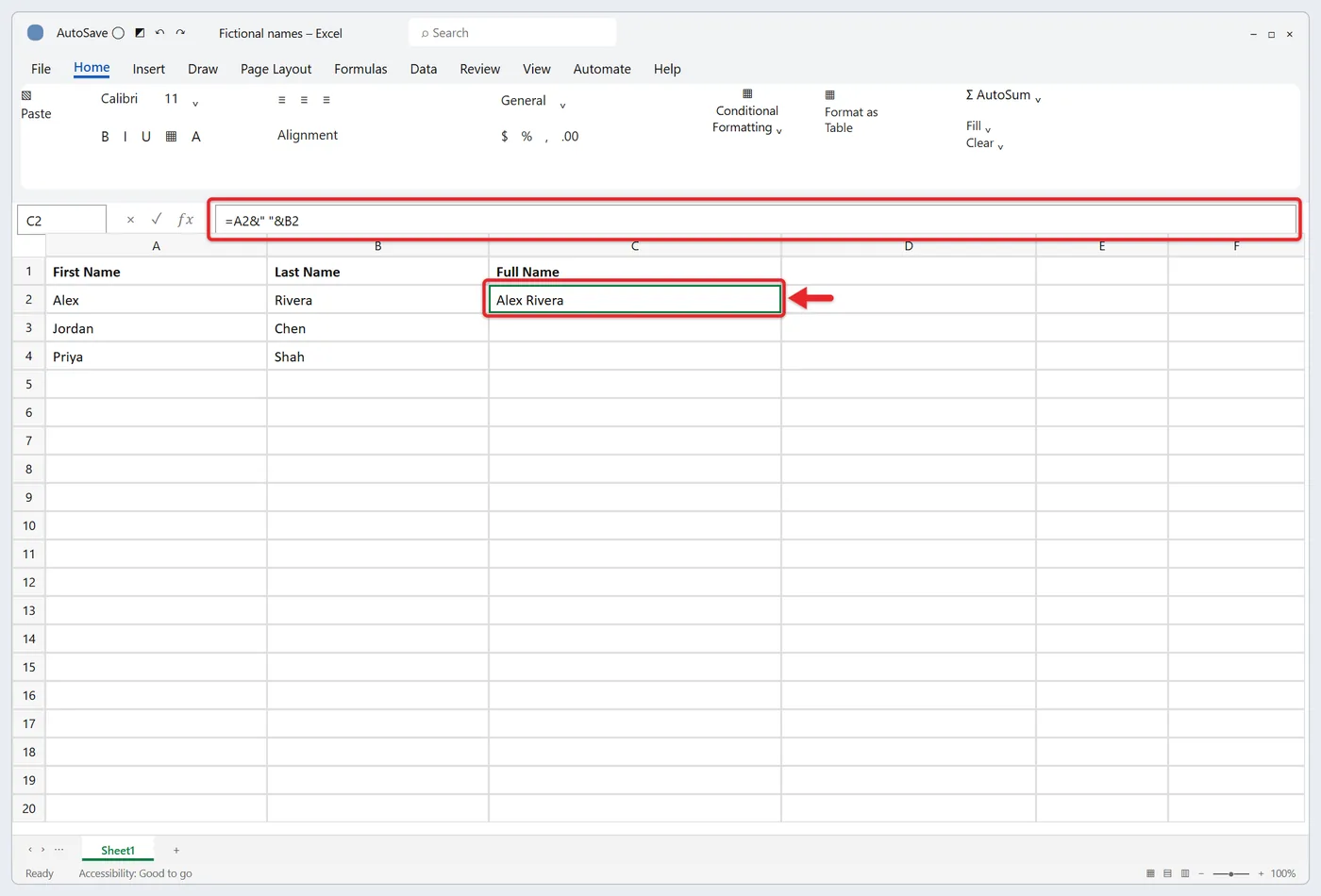
- Click C2 again and double-click the fill handle. Excel copies the formula down to the last row of your data, adjusting the row numbers as it goes (row 3 uses A3 and B3, and so on). If the column has gaps, drag the fill handle down instead.
- Check a few rows: Jordan and Chen in row 3 should show Jordan Chen.
Tip: if your list is formatted as an Excel table (Insert > Table), entering the formula in the first row fills the whole column automatically, and new rows you add later get the formula too. For more on that, see building a table with multiple columns and rows.
Method 2: Use the CONCAT function
- In C2, type
=CONCAT(A2," ",B2)and press Enter. - Copy it down with the fill handle. The result is identical to Method 1: Alex Rivera.
CONCAT is available in Excel 2019 and later and in Microsoft 365. It replaced the older CONCATENATE function, which still works for compatibility, so =CONCATENATE(A2," ",B2) is the one to use in an older copy of Excel. One thing to avoid: =CONCAT(A2:B2) accepts a range, but it has no separator, so it returns “AlexRivera”. The CONCAT function reference lists the details, and this walkthrough of concatenating in Excel has more examples beyond names.
Method 3: Let Flash Fill do it without a formula
Flash Fill copies a pattern you type once, which makes it the quickest route for a one-time list.
- In C2, type the first full name exactly the way you want it, such as Alex Rivera, and press Enter.
- In C3, start typing the next name. Excel shows a gray preview of the rest of the column; press Enter to accept it.
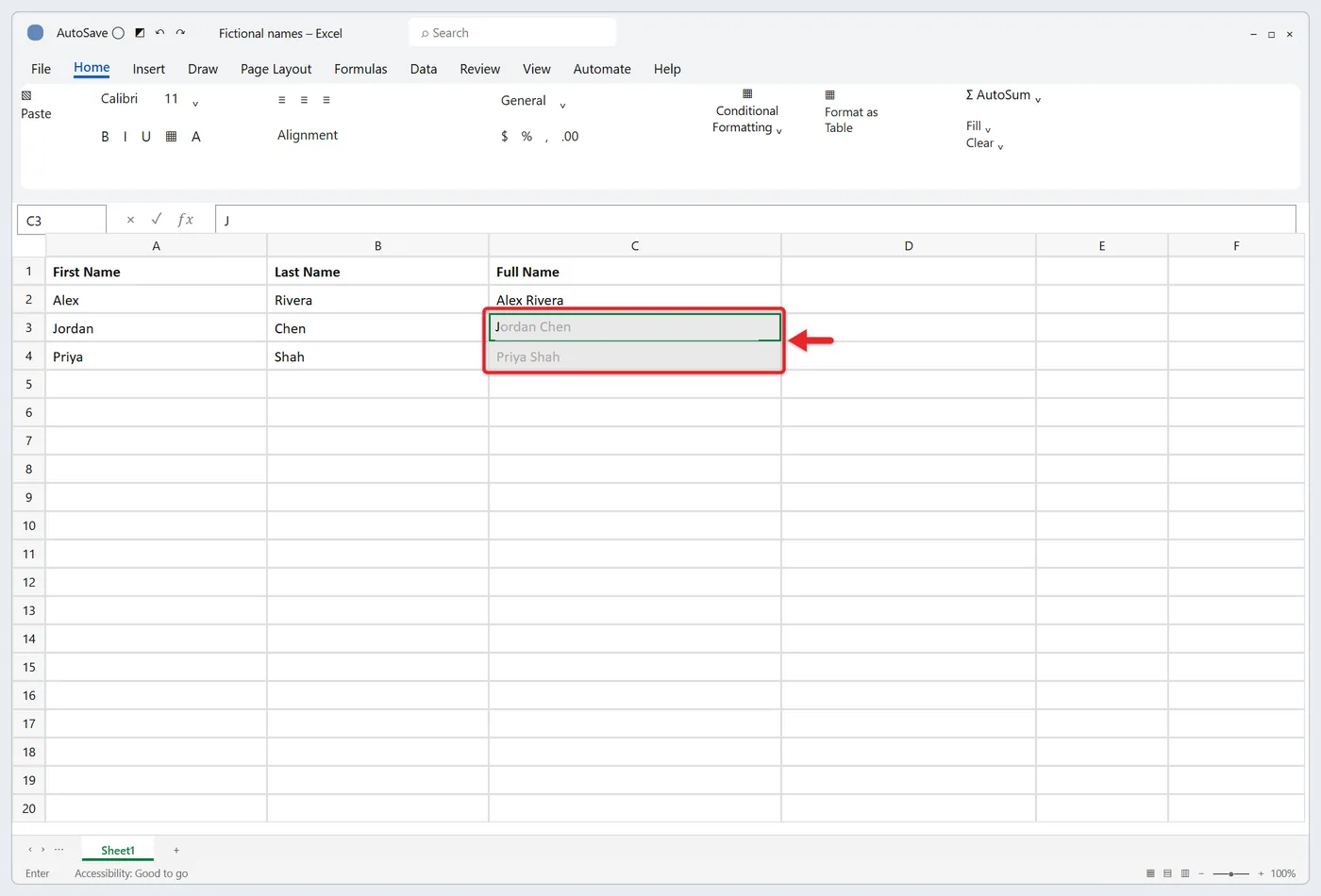
- If no preview appears, click C3 and press Ctrl + E, or select Data > Flash Fill.
Flash Fill follows whatever pattern you show it, including commas, initials and capitalization, so typing Rivera, Alex in the first cell produces “Last, First” for the whole list. Check rows with middle names, two-word surnames or blanks, because Flash Fill can guess the pattern wrong. If it does, type a second correct example and run it again.
The results are plain text, not formulas. That means they won’t change if a source name is corrected later, but it also means you can delete the original columns safely. Steps for turning the feature on are on Microsoft’s Flash Fill page.
Method 4: TEXTJOIN for first, middle and last names
When some people have a middle name and some don’t, a simple formula leaves a double space where the missing middle name should be. TEXTJOIN fixes that because it can skip empty cells.
For this example the layout changes to first name in A, middle name in B and last name in C, with the result in D:
| First (A) | Middle (B) | Last (C) | =TEXTJOIN(" ",TRUE,A2:C2) |
|---|---|---|---|
| Alex | James | Rivera | Alex James Rivera |
| Jordan | (blank) | Chen | Jordan Chen |
| Priya | K. | Shah | Priya K. Shah |
The first argument is the separator (a space), TRUE tells Excel to ignore empty cells, and A2:C2 is the range to join, read left to right. Change TRUE to FALSE and Jordan’s row becomes “Jordan Chen” with two spaces. TEXTJOIN needs Excel 2019 or later, Microsoft 365 or Excel for the web, according to the TEXTJOIN function reference.
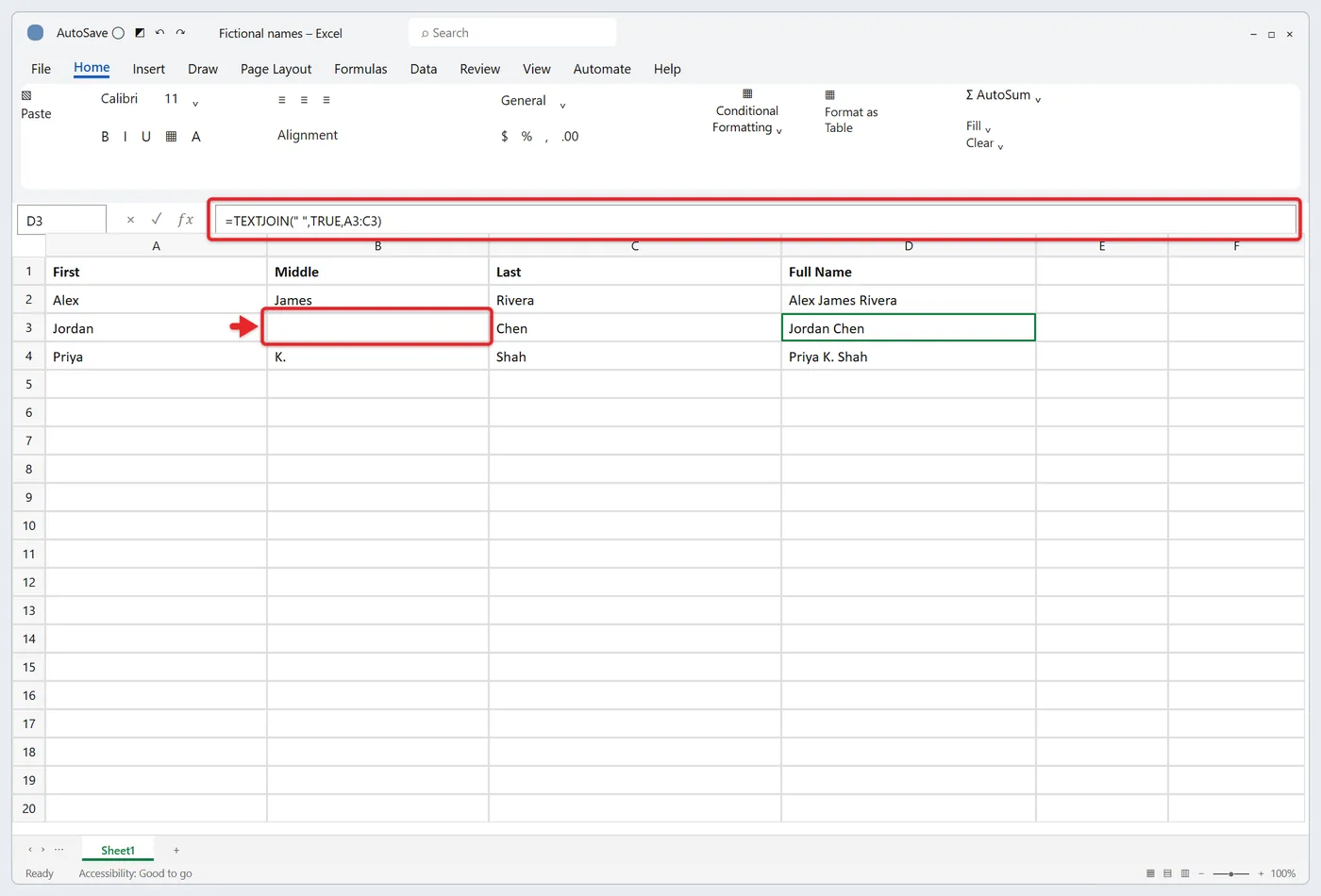
In Excel 2016 or earlier, wrap a plain formula in TRIM instead: =TRIM(A2&" "&B2&" "&C2) also returns Jordan Chen, because TRIM collapses the double space to one.
Method 5: Power Query for imports you repeat
If you receive a fresh name list every week or month, Power Query can record the merge once and repeat it with a click. It’s built into current versions of Excel; if you can’t find it, see how to find and enable Power Query.
- Click any cell in your list and select Data > From Table/Range. Confirm the range and check My table has headers if row 1 holds headers.
- In the Power Query Editor, click the first-name column header, then hold Ctrl and click the last-name header. The order you click sets the order of the names.
- Select Transform > Merge Columns, choose Space as the separator, type a new column name such as Full Name, and select OK. This replaces the two columns with one. To keep the originals, use Add Column > Merge Columns instead.
- Select Home > Close & Load. The merged list lands on a new worksheet.
Next time, paste the new names into the source table and select Data > Refresh All. The Power Query merge columns page covers the custom-column variation.
Which method should you use?
- The list will keep changing: the ampersand formula or CONCAT, ideally inside an Excel table.
- A one-time cleanup you’ll send to someone: Flash Fill, since there are no formulas to break.
- Middle names that are sometimes blank: TEXTJOIN with
TRUE, or TRIM around the formula in older Excel. - The same export arrives on a schedule: Power Query.
Other name formats
These use the three-column layout from Method 4 (first in A, middle in B, last in C). Each result below was checked against the sample names.
- Last, First:
=C2&", "&A2returns Rivera, Alex. - Last, First Middle:
=C2&", "&TEXTJOIN(" ",TRUE,A2:B2)returns Rivera, Alex James and, for the blank middle name, Chen, Jordan. - Middle initial only when there is one:
=A2&" "&IF(B2="","",LEFT(B2,1)&". ")&C2returns Alex J. Rivera and Jordan Chen. - First initial and last name:
=LEFT(A2,1)&". "&C2returns A. Rivera. - Names on different sheets: include the sheet name, as in
=Sheet1!A2&" "&Sheet2!B2. Make sure both sheets list the people in the same row order.
A “Last, First” column is also handy when you need to sort a list by last name.
Clean up spacing and capitalization
Names copied from forms or other programs often have extra spaces or random capitals. Wrap the join in TRIM and PROPER:
=PROPER(TRIM(A2&" "&B2))
With ” priya ” in A2 and “SHAH ” in B2, this returns Priya Shah. TRIM removes leading and trailing spaces and shrinks runs of spaces between words to one. PROPER capitalizes the first letter of each word and lowercases the rest.
Two cautions:
- PROPER doesn’t know surnames. It capitalizes any letter that follows a non-letter, so alex o’neil becomes Alex O’Neil (good), but jordan mcallister becomes Jordan Mcallister and maya de la cruz becomes Maya De La Cruz. Fix those few by hand, or skip PROPER if the source names are already correct. For other case options, see capitalizing each word in Excel.
- TRIM misses web spaces. Text pasted from a web page may contain nonbreaking spaces, which the TRIM function page says TRIM doesn’t remove. If a gap won’t go away, try
=TRIM(SUBSTITUTE(A2,CHAR(160)," ")&" "&B2).
Keep the full names before deleting the original columns
Formula results depend on the source cells. If you delete columns A and B while column C still holds formulas, the full names turn into #REF! errors. Convert them to plain text first:
- Select the full-name cells (click C2, then press Ctrl + Shift + Down Arrow).
- Press Ctrl + C.
- On the Home tab, select the arrow under Paste, then choose Paste Values (the clipboard icon with 123). You can also right-click the selection and pick Values under Paste Options.
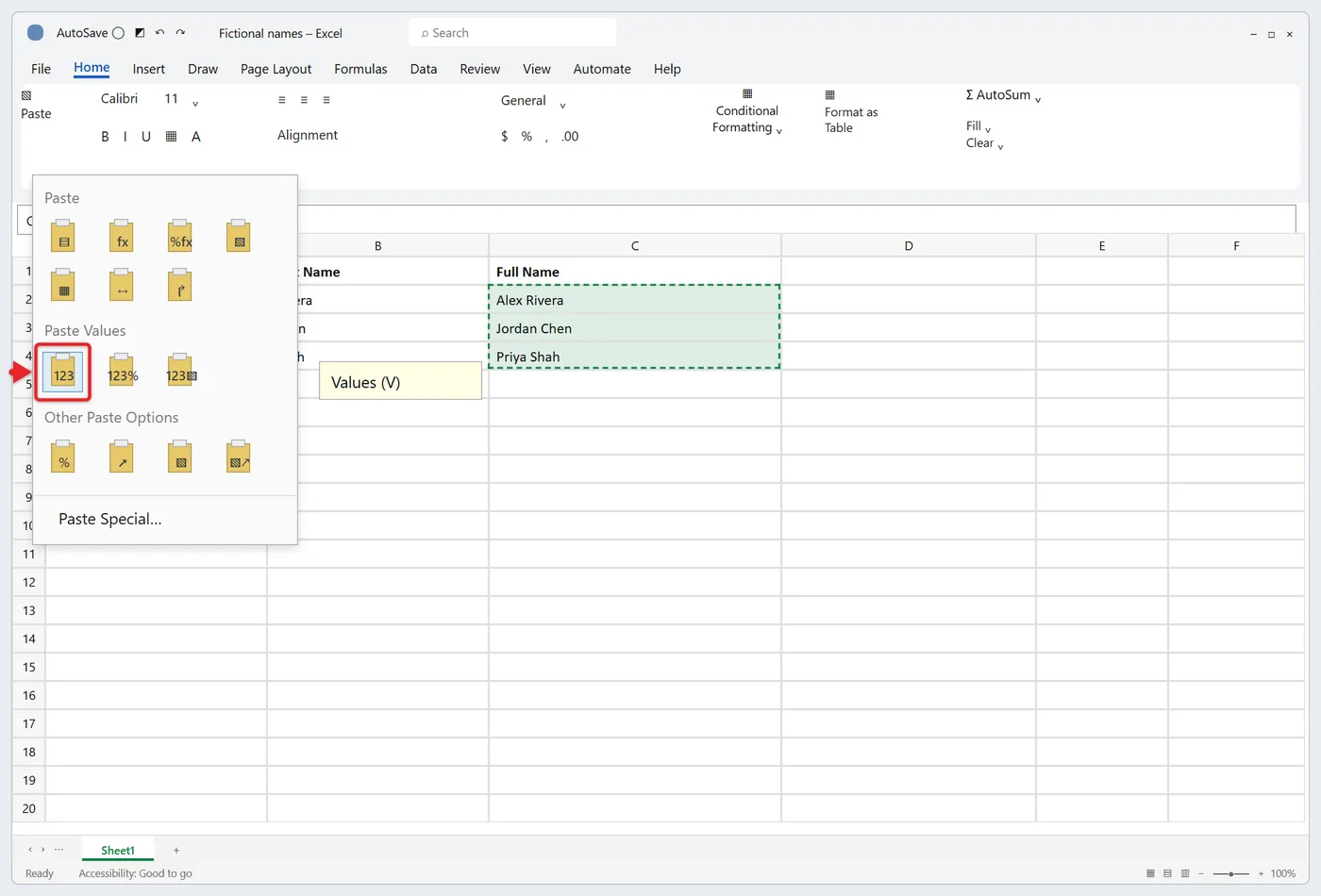
- Click one of the cells. The formula bar should show Alex Rivera rather than
=A2&" "&B2. Now it’s safe to delete the original columns.
To undo, press Ctrl + Z or delete the full-name column. None of these methods change your original name columns; even Power Query’s Transform option only changes the query’s output table.
Troubleshooting
The cell shows the formula instead of a name
The cell was formatted as Text before you typed the formula. Select it, change the format to General on the Home tab, click in the formula bar and press Enter. Also check that the formula begins with an equals sign.
#NAME? error
Either the function name is misspelled or your Excel version doesn’t include CONCAT or TEXTJOIN (Excel 2016 and earlier). Use the ampersand method, which works everywhere.
Names run together or have a leading space
“AlexRivera” means the " " is missing. A result like ” Chen” (with a space in front) means the first-name cell is empty; wrap the formula in TRIM or use TEXTJOIN.
Flash Fill fills the wrong thing or nothing at all
Check that File > Options > Advanced > Automatically Flash Fill is turned on, that your output column sits right next to the data, and that you typed the example exactly as you want it. When the guess is wrong, add a second example and press Ctrl + E again.
Every row shows the same name
Calculation is set to manual, or the references were locked with dollar signs ($A$2). Select Formulas > Calculation Options > Automatic, and remove any dollar signs from the formula before copying it down.
FAQs
Can I merge names into the same column instead of a new one?
Not directly with a formula, because a formula can’t refer to the cell it sits in. Build the full names in a spare column, convert them to values, then copy them over the first-name column and delete the extras.
Does Excel’s Merge & Center button combine names?
No. Merge & Center joins the cells themselves and keeps only the upper-left value, so the last name is discarded. Use one of the methods above to combine the text.
Will these formulas work in Google Sheets?
Yes. The ampersand formula, CONCATENATE and TEXTJOIN use the same syntax in Google Sheets, so you can paste them straight in. Sheets’ CONCAT function is different, though: Google’s CONCAT reference lists only two arguments, so use the ampersand or TEXTJOIN there.
How do I split full names back into first and last?
Use Text to Columns, Flash Fill or the TEXTSPLIT function. Step-by-step instructions are in separating names into two columns.
Can I join columns other than names this way?
Yes, the same formulas work for cities and states, product codes, or any pair of text cells. There’s a general version in combining two columns with a space.
Next step
Try =A2&" "&B2 on a copy of your list, check rows with middle names or odd spacing, and switch to TEXTJOIN or the TRIM and PROPER version if any look off.

Matt Jacobs has been working as an IT consultant for small businesses since receiving his Master’s degree in 2003. While he still does some consulting work, his primary focus now is on creating technology support content for SupportYourTech.com.
His work can be found on many websites and focuses on topics such as Microsoft Office, Apple devices, Android devices, Photoshop, and more.