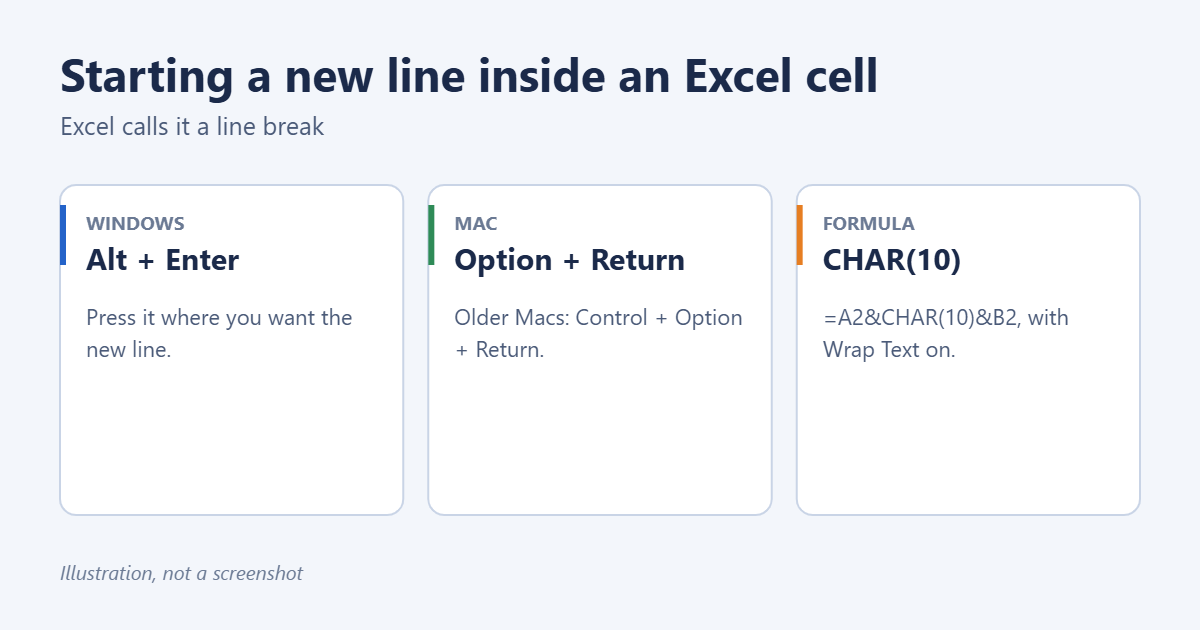
To start a new line inside an Excel cell, double-click the cell (or press F2), put the cursor where you want the break, and press Alt + Enter on Windows or Option + Return on a Mac. Pressing Enter on its own just moves to the next cell. In formulas, use CHAR(10) to insert a line break, and turn on Wrap Text so it shows. This guide covers each method, plus how to remove line breaks when you need to.
Add a line break while typing
- Double-click the cell, or select it and press F2, to edit it. You can also click in the formula bar.
- Click where you want the new line to start.
- Press Alt + Enter (Windows) or Option + Return (Mac). On older versions of Excel for Mac, use Control + Option + Return.
- Type the next line, then press Enter to finish.
Excel turns on Wrap Text for that cell automatically, and the row gets taller to fit. In Excel for the web, Alt + Enter works too.
Add line breaks with a formula
CHAR(10) is the line-feed character Excel uses for line breaks. To join two cells on separate lines:
=A2&CHAR(10)&B2
To build an address block from several cells:
=TEXTJOIN(CHAR(10),TRUE,A2:D2)
TEXTJOIN skips empty cells when the second argument is TRUE. After entering the formula, select the cell and click Home > Wrap Text, otherwise the text appears on one line. On a Mac, older Excel versions used CHAR(13), but current versions use CHAR(10) like Windows. See how to concatenate in Excel for more on joining text.
Turn on Wrap Text
Select the cells and click Home > Wrap Text. If the row doesn’t resize, double-click the bottom border of the row number to AutoFit it. See how to wrap text in Excel.
Wrap Text alone breaks lines wherever the column edge falls. Alt + Enter puts the break exactly where you want it, regardless of column width.
Where line breaks help
- Column headers: split a long header like “Revenue (USD) 2026” over two lines so the column can stay narrow.
- Addresses: keep street, city, and postal code in one cell but on separate lines, ready for mail merge or labels.
- Notes and comments: list several points in one cell without making it extremely wide.
- Chart labels: a line break in the source cell carries over to the chart’s axis or data label.
Avoid line breaks in cells you’ll sort, filter, or look up with VLOOKUP or XLOOKUP. A value with a hidden line break won’t match the same text without one.
Remove line breaks
With Find and Replace
- Select the cells and press Ctrl + H.
- Click in Find what and press Ctrl + J. The box looks empty, but it now contains a line break (you may see a tiny blinking dot).
- In Replace with, type a space or a comma and space.
- Click Replace All.
With a formula
=SUBSTITUTE(A2,CHAR(10)," ") replaces every line break with a space. Wrap it in TRIM to remove any extra spaces: =TRIM(SUBSTITUTE(A2,CHAR(10)," ")).
Split lines into separate cells
In Microsoft 365, =TEXTSPLIT(A2,CHAR(10)) puts each line in its own column, and =TEXTSPLIT(A2,,CHAR(10)) puts each line in its own row. In older versions, use Data > Text to Columns, choose Delimited, tick Other, and press Ctrl + J in its box.
Troubleshooting
Alt + Enter moves to the next cell
You weren’t editing the cell. Double-click it or press F2 first.
The formula shows everything on one line
Wrap Text is off. Turn it on for that cell.
Rows are too tall after removing breaks
Select the rows and use Home > Format > AutoFit Row Height.
Frequently asked questions
How do I press Enter and stay in the same cell?
That’s a different setting. See how to press Enter in Excel and stay in the same cell.
Does this work in Google Sheets?
Yes. Use Ctrl + Enter (Windows) or Cmd + Enter (Mac) while editing, and CHAR(10) in formulas.
Summary
Edit the cell and press Alt + Enter on Windows or Option + Return on a Mac to start a new line. In formulas, use CHAR(10) with Wrap Text on. Remove breaks with Find and Replace (Ctrl + J) or SUBSTITUTE.
Related: How to Make Excel Cells Expand to Fit Text Automatically.
Related: combine two columns in Excel with a space.

Matt Jacobs has been working as an IT consultant for small businesses since receiving his Master’s degree in 2003. While he still does some consulting work, his primary focus now is on creating technology support content for SupportYourTech.com.
His work can be found on many websites and focuses on topics such as Microsoft Office, Apple devices, Android devices, Photoshop, and more.