To double space in Google Docs on a computer, select the text (press Ctrl+A, or Command+A on a Mac, to select everything), then select the Line & paragraph spacing button in the toolbar and choose Double. You can also go to Format > Line & paragraph spacing > Double. In the Google Docs app on a phone or tablet, tap Edit, select the text, tap Format > Paragraph, and raise Line spacing to 2.
Applies to: Google Docs in a web browser on Windows, Mac and Chromebook, and the Google Docs app for iPhone, iPad and Android. Works the same with a personal Google account or a Google Workspace work or school account. The steps follow Google’s help page on line spacing.
What double spacing means in Google Docs
Line spacing controls the gap between the lines inside a paragraph. Double spacing sets that gap to twice the height of a single line, so every line of text has roughly one empty line’s worth of space under it. Google Docs shows it as Double in the menus and as 2 in the mobile app and in Custom spacing. They are the same setting.
A few things are useful to know before you start:
- Line spacing belongs to paragraphs. Google Docs applies it to every paragraph you have selected, or to the paragraph your cursor is in if nothing is selected. You can’t double space half of a paragraph.
- New documents start at 1.15. Unless you have changed your default styles, Normal text in a new Google Doc uses 1.15 line spacing, which is a little more than single.
- Paragraph spacing is a separate setting. The extra gap above or below a whole paragraph comes from “space before” and “space after,” not from line spacing. That is why a double-spaced document can still show bigger gaps between paragraphs. See Double spacing for MLA and APA papers to even them out.
- “Double spacing” is not two spaces after a period. If a teacher or editor asks for two spaces between sentences, that is a typing habit, not a line spacing setting. This guide covers line spacing.
This is the quickest way in a web browser, and it works the same on Windows, Mac and Chromebook.
- Open your document. Go to docs.google.com, sign in if asked, and open the document. You need edit access. If you only see View only or a Request edit access button, you can’t change the spacing until the owner gives you edit permission.
- Select the text. Drag across the paragraphs you want to change. To change the whole document, click anywhere in the body text and press Ctrl+A (Windows and Chromebook) or Command+A (Mac). Selected text turns light blue.
- Open the spacing menu. In the toolbar above the page, select Line & paragraph spacing. The button shows a few horizontal lines with an up-and-down arrow beside them, and it sits to the right of the alignment buttons. Hover over a button if you’re not sure; its name appears in a tooltip.
- Choose Double. In the menu that opens, select Double. The menu closes, and the selected paragraphs spread out right away. If you open the menu again, a check mark appears next to Double.
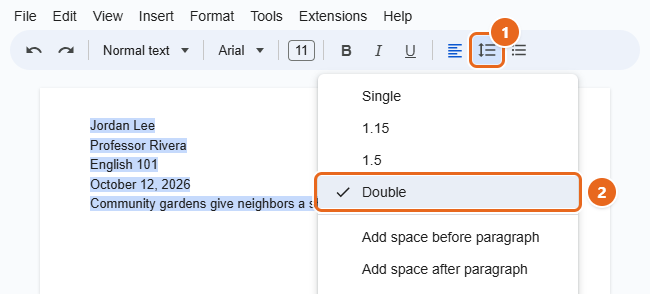
If you can’t see the button, your browser window may be too narrow for the full toolbar. Google Docs then tucks the last few buttons under More (the three-dot button at the right end of the toolbar). Either open that, make the window wider, or use the Format menu below.
The same options live in the menu bar, which never hides when the window is small.
- Select the text you want to change, or press Ctrl+A (Command+A on a Mac) for everything.
- Select Format in the menu bar at the top of the page.
- Point to Line & paragraph spacing. A side menu opens with the same choices as the toolbar button.
- Select Double.
If you prefer the keyboard, you can open the Format menu without the mouse. Press Alt+O in Chrome or Alt+Shift+O in other browsers on Windows and Chromebook, or Control+Option+O on a Mac.
You can also search for the command. Press Alt+/ (Option+/ on a Mac) to open the Tool finder, which Google used to call Search the menus. Type double, then pick the line spacing option from the results and press Enter.
Google Docs doesn’t list a keyboard shortcut for line spacing. Shortcuts such as Ctrl+2 come from Microsoft Word. In Chrome, Ctrl+2 (Command+2 on a Mac) switches you to your second browser tab instead.
Double space the whole document
Select all, then apply Double with either method above. A few parts of a document need extra attention:
- Headers and footers. These are separate areas. Pressing Ctrl+A in the body doesn’t select them. Click inside the header or footer, select its text, and set the spacing there if your instructions ask for it.
- Tables. Text inside table cells takes the line spacing you apply when it is part of your selection. If a table still looks single-spaced, select the cells and apply Double again.
- Headings. Headings use their own styles. Applying Double to a selection that includes headings changes those headings too, which is usually fine for school papers.
- Text you haven’t typed yet. When you press Enter at the end of a double-spaced paragraph, the new paragraph keeps the same spacing. So if you start a blank document by setting Double first, everything you type after that is double-spaced.
Set an exact value with Custom spacing
The menu offers Single, 1.15, 1.5 and Double. If you need something in between, such as 1.75, or you want to set line spacing and paragraph gaps in one place, use Custom spacing.
- Select the text.
- Select Format > Line & paragraph spacing > Custom spacing. The same item is in the toolbar button’s menu.
- In the dialog, type the value you want in the Line spacing box. Type 2 for double spacing.
- Under paragraph spacing, set Before and After to the amount of extra space you want around each paragraph, in points. Use 0 for no extra gap.
- Select Apply.
Make double spacing the default for new documents
If every document you write needs double spacing, you can save it as part of your default styles. This works only in a web browser. The phone and tablet apps don’t have this option, so do this part on a computer.
- Double space some normal body text. Use Method 1 or 2 on a paragraph that uses the Normal text style. Most body text does.
- Select that paragraph. Click inside it or highlight part of it.
- Update the Normal text style. Open the Styles box in the toolbar (it shows Normal text), point to Normal text, and choose Update ‘Normal text’ to match. You can also go to Format > Paragraph styles > Normal text > Update ‘Normal text’ to match. All Normal text in this document now uses double spacing.
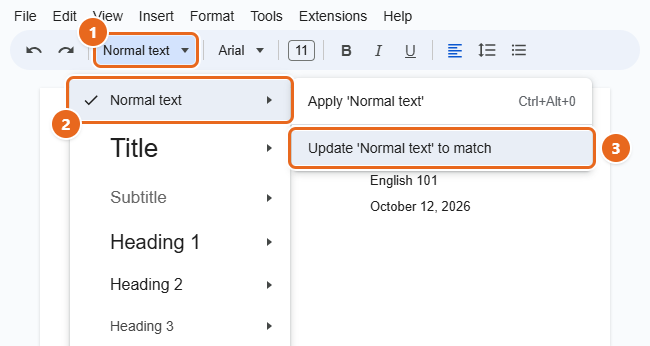
- Save it as your default. Go to Format > Paragraph styles > Options > Save as my default styles. The same Options item is at the bottom of the Styles box menu.
- Test it. Create a new blank document (File > New > Document) and type a few lines. They should be double-spaced from the start.
A few things to keep in mind:
- Existing documents don’t change on their own. To bring an older document in line with your saved defaults, open it and go to Format > Paragraph styles > Options > Use my default styles.
- Your font is saved too. Default styles include the font, size and color of Normal text, so this is also how you change the default font in Google Docs. Set both before you save to avoid doing it twice.
- Templates may use their own styles. A document created from a template in the template gallery can arrive with its own spacing. Apply Double to it as usual.
To return a document to Google’s original styles, go to Format > Paragraph styles > Options > Reset styles. To stop new documents opening double-spaced, set Normal text back to 1.15 or Single, update the Normal text style to match, and choose Save as my default styles again.
Double space in the Google Docs app on iPhone or iPad
- Open the Google Docs app and tap the document.
- Tap Edit (the pencil button at the bottom right). The toolbar at the top changes to editing tools.
- Double-tap a word in the paragraph you want to change, then drag the blue markers to include more text. To pick the whole document, tap in the text and choose Select All from the pop-up menu.
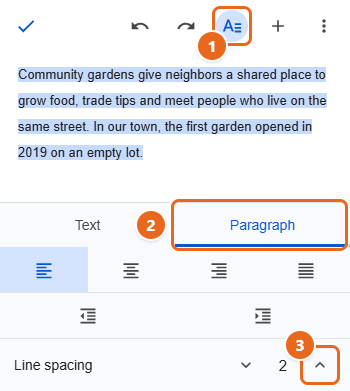
- Tap Format at the top of the screen. It looks like the letter A with lines beside it. A formatting panel opens at the bottom.
- Tap the Paragraph tab.
- Next to Line spacing, tap the up arrow until the number reads 2. It may take a few taps to get there from the default.
- Tap anywhere in the document to close the panel, then tap the check mark at the top left when you’ve finished editing.
Double space in the Google Docs app on Android
The Android app works almost the same way. Button positions can shift a little between phones, tablets and app versions.
- Open the Google Docs app and open the document.
- Tap Edit (the pencil button at the bottom right).
- Double-tap the place you want to change, or tap and hold a word, then drag the blue markers to select more. Tap Select all in the pop-up menu to choose everything.
- Tap Format at the top of the screen.
- If the panel shows Text and Paragraph tabs, tap Paragraph.
- Next to Line spacing, tap the up arrow or + until it reads 2.
- Tap the document to close the panel, then tap the check mark to finish editing.
The apps offer line spacing only. Paragraph gaps, Custom spacing and default styles need Google Docs in a web browser.
Double spacing for MLA and APA papers
MLA and APA style both expect the whole paper to be double-spaced, including the heading, the body and the works cited or references list. They also expect paragraphs to follow one another without an extra blank gap. Google Docs often adds a small space after each paragraph, which makes the gaps look uneven next to double-spaced lines.
To set up a paper this way:
- Press Ctrl+A (Command+A on a Mac) to select the whole document.
- Select Line & paragraph spacing in the toolbar and choose Double.
- Open the same menu again. If you see Remove space before paragraph or Remove space after paragraph, select it. Repeat until the menu offers only “Add space” options, which means no extra gap is set.
- Don’t press Enter twice between paragraphs. Use a first-line indent instead to show where each paragraph begins.
Always follow your instructor’s or publisher’s instructions if they differ. Some ask for single-spaced block quotes or a particular font, which you can change separately.
How to go back to single spacing
Double spacing doesn’t remove or change any of your words, so it is easy to reverse.
- Right after you apply it: press Ctrl+Z (Command+Z on a Mac), or tap the undo arrow in the app.
- Later: select the text, open Line & paragraph spacing, and choose Single, 1.15 or 1.5. In the app, tap the down arrow next to Line spacing.
- To restore an earlier copy: go to File > Version history > See version history and pick a version from before the change.
If a document picked up mixed formatting from several sources, clearing the formatting in Google Docs can give you a clean start before you apply double spacing.
Troubleshooting
Only part of my document changed
Line spacing applies to the paragraphs that were selected. Click in the body text, press Ctrl+A (Command+A on a Mac), and apply Double again. Check headers, footers and table cells separately.
There are big gaps between paragraphs even after double spacing
That extra gap is paragraph spacing, or blank lines made by pressing Enter twice. Use Remove space before paragraph and Remove space after paragraph in the spacing menu, or set Before and After to 0 in Custom spacing. Then delete any empty lines between paragraphs.
Text I paste in comes in with different spacing
Pasted text can bring its formatting from a website or another file. Paste with Ctrl+Shift+V (Command+Shift+V on a Mac) to paste without formatting, so it picks up the spacing of the paragraph you paste into. Or select the pasted text and apply Double again.
New documents still open with 1.15 spacing
Make sure you completed both parts of the default steps: Update ‘Normal text’ to match and then Options > Save as my default styles. Also check that you’re signed in with the same Google account you used to save the defaults. Defaults are saved per account, so a work account and a personal account each have their own.
The spacing options are grayed out or missing
You may have view-only or comment-only access, or you may be in Viewing mode. Check the mode button at the top right of the toolbar and switch to Editing if you have permission.
Ctrl+2 doesn’t double space my text
That shortcut is from Microsoft Word, not Google Docs. Use the toolbar button, the Format menu, or the Tool finder (Alt+/ or Option+/) instead. Word has its own steps for double spacing in Word.
FAQ
Is 2.0 line spacing the same as double spacing?
Yes. Choosing Double in the menu and typing 2 in Custom spacing set the same value. The mobile apps show it as a number.
Is there a keyboard shortcut for double spacing in Google Docs?
No. Google’s keyboard shortcut list for Docs has no line spacing shortcut. The fastest keyboard route is Alt+/ (Option+/ on a Mac), typing double, and pressing Enter.
Can I double space just one paragraph?
Yes. Click anywhere in that paragraph, without selecting the whole document, and choose Double. Only that paragraph changes.
Why does my double-spaced document look different from a classmate’s?
Line spacing is relative to the font and size, so 12-point Times New Roman and 11-point Arial produce different line heights at the same setting. Paragraph spacing and page margins also change how full each page looks. To match a page count, check those too; changing the margins in Google Docs is a common fix.
Will double spacing change my word count?
No. It changes only the space between lines, so your word count stays the same. Your page count goes up, often to nearly twice as many pages as single spacing.
Does double spacing stay when I download the document as Word or PDF?
Line spacing is part of the document’s formatting, so it is normally kept when you use File > Download. Open the downloaded file and check it before you submit it, because fonts that aren’t installed on another computer can change the layout slightly.
Next step
Select your text and choose Line & paragraph spacing > Double now. If you’ll be writing more double-spaced papers, take one more minute to save it as your default style so every new document starts that way.

Matt Jacobs has been working as an IT consultant for small businesses since receiving his Master’s degree in 2003. While he still does some consulting work, his primary focus now is on creating technology support content for SupportYourTech.com.
His work can be found on many websites and focuses on topics such as Microsoft Office, Apple devices, Android devices, Photoshop, and more.