To free up iCloud storage on your iPhone, open Settings, tap your name, tap iCloud, then tap Storage to see which apps and features use the most space. The quickest wins are usually deleting old device backups (Storage > Backups), removing photos and videos you don’t need, and clearing large files from iCloud Drive and Messages. If you see Recommended for You on the iCloud screen, start there: it points you to the biggest items you can safely remove.
Applies to: iPhone with iOS 26 or iOS 27, plus iCloud.com in any web browser. Notes are included where iOS 17 and iOS 18 use different labels. The steps follow Apple’s iCloud storage support article.
Before you delete anything
Every Apple Account comes with 5 GB of free iCloud storage. That single pool is shared by all your devices: your iPhone backup, iCloud Photos, iCloud Drive, Messages, Mail and data from other apps. When it fills up, your iPhone stops backing up to iCloud, new photos stop uploading, files stop syncing between devices, and you can’t send or receive email at your iCloud address.
Most ways to free up space mean deleting something, so read these points first:
- Deletions sync everywhere. If you use iCloud Photos, iCloud Drive or Messages in iCloud, deleting an item on your iPhone also deletes it on your iPad, Mac and iCloud.com. There is no “delete from iCloud but keep on this phone” button for synced content.
- Save copies first. Download anything you want to keep to a computer or an external drive before you remove it. For photos, you can transfer photos from your iPhone to a Windows 11 PC, or download them from iCloud.com.
- Deleted backups are gone. Deleting an iCloud backup can’t be undone, and it also turns off iCloud Backup for that device.
- Watch out when you’re over the limit. Normally, deleted photos sit in Recently Deleted for 30 days. If you’ve already exceeded your iCloud storage, your iPhone removes deleted photos and videos immediately, so you can’t recover them from Recently Deleted.
This table shows what each option costs you, so you can pick the least painful one:
| What you remove | What you lose | Can you undo it? |
|---|---|---|
| Backup of an old device | The ability to restore that device’s settings and app data from iCloud | No |
| An app from your current backup | That app’s backed-up data in iCloud | Turn the app back on; it’s included in the next backup |
| Photos and videos (iCloud Photos on) | Those items on every synced device | Yes, from Recently Deleted for 30 days (unless you’re over the limit) |
| iCloud Drive files | Those files on every device | Yes, from Recently Deleted for 30 days |
| Messages attachments or conversations | Your copy on all your devices (not the other person’s) | Yes, from Recently Deleted in Messages for up to 30 days |
| FaceTime data | FaceTime data and some Phone data, such as voicemails | No |
Check what’s using your iCloud storage
Look before you delete. The storage screen sorts everything by size, so you can go after the biggest item first instead of deleting small things that barely help.
- Open the Settings app and tap your name at the top.
- Tap iCloud. The Storage bar at the top shows how much of your plan you’ve used, for example “4.6 of 5 GB.”
- Tap Storage. On iOS 17 and earlier this is labeled Manage Account Storage.
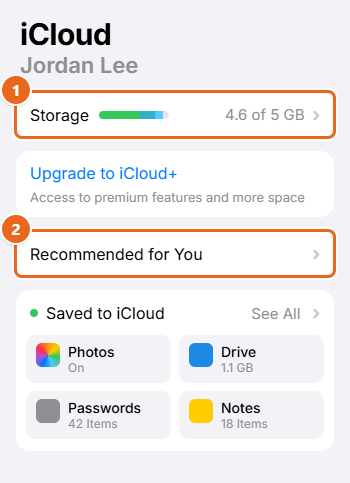
- Read the list below the bar graph. Apps and features that use the most space are at the top. Tap any item to see details and the options for removing its data.
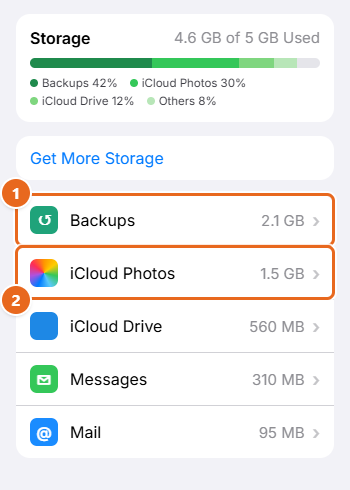
Here’s what the categories in the bar graph mean:
- Backups: iCloud backups of your iPhone and any iPad. Backups from old devices often linger here for years.
- Photos (or Photos and Videos): your iCloud Photos library at full resolution.
- Documents (or Docs): iCloud Drive files plus data from apps such as Notes, Reminders, Health and third-party apps.
- Messages and Mail: synced conversations and attachments, and email at your iCloud address.
- Family: space used by family members who share your iCloud+ plan.
- Others: on smaller screens, everything outside your three largest categories is grouped here.
Make a note of the top two or three items. In the example above, deleting one old backup and trimming photos would free up most of the 5 GB.
Use Recommended for You
On iOS 17 and later, your iPhone can suggest specific things to remove, such as large files, photos or old backups. It’s worth checking when you’re getting low on space.
- Go to Settings > your name > iCloud.
- Tap Recommended for You.
- Tap a suggestion and follow the onscreen steps. Each one opens the right screen for that cleanup, so read what it will delete before you confirm.
Not every recommendation is about freeing space. Some suggest turning features on, like syncing photos to iCloud, which uses more space. If you don’t see what you’re looking for, use the manual methods below.
Delete old iCloud backups
If you’ve replaced an iPhone or an iPad, its last backup may still be sitting in iCloud. Removing it is often the single biggest and safest gain, as long as you’ll never need to restore that device.
Before you start: deleting a backup is permanent. If you’re about to sell, trade in or reset a device, don’t delete its only backup until you’ve finished setting up the replacement. Apple also won’t let you delete a backup that’s currently being used to restore a device.
- Open Settings, tap your name, then tap iCloud.
- Tap Storage (or Manage Account Storage), then tap Backups. You see every device with a backup in iCloud and its size. You can also reach the same list by tapping iCloud Backup on the iCloud screen.
- Tap the device whose backup you want to remove. Check the last backup date and size to make sure it’s the right one.
- Tap Turn Off and Delete from iCloud. Some versions label this Delete & Turn Off Backup.
- Tap Turn Off and Delete to confirm. The backup is removed and the space returns to your plan.
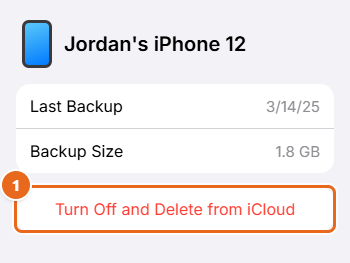
If you delete the backup for the iPhone you’re holding, iCloud Backup turns off for it too. To keep that phone protected, either turn Back Up This iPhone on again later (Settings > your name > iCloud > iCloud Backup) once you have space, or back it up to a computer instead.
A backup you stop using doesn’t vanish right away. When you turn off iCloud Backup or stop using a device, Apple keeps its iCloud backups for 180 days before deleting them. Deleting the backup yourself frees the space immediately.
Make your current backup smaller
You can keep backing up your iPhone to iCloud and still save space by excluding apps you don’t need backed up, such as games you could reinstall or apps that store their own data online.
- Go to Settings > your name > iCloud > Storage > Backups.
- Tap the name of the iPhone you’re using. You’ll see the last backup date, its size and a list of apps with switches.
- Turn off any app you don’t want to back up. Tap Show All Apps if the one you want isn’t listed.
- Tap Turn Off to confirm. That app’s data is removed from your iCloud backup right away.
Some apps are always backed up and don’t have a switch. If you change your mind, turn the app back on and its data is included in your next backup.
If iCloud Photos is off, your photo library is part of your iCloud backup and can make it huge. On the same screen, look at the size next to Photo Library. To shrink it, copy your photos and videos to a computer and back up the iPhone there, or turn off Photos in the backup list. Only turn it off after your photos are saved somewhere else, because they’ll no longer be in your iCloud backup.
Delete photos and videos
With iCloud Photos turned on, your whole library counts against your iCloud storage. Large videos, screen recordings and bursts of near-identical shots are good places to start.
Before you start: deleting a photo on your iPhone deletes it on every device signed in to the same Apple Account. Copy anything you want to keep to a computer or an external drive first.
- Open the Photos app on your iPhone.
- In your Library, tap Select, then tap each photo or video you want to remove. Drag your finger across thumbnails to select a run of them faster.
- Tap the Delete button (trash can), then confirm. The items move to the Recently Deleted collection.
You don’t need to empty Recently Deleted to get the space back. Items in Recently Deleted don’t count toward your iCloud storage, and they’re removed for good after 30 days. Emptying it early only takes away your chance to recover them. Choosing and removing pictures is covered in more depth in deleting pictures on an iPhone.
Merge duplicate photos
The Photos app spots duplicate photos and videos for you and gathers them in one place. Merging combines each set into a single item.
- In Photos, tap Collections.
- Tap Utilities, then tap Duplicates. If you have no duplicates, this collection doesn’t appear.
- Tap Merge next to a set, then tap Merge [number] Items to confirm.
Shared libraries and shared albums
- iCloud Shared Photo Library: photos in a Shared Library count only toward the storage of the person who created it. To delete items that count toward your own storage, switch to your Personal Library view first.
- Shared albums in iOS 27: starting with iOS 27, photos added to a shared album count toward the storage of the album’s creator. Photos deleted from a shared album are removed immediately, and deleting a whole shared album removes access for everyone, so participants should save any photos they want to their own library first.
Turn off iCloud Photos completely
If your photo library is far larger than your plan and you’d rather keep photos on a computer or another service, you can stop using iCloud Photos and delete the library from iCloud. This is the most drastic option in this guide.
Important: turning off Sync this iPhone under Settings > your name > iCloud > Photos only stops syncing on that one device. It does not delete anything from iCloud or free up space. To free the space, you have to turn off iCloud Photos for your whole account, as shown below.
Warning: if Optimize iPhone Storage is on, your iPhone holds smaller versions of many photos while the full-resolution originals live only in iCloud. Download your originals to a computer (or choose Download and Keep Originals and wait for the download to finish, if your iPhone has room) before you continue. If you own an iCloud Shared Photo Library, delete it first.
- Open Settings, tap your name, then tap iCloud.
- Tap Storage. On iOS 17 or earlier, tap Manage Account Storage.
- Tap iCloud Photos.
- Tap Turn Off and Delete Photos. On iOS 17 or earlier, the button reads Turn Off & Delete from iCloud.
Your photos and videos are deleted from iCloud 30 days later. Until then, you can change your mind: return to the same screen and tap Undo Delete.
Clean up iCloud Drive
iCloud Drive holds documents, PDFs, downloads and folders from apps. Old video exports and zip files can take up more room than you’d expect.
- Open the Files app and tap Browse.
- Under Locations, tap iCloud Drive. Open folders to find large or outdated files. Switching to List view makes sizes and dates easier to compare.
- Tap the More button (three dots), tap Select, then choose the files or folders you want to remove. You can also touch and hold a single file and tap Delete.
- Tap the Delete button. The items are removed from iCloud Drive on all your devices.
Deleted iCloud Drive files can be recovered from Recently Deleted in the Files app for 30 days. Before deleting a file you might need again, move it to On My iPhone or to a computer, since items stored there don’t use iCloud storage.
If you use a Mac with Desktop and Documents in iCloud turned on, everything on that Mac’s desktop also counts toward your iCloud storage. Cleaning up those folders on the Mac can make a big difference.
Delete Messages attachments and old conversations
When Messages in iCloud is on, your texts and every photo, video and file in them use your iCloud storage. Years of group-chat videos add up. Deleting removes them from your devices only; the other people in the conversation keep their copies.
Delete attachments but keep the conversation
- Open Messages and open a conversation with lots of photos or videos.
- Tap the contact’s name or group icon at the top of the screen.
- Tap Photos (in iOS 18 or earlier, tap See All in the Photos section).
- Tap Edit, then tap Select Photos (in iOS 18 or earlier, tap Select).
- Tap the attachments you want to remove, tap Delete, then confirm.
Delete a whole conversation
Swipe left on the conversation in your list and tap the Delete button, or touch and hold it and tap Delete. Deleted messages stay in Recently Deleted in Messages for up to 30 days, where you can recover them or remove them permanently.
Delete old messages automatically
To keep Messages from growing forever, let your iPhone delete older conversations for you.
Warning: this deletes every conversation and attachment older than the period you choose, on an ongoing basis. Save any photos you want to keep first.
- Open Settings and tap Apps, then tap Messages.
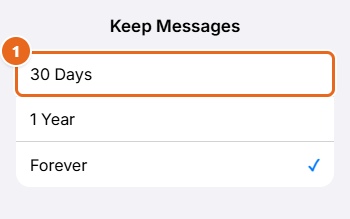
- Scroll down to Message History and tap Keep Messages.
- Choose 30 Days or 1 Year.
Clear out iCloud Mail
This only matters if you use an @icloud.com, @me.com or @mac.com address, or a custom domain through iCloud+. Gmail, Outlook and other accounts on your iPhone don’t use iCloud storage.
Use iCloud Mail Cleanup
- Open the Mail app and go to your iCloud inbox.
- Tap the More button in the upper corner, then tap Cleanup Recommendations.
- Tap iCloud Mail Cleanup and choose a type of message to clear, such as promotions, subscriptions or transactions.
- Follow the onscreen steps to review and delete those messages.
iCloud Mail Cleanup keeps cleaning up that type of email automatically until you turn it off.
Delete messages manually
Swipe left on a message to delete it, or tap Select, choose several messages and tap Delete. Emails with large attachments free the most space. Then open your Trash mailbox and delete the messages there too, so they stop counting against your storage.
Remove other app data
Back on the Storage screen, scroll past the big items to the smaller ones. A few are worth knowing about:
- Voice Memos: in the Voice Memos app, tap All Recordings, select old recordings and tap Delete. Then open Recently Deleted, tap Select, tap Delete All (or select specific recordings and tap Delete), and tap Delete Forever.
- Contact Images: starting in iOS 26, contact photos and posters count toward your iCloud storage. Tap Contact Images on the Storage screen, then tap Delete Data from iCloud. Your contacts themselves are not deleted.
- FaceTime: tap FaceTime on the Storage screen, then tap Delete Data from iCloud. Warning: this removes all FaceTime data and some Phone data, including voicemails and FaceTime video and audio messages, and it can’t be recovered. Save any video messages you want to keep first.
- Apple Invites: event backgrounds and photos guests add count toward the creator’s storage. Tap Apple Invites, then Delete Data from iCloud to remove all events you created, or delete single events in the Apple Invites app from More > Event Settings > Delete Event. Guests lose access to deleted events.
- Third-party apps: apps such as note-taking tools and games can store documents in iCloud. Tap the app on the Storage screen to see its data. If it offers a delete option, read what it removes before using it, or delete unwanted documents inside the app itself.
Free up space on iCloud.com
A computer with a big screen makes it easier to review and select many items at once. Sign in at iCloud.com with your Apple Account. Deleting here has the same effect as deleting on your iPhone.
- Check storage: go to icloud.com/storage to see a storage bar and a list of apps sorted by size. To delete backups or app data, select Continue on Device and open the notification on your iPhone.
- Photos: go to icloud.com/photos, select items (hold Command on a Mac or Ctrl on a Windows PC to select several), select the Delete button, then Delete. Items go to Recently Deleted, where you can recover them for 30 days. To keep copies, select photos and download them before deleting.
- iCloud Drive: go to icloud.com/drive, select files or folders, then select the Delete button. Deleted files stay in Recently Deleted for 30 days.
- Mail: go to icloud.com/mail, select unwanted messages, select Delete, then empty the Trash folder.
To delete device backups from a computer, use a Mac (System Settings > your name > iCloud > Manage > Backups) or iCloud for Windows (Storage > Backups).
What does not free up iCloud storage
Several common tips sound helpful but don’t change your iCloud total. Knowing them saves time:
- Optimize iPhone Storage. This saves space on your iPhone by keeping smaller versions of photos on the device. The full-resolution originals stay in iCloud, so your iCloud usage stays the same.
- Emptying Recently Deleted in Photos. Those items already don’t count toward iCloud storage.
- Settings > General > iPhone Storage. This screen manages the storage built into your phone, not iCloud. Offloading or deleting apps there frees space on the device. That kind of cleanup is covered in automatically offloading apps on iPhone.
- Turning off Sync this iPhone for Photos. This stops one device from syncing; your library stays in iCloud.
- Turning off iCloud Backup without deleting. Existing backups are kept for 180 days, so the space isn’t freed right away.
When upgrading to iCloud+ makes sense
If everything left in iCloud is worth keeping, more space may be simpler than constant cleanups. iCloud+ plans come in 50 GB, 200 GB, 2 TB, 6 TB and 12 TB sizes, and include extras such as Hide My Email and iCloud Private Relay. Prices vary by country, and the plan screen shows the current price before you buy.
- Go to Settings > your name > iCloud.
- Tap Storage, then tap Manage Plan if you already subscribe. On the free plan, tap the option to upgrade or get more storage.
- Choose a plan and follow the onscreen steps.
You can share an iCloud+ plan with up to five other people through Family Sharing. If you cancel iCloud+ later, you lose the extra space, so you’d need to be under 5 GB again for backups and syncing to keep working.
Troubleshooting
I deleted a lot, but iCloud still shows it’s full
Give it some time and make sure your iPhone is online, because deletions have to sync before the total updates. Then check Storage again for anything you missed. Common leftovers are a second device’s backup, a Mac’s Desktop and Documents folders, and the Family category, which is space used by members sharing your plan.
I can’t delete a backup
Apple won’t delete a backup that’s currently being used to restore a device. Wait for the restore to finish, then try again.
Photos aren’t uploading to iCloud
New photos stop uploading when your storage is full. To check, open Photos, tap Collections, then tap the profile button in the upper corner. The status under your name tells you if syncing is paused because your iCloud storage is full. Free up space or upgrade, and uploads resume.
My iPhone won’t back up to iCloud
If the next backup is larger than your free space, it fails. Trim the backup as described in Make your current backup smaller, delete old backups, or back up to a computer for now.
I’m not getting iCloud email
When your storage is full, you can’t send or receive email at your iCloud address. Once you’re back under your limit, email starts flowing again.
Recommended for You isn’t showing
The section needs iOS 17 or later, and Apple points to it mainly for when storage is getting low. If it isn’t there, use the Storage screen instead.
FAQ
Does deleting an iCloud backup delete my photos?
Not if you use iCloud Photos. Your photo library is stored separately and isn’t part of the backup. If iCloud Photos is off, your photo library is included in the backup, so deleting the backup removes that copy of your photos. Make sure they’re saved elsewhere first.
If I delete photos from my iPhone, are they deleted from iCloud?
Yes, when iCloud Photos is on. The deletion syncs to iCloud and all your devices. If iCloud Photos is off, deleting from your iPhone only affects the phone and its next backup.
What happens when my iCloud storage is full?
Your iPhone stops backing up to iCloud, new photos and videos stop uploading to iCloud Photos, iCloud Drive and other iCloud apps stop staying up to date across devices, and you can’t send or receive iCloud email.
Do photos in Recently Deleted count toward iCloud storage?
No. Items in Recently Deleted don’t count toward your iCloud storage, so emptying that album doesn’t free any extra space.
Is iCloud storage the same as iPhone storage?
No. iPhone storage is the built-in capacity of your phone, shown in Settings > General > iPhone Storage. iCloud storage is the online space tied to your Apple Account, shown in Settings > your name > iCloud. Freeing one doesn’t free the other.
Does a shared folder in iCloud Drive count against my storage?
Only for the owner. If you’re a participant in someone else’s shared folder, it doesn’t count toward your iCloud storage.
Is 5 GB enough?
For contacts, notes, calendars and a small backup, often yes. Once you turn on iCloud Photos or back up a phone full of apps, 5 GB fills quickly, and the 50 GB plan is the smallest upgrade.
Start with the Storage screen today: delete any backup from a device you no longer own, then work down the list. Checking it every few months keeps the “iCloud Storage Full” alert from coming back.

Matt Jacobs has been working as an IT consultant for small businesses since receiving his Master’s degree in 2003. While he still does some consulting work, his primary focus now is on creating technology support content for SupportYourTech.com.
His work can be found on many websites and focuses on topics such as Microsoft Office, Apple devices, Android devices, Photoshop, and more.