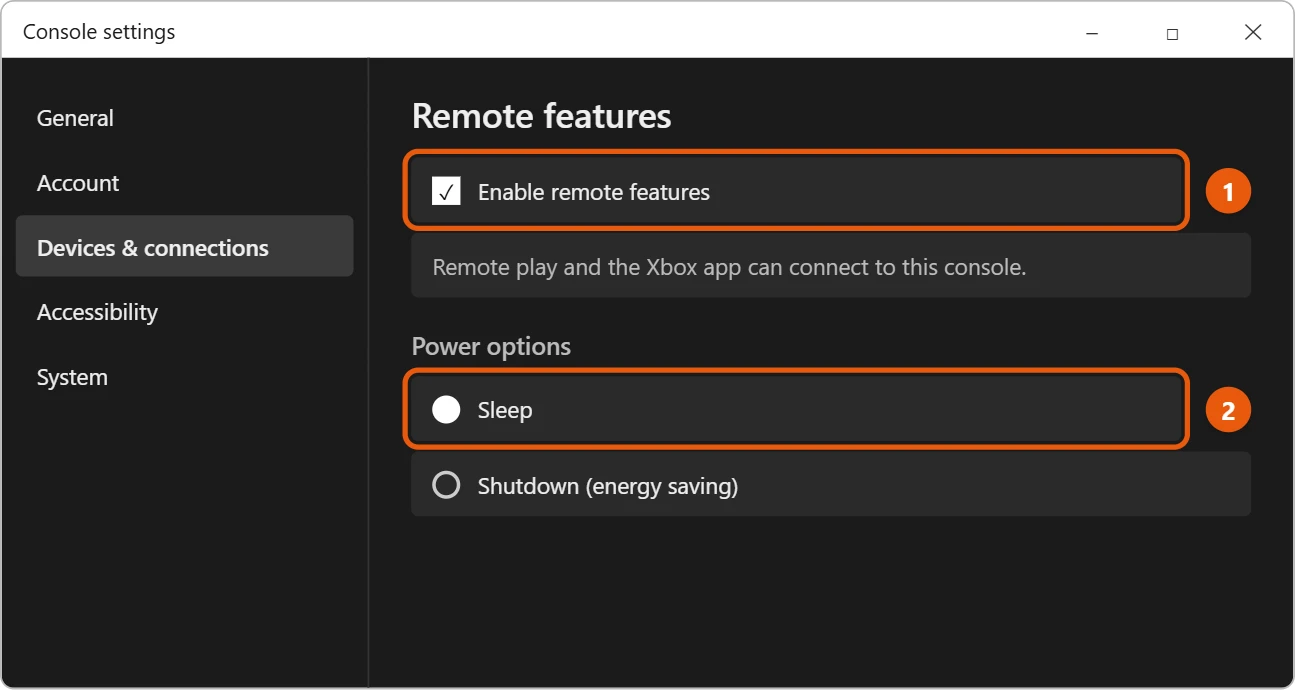
Most Windows 11 laptops can’t display an Xbox through HDMI. Their HDMI port only sends a picture out to a TV or monitor, so plugging an Xbox into it does nothing. The built-in way to play your Xbox on a laptop is remote play. On the console, turn on remote features and set Power options to Sleep. Then open the free Xbox app on your laptop, select your profile picture > View profile, and under Where I play, select Add a console.
Applies to: Windows 11 laptops and Xbox One, Xbox Series X and Xbox Series S consoles. Checked against Xbox Support on September 30, 2026.
Why an HDMI cable usually doesn’t work
The HDMI port on a laptop is almost always an HDMI output. It’s designed to send your laptop’s picture to a bigger screen, the same way the Xbox’s HDMI port sends its picture to a TV. Connecting two outputs together doesn’t show anything, and it won’t harm either device, but neither will display the other’s picture.
Some guides say most laptops have an HDMI input. They don’t. A very small number of laptops, usually ones built for streaming, have an HDMI input or a video capture feature. If yours does, the maker’s manual will say so and explain how to use it.
To check your laptop, look at the label next to the HDMI port and in your laptop’s manual or support page. If it only says HDMI, or shows an arrow pointing out, it’s an output.
Method 1: Play with Xbox remote play
Remote play streams the game from your console to your laptop over your home network. The game runs on the Xbox, and you see and control it on the laptop.
What you need
- An Xbox One, Xbox Series X or Xbox Series S, connected to the internet.
- The free Xbox app for Windows, from the Microsoft Store.
- A good connection. Xbox Support recommends 7 to 10 Mbps, and a 5 GHz Wi-Fi network. A wired Ethernet connection for the console is even better.
- An Xbox Wireless Controller, connected to the laptop with a USB cable or Bluetooth. Xbox Support says mouse, keyboard and touch aren’t supported for remote play.
Step 1: Set up your Xbox
- Press the Xbox button on your controller to open the guide.
- Go to Profile & system > Settings > Devices & connections > Remote features.
- Select the Enable remote features check box.
- Under Power options, select Sleep. Xbox Support says remote play won’t work if the console isn’t set to Sleep.
Step 2: Connect from your laptop
- On your laptop, select Start, type Xbox, and open the Xbox app. If you don’t have it, get it free from the Microsoft Store.
- Sign in with the same Microsoft account you use on your Xbox.
- Select your profile picture, then View profile.
- Under Where I play, select Add a console and follow the steps.
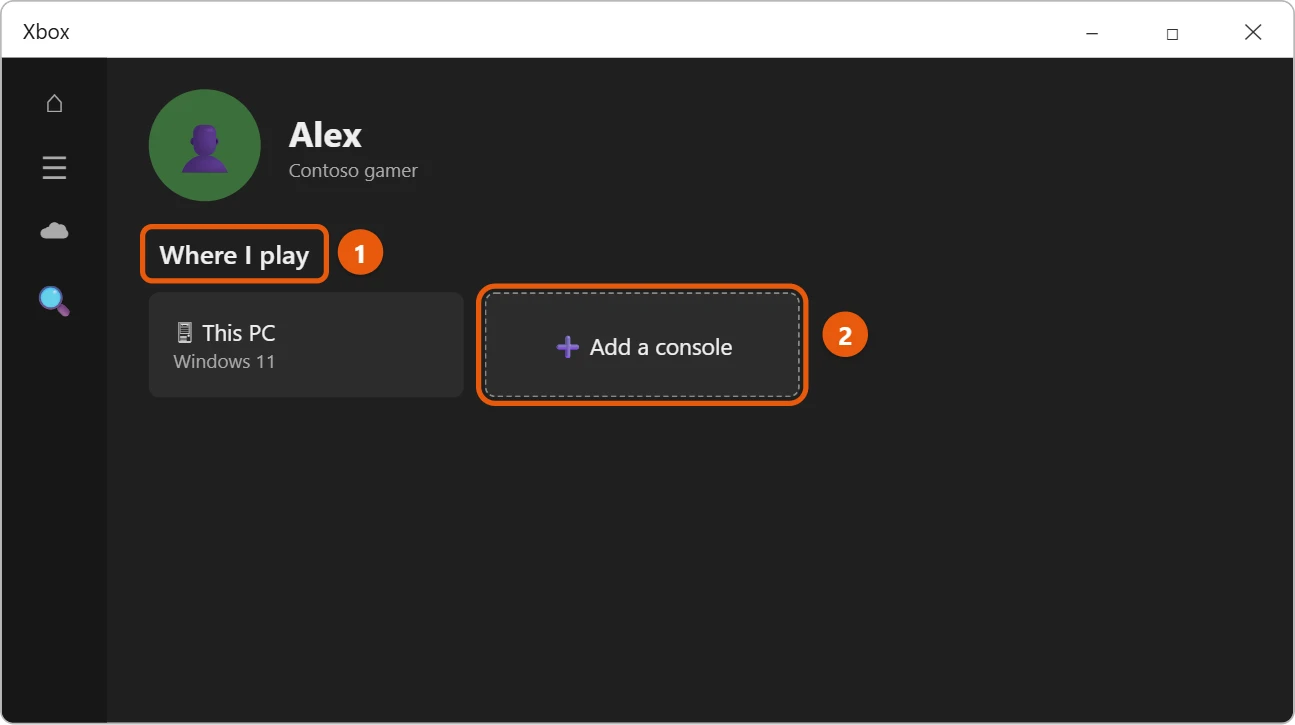
- Once your console is added, select it and choose to play remotely. Your Xbox home screen appears on the laptop.
You can also play from a browser: go to xbox.com/remoteplay in Microsoft Edge, sign in, select your console, and choose Remote play on this device.
Connect your controller to the laptop
Plug the controller into the laptop with a USB cable, or pair it over Bluetooth: turn on the controller, hold the Pair button on top until the Xbox button flashes quickly, then on the laptop go to Settings > Bluetooth & devices > Add device > Bluetooth and select Xbox Wireless Controller.
Method 2: Use a TV or monitor instead
If you want the lowest lag and the best picture, connect the Xbox to a TV or a computer monitor with HDMI, as it’s designed to be used. Many monitors have HDMI inputs, so a spare monitor works well if your TV is busy.
What about capture cards?
A USB capture card is a separate device that takes an HDMI signal in and passes it to the laptop over USB, mostly used for streaming and recording gameplay. It needs its own viewing software and usually adds some delay. We don’t cover specific products, and for simply playing, remote play is free and built in.
Tips for smoother remote play
- Connect the Xbox with an Ethernet cable if you can, and put the laptop on 5 GHz Wi-Fi.
- Close downloads and video streams on other devices while you play.
- Save often. If the connection drops, you could lose progress.
- Only one person can play remotely at a time on a console.
If remote play doesn’t work
- Your console doesn’t appear. Make sure it’s signed in with the same account, remote features are on, and Power options is set to Sleep.
- The picture is blurry or laggy. Your network is too slow or busy. Move closer to your router, switch the laptop to 5 GHz Wi-Fi, or use Ethernet for the console.
- The controller doesn’t respond. Make sure it’s connected to the laptop, not still paired to the console. See how to connect an Xbox controller to Windows 10; the steps are the same on Windows 11.
- Bluetooth won’t turn on. See how to turn on Bluetooth in Windows 11.
- You see a network or NAT error. Restart your router and console, then try again.
Frequently asked questions
Can I use my laptop as a monitor for my Xbox with HDMI?
Only if the laptop has an HDMI input, which is rare. Most laptops don’t. Use remote play instead.
Will plugging the Xbox into my laptop’s HDMI port damage anything?
No. Nothing happens, because both ports are outputs.
Do I need Xbox Game Pass for remote play?
No. Remote play is free and plays the games on your console. Cloud gaming is a different feature that streams games from Microsoft’s servers and needs a Game Pass plan.
Can I use my PC’s keyboard and mouse?
Not for remote play. Xbox Support says you need a controller.
Can I show my laptop’s screen on a TV instead?
Yes. See how to cast Windows 11 to a TV and how to set up multiple monitors in Windows 11.
Next steps
To learn more about HDMI input on computers, see how to view HDMI input on a PC or laptop. Xbox explains every setting in How to set up remote play.
Related: connect a PS5 controller to Windows 11.

Matt Jacobs has been working as an IT consultant for small businesses since receiving his Master’s degree in 2003. While he still does some consulting work, his primary focus now is on creating technology support content for SupportYourTech.com.
His work can be found on many websites and focuses on topics such as Microsoft Office, Apple devices, Android devices, Photoshop, and more.