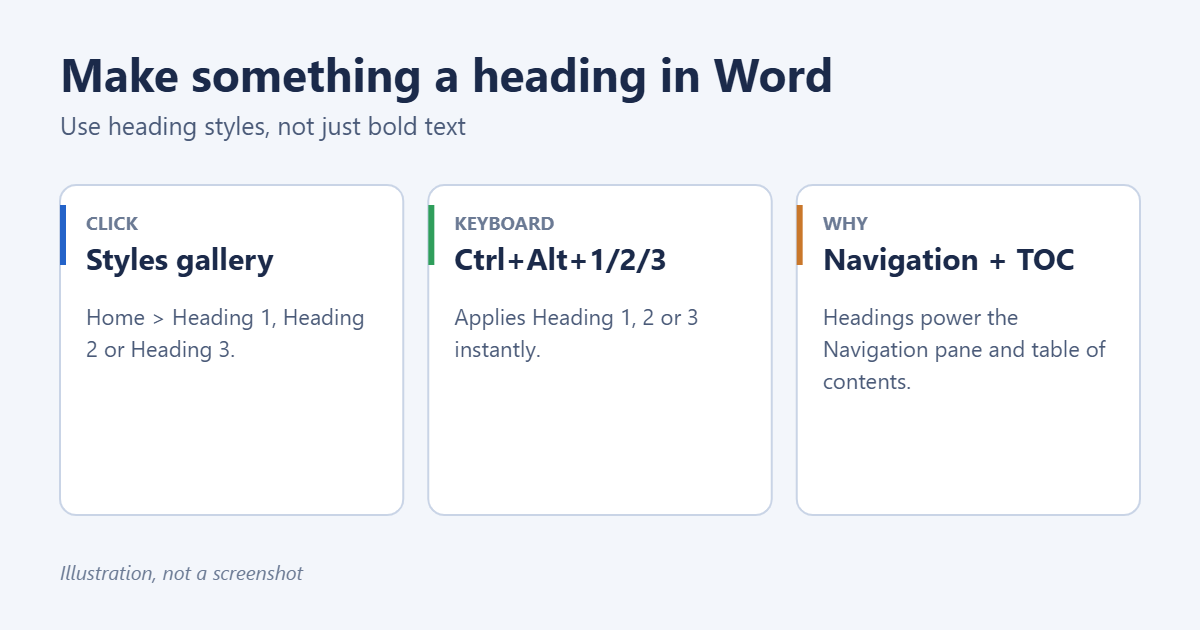
To make something a heading in Word, click in the line and choose Heading 1, Heading 2 or Heading 3 in the Styles gallery on the Home tab. Or press Ctrl+Alt+1, Ctrl+Alt+2 or Ctrl+Alt+3. Using real heading styles, rather than just making text big and bold, lets Word build a table of contents, show the heading in the Navigation pane, and collapse sections.
Applies to: Word for Microsoft 365, Word 2024, 2021, 2019 and 2016 on Windows and Mac, and Word for the web. On a Mac, the shortcuts are Command+Option+1, 2 and 3. Last reviewed October 8, 2026.
Apply a heading style
- Click anywhere in the line you want as a heading. You don’t need to select it.
- On the Home tab, select Heading 1 in the Styles gallery for main sections, Heading 2 for subsections, and Heading 3 for the level below.
If you only see Heading 1 and 2, use Heading 2 once; Heading 3 then appears in the gallery. Select the small arrow at the bottom right of the gallery to open the full Styles pane.
Use keyboard shortcuts
- Ctrl+Alt+1: Heading 1
- Ctrl+Alt+2: Heading 2
- Ctrl+Alt+3: Heading 3
- Ctrl+Shift+N: back to Normal text
What headings do for you
- Navigation pane: press Ctrl+F or go to View > Navigation Pane to see every heading and click to jump. You can drag headings there to move whole sections. See how to use the Navigation pane in Word.
- Table of contents: References > Table of Contents builds one from your headings. See how to add a table of contents in Word.
- Collapsing: hover over a heading and select the small triangle to fold the section. See how to make collapsible sections in Word.
- Accessibility: screen readers use headings to move through documents.
Change how headings look
- Right-click Heading 1 in the Styles gallery and choose Modify.
- Change the font, size, color and spacing. Select Format > Paragraph for spacing before and after.
- Choose New documents based on this template if you want it as your default, then select OK.
A faster way: format one heading by hand, then right-click Heading 1 and choose Update Heading 1 to Match Selection. Every Heading 1 changes at once. For whole-document looks, try Design > Style Sets.
Turn headings into PDF bookmarks
When you save as PDF, Word can turn your headings into clickable bookmarks. Go to File > Save As, choose PDF, select Options, and tick Create bookmarks using > Headings. Readers can then jump between sections from the PDF’s bookmarks panel, just like the Navigation pane in Word.
Headings in Word for the web
The Styles gallery is on the Home tab. Select a heading style from it; the Ctrl+Alt shortcuts may be taken by your browser, so the gallery is the reliable option. The Navigation pane is under View > Navigation.
Number your headings (1, 1.1, 1.2)
- Click in your first Heading 1.
- On the Home tab, select Multilevel List.
- Choose the style that shows 1 Heading 1, 1.1 Heading 2 in the list library.
All headings are numbered automatically and renumber when you move sections.
Promote or demote a heading
In the Navigation pane, right-click a heading and choose Promote or Demote. Or click the heading and press Alt+Shift+Left or Alt+Shift+Right.
Troubleshooting
The heading doesn’t show in the table of contents
It was formatted manually, not with a heading style. Apply Heading 1, 2 or 3, then update the TOC. More fixes: how to fix a table of contents in Word.
The whole paragraph became a heading
Headings apply to a whole paragraph. Press Enter after the heading text so the body text is a separate paragraph, then set it to Normal.
Collapse arrows are annoying
See how to remove expand and collapse in Word.
Frequently asked questions
How many heading levels are there?
Nine, from Heading 1 to Heading 9. Most documents only need three.
Is the Title style a heading?
No. Title is for the document title and isn’t included in the table of contents by default.
Related: How to Link a Table of Contents to Pages in Word.
Related: How to Add an Appendix in Word.
Related: change font size in Word.

Matt Jacobs has been working as an IT consultant for small businesses since receiving his Master’s degree in 2003. While he still does some consulting work, his primary focus now is on creating technology support content for SupportYourTech.com.
His work can be found on many websites and focuses on topics such as Microsoft Office, Apple devices, Android devices, Photoshop, and more.