Gmail is a website, not a Windows app, so you set it as the default email in two steps. First, open Gmail in your browser and select Allow when the browser asks whether Gmail can open all email links. Then select Start > Settings > Apps > Default apps, choose your browser, and set MAILTO to that browser. After that, email links anywhere in Windows open a new Gmail message.
Applies to: Windows 11 with Google Chrome or Microsoft Edge. Checked on September 30, 2026.
Step 1: Let Gmail open email links in your browser
In Google Chrome
- Open Chrome, go to mail.google.com and sign in.
- Look at the right end of the address bar for the handler icon, which looks like two small overlapping diamonds.
- Select it, choose Allow when asked whether mail.google.com can open all email links, and then select Done.
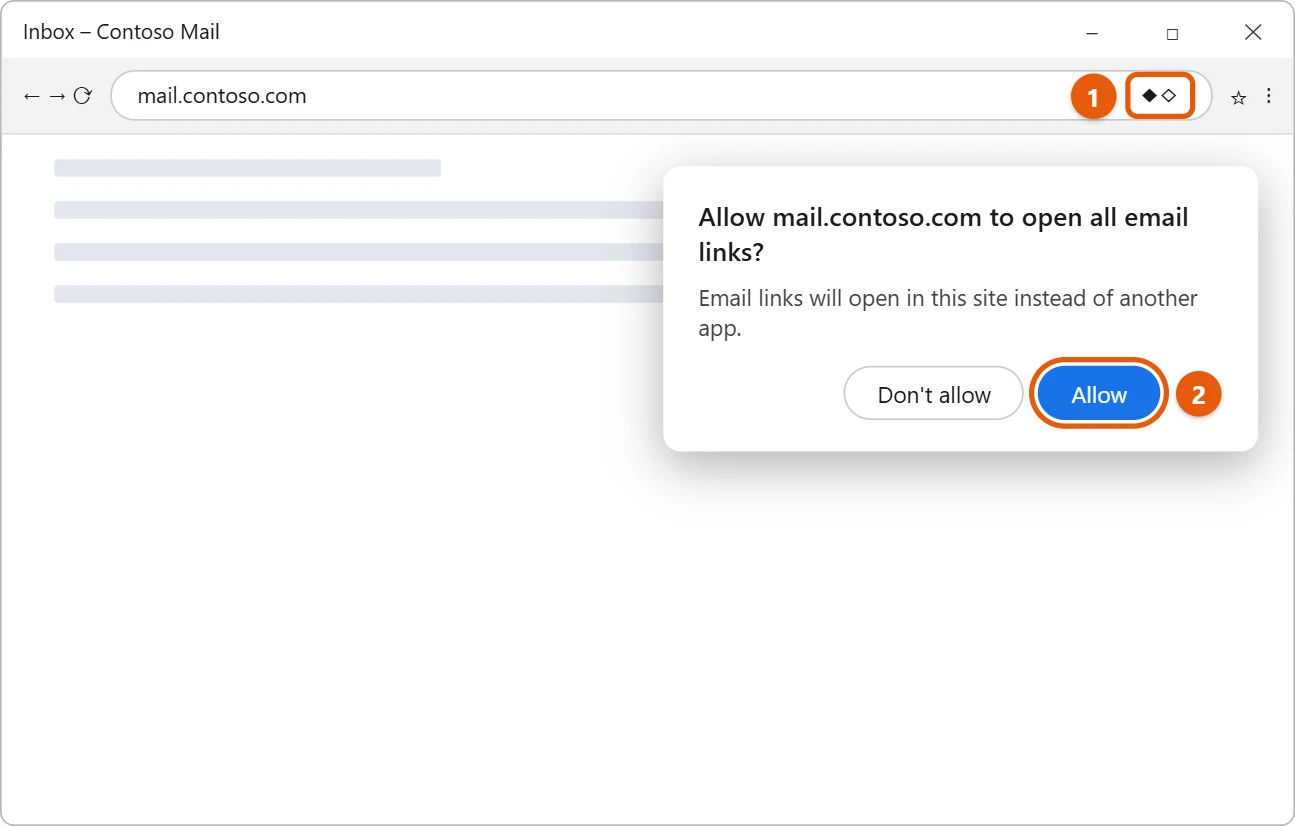
If you don’t see the icon, Chrome may be set to block these requests, or you may have said no before. Go to More (⋮) > Settings > Privacy and security > Site settings > Additional permissions > Protocol handlers. Turn on Sites can ask to handle protocols, and remove mail.google.com from the Not allowed list if it’s there. Then reload Gmail and look for the icon again.
In Microsoft Edge
- Open Edge, go to mail.google.com and sign in.
- If Edge shows the handler icon in the address bar, select it and allow Gmail to open email links.
- If it doesn’t, go to Settings and more (…) > Settings > Cookies and site permissions > Handlers, turn on Allow sites to ask to become default handlers for protocols, and reload Gmail.
Step 2: Set your browser as the default for email links
- Select Start > Settings > Apps > Default apps.
- In the search box under Set defaults for applications, type the name of your browser and select it.
- Scroll to MAILTO and select the app shown next to it (often Outlook).
- Choose your browser, and then select Set default.
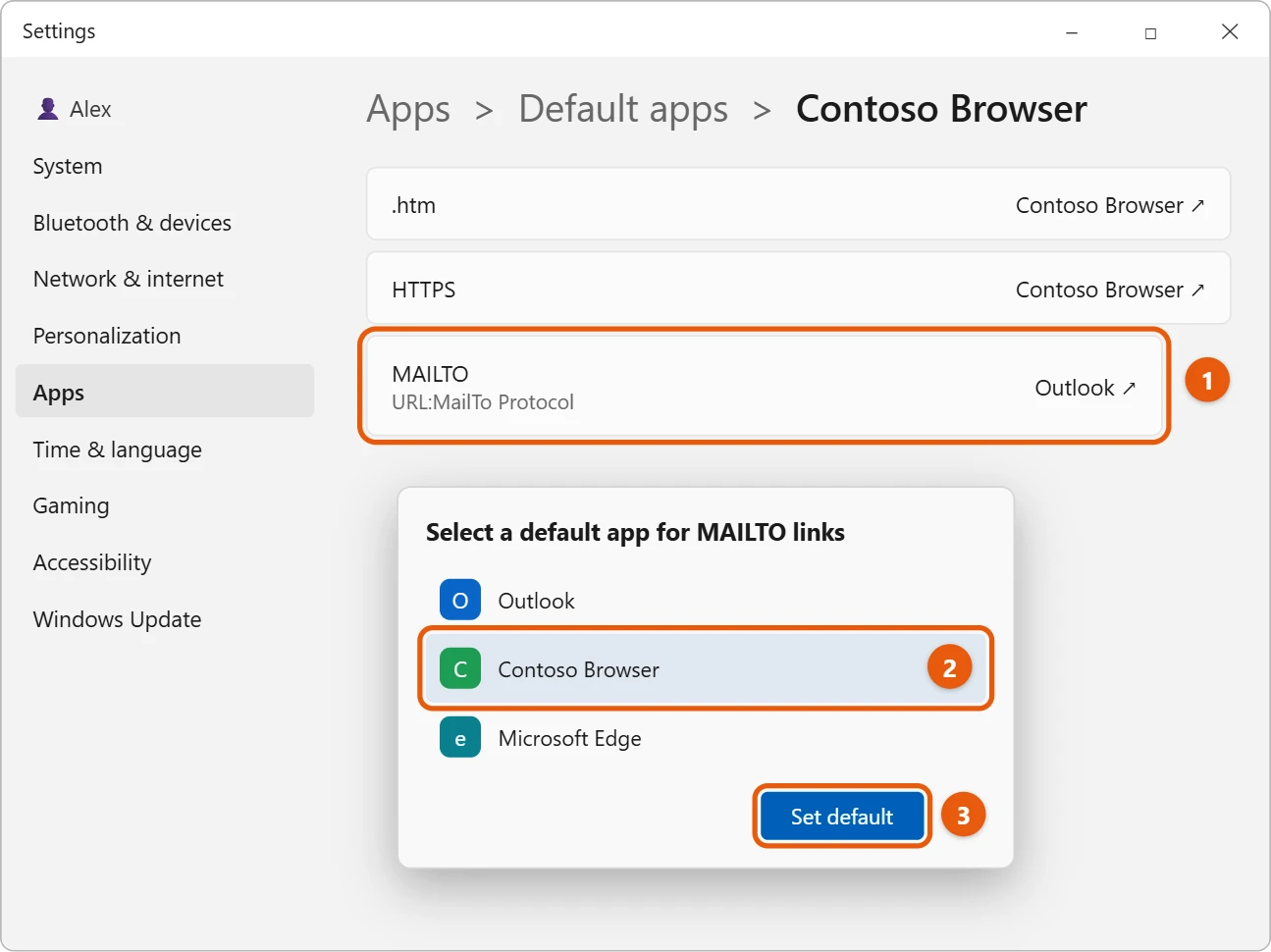
You can also search for MAILTO under Set a default for a file type or link type at the top of Default apps and change it there. For more on default apps, see how to change the default browser in Windows 11.
Test it
Open any page or document with an email link, for example a contact page, and select the link. Your browser should open a new Gmail message with the address filled in.
If email links still open another app
- The wrong app still opens. Check MAILTO in Default apps again. Some email apps ask to become the default when you install or open them, so set it back if needed.
- The browser opens but not Gmail. Step 1 wasn’t completed in that browser. Make sure you allowed Gmail in the same browser you chose for MAILTO.
- Gmail opens in the wrong account. If you use more than one Google account in the same browser, use a separate browser profile for each account, and allow Gmail in the profile you want.
- A work or school PC won’t let you change defaults. Your organization may manage default apps. Ask your IT administrator.
Use a Gmail app window instead
If you’d like Gmail to feel more like an app, you can install it as a web app in Chrome or Edge and pin it to the taskbar. This doesn’t change which app opens email links, but it gives Gmail its own window and icon. For the steps with another Google site, see how to pin Google to the taskbar in Windows 11.
Frequently asked questions
Can I add Gmail to the Windows Outlook app instead?
Yes. Outlook for Windows can add a Gmail account, and then Outlook can stay your default email app. That’s a different approach from opening Gmail in a browser. To open it quickly, you can also put a mail icon on the Windows 11 desktop.
Does this change where attachments or “Send to” emails open?
It changes links that start with mailto:. Some apps, like the Send to > Mail recipient option, use a desktop email program instead and won’t open Gmail in a browser.
How do I undo it?
Set MAILTO back to your previous email app in Default apps. You can also remove mail.google.com from the protocol handlers list in your browser’s settings.
Next steps
If cookies or old site data stop Gmail from loading, see how to clear cookies in Chrome on Windows 11.
Related: how to set an out of office reply in Gmail.
Related: how to remove your signature in Gmail.

Matt Jacobs has been working as an IT consultant for small businesses since receiving his Master’s degree in 2003. While he still does some consulting work, his primary focus now is on creating technology support content for SupportYourTech.com.
His work can be found on many websites and focuses on topics such as Microsoft Office, Apple devices, Android devices, Photoshop, and more.