How to Delete Services in Windows 10: A Step-by-Step Guide

Deleting services in Windows 10 can be a breeze if you know where to look. Essentially, you’ll be using the Command Prompt to find and remove the unnecessary services from your system. First, identify the service you want to delete, then open the Command Prompt with admin rights and execute a simple command. It’s like spring cleaning your PC to get rid of clutter and boost performance.

Step-by-Step Tutorial on How to Delete Services Windows 10

In this guide, we’ll walk you through the process of deleting a service from your Windows 10 system. By following these straightforward steps, you’ll be able to remove unwanted services and keep your computer running efficiently.

Step 1: Identify the Service

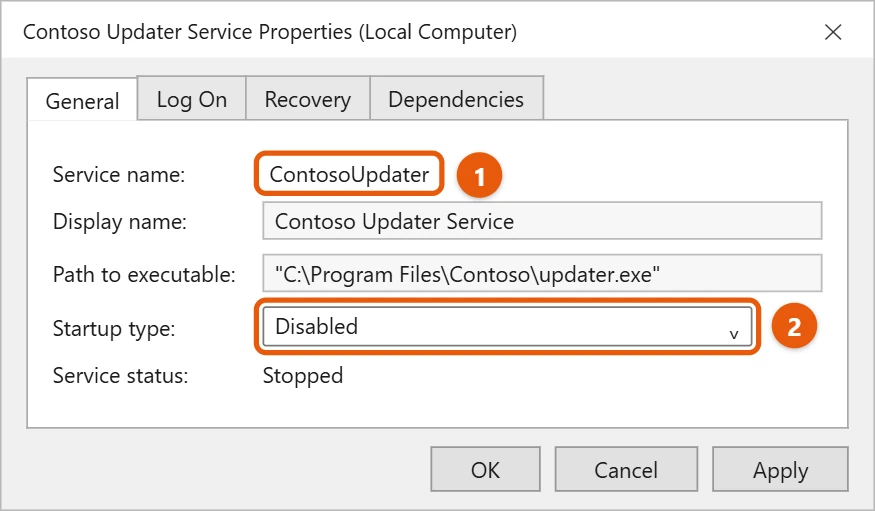
Before you can delete a service, you need to know its exact name.

You can find the list of services by typing “services.msc” in the Run dialog box. Look for the service you no longer need. Right-click on it and select “Properties” to see the service name.

Step 2: Open Command Prompt as Administrator

You’ll need elevated permissions to delete a service, so open the Command Prompt with admin rights.

Search for “cmd” in the Start menu, right-click on “Command Prompt,” and choose “Run as administrator.” This ensures you have the necessary permissions to make system changes.

Step 3: Use the Command to Delete the Service

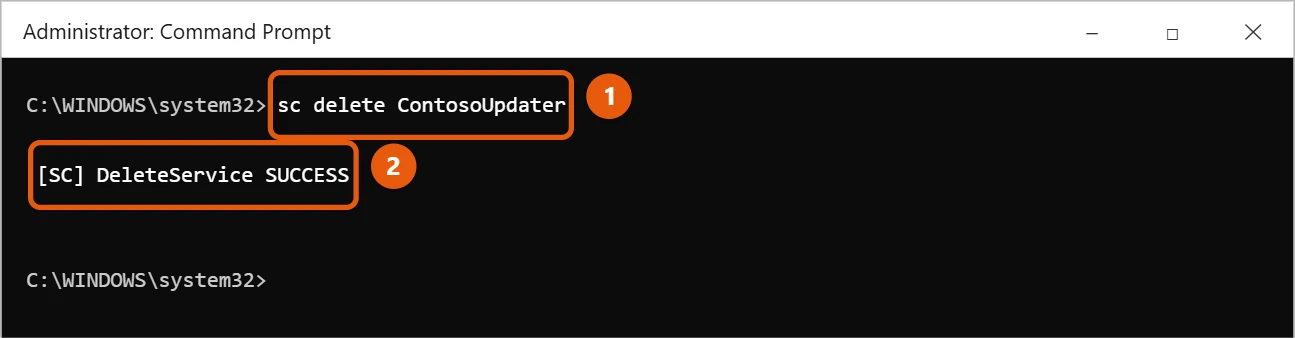
Enter the command sc delete [ServiceName] in the Command Prompt, replacing [ServiceName] with the actual name of the service.

This command tells Windows to remove the specified service from your system. Be sure to double-check the service name as this action cannot be undone easily.

Step 4: Confirm the Deletion

Check the Command Prompt for confirmation that the service has been deleted.

If successful, you’ll see a confirmation message. If there’s an error, make sure the service name was entered correctly and that you have administrative rights.

Step 5: Restart Your Computer

To finalize the deletion, restart your computer.

Restarting ensures that any running instances of the deleted service are completely removed from memory. It’s a good practice to reboot after making changes to services.

After completing these steps, the unwanted service will be gone from your Windows 10 system, freeing up resources and potentially improving performance.

Tips for How to Delete Services Windows 10

  • Always double-check the service name before deleting to avoid removing essential services.
  • Consider disabling the service first to see if it impacts system performance before permanently deleting it.
  • Keep a list of the services you delete, in case you need to reinstall them later.
  • Use the “Description” field in the service properties to understand what the service does before deciding to delete it.
  • Regularly review your services to ensure your system remains optimized.

Frequently Asked Questions

What happens if I delete a critical service?

If you delete a critical service, it might impact system functionality. Always research a service before removing it.

Can I recover a deleted service?

Not directly. You’d need to reinstall the application or service that originally installed it.

Will deleting services speed up my PC?

It can, especially if they are resource-heavy and unnecessary.

Is it safe to delete any service?

No, only delete services you are sure are not needed for system operation.

How do I know if a service is unnecessary?

Research the service name online or seek advice from tech forums to determine its importance.

Summary

  1. Identify the service.
  2. Open Command Prompt as Administrator.
  3. Use the command to delete the service.
  4. Confirm the deletion.
  5. Restart your computer.

Conclusion

Deleting services in Windows 10 may sound technical, but with the right guidance, it’s simpler than baking a pie. Knowing how to manage your system services is akin to keeping your house tidy; it ensures everything runs smoothly and efficiently. Be cautious with your deletions, focusing only on those services you’re certain you don’t need. It’s like pruning a garden – remove the weeds, but keep the flowers blooming!

If you’re curious about other ways to optimize your PC, consider looking into startup programs or unnecessary software. By maintaining control over what runs on your system, you’ll enjoy a faster, more responsive computing experience. Your Windows 10 can be a well-oiled machine with just a little regular maintenance.

Remember, technology should work for you, not the other way around. Keep exploring, learning, and tweaking until your PC feels just right. Happy computing!

Get Our Free Newsletter

How-to guides and tech deals

You may opt out at any time.
Read our Privacy Policy